Yes, you can export your books from your Kindle by logging into your account on a different Kindle or device (desktop Kindle app, for example), then downloading books to your library. You can then convert them to a PDF before exporting to another device.
No, Kindle docs are not EPUB files. But you can copy EPUB files onto your Kindle, which will automatically convert them into a readable eBook file called AZW3.
Yes, you can convert Kindle to PDF on a Mac by opening the document from your Kindle on your Mac and using a
PDF converter like Adobe Acrobat.
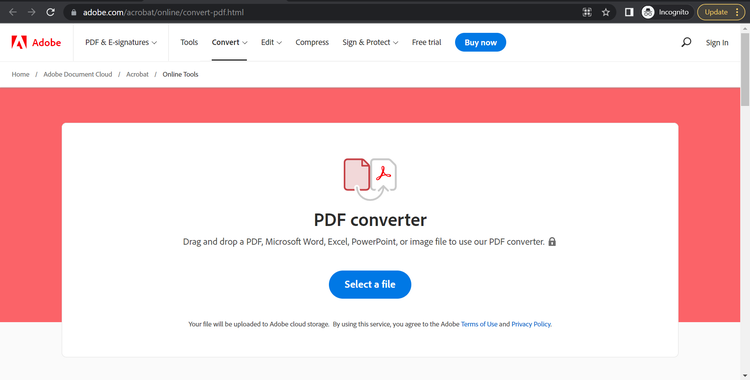
You can convert Kindle files to PDF using tools such as the Adobe Acrobat PDF converter. Simply download the Kindle file, upload it to the converter, and export it as a PDF.
Converting Kindle books to PDF may be permitted for personal use, depending on copyright restrictions. Many Kindle files are protected by Digital Rights Management (DRM), which can limit copying or conversion. You should always check the content licence and applicable copyright laws before converting or sharing files.
To convert DRM-protected Kindle books to PDF, you'll need to remove the DRM first with third-party software, then save them as a PDF.
Yes, you can convert Kindle books to PDF for free using the Adobe Acrobat PDF converter.
Yes, you can convert Kindle books to other formats, like EPUB or Word. Kindle files typically come in AZW format, but can be easily converted to EPUB or Word after converting them to a PDF.
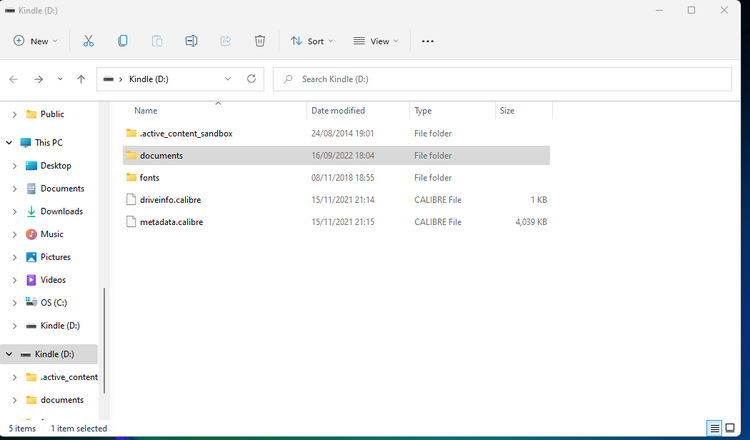
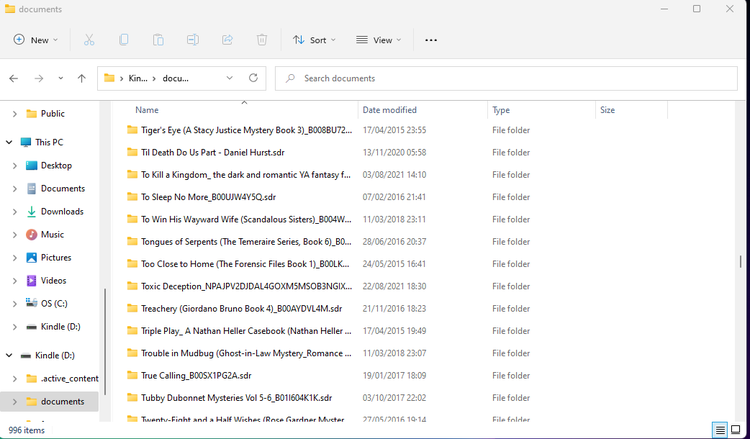
When considering the potential limitations of converting Kindle to PDF, remember that Kindle files with DRM protection can be more challenging to convert. You'll also need to download the Kindle file to your PC before using a converter.
PDFs are known for maintaining document formatting. Meanwhile,
Kindle file formats are reflowable, meaning they can be adjusted to fit the user, and the device they're on. So, while a PDF will preserve the format of your Kindle file, you may have fewer customisation options when viewing it as a PDF on your device.
The alternative to converting Kindle books to PDF is to read the Kindle books using the Kindle app, which lets you access Kindle files on any device without converting it.