#1E1E1E

https://www.adobe.com/cc-shared/assets/img/product-icons/svg/firefly-appicon-64-new.svg

{{Adobe Firefly}}

https://www.adobe.com/cc-shared/assets/img/product-icons/svg/firefly-appicon-64-new.svg

{{Adobe Firefly}}

Use everyday language to create extraordinary results with generative AI.

Try Generative Match

https://www.adobe.com/cc-shared/assets/img/product-icons/svg/firefly-appicon-64-new.svg

{{Adobe Firefly}}

Use everyday language to create extraordinary results with generative AI.

Try Generative Match

The power of AI image style transfer.

Why use an image style transfer?

Create spot-on content.

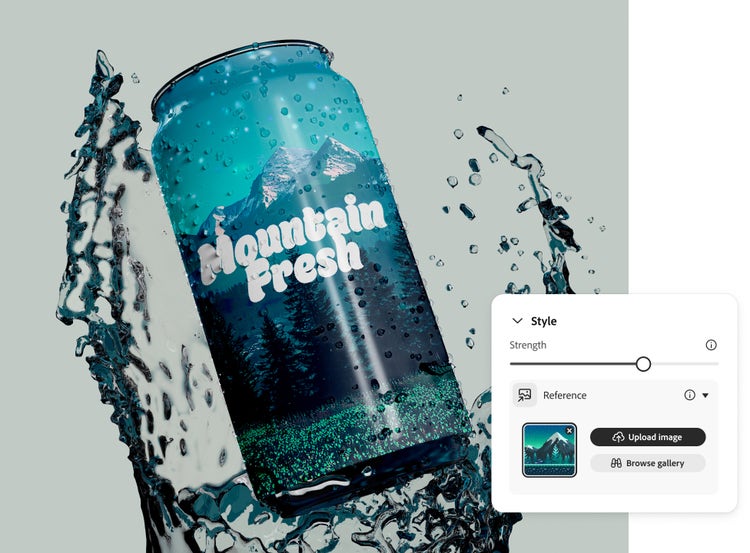
Generate assets for articles, blogs and social media posts with reference images so that whatever you make fits in with the rest of your content.

Statue of a tiger prompt

Prompt: Statue of a tiger

Tiger facing the camera with a menu showing different colour options

Get to the right images faster.

Change your designs as fast as you change your mind or as needed to keep up with the latest trends. Make quick updates to colour, style and texture without starting from scratch.

Inserting image...

Greater accessibility

Recreating artwork can be difficult but with image style transfers, you convert existing images into your chosen styles regardless of your abilities.

How to use Generative Match in Firefly.

Use Generative Match to steer your generative AI creations in exactly the right direction. Follow these steps to apply a style transfer to your AI-generated images.

  • Open Firefly.
    Go to the Text to Image module in the Firefly web app. (If you’re not signed in, sign in to your Adobe account or create an account for free.) Hover over any image in the gallery and select View Samples.
  • Select a reference image.
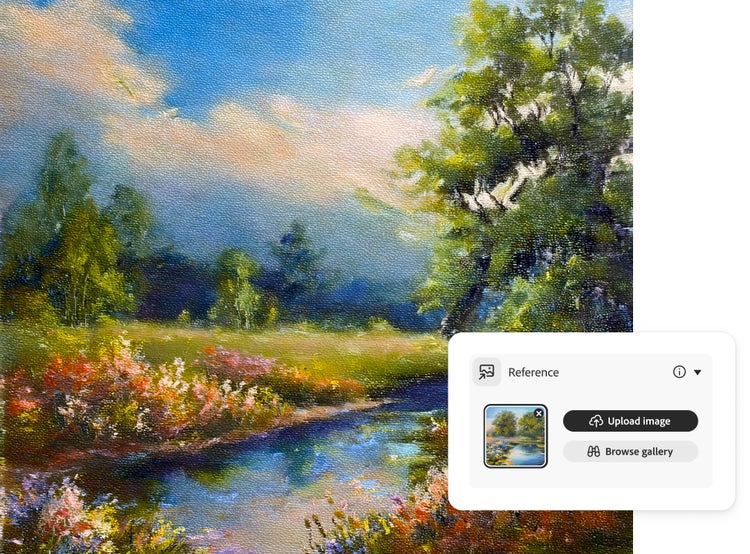
    In the control panel to the right of the image results, make sure Firefly Image 2 model is selected. In that same panel, scroll down to the Match section. Click the Reference Gallery to scroll through the images until you find one you want to try.
    To use your own image, drag and drop it into the control panel or click Upload Your Own Image and select it from the pop-up menu. (You must have the rights to any third-party images you upload.)
  • Click Generate.
    Check out the results.
  • Refine.
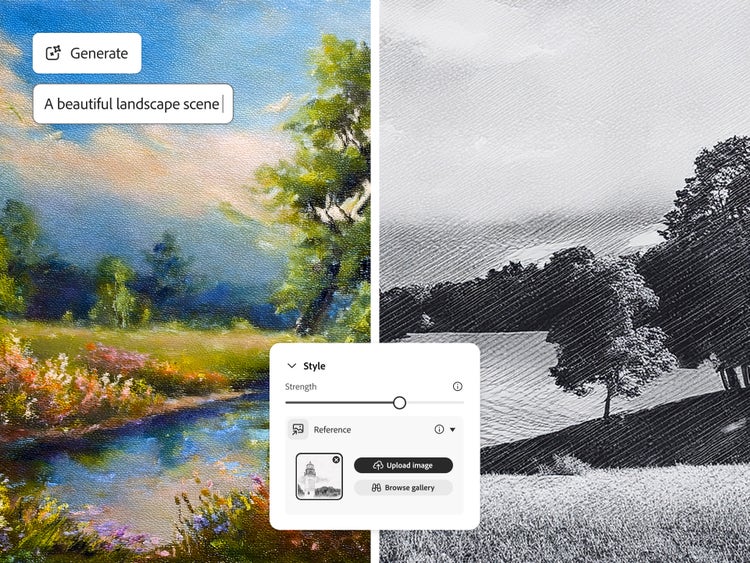
    Move the Style Strength slider in the control panel to adjust the strength of the reference image’s effect on the style of your image. You can also make other adjustments to colour and tone, lighting and composition. Click the Edit button in the top left of an image to take it into the Generative Fill workspace.
  • Save your work.
    Click the heart in the top right to save the image to your Favourites or click the More Options button to download it as a PNG or save it your libraries.

Try Generative Match.

Streamline editing with Firefly's image style transfer generator and make image variations based on the style of an existing image in seconds.

Get Started

Remix content from the community.

Discover Firefly prompts to remix and submit your own images to the gallery.

{{questions-we-have-answers}}

What is AI image style transfer?

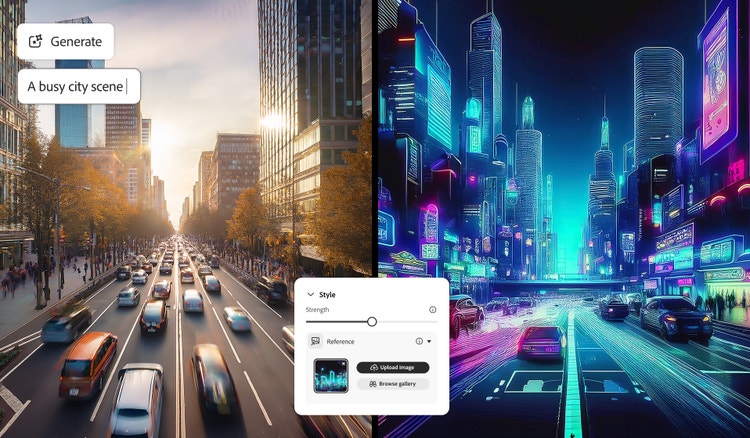
AI image style transfer, also known as neural style transfer, is the use of an AI generator to create an image in the style of a reference image. For example, if you want to generate an image of a comic book superhero, you can select the comic book style image from the Digital Illustration section of the Reference Image Gallery. Firefly uses deep neural networks to understand the style of the reference image and apply it to a prompt, so you can achieve the look you want more quickly and with greater accuracy.

How do image style transfers work?

Image style transfers use trained neural networks, which learn the style features of the reference image (including colours, textures and brush strokes). The neural networks then apply those style features to the content of another image. In Firefly, Generative Match applies the style features to the new images it generates from text prompts.

Is Generative Match suitable for professional or commercial use?

As part of Adobe’s effort to design Firefly to be commercially safe, Adobe trains its initial commercial Firefly models on licensed content, such as Adobe Stock and Public Domain content, where the copyright has expired. If you upload third-party reference images, you must have the rights to use them.

What’s the best free AI image generator?

Adobe Firefly offers an AI image generator that allows you to create images for free with just a simple prompt. You can then edit the image based on your requirements, by tweaking things such as tone, angle and more. You can also introduce references to style your AI images to match an existing design.

What are the benefits of using Generative Match for content creation?

Adobe Firefly’s Generative Match empowers teams to create content that stays visually and stylistically consistent. By learning from existing assets, it generates new content that maintains brand consistency, saving time on revisions without sacrificing creative control.

How does Adobe Firefly compare to other free AI image generators?

While many free AI image generators focus on speed or novelty, Adobe Firefly emphasises control, consistency, and responsible AI. Firefly is built on licensed and Adobe‑owned content and Creative Cloud integration, making it a safer and more reliable option for professional use.

Can Generative Match be used for video content or only images?

Adobe Firefly’s Generative Match is currently designed for image‑based content, not video. It helps creators match visual styles, tones, and elements across images to maintain consistency. While Adobe continues to expand Firefly’s capabilities, Generative Match today is primarily focused on imagery. Other Firefly features, like image-to-video, are dedicated to video generation.

What are some examples of AI image style transfer applications?

AI image style transfer is used in tools like Adobe Firefly, which applies consistent visual styles to new images. These applications help creators quickly generate stylised visuals while maintaining recognisable structure and content.

Are there any limitations or restrictions on using Generative Match?

Adobe Firefly’s Generative Match includes intentional limitations to ensure quality and trust for consumers. For starters, it currently supports image content only and performs best with well‑defined styles. These factors help deliver consistent, brand‑aligned outputs while upholding Adobe’s standards for responsible and professional AI use.

What is the difference between Generative Match and other Adobe Firefly features?

Generative Match differs from other Adobe Firefly features by focusing on style consistency rather than single‑prompt generation. While other tools create images from text prompts, Generative Match learns from existing assets to produce new visuals that align closely with an established look or brand.

Can I use Generative Match offline or is it cloud-based?

Adobe Firefly’s Generative Match is a cloud‑based tool and requires an internet connection. It runs on Adobe’s servers to process reference images and generate results. Being connected to the Adobe Creative Cloud allows for powerful AI performance and seamless integration across Adobe’s creative ecosystem.

Are there any tutorials or guides for advanced users of Generative Match?

Advanced users can access tutorials and guides for Generative Match through Adobe Firefly's learning resources. These materials cover deeper use cases, optimisation tips, and workflow integration, making it easier to refine outputs and apply Generative Match effectively in professional projects.