The power of AI image style transfer.
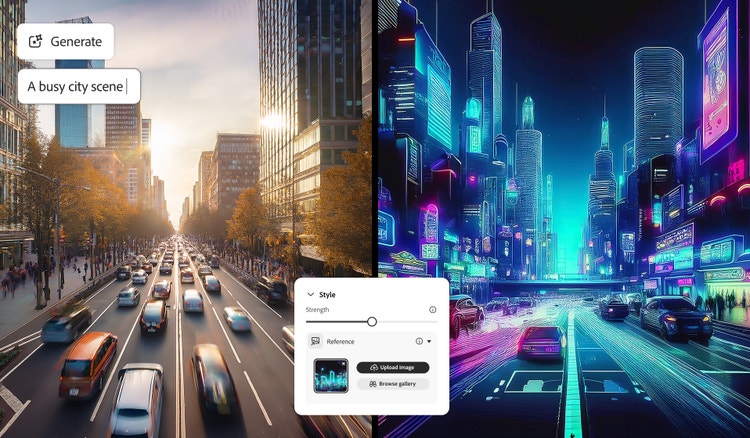
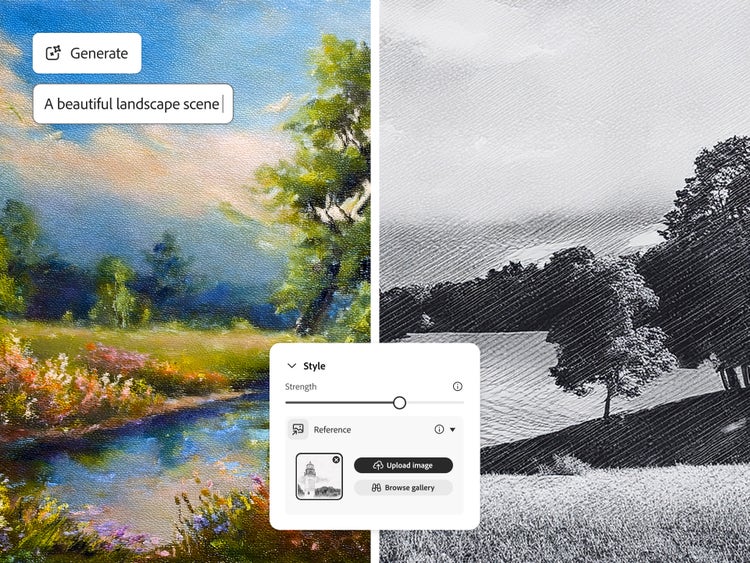
By adding a reference image along with your word prompt, you can give your logo the right watercolour effect or add dramatic lighting to a portrait you want to generate. With Generative Match in Firefly, you can use and AI-powered image style transfer to take greater creative control of your image generation.
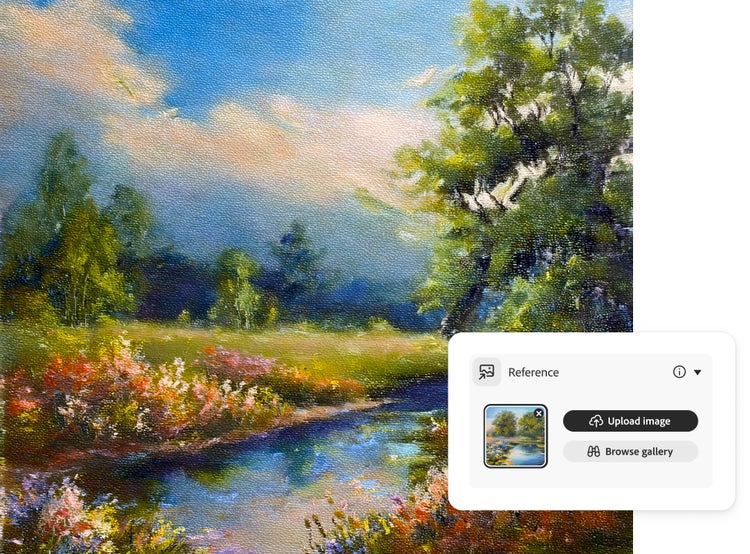
Upload your own image to generate images in your unique style. Or apply a style reference from the curated gallery, which includes dozens of options in several categories, including Watercolour, Pencil, 3D, Neon, Landscapes, Texture and more. If you don’t have an existing image you can always create your own with Firefly’s text to image generator.
Why use an image style transfer?
Create spot-on content.
Generate assets for articles, blogs and social media posts with reference images so that whatever you make fits in with the rest of your content.
Prompt: Statue of a tiger
Get to the right images faster.
Change your designs as fast as you change your mind or as needed to keep up with the latest trends. Make quick updates to colour, style and texture without starting from scratch.
Guide your work with precision.
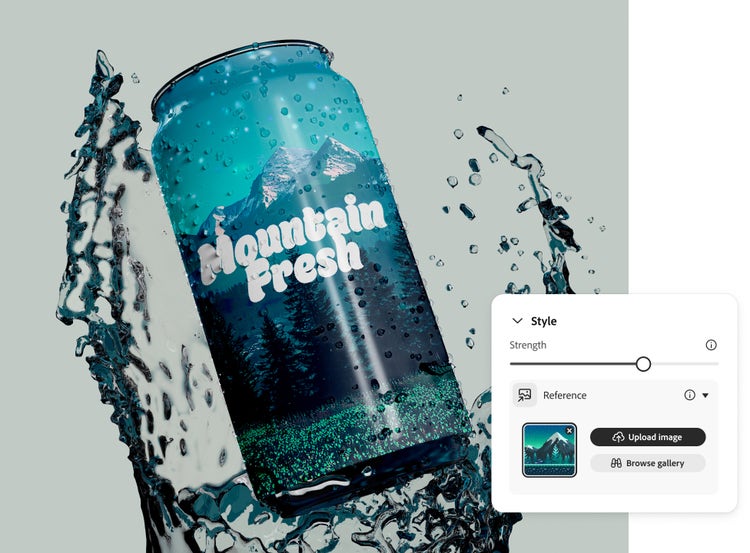
Upload your own image as a reference and then create art, illustrations, product concepts, logos, advertisements or other materials that stick to your vision and stay true to your brand.
Greater accessibility
Recreating artwork can be difficult but with image style transfers, you convert existing images into your chosen styles regardless of your abilities.
Unleash your creativity
Whether you want to convert a photo to an AI style or copy the look of an image with generative match, Adobe Firefly can give you more creative options.
How to use Generative Match in Firefly.
Use Generative Match to steer your generative AI creations in exactly the right direction. Follow these steps to apply a style transfer to your AI-generated images.
- Open Firefly.
Go to the Text to Image module in the Firefly web app. (If you’re not signed in, sign in to your Adobe account or create an account for free.) Hover over any image in the gallery and select View Samples. - Select a reference image.
In the control panel to the right of the image results, make sure Firefly Image 2 model is selected. In that same panel, scroll down to the Match section. Click the Reference Gallery to scroll through the images until you find one you want to try.
To use your own image, drag and drop it into the control panel or click Upload Your Own Image and select it from the pop-up menu. (You must have the rights to any third-party images you upload.) - Click Generate.
Check out the results. - Refine.
Move the Style Strength slider in the control panel to adjust the strength of the reference image’s effect on the style of your image. You can also make other adjustments to colour and tone, lighting and composition. Click the Edit button in the top left of an image to take it into the Generative Fill workspace. - Save your work.
Click the heart in the top right to save the image to your Favourites or click the More Options button to download it as a PNG or save it your libraries.
Remix content from the community.
Discover Firefly prompts to remix and submit your own images to the gallery.
Discover even more features.
AI image generator AI painting generator AI art generator AI video generator Translate video Translate audio Scene to image