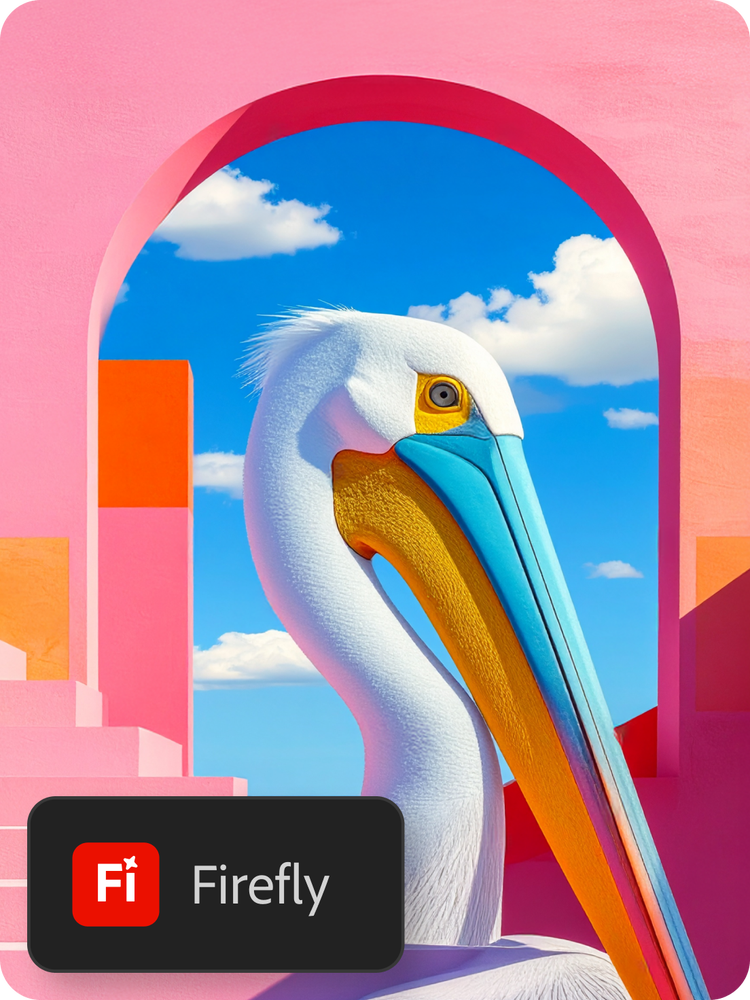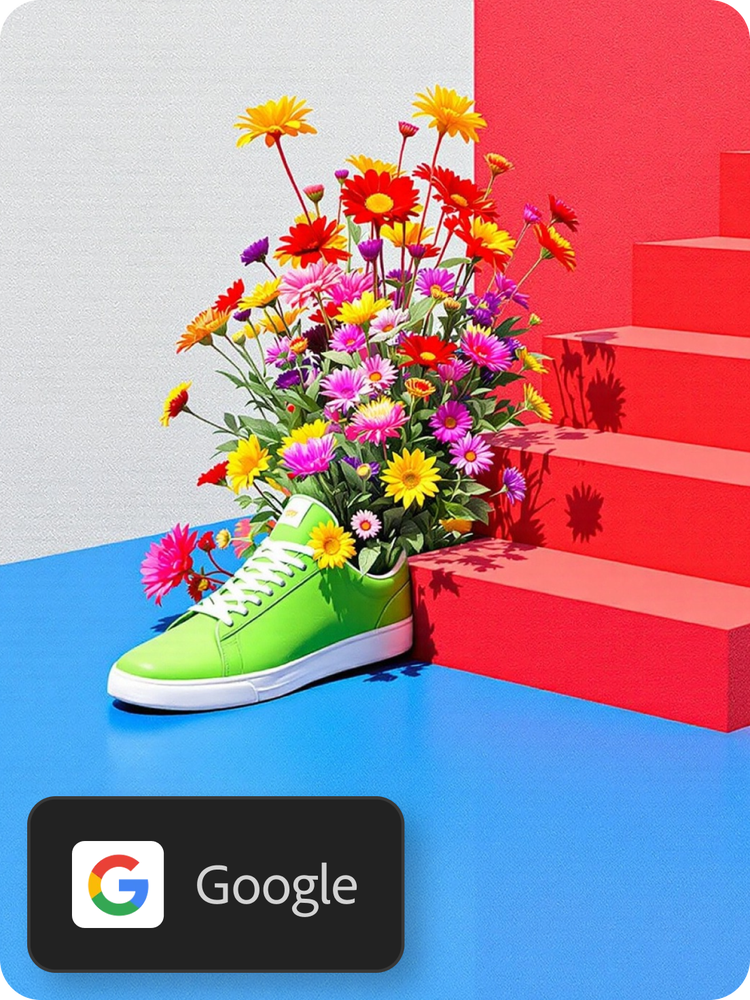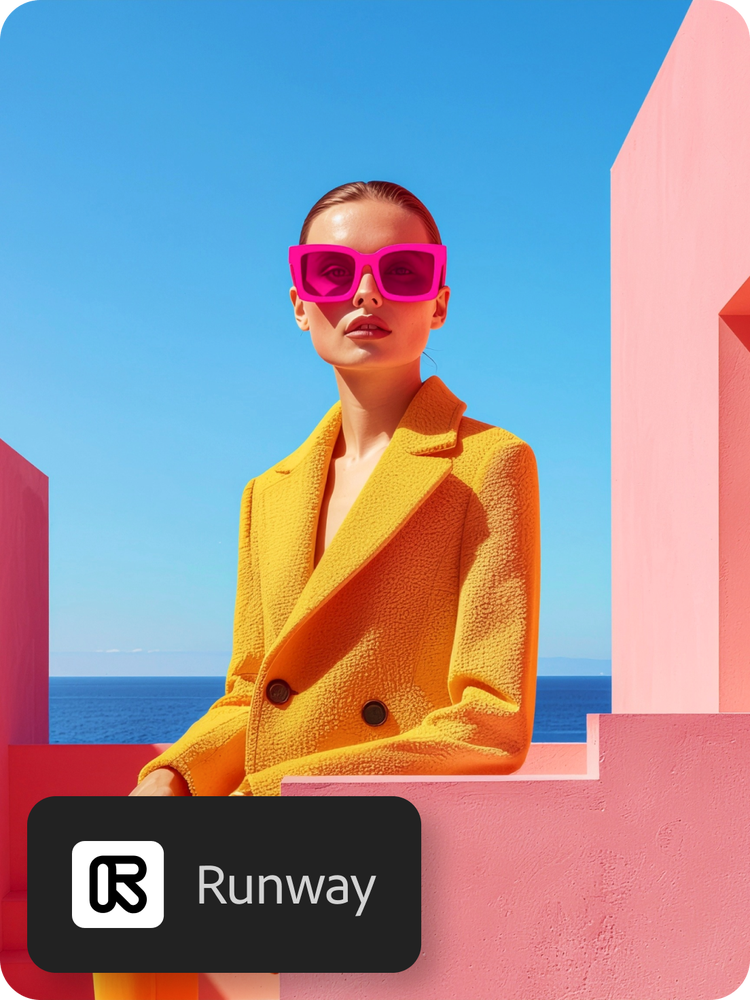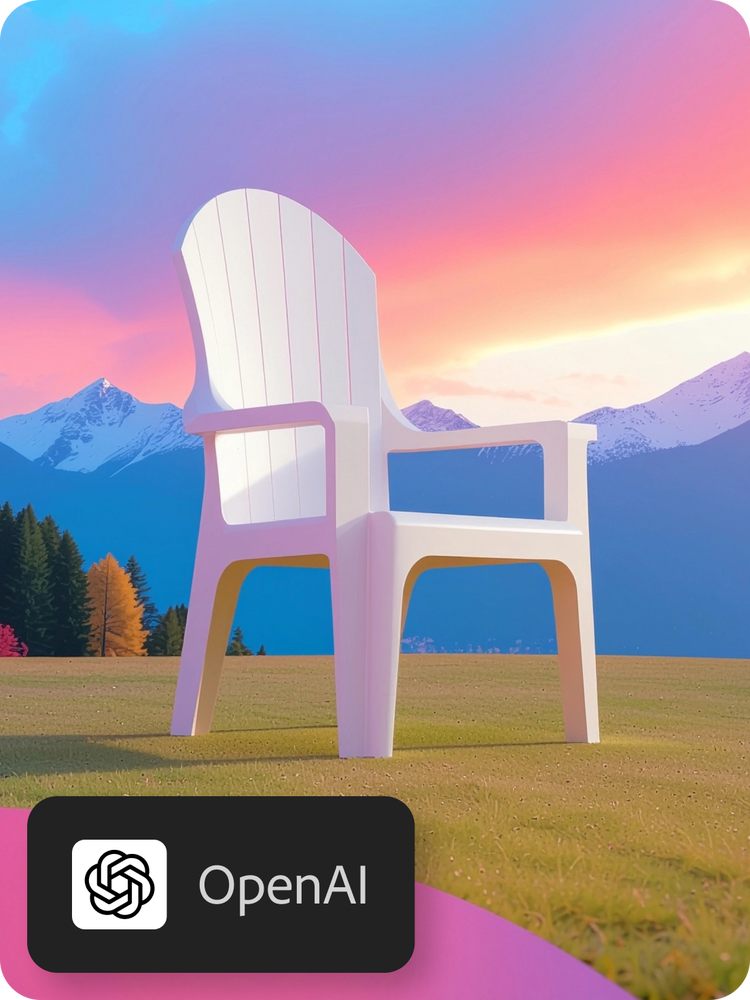
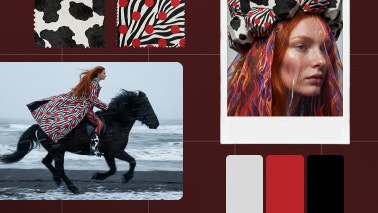
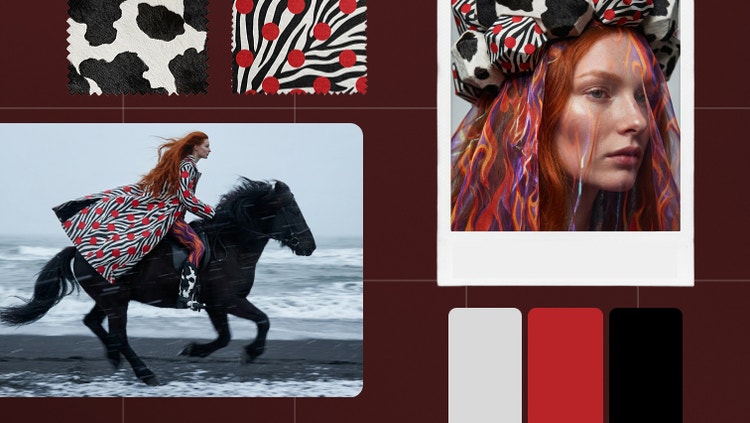


A mood board is a visual layout that combines images, colours, text and textures to express a creative concept or design direction. Mood boards can be used to help clarify ideas and set the tone for fashion, branding, interior design projects and more.
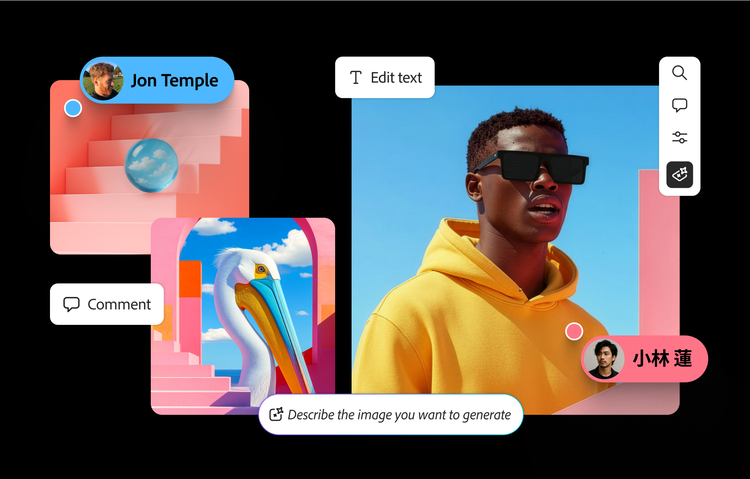
The best mood board tool will depend on how you intend to use it and what sort of mood board you want to create. For example, Firefly Boards offers accessible tools to help you create a mood board quickly and creatively. It combines templates, stock assets and generative AI in a seamless online experience.
A mood board generator is for anyone exploring visual ideas – designers, marketers, stylists, decorators and creatives of all kinds. It’s especially helpful when you need to move fast and stay inspired.
You can create a mood board for free using Firefly Boards. Simply log in with your Adobe account to access templates, import assets and start designing with AI-powered tools.
Firefly Boards (Beta) helps you streamline the creative process, making it easier to visualise, refine and present your ideas with a generative-first approach to mood boarding. It allows you to quickly explore various artistic directions, blend images, transform parts of an asset and remix styles, backgrounds and other elements.
Firefly Boards uses generative AI to support your creative flow. The mood board maker can generate new visuals, remix existing ones and apply different styles or compositions – helping you to explore and refine your ideas more effectively.
To create a mood board online, gather images, text and colour swatches matching your concept. Then, use Firefly Boards to import assets, generate new content and design your layout using artboards, text and AI-powered tools.
Once you have gathered the inputs for your mood board, you can easily edit, generate variations or remix images. Firefly Boards allows you to:
- Remix multiple images. Select multiple images from the canvas as inputs to auto-compose a text prompt. This combines all of the images and generates a new set of image variations.
- Use style references. Match the style of your generated images to the selected style of your digital mood board.
- Use composition references. Guide the layout and structure of generated images to the selected image.
- Extract sub-prompts. List the auto-generated text prompts based on the selected image and choose one to add directly to the text prompt.
To edit mood board images in Firefly Boards, you just need to select an image on the canvas and use the following editing and adjustment options:
- Prompt. Open the prompt bar showing the prompt and generation settings used and edit the prompt and other inputs, like style or structure references and styles, to enhance your generation.
- Edit. Use the Generative fill and Generative expand capabilities to edit the image.
- Remove background. Remove the background of the image.
- Find similar inspiration. Opens the Search panel and displays similar images available on Adobe Stock to match your mood board style.
- Cut, copy or duplicate the image or paste any copied elements.
- Rearrange, delete and flip the image.
- Download: Download the image to your local device.
- Open in: Open the image in Photoshop on the web or Adobe Express.
Firefly Boards has integrated content credentials to recognise the source of images, respect generative AI usage and training preferences, and promote transparency regarding how content was created.
No. No matter which generative AI models Adobe uses across its creative apps, like the mood board maker, user content is not and will not be used to train generative AI models.
Today, when generating images in Firefly Boards, users can select between Adobe’s proprietary models or a non-Adobe model from the drop-down menu in the generate panel.
We provide access to information on the non-Adobe models that users can use in Adobe apps. Still, it is the responsibility of the creator to decide whether non-Adobe models are appropriate for their project, considering factors such as the model’s focus, how it was trained, and whether it is safe for commercial use. Please refer to the terms of service of the particular model that you are using, as they apply here.
Adobe Firefly Boards uses generative AI to create completely new images and assets for your mood boards, rather than using existing images and photos. This means there's much more creative scope when building your board, as the limits are your own imagination.
Yes, you can export your mood boards from the Firefly Board app directly into other Adobe applications like
Photoshop or
Express. This helps you kickstart the creative process before you begin your project, and can act as a style reference as you work.
Rather than generating your mood boards with Firefly Boards, you could use the AI image generator to create a portfolio of high-quality visuals.
And don't forget, you'll also have access to the Creative Cloud, connecting you to Adobe Express templates. Simply browse the free mood board template library, and then edit and add to your project. You can also use Adobe apps like Photoshop or Illustrator to build your mood board from scratch and experiment with a range of professional tools and features.
You can use Firefly Boards to create a range of mood boards for different uses and projects. For example:
- Interior design boards to help you plan out your space
- Marketing boards that visualise your next campaign
- Event boards that help you plan the theme of weddings and birthdays
- Film boards that set the scene for your next big project
- Fashion mood boards to build out your wardrobe for the season.
Firefly Boards prioritises user privacy, data security and commercial safety by training only on licensed and Public Domain content. It does not train its generative AI models on user content.
Read more about Adobe Content Credentials.