
Content as a Service v2 - discover video collection - Thursday, September 12, 2024 at 16:05


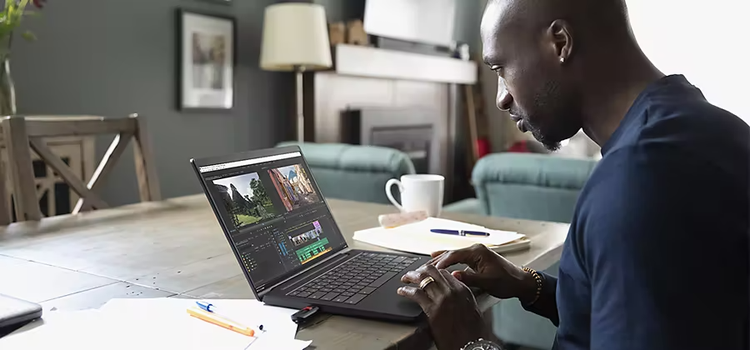

Unlike other video editing apps with conversion capabilities, Adobe Media Encoder (AME) was made for the sole purpose of converting and exporting footage to a wide variety of video formats. While it’s a heavyweight lifter that can handle large video file sizes with ease, it’s also a lightweight program that lets you edit in other apps like Adobe Premiere or After Effects while you convert. With a folder organization system and the ability to set presets as well as do batch conversions, AME is a handy tool for all your encoding needs.
1. Select File or hit the plus “+” button in the top left corner of the rendering queue.
2. Choose a file and add it to the queue.
3. Select an export preset or choose custom settings.
4. Click on the output file to set the output location and change the file name.
5. Press Start.
You can also follow along for a step-by-step visual.
Get answers for troubleshooting common issues when exporting your media.
You can seamlessly encode and upload videos to social media platforms right from AME. Save yourself a step next time you share to Twitter or upload a Vimeo or YouTube video.
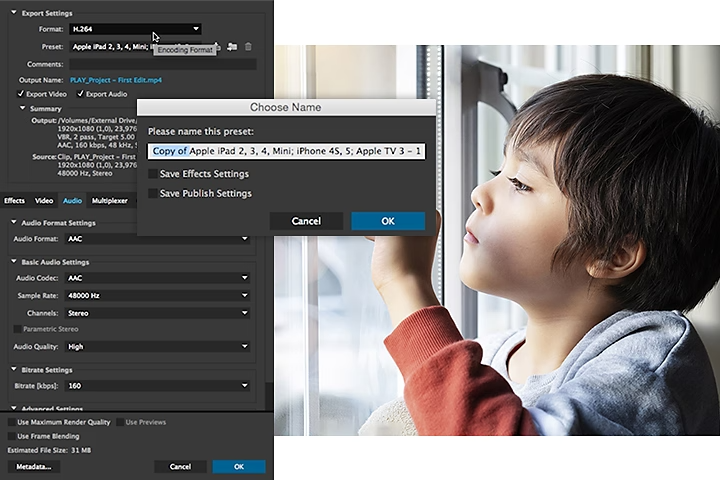
Premiere is great at rendering ultra-high-quality video, but throughout the editing process, it’s helpful to be able to quickly share smaller files that work on lighter-weight devices, like iPads or iPhones. Learn how to make lower-resolution versions of your videos with AME right from Premiere and how to switch between HD video and proxies.
You can export media to AME from Premiere and After Effects. Go to File, click Export, and then select Media. Or hit Control+M (Windows) or Command+M (Mac). You’ll then be taken to the export dialogue box where you can choose your format and conversion presets. You can fine-tune your settings for a number of considerations, from the bitrate to the frame rate and image processing effects, like LUTs and timecodes.
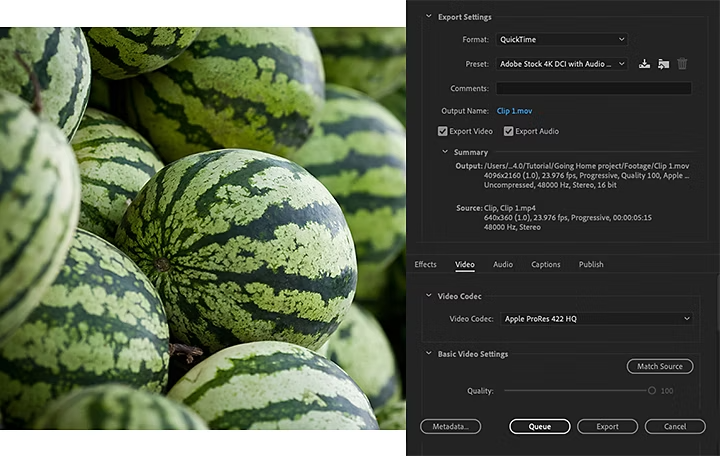
It’s easy to convert videos in Premiere as well. Just open the export dialogue box and, instead of clicking Queue, choose the Export option. Your video will begin rendering from Premiere.
Whether you’re drafting your first animation or putting the finishing touches on a feature film, take your video from raw footage to the final cut.




Visualize shots and effects ahead of the shoot, generate assets missed in production to complement your edit, and eliminate tedious tasks to stay focused on your creative ideas.


