40 How to write a book ideas to help you draft, review, and summarize.
A realistic strategy to draft your book and design it for the market.
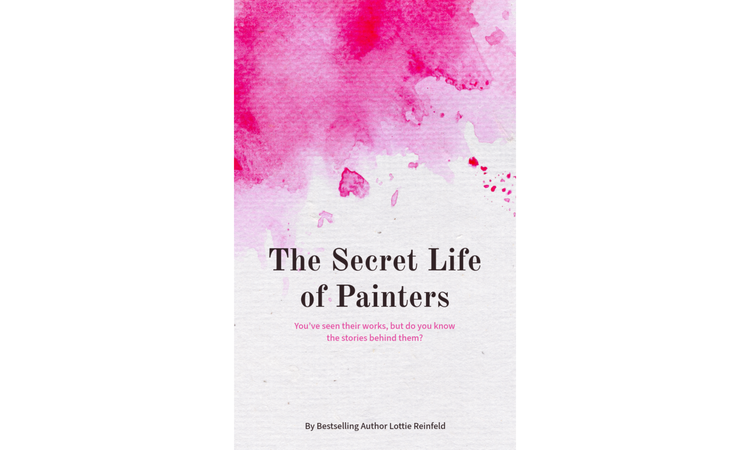




Kill the blank page phobia with a visual storyboard.
Most advice on how to write a book treats the process like a mystical journey, but it’s actually a grueling exercise in asset management. You need a way to see your story outside of just black-and-white text, using visual anchors to track character progression and tonal shifts. This approach treats your book like a production-ready project, where you build out a visual "bible" to keep your pacing tight and your world-building consistent.
How to write a book without losing your original idea halfway through.
Looking at the same black-and-white draft for weeks straight starts to mess with your sense of direction. Somewhere past a few dozen pages, everything blends. You catch yourself rereading to remember where things are going. The mid-book "amnesia" sets in. You can combat this fatigue with design tools.
Instead of a generic vision board, use Adobe Express to build your assets – high-impact visuals that capture the plot or mood board for your story. This process is about visual pacing. When you’re stuck in a 10,000-word stretch of dense dialogue or exposition, your brain needs a different kind of stimulation to stay engaged. One thing that helps is moving parts of your draft into a form closer to a finished book. Using an eBook creator, you can drop in a few chapters and see how they actually read on a page. It gives you a break from the raw draft and makes it easier to spot what’s dragging or repeating. It’s a lot harder to quit when you can see a professional-looking chapter header staring back at you.
You can also use Adobe Express tools to manage the internal world-building that usually gets lost in messy notebooks. If your protagonist needs to send a custom letter or read a specific newspaper clipping, design those artifacts. It grounds your fiction in a lived-in reality. By treating your manuscript as brand content from day one, you establish a technical style sheet for your book. You’re directly curating a visual world that prevents the word-count fatigue that kills most first drafts.
1. Start with a clear idea or concept for your book.
Use Adobe Express to create a vision boardfor your story ideas. Don't just list plot points in a pad of paper or a notes app. Open a collage layout and pull in textures or lighting styles from the photo library that match the specific vibe of your story's world. Seeing the mood clearly helps you write more descriptive, atmospheric prose.
2. Outline your chapters to organize your thoughts.
Design a chapter outline template in Adobe Express for clarity. Use the infographic maker to turn your outline into a color-coded timeline, with each ‘beat’ represented by a different shape. If you see five blue dialogue circles in a row, you’ll instantly know your book needs some action. It makes the structural flaws in your story visible before you waste days writing scenes that don't go anywhere.
3. Develop compelling characters and settings.
Visualize your characters with Adobe Express’s design tools. Instead of just describing hair color, build a high-fidelity character profile that feels like a real dossier. Use the background remover to isolate portraits or clothing styles that fit your protagonist, then layer them over a mood board for their specific living space. Having a visual reference for your character’s physical environment prevents continuity errors.
4. Set a daily writing goal to stay consistent.
Track your progress with a writing tracker in Adobe Express. Design a custom calendar that uses your book’s unique typography and color palette as the background. Every time you check off a day, you’re hitting a metric and actively interacting with the brand of your manuscript.
5. Write a strong opening to hook your readers.
Use Adobe Express to create a mockup cover for inspiration. If you're struggling with the first page, design a pre-order cover for your book right now. Seeing your title and a catchy hook sitting on a professional-looking layout makes the stakes feel real. It forces you to condense your story's value into a single, punchy sentence, which usually ends up being the perfect starting point for your opening paragraph.
6. Edit and revise your manuscript multiple times.
Create a checklist in Adobe Express to track editing stages. Editing is a messy and multi-layered process. Create a custom checklist with distinct sections for each phase so you don't fix typos while you're still fixing major plot holes. You can use the data table maker to track which chapters have been “cleared” for flow versus grammar.
7. Get feedback from beta readers or writing groups.
Share your book’s concept visually with Adobe Express designs. When you send out chapters for review, don't just send a raw document. Instead, send a “Reader Guide” that helps them focus. Design a quick one-pager card that highlights questions you have about pacing or character likability using bold headers and clear sections. It ensures your beta readers give you the actual data you need to improve the draft, not just vague “Yeah, it’s good.”
8. Format your book for publishing.
Use Adobe Express to design professional-looking layouts. Standard word processors aren't built for eye-flow, so use the page layout tools to experiment with gutter margins and chapter-start ornaments. Even if you aren't self-publishing, seeing your text in a book-like format helps you spot weird paragraph breaks or repetitive sentence lengths that you’d miss in a scrolling document.
9. Create a book cover that grabs attention.
Design stunning book covers with Adobe Express templates. A cover is a tiny billboard that has about two seconds to do its job. Use the book cover maker to test how your title looks at thumbnail size, since that’s how most people will see it on a phone screen. Create three vastly different versions: one typographic, one character-focused, and one abstract.
10. Promote your book with engaging visuals.
Use Adobe Express to create social media posts and ads. You need more than just a picture of the cover to get people to buy in. Create pull quote graphics by taking the most evocative sentence from a chapter and layering it over a blurred background from your mood board. Use the video maker to add subtle motion to these quotes for Instagram or TikTok.
recipe
How to write a children’s book by designing for the unique lap-reading experience.
Writing for kids is a deceptive trap because you aren't just writing for the child; you’re also writing for the adult who has to read those words out loud for the hundredth time. The “lap-reader” dynamic means your book is a shared physical space, and if you don't account for how the text interacts with the art at a distance of two feet, the story fails.
Prototype how the pages spread early by focusing on the legibility of the visual vocabulary. More than using age-appropriate words, it’s also about pairing descriptive language with specific shapes and colors. This way, even pre-verbal children can start making associations. It’s basically a functional dictionary of your book’s specific world.
You can create a poster layout to test your hero spreads. If the text is too small or the contrast is too low, the adult reader – much less the child reader – is going to struggle in a dimly lit bedroom. Designing these mockups helps you see where the page turns should happen to create actual suspense for a toddler. They help you engineer a mechanical experience where the physical act of turning the page is part of the story.
You can even turn your core visual vocabulary into a digital banner to keep at the top of your workspace. The banner serves as a constant reminder of your color palette and “forbidden words” list. Using Adobe Express tools, keep the art and the text in a constant dialogue, ensuring your book feels like a cohesive and lived in.
1. Choose a theme or lesson that resonates with kids.
Use Adobe Express to create a mood board for your story theme. Don't just pick a vague concept like kindness. Use a photo editor to find specific textures, like a bright, jagged lightning bolt, that represent the internal feeling of your theme. Having tactile elements makes it easier to write scenes that show the lesson through objects instead of preaching at the reader.
2. Develop relatable and fun characters.
Visualize your characters with Adobe Express’s illustration tools. Kids look for shapes first, so search icons to find a distinct silhouette for your protagonist. This visual shorthand helps you write their movements more consistently, too, because you’re thinking about how a round character would realistically bounce through a scene.
3. Keep the language simple and age-appropriate.
Design a word list in Adobe Express to guide your writing. Instead of a boring spreadsheet, build a word checklist using different font sizes to represent the “weight” of the vocabulary you're allowed to use. Put the high-priority, simple words in bold type and the more challenging ones in a lighter weight. This visual hierarchy forces you to see if you’re leaning too hard on complex descriptions that a five-year-old’s brain will skip over.
4. Write a story with a clear beginning, middle, and end.
Organize your plot with a story map in Adobe Express. Use a sequence of photo grids to map out your beat sheet. Treat each grid like a physical page turn, where the first tile has enough visual tension to make the reader want to flip to the middle one, and so on.
5. Add engaging dialogue to bring characters to life.
Use Adobe Express to design speech bubble visuals for practice. Placing text into different speech bubble shapes or comic strips helps you see the rhythm of the conversation. A jagged bubble suggests a loud sound, even shouting. A soft, rounded one feels like whispering. This forces you to cut down on the he-said/she-said tags, since the visual style already conveys how the character sounds.
6. Incorporate illustrations to complement the text.
Create sample illustrations or layouts in Adobe Express. Change the background or layer rough sketches over your text blocks to check for clutter. In children's books, the negative space is just as important as the drawing itself because that’s where the reader’s eye rests. If your text is fighting with the art for attention, you’ll see it immediately in a mockup.
7. Test your story with children for feedback.
Design a mockup of your book in Adobe Express to share with readers. You can create custom feedback forms with big emojis so kids can point to how they feel during specific scenes. This will look like a game rather than a test and will help you find the exact moment they lose interest or get confused.
8. Format your book for print or digital publishing.
Use Adobe Express to design professional page layouts. Open a custom size project and set your dimensions to a standard square or landscape book format. Mark out the gutter or the middle part of the book where the pages are glued together. Seeing these technical boundaries while you're still drafting prevents a massive headache when you finally send the files to a printer.
9. Create a colorful and inviting book cover.
Design eye-catching covers with Adobe Express templates. The book cover needs to work as a tiny icon on a tablet screen and a big physical object in a bookstore. Use a high-contrast color palette and test your title’s readability by zooming out. If you can't read the book's title at a zoomed-in size, it’s going to get ignored in an online shop.
10. Promote your book with fun visuals and social media posts.
Use Adobe Express to create promotional materials. Don't just post the cover; create character interview clips or behind-the-scenes process videos. Add simple animations to your illustrations, like a character’s eyes blinking or a tail wagging. These tiny micro-moments of life build anticipation for the story by showing off the personality of the world you’ve built..
recipe
How to write a book and turn your idea into a real first draft.


How to write a book review that genuinely helps someone decide if the book is for them.
A book review should provide a high-fidelity vibe check that helps your audience decide if a story is worth their limited time. To avoid the generic, dry, academic summaries or marketing copy, create a mood grid.
Select a specific font and a handful of textures – like a rough, grainy charcoal for a gritty thriller or an airy minimalist layout for a contemporary essay – to establish the book's aesthetic energy. This visual shorthand allows your readers to self-select based on the vibe you’ve built, making your words feel like a recommendation rather than a report.
You also need to establish trust through a visual receipt strategy. People are naturally skeptical of polished reviews, so aside from a quote poster showcasing the takeaway from the story, you could also upload a photo of your physical, annotated book. This tells your audience that a real human sat with this text and wrestled with its ideas.
If you are sharing your thoughts on a larger scale, you can turn these lived-in insights into a professional flyer that breaks down the story's technical mechanics and personal touch.
1. Start with a summary of the book’s plot or theme.
Use Adobe Express to design a summary template for clarity. Don’t just write a block of text that looks like a document. Build a summary template – even a slideshow – where you use a bold, high-contrast background for the hook and a softer, muted setting for the plot details. This forces you to be concise because you have to fit your summary into a defined, intentional layout.
2. Mention the author and the book’s genre.
Create a visually appealing header in Adobe Express for your review. Design a custom header that incorporates a signature element of the genre, such as a neon gradient for cyberpunk. By combining the author's name and the genre tag, you’re creating a brand identity for that specific review.
3. Highlight the book’s strengths, like characters or writing style.
Use Adobe Express to design a pros-and-cons chart. Use an organization chart with custom icons that represent specific strengths, such as a fountain pen for prose or a heart for character growth. This turns a subjective opinion into a structured, visual audit.
4. Discuss any weaknesses or areas for improvement.
Organize your thoughts with a review outline in Adobe Express. Use a flow chart to map out where the story lost its momentum or where a character arc fell flat. By placing these “weak points” on a physical timeline of the book, it makes your criticism feel more objective and technical rather than just a personal grievance.
5. Share your personal opinion and reading experience.
Add a rating system to your review using Adobe Express graphics. Instead of the generic five-star rating system, design a custom vibe meter using labels or shapes to track specific metrics like “Emotional Toll” or "Complexity." This gives your audience a much more nuanced view of how you truly felt while reading.
6. Include quotes or passages that stood out to you.
Design quote cards in Adobe Express to emphasize key points. Place the quote onto a stylized wallpaper and add layers of relevant objects, like dried flowers or a sharp dagger, that match the quote’s tone. This 3D-like layering effect makes the passage pop off the screen and stick in the reader's memory.
7. Compare the book to similar works in the genre.
Use Adobe Express to create a comparison chart or infographic. Use a comparison infographic template to show exactly where the overlap lies across tropes, pacing, or world-building. It gives your audience an immediate mental shortcut to understand the book’s “neighborhood” without three extra paragraphs.
8. Recommend the book to specific audiences.
Highlight your recommendation visually with Adobe Express tools. Create a target-audience graphic with specific labels like "For the Prose-Obsessed” and share it in your Instagram Story or Facebook post. This makes your recommendation feel like a personalized shout-out to a specific subculture of readers.
9. Keep your review concise and engaging.
Use Adobe Express to format your review for readability. When editing, use white space as a tool. Group your thoughts into blocks with consistent margins so the reader’s eye doesn't get tired of the wall of text. You can use a magazine style to see how your review would look in print.
10. Share your review on blogs or social media.
Create shareable visuals in Adobe Express to promote your review. Aside from sharing the link to your review, create a carousel that shows the Mood Grid, the Vibe Meter, and the final rating on separate slides. This turns a static piece of writing into an interactive, multi-platform experience.
How to write a summary of a book that becomes a functional blueprint for the readers.
To provide genuine value, you need to approach writing a book summary like a structural autopsy that reveals the mechanical skeleton of the author’s argument. You can build a logic flow diagram to lay out how one idea connects to the next. This way, you’re creating a technical blueprint that shows exactly how the narrative or the logic is held together. This level of synthesis ensures that your summary provides high-density assets that explain the “why” behind the “what.”
You should also reframe your work as an executive brief designed for high-speed consumption. You can prototype this in Adobe Express by creating a one-sheet card that utilizes typographic hierarchy. Make the core thesis big and bold, while keeping the supporting details small and light. This design-first approach forces you to decide which is the most “healthy juice” in the book, rather than treating every chapter equally.
1. Read the book thoroughly to understand its main ideas.
Use Adobe Express to create a note-taking template for key points. Don't just scribble in the margins; instead, create a two-column layout: one side for raw quotes and the other for your immediate interpretation. This visual separation creates a structured catch-all for data before you start synthesizing it.
2. Identify the book’s main theme or message.
Visualize the theme with a concept map in Adobe Express. Themes are abstract and slippery, so you need to lock them down with a mind map. Place the core message in a central bubble and use connecting lines to show which chapters or characters feed directly into that “big idea.” This map keeps you from wandering off into irrelevant tangents.
3. Break the book into sections and summarize each one.
Organize your notes with section headers in Adobe Express. Customize section headers with unique icons, like a lightbulb for an epiphany, to categorize your notes as you go. It makes summarizing less overwhelming because you're assembling a puzzle.
4. Focus on the key events or arguments in the book.
Highlight important details with Adobe Express’s design tools. Generate text effects to highlight the non-negotiables of the story. Assign one effect to turning points and another to supporting evidence so you can visually audit the weight of your summary.
5. Avoid including unnecessary details or subplots.
Use Adobe Express to create a concise summary template. If your summary of a subplot doesn't fit in a 200x200-pixel box, it’s too long and needs to be cut. This physical limitation forces you to be a ruthless editor, ensuring that only the absolute necessities survive the final draft.
6. Write in your own words to avoid plagiarism.
Design a writing guide in Adobe Express to stay on track. List three adjectives describing how you speak, then keep it pinned to the side of your project. Every time you draft a sentence, check it against those adjectives to make sure it doesn't sound like a robotic echo of the author.
7. Include the author’s purpose or intent in your summary.
Use Adobe Express to create a visual overview of the author’s goals. Create a “mission statement” presentation. Use symbols that represent the author’s goals – like a megaphone for a CTA or a microscope for a deep-dive analysis. Placing these icons at the top of your summary keeps the author’s intent front and center.
8. Keep your summary clear and easy to read.
Format your summary with Adobe Express for better readability. Use a professional letter template to ensure your text blocks have plenty of breathing room. If a paragraph looks like a dense brick, break it up into a bulleted list with icons to guide the reader’s eye. These elements help reduce the cognitive load on the person reading your summary.
9. Add a conclusion that ties the summary together.
Use Adobe Express to visually design a conclusion section. Your conclusion shouldn't just repeat what you already said; it should feel like a Final Verdict custom card. Design this section as a distinct visual block, with a different background color, to signal to the reader that this is the takeaway moment. It provides a closure to the structural autopsy you’ve just performed.
10. Share your summary with others for feedback.
Create a polished, shareable version in Adobe Express. Before you go public, send a review link to a peer or a teacher. Ask them to look at it for ten seconds and then tell you what they think the book was about. If they can’t give you a clear answer, your logic flow is probably off. This quick stress test ensures your shareable version is functional and clear before it reaches a wider audience.
Elevate how to write a book and manage your reviews with Adobe Express.
Drafting a manuscript is an exhausting mental drain, but integrating a visual workflow prevents your story from becoming a featureless blur. When you start laying things out in Adobe Express - like rough chapter boards or visual receipts for reviews - you give yourself a structural safety net that keeps your momentum forward. And even if you’re not used to design tools, Adobe Express has an intuitive interface to test ideas and create designs. That way, you stay focused on the writing while the tools handle the visual polish.