Build a complete audio mix from raw footage
Note: Stock assets provided are for practice purposes only. See terms.
What you’ll learn
Arrange your clips before you start your sound mix
Getting the visual order right first means you're mixing audio against the real story, not a placeholder. Add your footage to the project, drop it onto the timeline, and drag clips into place until the sequence matches how the video should unfold.
Clean up on-location noise without losing natural ambiance
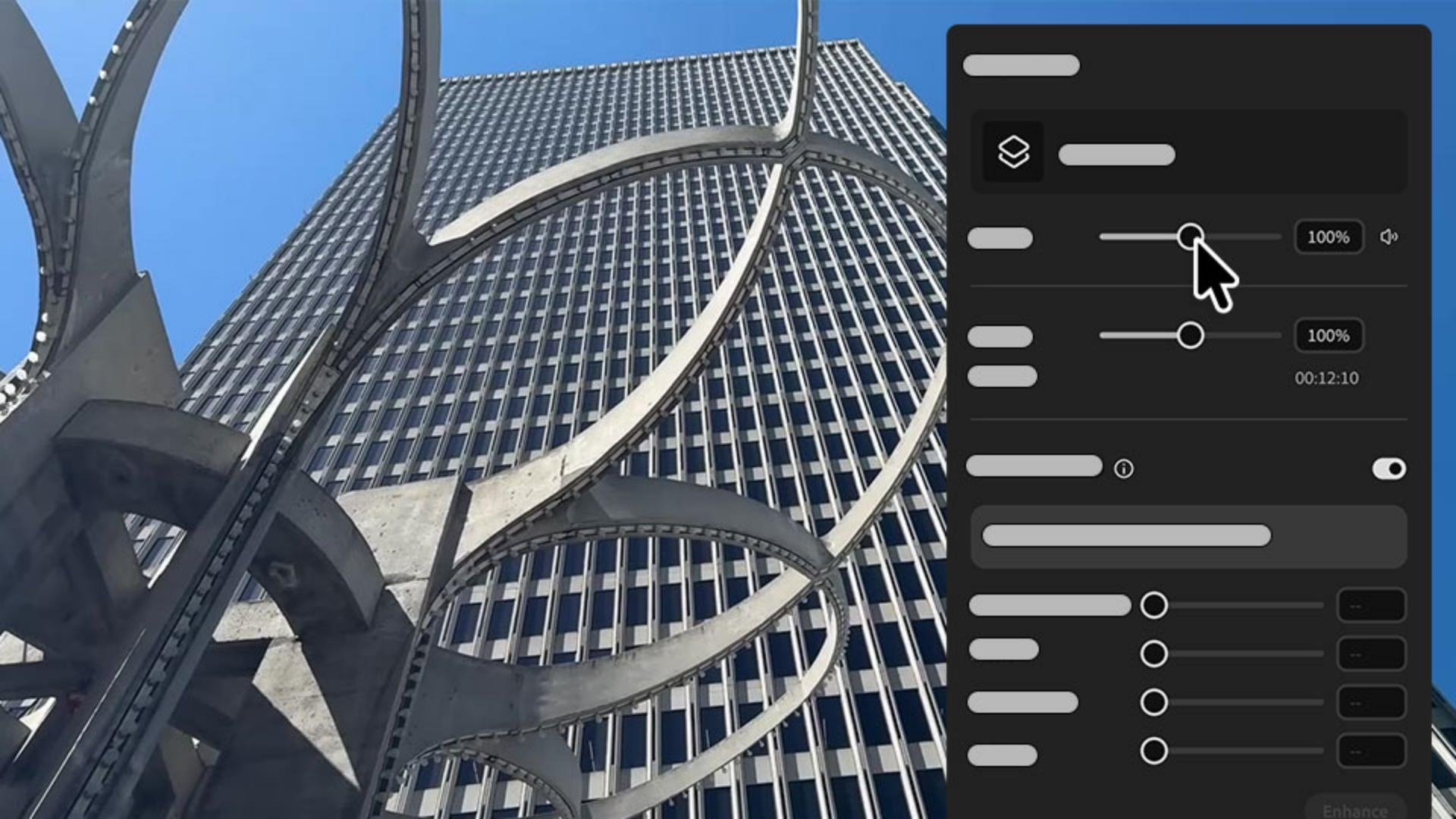
Location audio picks up traffic, wind, and room noise that pulls attention away from the speaker. The Enhance Audio toggle analyzes the clip and applies automatic noise reduction, but pushing it all the way can leave the result sounding stripped and artificial. Bringing the ambiance level back up partway restores some of that natural background so the voice still sounds like it belongs in the space.
Generate a voiceover in a voice that fits your story
Not every clip has usable dialogue, and re-recording narration after the fact is its own project. Generate Speech turns written narration into audio using a voice model you choose and shows the cost before you commit. The narration comes out timed to the clip you're pairing it with.
Generate a custom soundtrack that matches the mood
A soundtrack sets the emotional tone of a video, but sourcing the right track usually means combing through libraries for something close enough. Generate Music lets you describe the genre, energy, tempo, and length you want and returns several variations to compare. You pick the one that fits, download it, and drop it onto its own audio track.
Balance every track into one finished mix
Adjusting each clip's volume in the properties panel, pulling the music down and easing the voiceover back, lets every layer stay audible without fighting for attention. The result is a mix where dialogue leads and music supports it.
Instruction and videos by

