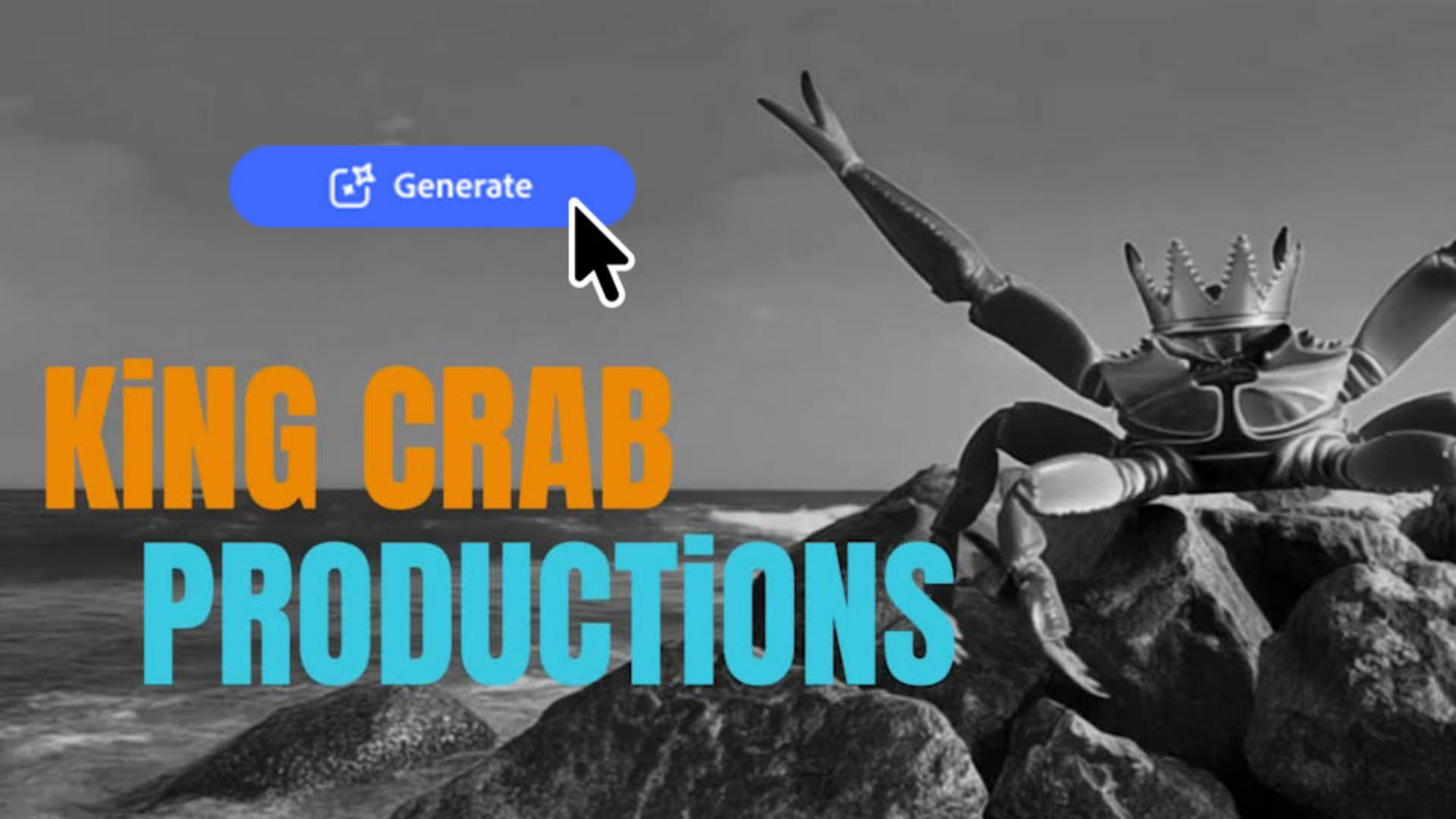
In this video, I'm going to show you how to use the generative AI features of Adobe Firefly Video on a project.
Let's create an animated logo for a production company.
I'm envisioning a huge king crab appearing on some rocks at a beach as waves crash around it.
The video freezes and the name appears, "King Crab Productions."
It's the kind of thing you've probably seen in a movie before the opening credits.
Alright, let's get started.
Turn a text prompt and a reference image into a usable video clip
Start a new Firefly timeline and click the Generate media icon on the right side of the screen.
Make sure the Video tab is selected, then enter a prompt.
Choose a model, resolution, aspect ratio, and duration.
I found an image on Adobe Stock we can use as our starting frame.
Drag it to the drop zone in the panel.
We provided the prompt and starting image in the practice files.
Note the credits used and click Generate.
When the resulting video appears in the Generation History panel on the left, scrub through it to see how it looks.
If it works for you, drag it to the bottom of the screen where it says Add media to timeline.
Play the whole timeline.
At the end, click Step backward in the Viewer panel to go back one frame.
Now we'll make a freeze frame of that image.
Continue the shot with a generated freeze frame
Back in the Generate media panel, click Clear all at the bottom.
Enter a new prompt to make this image into a video and make the other settings as before.
Click in the first and last frame drop zones and set both to use the same current video frame that's showing in the timeline.
Click Generate.
Drag the freeze frame clip to the end of the timeline.
Set the mood with a look, then dissolve between clips
Make sure the freeze frame clip is selected, and then click the Looks icon in the left tools panel and apply the black and white dramatic look to it.
Next, click Transitions in the tools panel and drag Dissolve in between the two clips in the timeline.
Finally, click Text and choose a style you like.
Add a title that's timed to the moment it appears
I'm going with the one here, "One Day in Paris."
Clicking it adds a title clip to the timeline at the location of the playhead.
Replace the text and style it as you wish in the Properties panel.
Click the Fill color to change the text color as you wish.
You can resize and reposition the text by dragging it directly in the viewer.
Click the In button under Motion presets and select an effect that works for you.
I'll choose Drift in.
Finally, position the left end of the text clip where you want the title to appear in the timeline, and then trim the right end so the title matches the duration of the freeze frame.
Play the whole timeline.
So that's one way to use the generative AI features in Firefly Video.
Try it out for yourself.
We've provided some sample files for you to practice with.
Thanks for watching.
Note: Stock assets provided are for practice purposes only. See terms.
What you’ll learn
Turn a text prompt and a reference image into a usable video clip
The Generate Media tool turns a written prompt and a starting image into a video clip you can scrub through in Generation History before committing to it. If it works, drag it straight onto the timeline.
Continue the shot with a generated freeze frame
Move the playhead to the frame you want to hold, set that same frame as both the first and last frame in Generate Media, and generate a new clip. The result is a clip that holds still on that exact moment. Drag it onto the end of the timeline to land the pause right after the original clip.
Set the mood with a look, then dissolve between clips
Applying a look, like black-and-white dramatic, to the freeze frame gives it a distinct tone, and dragging a dissolve transition between the two clips blends them together instead of cutting hard. The combination reads as one deliberate creative choice rather than two separate generations stitched together.
Add a title that's timed to the moment it appears
Choosing a preset text style adds a title clip you can restyle, recolor, resize, and reposition directly in the viewer. Add a motion preset like Drift in to give it movement as it arrives. Trimming the title clip to match the freeze frame's duration keeps the timing locked to the shot underneath it.
You can control how Adobe websites use cookies and similar technologies by making choices below. But note that if you disable cookies and similar technologies entirely, Adobe websites may not function properly.
Cookies are small text files stored by your web browser when you use websites. There are also other technologies that can be used for similar purposes like HTML5 Local Storage and local shared objects, web beacons, and embedded scripts. These technologies help us do things like remembering you and your preferences when you return to our sites, measure how you use the website, conduct market research, and gather information about the ads you see and interact with.
You can make choices in the menu below about what cookies and other technologies you want us to use on Adobe sites when you visit them from this browser. You can always change those choices later by clicking on the Cookie Preferences link at the bottom of the page.
If enabled:
We can improve your experience by tailoring the site and the content to things we think might be of interest
We can better keep track of your preferences — like what language you prefer to use
We will better understand your likely interests so we can provide you more relevant Adobe ads and content on non-Adobe websites and in non-Adobe apps
It will help us improve the performance of our website and those of our partners who use the Adobe Experience Cloud
If disabled:
We won’t be able to remember you from session to session so the experience may not be tailored to your interests
You’ll still have access to the content of the site but certain features that depend on cookies may not function
You’ll still see ads, they just may not be as relevant to you
General information
You can control how Adobe websites use cookies and similar technologies by making choices below. But note that if you disable cookies and similar technologies entirely, Adobe websites may not function properly.
Cookies are small text files stored by your web browser when you use websites. There are also other technologies that can be used for similar purposes like HTML5 Local Storage, web beacons, and embedded scripts. These technologies help us do things like remembering you and your preferences when you return to our sites, measure how you use the website, conduct market research, and gather information about the ads you see and interact with.
You can make choices in the menu below about what cookies and other technologies you want us to use on Adobe sites when you visit them from this browser. You can always change those choices later by clicking on the Cookie Preferences link at the bottom of the page.
If enabled:
We can improve your experience by tailoring the site and the content to things we think might be of interest
We can better keep track of your preferences — like what language you prefer to use
We will better understand your likely interests so we can provide you more relevant Adobe ads and content on non-Adobe websites and in non-Adobe apps
It will help us improve the performance of our website and those of our partners who use the Adobe Experience Cloud
If disabled:
We won’t be able to remember you from session to session so the experience may not be tailored to your interests
We’ll still count your use of our site and services
You’ll still have access to the content of the site but certain features that depend on cookies may not function
You’ll still see ads, they just may not be as relevant to you
Operate the site and core servicesOperate site and measure engagement
Always active
These cookies are required, and they are used to enable the site and related services core functionality. Without them the site could not operate, so they cannot be disabled.
These cookies enable the site and related services’ core functionality and collect statistics about user engagement, such as counting active use to help us understand trends. These cookies cannot be disabled.
Measure performance
These cookies are used to analyze site usage to measure and improve performance. Without them Adobe cannot know what content is most valued and how often unique visitors return to the site, making it hard to improve information we offer to you.
These cookies are used to analyze site usage to measure and improve performance. Without them Adobe cannot know what content is most valued, making it hard to improve information we offer to you.
Extend functionality
These cookies are used to enhance the functionality of Adobe sites such as remembering your settings and preferences to deliver a personalized experience; for example, your username, your repeated visits, preferred language, your country, or any other saved preference.
Personalize advertising
These cookies are used to enable Adobe and our partners to serve ads more relevant to your interests. Without them you will still see ads, but they might not be as relevant to you.
Personalize advertising
These cookies are used to enable Adobe and our partners to serve ads more relevant to your interests. Without them you will still see ads, but they might not be as relevant to you.