Direct specific changes with Custom vary
Next, let's focus on the Custom vary, which allows you to specify aspects of the image to vary in the prompt field.
For example, if I click on the main image again, in the floating menu, I'll click Vary, and then Custom vary.
I'll add my prompt in the prompt box, and I'm asking have the subject touching the frame of the glasses with one hand in a playful adjustment, change the woman's jacket color to a hex code that I've added, and keep the same location and lighting.
I'll go ahead and click Generate again.
That'll once again generate nine images for me which I can click to place on the board.
And let's get a closer look at these results.
And you can see the Custom vary option gives you more control in what you want to keep and what you want to change in an image.
Have a look.
The Flux model gave me different variations of the subject touching the rim of the glasses while also changing the color of the jacket to the hex code I provided.
I have all the varied images for the photography concepts.
However, now I'd like to use the same process to build a more cohesive visual direction for the product packaging.
Let's imagine that an art director has a single product packaging photo, like you see here on the screen, and would like to build off it using the Vary feature to spark inspiration and give the product photographer more direction.
I'll click on the product packaging photo and from the floating menu, I'll click Vary and then choose More like this, and now I can click Generate.
I'll add the nine variations generated using the Flux model on the board to see the results.
Much like the first example, I get some great options that give me variations inspired by the original photography.
Have a look.
Here, I get subtle lighting adjustments and scene changes, but the product is often preserved from the original image.
I'll click on the product packaging photo again, and from the floating menu, I'll click Vary.
This time I'll choose Custom vary and click Generate.
Once again, I'll add all nine of the images to this board by simply clicking anywhere on the canvas to drop them in.
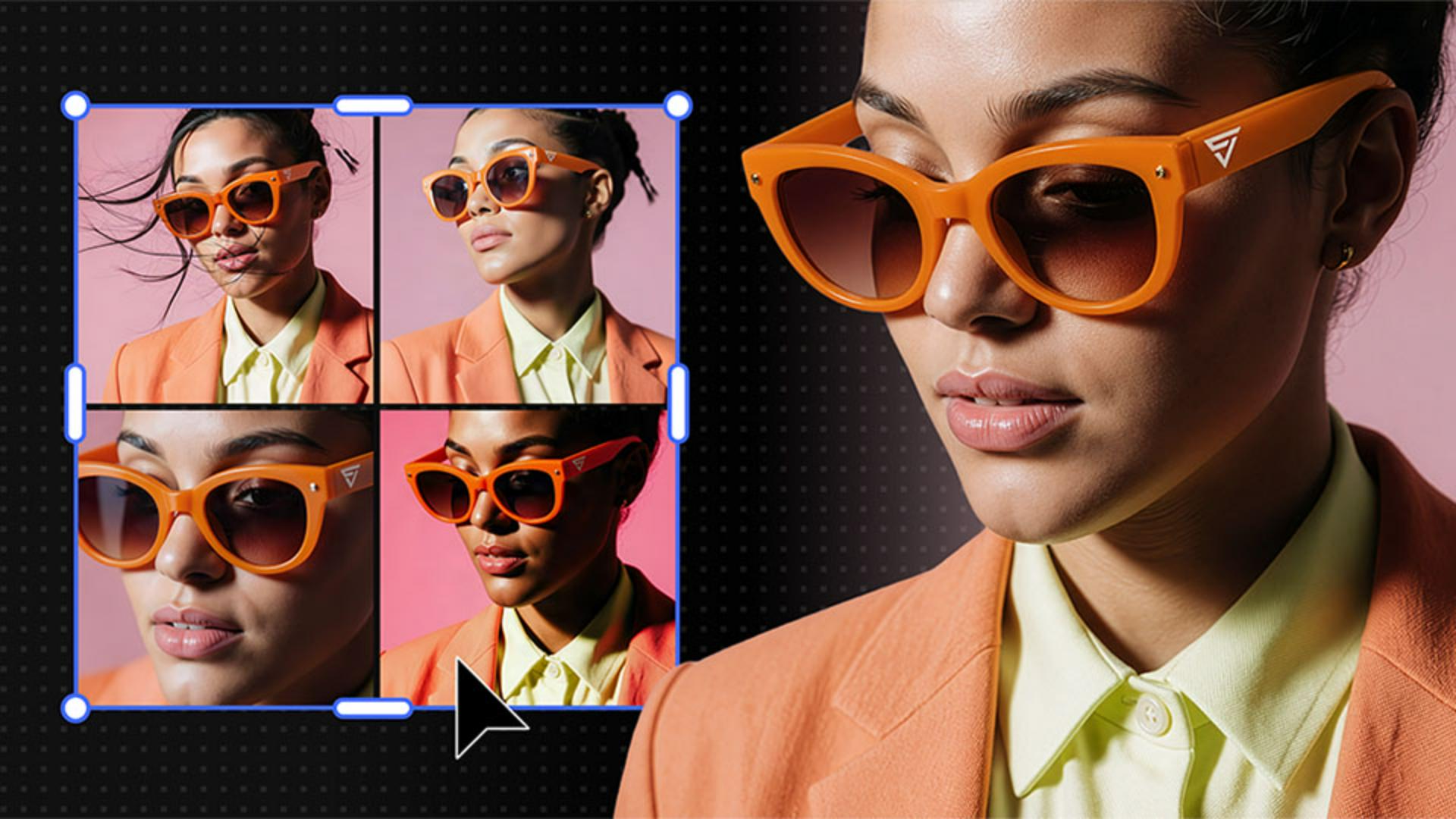
Once on the board, it's simple to resize the group and place them in another area.
Now let's get a closer look at the results.
Remember, Custom vary is known for preserving the artistic style of the original image, and you can see that really come through in these results.
Now to this point, for the most part, the product packaging images have varied locations while keeping the positioning the same.
I want to create different product angles to give the photographer a better sense of how to capture not only the sunglasses but also the brand.
So again, I'll click the product packaging photo click Vary, and this time I want to choose Custom vary.
In the prompt box, I'll add a prompt asking to keep the same objects, background and lighting, however, I want to rearrange the items into a minimal top-down layout.
Sunglasses on the right, case upper-left, microfiber cloth lower-left with wide empty space between each item.
Once I'm happy with the prompt, I'll click Generate and place the variations on the canvas to get a closer look at the final results.
Because I added more specific direction to the prompt, the Flux model did a great job creating more intentional arrangements.
Again, this just gives the product photographer more direction.