Add motion to your photos with Generate Video in Lightroom
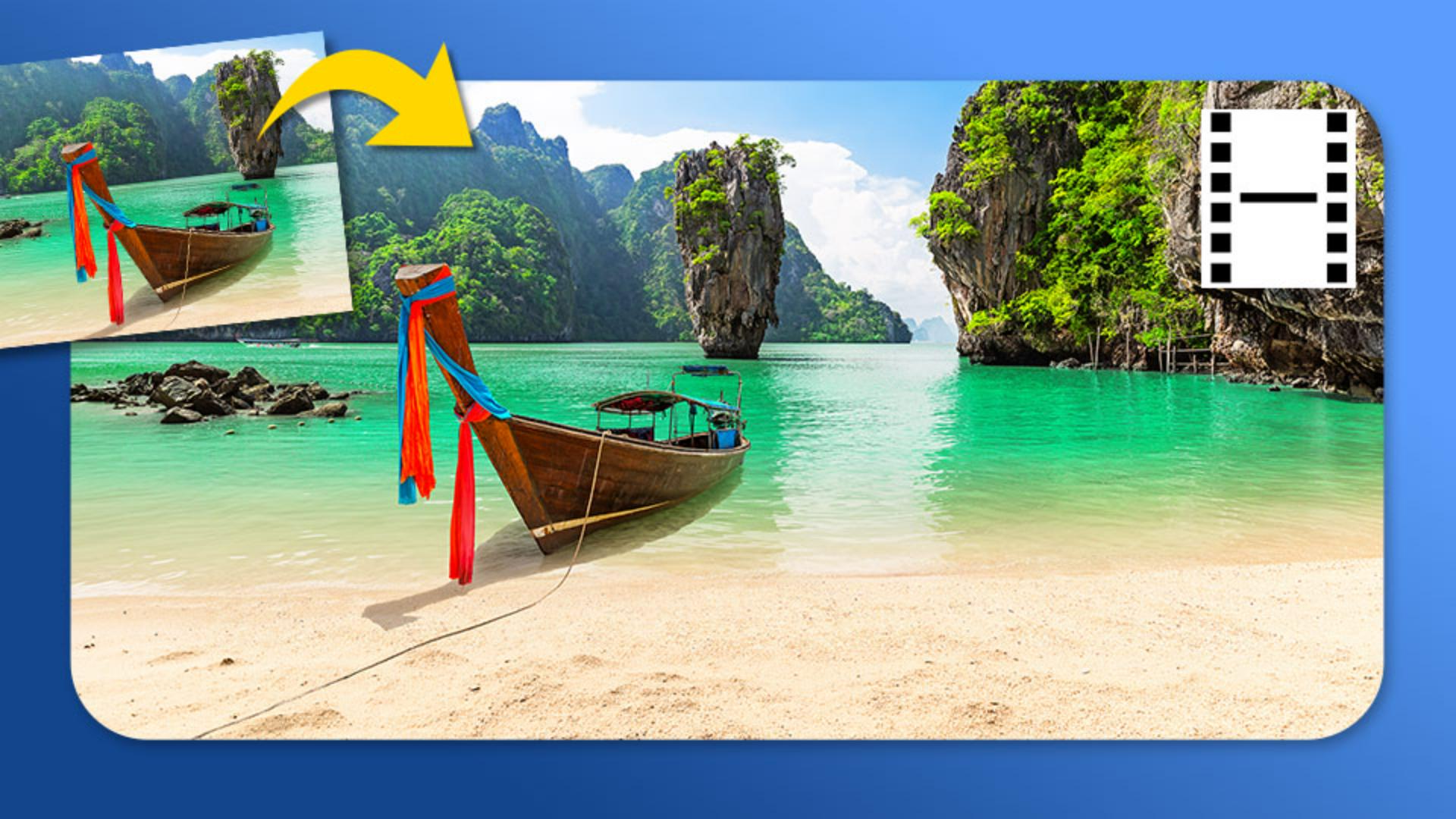
Note: Stock assets provided are for practice purposes only. See terms.
What you’ll learn
Apply a crop to prepare a photo for video generation
Crop your photo to match your intended video aspect ratio, then select Photo > Generate Video and choose an AI model, resolution, and duration. Pre-cropping gives you more control over how the image is framed in the finished video.
Select a motion preset
In the Generate Video dialog, choose from presets such as Slow pan, Subtle motion, and Hyperlapse to add movement that suits your image. You can use the prompt created by the preset, edit it to refine the instruction, or create a custom prompt from scratch.
Add subtle motion to still photos
Use the Subtle motion preset to create a video clip with gentle, understated movement. Lightroom analyzes the photo and generates a scene-specific prompt that you can use as-is or modify before generating your video.
Create dynamic motion with Hyperlapse
Select the Hyperlapse preset and Lightroom will write a prompt based on the scene in your image and generate a dynamic and energetic timelapse effect for a photo.
Explore more video options in Adobe Firefly
In the Generate Video dialog, select Access more models on Firefly to open the photo in Adobe Firefly where you can choose additional AI models and creative workflows. Use Frames to specify images for the first and last frame in the video, then describe the motion you want Firefly to generate between them.
Instruction by
Photography by

