[Seán Duggan]: Have you ever wanted to restore your old family photos that have cracks and scratches, or bring a badly faded color snapshot back to life?
Well, now you can do that with a single click without ever leaving Lightroom.
Hi, I'm Seán Duggan with the Adobe Learn team.
In this tutorial, we'll take a look at how to use Prompt to Edit to quickly restore your precious old photos, and along the way, I'll also show you how to use some of the other Lightroom tools to fine-tune the initial results.
Fix dust and scratches with a ready-made prompt.
Let's start off with this studio portrait taken in the late 1800s.
I'll click the Prompt to Edit tool on the right side of Lightroom to open the workspace.
Prompt to Edit starts with a text prompt, and it uses Generative AI to restore, retouch, and transform your photos.
For the most common photo restoration projects, you don't even have to write a text prompt because the Lightroom team has already done that for you.
You can see some of the example prompts near the top of the panel.
Most of these are for photo restoration, but there are a couple for more creative transformations at the bottom.
For this image, I'll choose the first one: "Fix dust and scratches."
In the prompt field, you can see that the instructions are to remove the dust, scratches, and surface damage while preserving the facial features, background details, and the original color and tone.
You can use the prompt as is, or you can edit it if you want to fine-tune it and be more specific.
I'll leave that as is.
In the output settings,
Choose an output resolution and generate a restoration.
you can choose the AI model and the resolution.
This feature uses the Google Nano Banana model in either 2K or 4K resolution.
At the bottom of the panel, you can see that a 2K output requires 20 credits and a 4K output requires 30 credits.
Adobe plans come with AI credits, and if you click on that, you can see how many credits you have left and the date for the next reset.
For this photo, I'll choose 4K for the best quality and the largest image size.
There's also an option here to create a stack, which will group the generated version with the original image.
But I'll leave that unchecked.
I'll click Generate to start the process.
Prompt to Edit will create a new image and leave the original photo untouched.
This will take about 35 to 45 seconds, so let's jump ahead to the result.
I'll tap G on the keyboard to return to the grid view, and here's the before version, and here's the restored version.
An excellent restoration, and I didn't even have to write a prompt.
Repair damage and colorize a faded black and white photo.
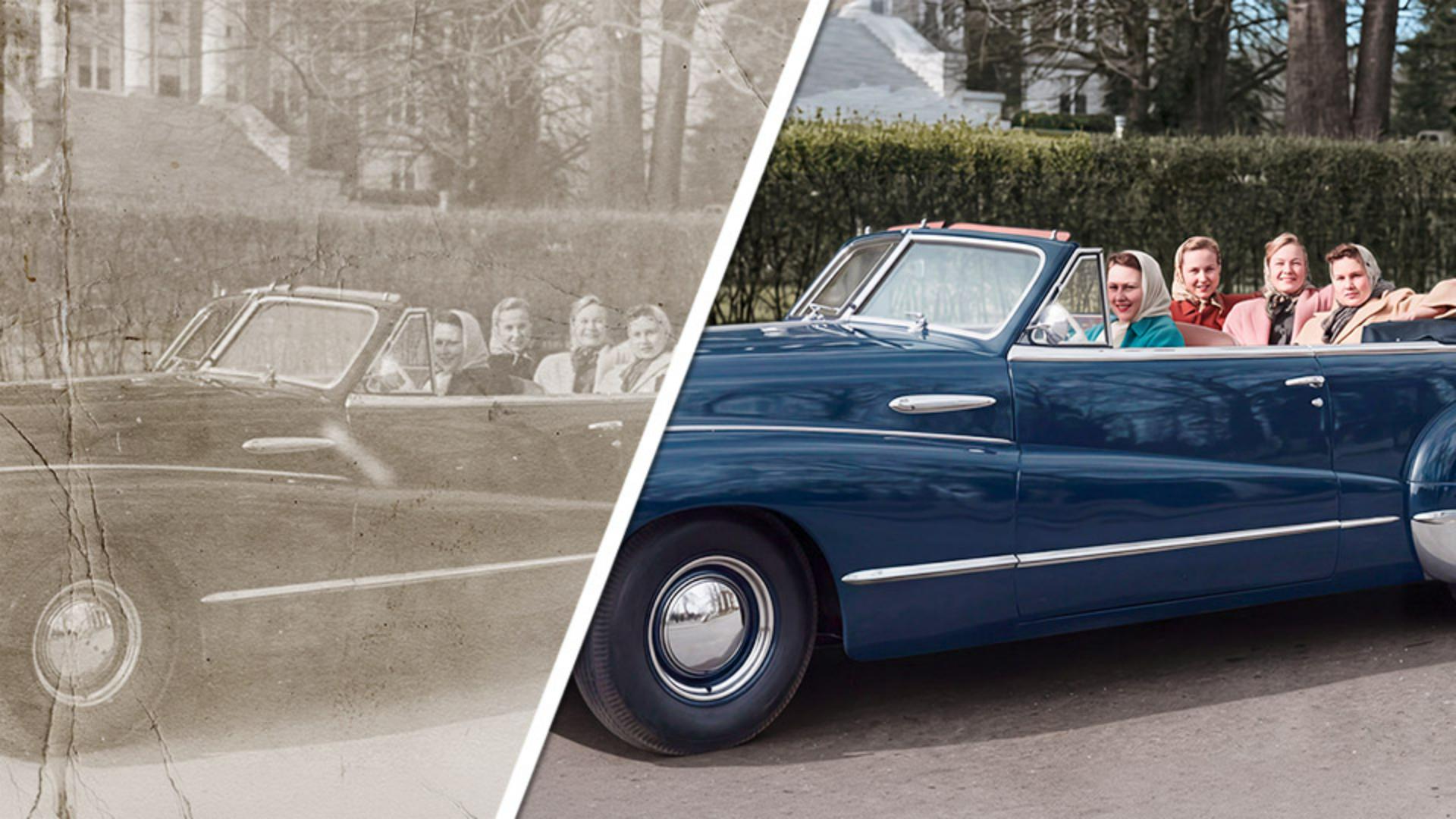
Now let's move on to a more challenging restoration.
This photo has a lot of damage that I want to repair, and I also want to colorize it.
Now, you might think that that would require two passes using two different prompts: "Fix dust and scratches" and "Black and white colorization."
But we don't have to do that because if you read through the "Black and white colorization" prompt, you can see that it also contains instructions to repair minor damage, such as scratches, dust spots, creases, and fading.
And of course, it also has the usual instructions to preserve facial features and other image details.
Customize a prompt and access recent and saved prompts.
For this prompt, I'll also add that the car is a dark blue color.
Below the prompt field, there's a section where you can see some of your recent prompts, and you can even save a prompt.
You can see some of my saved prompts at the top here, and below are the recent prompts that I've used.
So that's pretty useful.
I'll leave the output resolution set to 4K, and I'll click Generate.
And here it is.
Fine-tune colors for natural-looking results.
It did a great job repairing all the damage from the original print.
For my taste, however, the colors are a bit too saturated.
So to fix that, I'll click on the Edit icon, and I'll go into the Color panel.
I'll dial the vibrance down to make those colors look a bit more natural, especially for a photo from this period.
The other thing I'll do is go into the Color Mixer to adjust the color of the foliage.
I'll select the targeted adjustment tool, and in the contextual taskbar for that tool, I'll target the hue.
I'll click the bushes in the background to target that color, and I'll drag to the left until I get a green that looks more natural.
There, that's better.
Okay, let's do one more restoration.
Crop old print borders for better results.
This is a color photo from 1945, and it's so faded that there's very little of the original color left.
Before we get to the restoration, though, here's a quick tip.
If you have a scan that includes some of the white border from the original vintage print, I've found that I sometimes get better results if I crop that off before running Prompt to Edit.
So I'll click the Crop tool on the right side, and in the crop panel, I'll click the lock icon to unlock the aspect ratio.
Then I'll adjust the crop box to exclude the original print border, and I'll press Enter to apply that.
Now I'll click the Prompt to Edit tool,
Restore faded colors with a custom prompt.
and for this photo, I'll use the "Color restoration" prompt.
I will modify this a bit to tell the AI model that the tall woman on the right side has red hair.
Okay, let's see what we get.
Compared to what we started with, this is much better.
But as is often the case with the Nano Banana AI model, the colors are just a bit too intense.
So once again, I'll go back to the Color panel, and I'll dial down the vibrance to about minus 35.
Refine the color in specific areas with masking.
That looks better, but the red hair is still too red.
So to fix this, I'll click on the masking icon on the right side.
I'll choose to add a People mask for this person, and I'll select the hair to make a mask for that area.
Now I can further desaturate just the red hair and maybe even add a bit of yellow with the temp slider.
There, that looks much better and more realistic.
Restoring damaged and faded photos with Prompt to Edit in Lightroom is so easy, and it's also a lot of fun.
Give this a try on some of your old family photos and see how you can use Prompt to Edit and the other tools in Lightroom to bring those images back to life.
I'm Seán Duggan with the Adobe Learn team.
Thanks for watching.
Note: Sample files provided are for practice purposes only. See terms.
What you’ll learn
Fix dust and scratches with a ready-made prompt
Use Prompt to Edit in Lightroom to restore old photos without writing your own prompt. Choose the ready-made Fix Dust and Scratches prompt to remove surface damage while preserving facial features, background details, and the original color and tone.
Choose an output resolution and generate a restoration
Choose your preferred AI model output resolution, either 2K or 4K, and generate a restored version of your photo. Prompt to Edit creates a new image while leaving the original untouched, so you can easily compare the before and after results.
Repair damage and colorize a faded black and white photo
Restore a damaged and faded black-and-white photo using the Black and White Colorization prompt. This prompt repairs scratches, dust spots, creases, and also adds color to the scene while preserving the original image detail.
Customize a prompt and access recent and saved prompts
Customize a prompt preset by adding specific details, such as the color of an object, to guide the AI restoration. You can also access recently used prompts and save your favorites for future editing projects.
Fine-tune colors for natural-looking results
Use Lightroom's color editing tools to refine the results of the photo restoration. Reduce the Vibrance to soften overly saturated colors, then use the Color Mixer and the targeted adjustment tool to fine-tune specific hues.
Crop old print borders for better results
Before restoring a scanned vintage photo, consider cropping away any white borders from the original print. Removing these borders can often help Prompt to Edit produce better restoration results.
Restore faded colors with a custom prompt
Use the ready-made Color Restoration prompt to bring severely faded color photos back to life. Customize the prompt with details about the original appearance, such as a person's hair color, to help guide the restoration.
Refine the color in specific areas with masking
Use Lightroom's masking tools to make targeted color adjustments without affecting the rest of the photo. Create a People mask to select a person's hair, then adjust saturation and color temperature to achieve a more natural-looking result.
You can control how Adobe websites use cookies and similar technologies by making choices below. But note that if you disable cookies and similar technologies entirely, Adobe websites may not function properly.
Cookies are small text files stored by your web browser when you use websites. There are also other technologies that can be used for similar purposes like HTML5 Local Storage and local shared objects, web beacons, and embedded scripts. These technologies help us do things like remembering you and your preferences when you return to our sites, measure how you use the website, conduct market research, and gather information about the ads you see and interact with.
You can make choices in the menu below about what cookies and other technologies you want us to use on Adobe sites when you visit them from this browser. You can always change those choices later by clicking on the Cookie Preferences link at the bottom of the page.
If enabled:
We can improve your experience by tailoring the site and the content to things we think might be of interest
We can better keep track of your preferences — like what language you prefer to use
We will better understand your likely interests so we can provide you more relevant Adobe ads and content on non-Adobe websites and in non-Adobe apps
It will help us improve the performance of our website and those of our partners who use the Adobe Experience Cloud
If disabled:
We won’t be able to remember you from session to session so the experience may not be tailored to your interests
You’ll still have access to the content of the site but certain features that depend on cookies may not function
You’ll still see ads, they just may not be as relevant to you
General information
You can control how Adobe websites use cookies and similar technologies by making choices below. But note that if you disable cookies and similar technologies entirely, Adobe websites may not function properly.
Cookies are small text files stored by your web browser when you use websites. There are also other technologies that can be used for similar purposes like HTML5 Local Storage, web beacons, and embedded scripts. These technologies help us do things like remembering you and your preferences when you return to our sites, measure how you use the website, conduct market research, and gather information about the ads you see and interact with.
You can make choices in the menu below about what cookies and other technologies you want us to use on Adobe sites when you visit them from this browser. You can always change those choices later by clicking on the Cookie Preferences link at the bottom of the page.
If enabled:
We can improve your experience by tailoring the site and the content to things we think might be of interest
We can better keep track of your preferences — like what language you prefer to use
We will better understand your likely interests so we can provide you more relevant Adobe ads and content on non-Adobe websites and in non-Adobe apps
It will help us improve the performance of our website and those of our partners who use the Adobe Experience Cloud
If disabled:
We won’t be able to remember you from session to session so the experience may not be tailored to your interests
We’ll still count your use of our site and services
You’ll still have access to the content of the site but certain features that depend on cookies may not function
You’ll still see ads, they just may not be as relevant to you
Operate the site and core servicesOperate site and measure engagement
Always active
These cookies are required, and they are used to enable the site and related services core functionality. Without them the site could not operate, so they cannot be disabled.
These cookies enable the site and related services’ core functionality and collect statistics about user engagement, such as counting active use to help us understand trends. These cookies cannot be disabled.
Measure performance
These cookies are used to analyze site usage to measure and improve performance. Without them Adobe cannot know what content is most valued and how often unique visitors return to the site, making it hard to improve information we offer to you.
These cookies are used to analyze site usage to measure and improve performance. Without them Adobe cannot know what content is most valued, making it hard to improve information we offer to you.
Extend functionality
These cookies are used to enhance the functionality of Adobe sites such as remembering your settings and preferences to deliver a personalized experience; for example, your username, your repeated visits, preferred language, your country, or any other saved preference.
Personalize advertising
These cookies are used to enable Adobe and our partners to serve ads more relevant to your interests. Without them you will still see ads, but they might not be as relevant to you.
Personalize advertising
These cookies are used to enable Adobe and our partners to serve ads more relevant to your interests. Without them you will still see ads, but they might not be as relevant to you.