Add drama and scale to your photo with Generative Expand
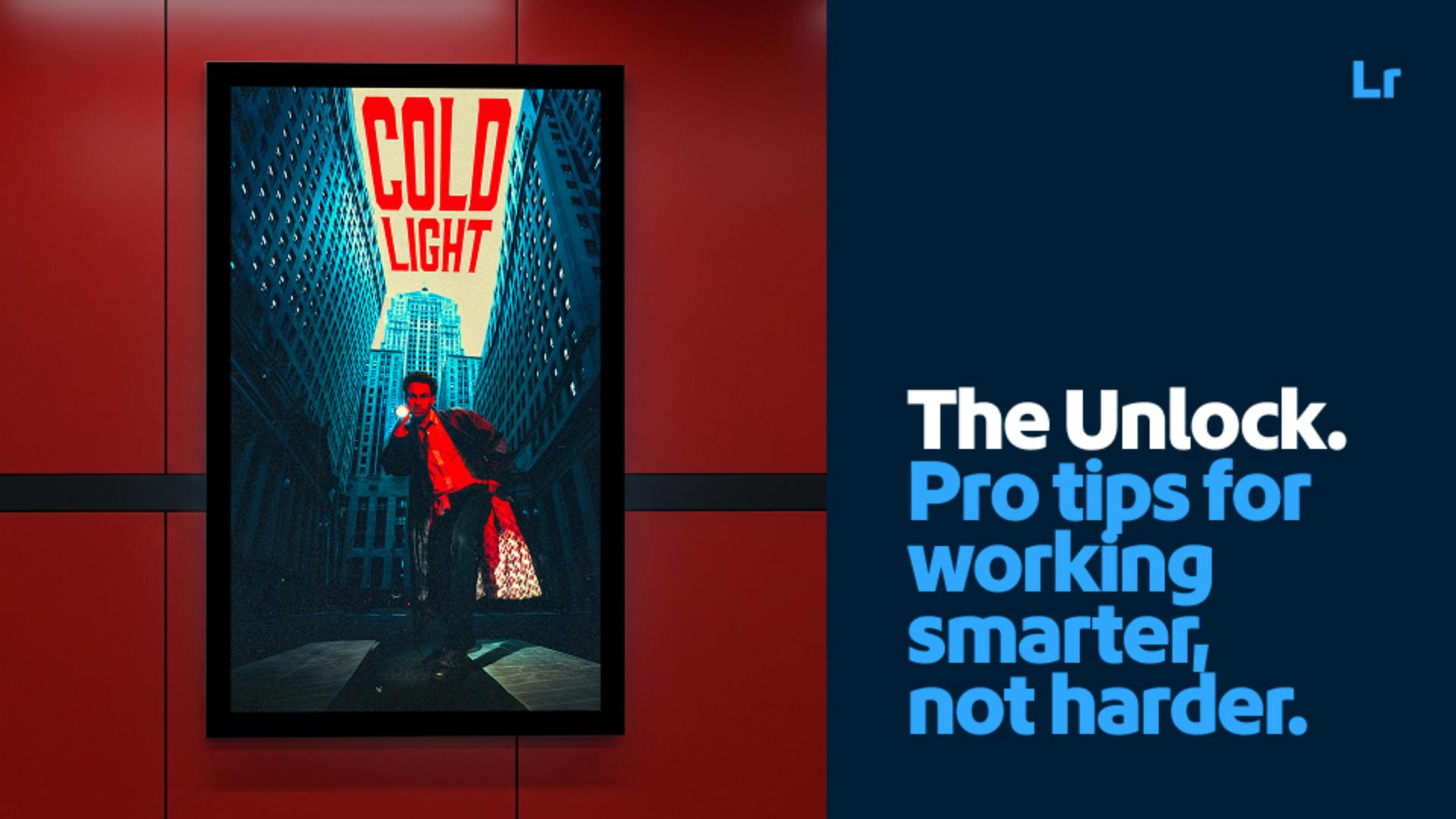
"I wanted the subject to feel small and the buildings to feel very large....Generative Expand really helped me show that feeling."
Step 1: Adjust the light.
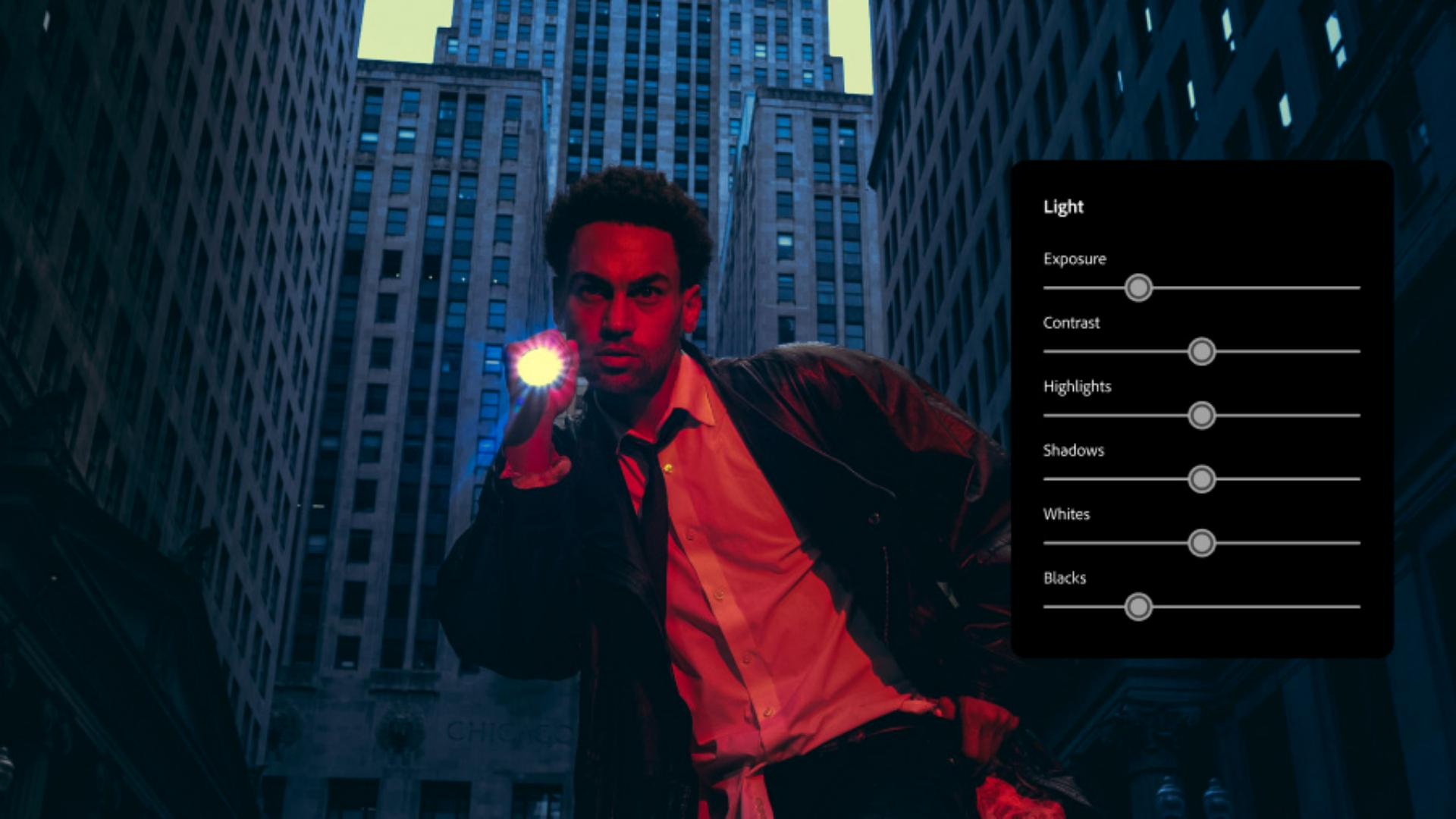
To create his signature look, Dennis starts by setting the mood in the Light menu. He lowers the exposure, increases the contrast, adds shadows, and boosts highlights to create a dark, dramatic effect.
Step 2: Make color adjustments.
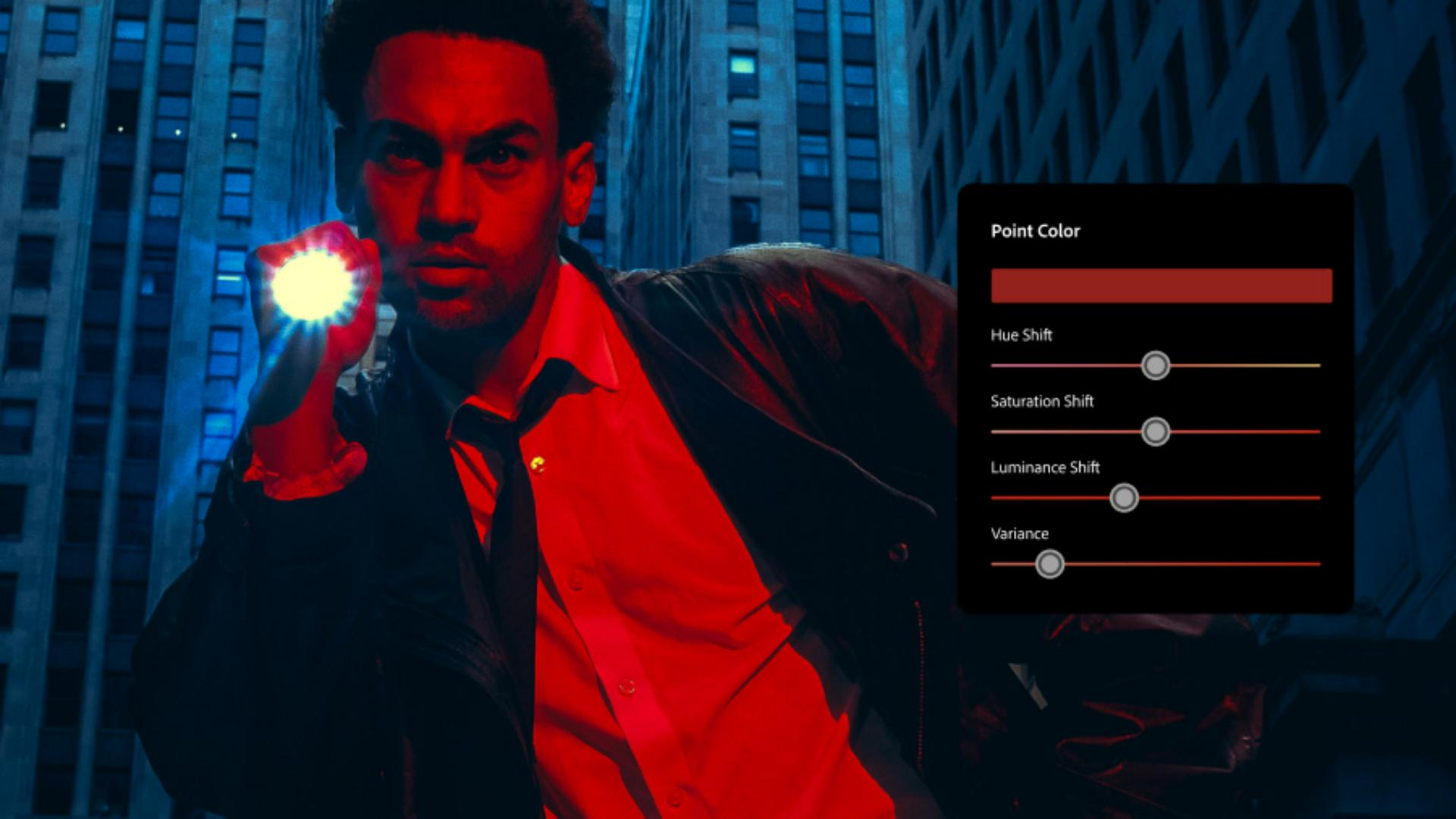
He uses Color Mixer to start bringing out the red that will become the focal point. He adjusts the hue, increases saturation, and decreases luminance.
Next, he uses Point Color for precise color refinements and the picker to select the primary shade of red for his subject. After adjusting the hue, saturation, and variance, his subject has a uniform, dramatic flood of red.
Step 3: Expand the composition.
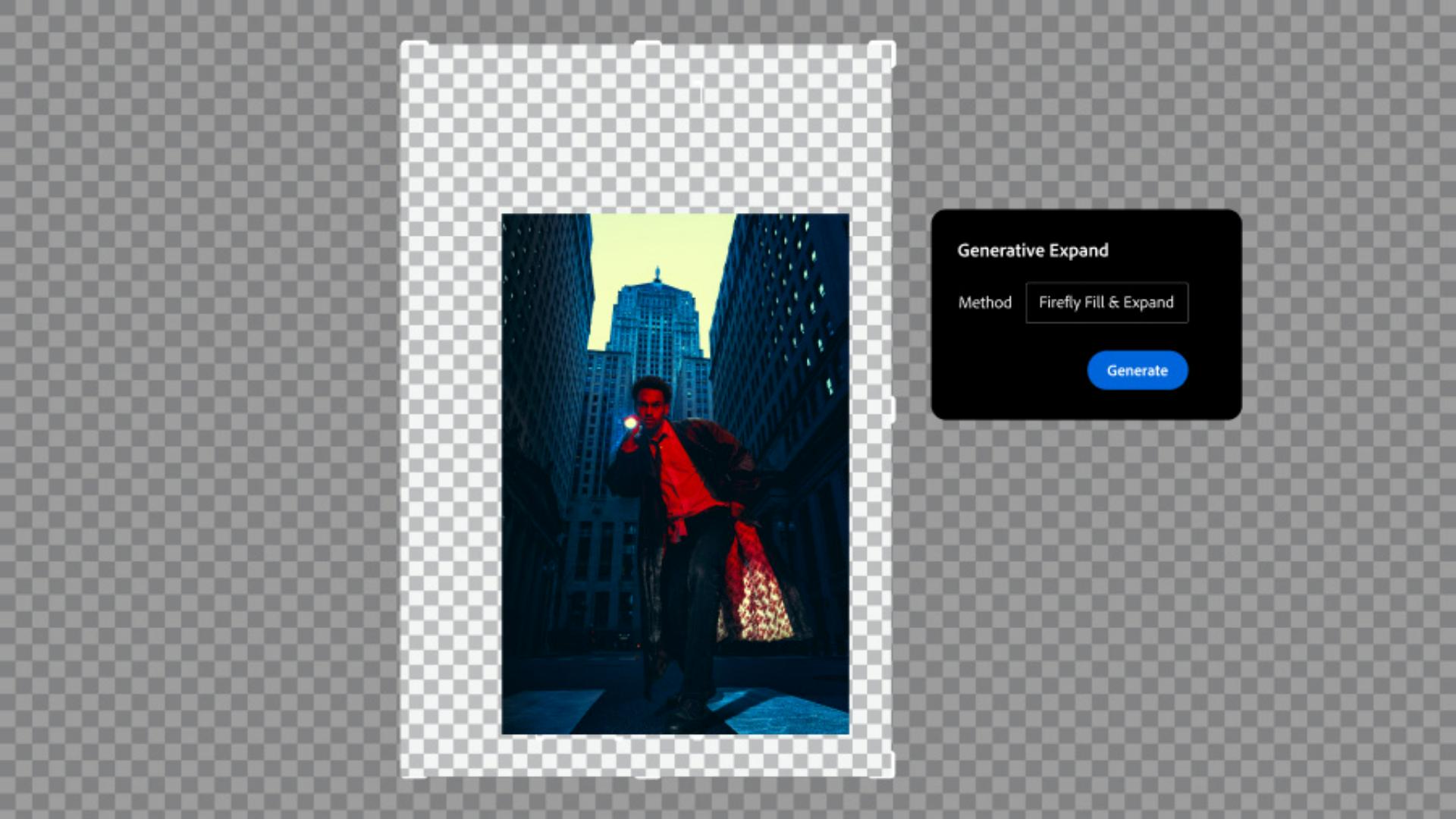
For the final touch, he gives the buildings more drama and scale.
In Crop and Expand, Dennis checks Enable Expand. He drags the handles to create the final frame, and clicks Generate. Firefly fills in the extended area, and he flips through variations before landing on the one that achieves his vision.
Instruction by
Dennis Larance

