Rotate a subject to match another photo’s angle in Photoshop
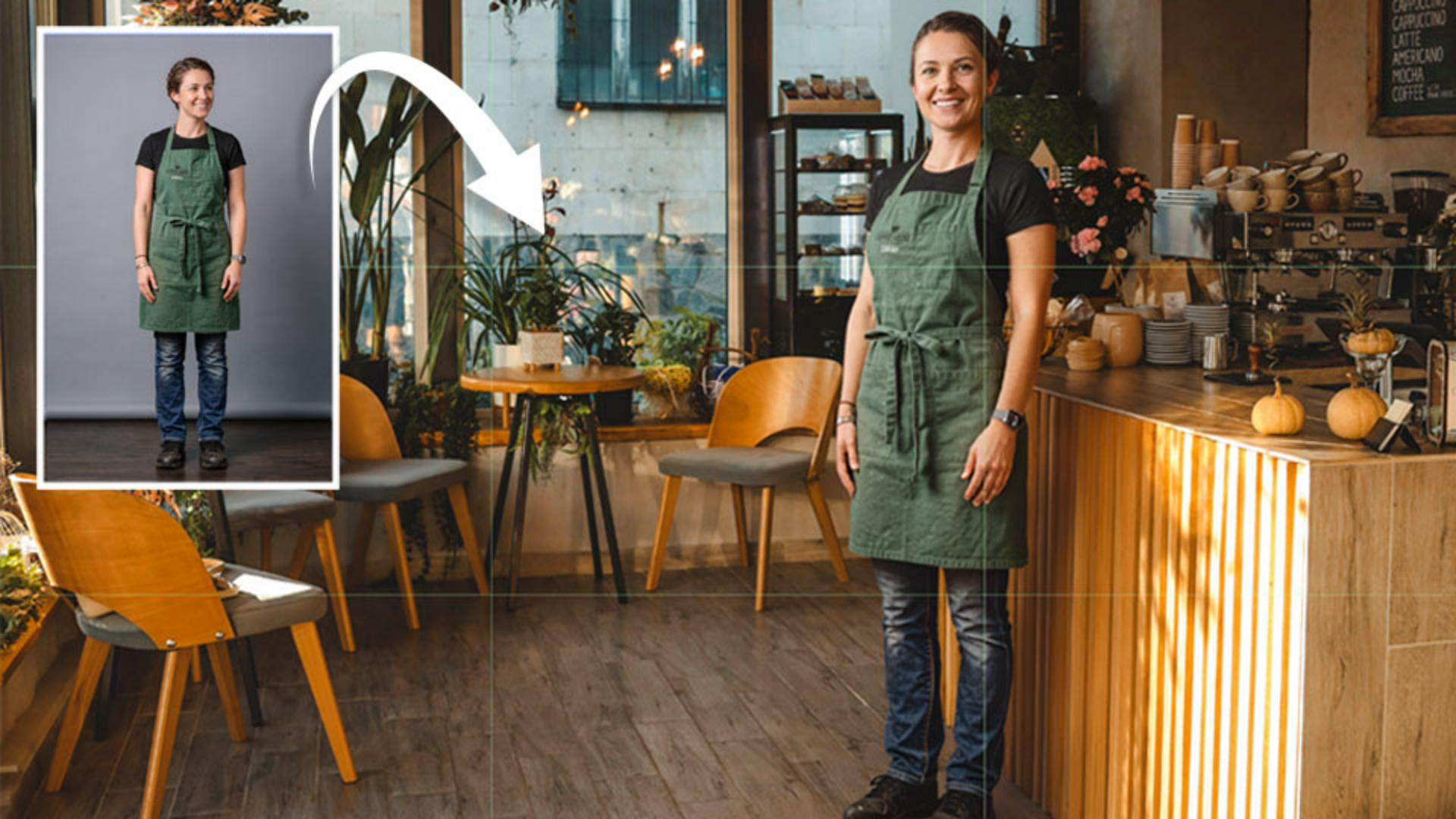
Note: Stock assets provided are for practice purposes only. See terms.
What you’ll learn
Rotate a subject to match the camera angle
When two photos have different camera angles, the subject may not fit naturally into the new scene. Use Rotate Object to remove the background, change the subject’s angle, then scale and position it to match the scene’s perspective.
Compare rotation angles to find the right composition
Duplicate the rotated layer and experiment with another angle before choosing your final composition. Compare how the subject’s pose, eye contact, lighting, and perspective work with the background to find the angle that best fits the scene.
Match lighting, color, shadows, and reflections with Harmonize
Use Harmonize to match the subject’s lighting, color, shadows, and reflections to the background. Compare the generated variations and choose the one that makes the subject fit naturally into the scene.
Restore missing details with a partner model
Rotate Object may leave areas soft or unclear when the source photo doesn’t contain enough detail. After using Harmonize, select the area and use a partner model with Generative Fill to restore details using the corrected lighting as a reference.
Tip: When using a Gemini model, make a square 1:1 selection around the area you want to improve. This can produce cleaner alignment when matching the surrounding image.
Instruction by
Adobe Stock Contributor

