


Use assistive AI audio tools to polish your sound mix
Note: Sample files provided are for practice purposes only. See terms.
What you’ll learn
Split one recording into a separate track for each speaker
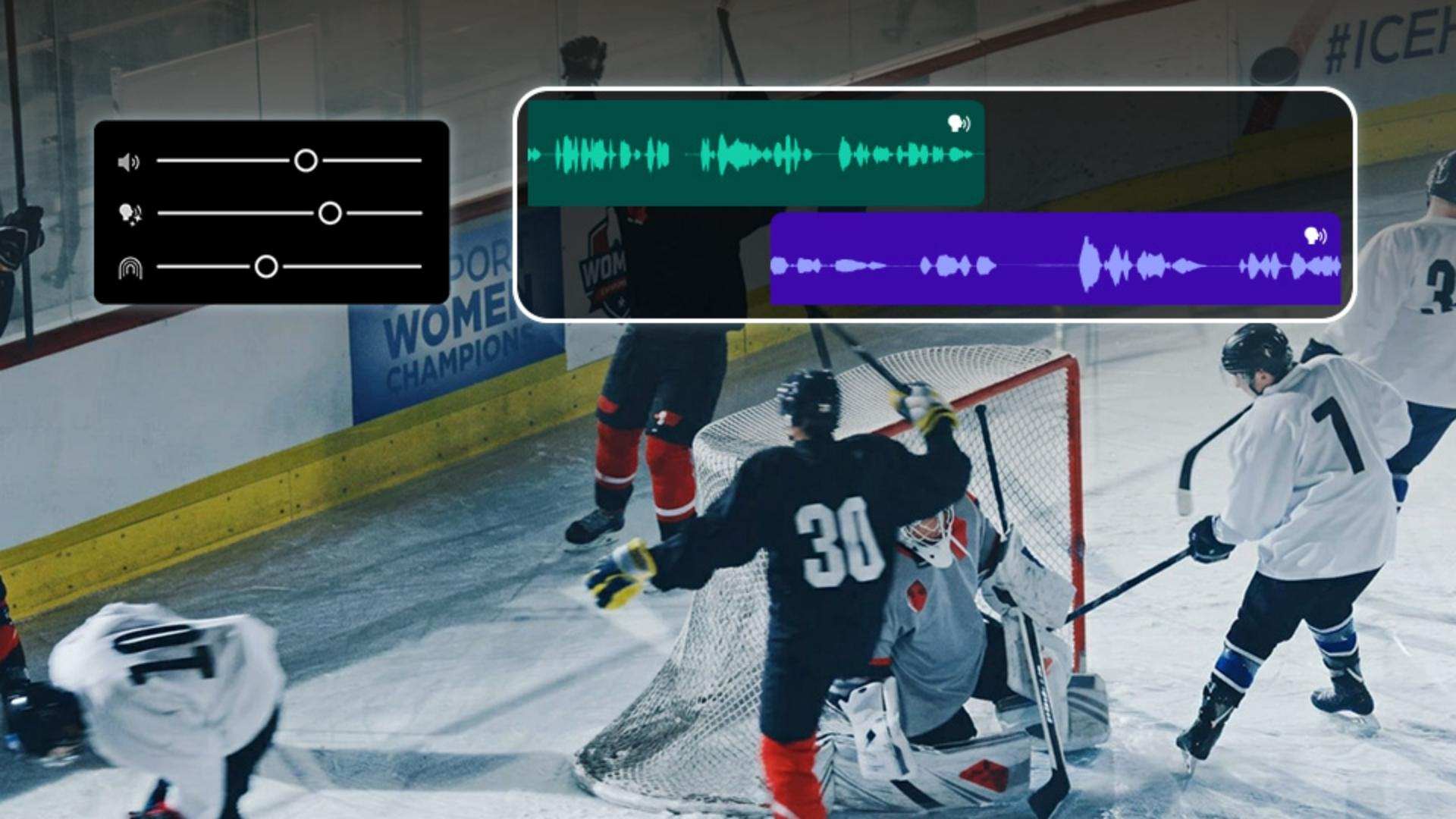
Overlapping voices on a single microphone are hard to edit around. Select Separate Crosstalk in the Properties panel and Premiere creates a clip for each speaker and one for background sounds. The original stays muted and unchanged on the timeline.
Clean up dialog and set the balance of voice, music, and ambience
Turn on Enhanced Audio in the Properties panel, then adjust speech volume, clarity, reverb, music, sound effects, and ambient noise.
Generate sound effects for a silent clip, one layer at a time
Use the generative media tool to prompt for each sound on its own track. Every generation gives you four options to choose from.
Tip: Record the highest-quality audio you can. Enhanced Audio can make a good recording sound great and a rough one much better, but it can’t work miracles.
Instruction by
Sarah John


