Skip the reshoot and generate the shot you're missing
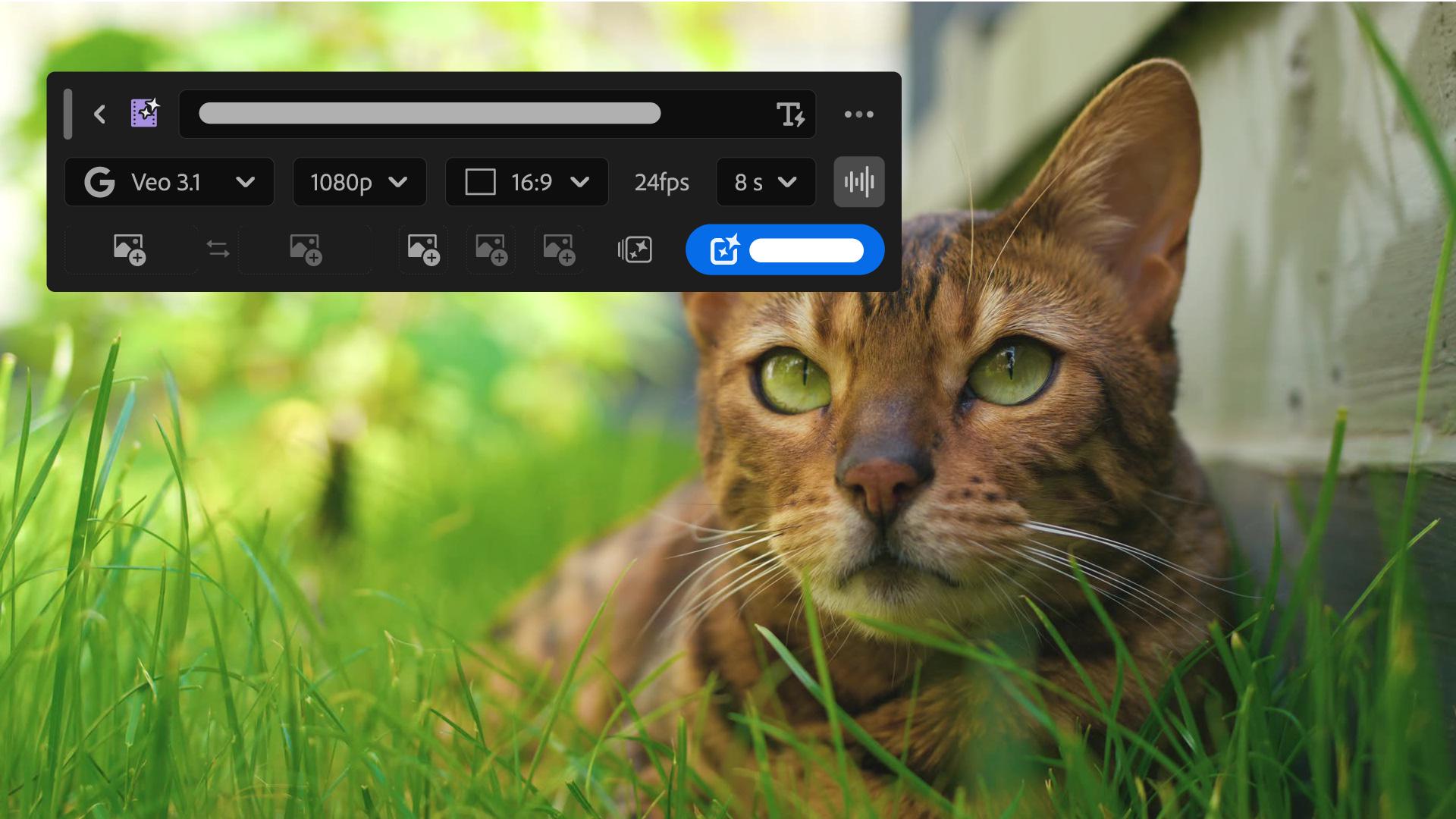
Describe the B-roll you need and generate a clip that matches your footage, right in the timeline.
Published
Note: Stock assets provided are for practice purposes only. See terms.
What you’ll learn
Blend a new transition between two clips you already have
Set the first and last frame using the eyedropper tool so the new clip picks up exactly where one take ends and the next begins. The tool generates a transition that ties the two together, adjustable in length to fill the gap completely.
Generate B-roll for missing footage
A missing or corrupted clip can leave a hole in your sequence, even when you know exactly what you needed. Describe the shot you had in mind, right down to the setting and camera angle, and generate a new clip to fill the space. Preview the result and adjust the prompt until it matches what you originally pictured.
Instruction by
Sarah John
Adobe Stock Contributor

