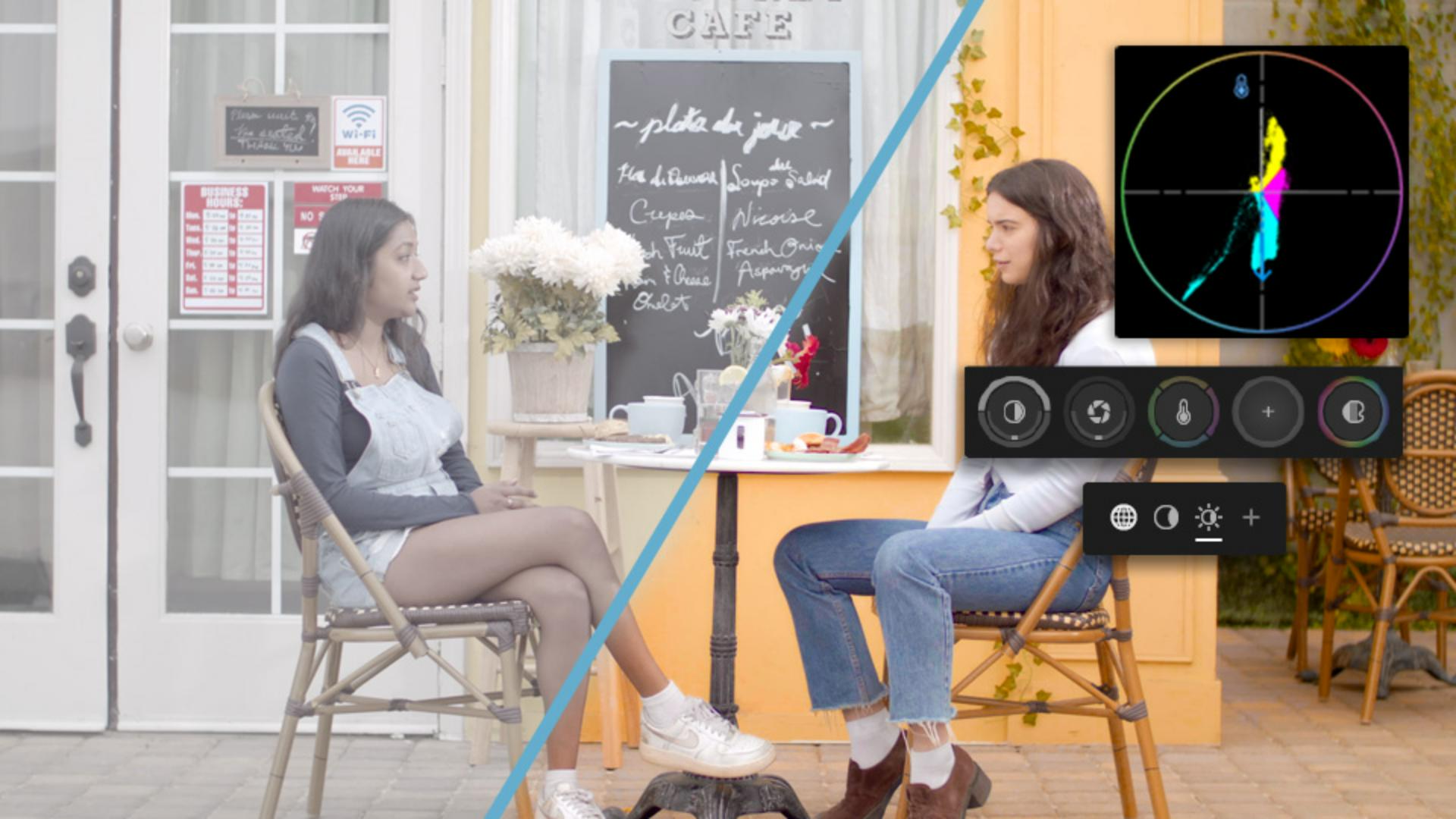
[Sarah John]: One of the most important aspects of any video project is color.
From correction that ensures everything looks balanced to grading that establishes style and feel, color is hugely impactful and has a major effect on how a finished video is received.
Premiere's Color Mode is designed to streamline working with the color of your video projects.
Built with editors of every skill level in mind, Color Mode replaces the Lumetri panel and provides a fresh, distraction-free layout that puts essential color tools front and center.
I'm Sarah, and I'm excited to give you a quick overview of how Color Mode differs from Lumetri.
Keep your Lumetri grades and make quick tweaks in the Properties panel
Now, before we get too far into Color Mode, I want to make sure everybody coming over from Lumetri knows this upfront: your Lumetri grades in existing projects will keep working.
They'll still render correctly, and you can see them in the redesigned Properties panel and make changes in a cleaner layout that's reminiscent of the Lumetri color panel.
Anytime we just need a quick tweak in the middle of an edit, the revamped Properties panel will have us covered with these Color Mode sliders.
Anything we adjust here will be waiting for us when we go into the full Color Mode.
Starting with version 27 of Premiere, the Lumetri panel will be retired; and the good news is Color Mode opens up a whole new set of tools for taking your color even further.
When we're looking at how Color Mode is different from the Lumetri panel,
Work in a dedicated mode built on updated color science
the biggest and most obvious change is that Color Mode is an entirely new system that lives in its own mode, accessible under this tab here at the top.
It's built from scratch on far more advanced color science than Lumetri.
We get smoother, more accurate results, especially with log and raw footage.
There are zone-based shadow, midtone, and highlight controls
Shape shadows, midtones, and highlights with zone-based controls and a live display
that are adjusted bidirectionally.
Moving up and down changes one setting, and moving left and right changes a related one.
This gives us precise zone-by-zone control over our look.
When we choose one of the adjustment options, the heads up display, or HUD, will open with numeric feedback and graphs that update as we move, so we can see exactly what each change is doing to the image.
As you can see in this example, we are adjusting the exposure control.
Moving it up and down changes the exposure, and going side to side affects the black levels.
The HUD shows us how these two settings are working together and gives us a ton of room to fine-tune.
If we want to get some ideas for coloring our footage,
Start from style presets and add film emulations or vignettes
we can take a look at the library of Style Presets.
Color Mode comes with loads of presets that we can browse through and quickly apply to our sequence.
Presets work similarly to the looks in the Lumetri color panel.
Once applied, we can make any adjustments we want by using the manual controls.
If we want to go even further, Style Modules let us add effects like film emulations, vignettes, and tons more right here on top of our grade.
Another really cool thing with Color Mode
Grade across clips and apply styles to a sequence or selection
is that it shows us every single clip in our project here on the side in the clip grid, which makes it so much easier to see what color changes we may want to make.
There are two ways to work across multiple clips at once.
First, styles and adjustments can be applied at both the clip level and the sequence level, and the effects can be dragged between groups.
If we're done color grading one clip, we can take all the styles we added to it and drag them over to apply them to the whole sequence at once.
We can also add new effects directly at the sequence level.
The second way is to Shift + Select a range of clips in the clip grid and apply an adjustment to just that selection.
This becomes its own group that we can rename, duplicate, and add other clips to as we work.
Color Mode is a massive overhaul to the way we work with color in Premiere, and it's true that it'll take some getting used to.
But now that you know your way around the tool, I hope you'll enjoy your time digging into it and getting creative with color.
Have fun with it.
Note: Sample files provided are for practice purposes only. See terms.
What you’ll learn
Keep your Lumetri grades and make quick tweaks in the Properties panel
Lumetri grades and projects keep working and render correctly. The Properties panel adds Color Mode sliders for quick tweaks, and those adjustments carry into Color Mode.
Work in a dedicated mode built on updated color science
Color Mode has its own tab at the top and replaces the Lumetri panel. It’s built on newer color science, giving smoother, more accurate results, especially with log and raw footage.
Shape shadows, midtones, and highlights with zone-based controls and a live display
Zone-based controls for shadows, midtones, and highlights give you precise control over your look. Moving up or down changes one setting and moving left or right changes a related one. A display shows numbers and graphs as you drag.
Start from style presets and add film emulations or vignettes
Presets in the Style library give you a starting point for your look, and you can fine-tune with the manual controls after applying one. Style modules layer film emulations, vignettes, and more on top of your grade.
Grade across clips and apply styles to a sequence or selection
The clip grid shows every clip, so you can see which ones need attention. Apply styles at the clip or sequence level and drag them between groups, or shift select a range to build a group you can rename and duplicate.
You can control how Adobe websites use cookies and similar technologies by making choices below. But note that if you disable cookies and similar technologies entirely, Adobe websites may not function properly.
Cookies are small text files stored by your web browser when you use websites. There are also other technologies that can be used for similar purposes like HTML5 Local Storage and local shared objects, web beacons, and embedded scripts. These technologies help us do things like remembering you and your preferences when you return to our sites, measure how you use the website, conduct market research, and gather information about the ads you see and interact with.
You can make choices in the menu below about what cookies and other technologies you want us to use on Adobe sites when you visit them from this browser. You can always change those choices later by clicking on the Cookie Preferences link at the bottom of the page.
If enabled:
We can improve your experience by tailoring the site and the content to things we think might be of interest
We can better keep track of your preferences — like what language you prefer to use
We will better understand your likely interests so we can provide you more relevant Adobe ads and content on non-Adobe websites and in non-Adobe apps
It will help us improve the performance of our website and those of our partners who use the Adobe Experience Cloud
If disabled:
We won’t be able to remember you from session to session so the experience may not be tailored to your interests
You’ll still have access to the content of the site but certain features that depend on cookies may not function
You’ll still see ads, they just may not be as relevant to you
General information
You can control how Adobe websites use cookies and similar technologies by making choices below. But note that if you disable cookies and similar technologies entirely, Adobe websites may not function properly.
Cookies are small text files stored by your web browser when you use websites. There are also other technologies that can be used for similar purposes like HTML5 Local Storage, web beacons, and embedded scripts. These technologies help us do things like remembering you and your preferences when you return to our sites, measure how you use the website, conduct market research, and gather information about the ads you see and interact with.
You can make choices in the menu below about what cookies and other technologies you want us to use on Adobe sites when you visit them from this browser. You can always change those choices later by clicking on the Cookie Preferences link at the bottom of the page.
If enabled:
We can improve your experience by tailoring the site and the content to things we think might be of interest
We can better keep track of your preferences — like what language you prefer to use
We will better understand your likely interests so we can provide you more relevant Adobe ads and content on non-Adobe websites and in non-Adobe apps
It will help us improve the performance of our website and those of our partners who use the Adobe Experience Cloud
If disabled:
We won’t be able to remember you from session to session so the experience may not be tailored to your interests
We’ll still count your use of our site and services
You’ll still have access to the content of the site but certain features that depend on cookies may not function
You’ll still see ads, they just may not be as relevant to you
Operate the site and core servicesOperate site and measure engagement
Always active
These cookies are required, and they are used to enable the site and related services core functionality. Without them the site could not operate, so they cannot be disabled.
These cookies enable the site and related services’ core functionality and collect statistics about user engagement, such as counting active use to help us understand trends. These cookies cannot be disabled.
Measure performance
These cookies are used to analyze site usage to measure and improve performance. Without them Adobe cannot know what content is most valued and how often unique visitors return to the site, making it hard to improve information we offer to you.
These cookies are used to analyze site usage to measure and improve performance. Without them Adobe cannot know what content is most valued, making it hard to improve information we offer to you.
Extend functionality
These cookies are used to enhance the functionality of Adobe sites such as remembering your settings and preferences to deliver a personalized experience; for example, your username, your repeated visits, preferred language, your country, or any other saved preference.
Personalize advertising
These cookies are used to enable Adobe and our partners to serve ads more relevant to your interests. Without them you will still see ads, but they might not be as relevant to you.
Personalize advertising
These cookies are used to enable Adobe and our partners to serve ads more relevant to your interests. Without them you will still see ads, but they might not be as relevant to you.