Apply perspective correction to fix skewed and tilted angles
Use Lightroom's Upright and Guided Upright controls to straighten and adjust the perspective lines in your photos.
Published
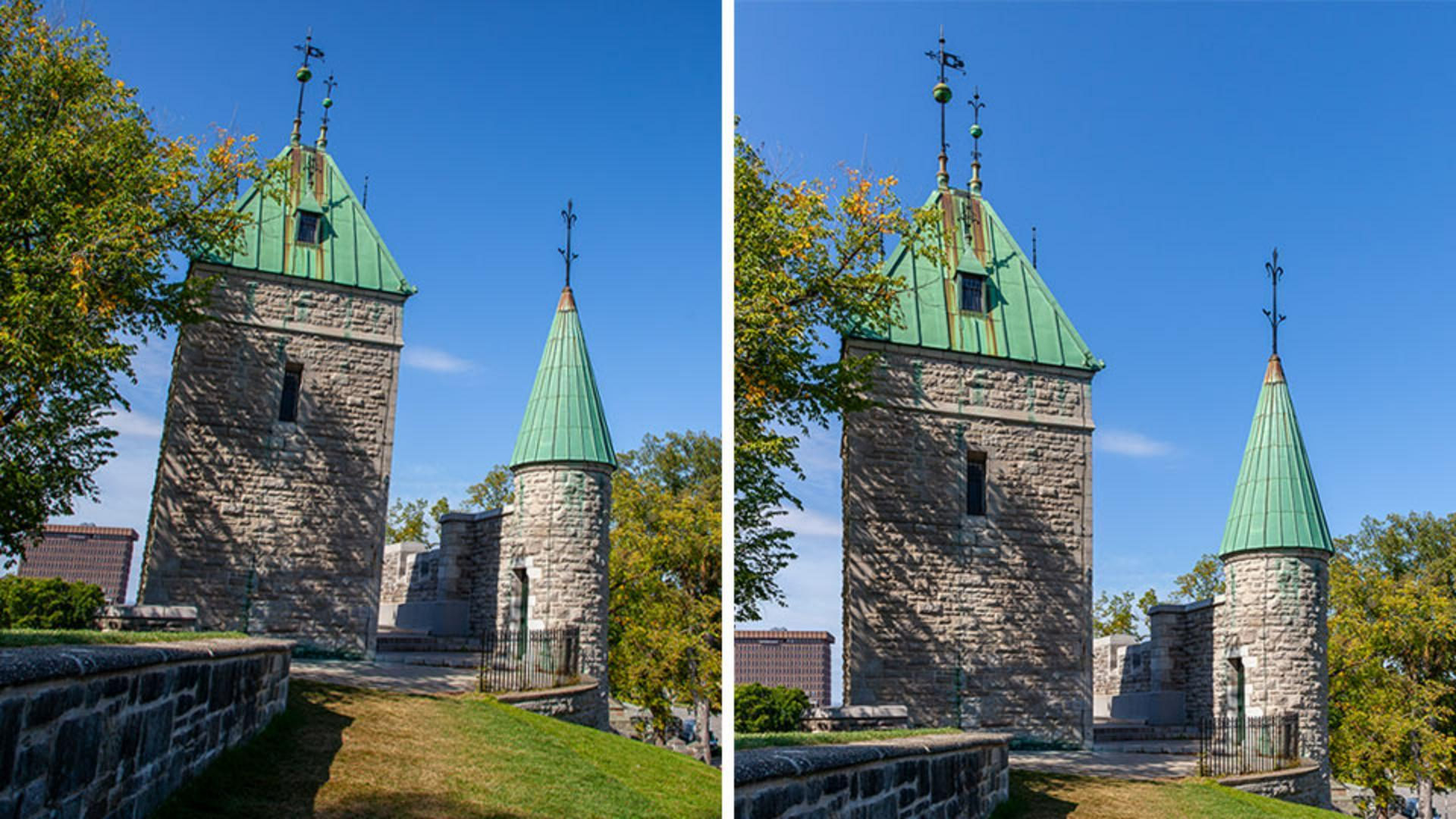
Note: Stock assets provided are for practice purposes only. See terms.
What you'll learn
Enable lens corrections
To ensure the best results from the geometry corrections, open the Optics panel and turn on Remove Chromatic Aberration and Enable Lens Corrections.
Start with the Upright presets
Click the Crop tool and in the Geometry section of the Crop panel, open the Upright menu. Start with the Auto preset and then try the other presets, Level, Vertical, or Full, to see which one produces the best correction for your photo.
Apply precise corrections with Guided Upright
Use the Guided Upright feature to apply guides that identify lines in the scene that should be vertical and horizontal. You need to apply at least two guides before a correction is applied. Click on a guide to adjust it, or press Delete to remove it.
Instruction and photography by

