.
Adobe Acrobat

Delete PDF pages

Drag and drop a file, then remove pages from your PDF. Free to use, no sign-up to try.

All the PDF tools you need, now 100% free

Enjoy unlimited PDF tools usage in India with a free account on Acrobat.com. No subscription or credit card required. Excludes AI features.

How to delete and remove pages from a PDF

Here are the steps to remove pages from a PDF file using the Acrobat online tool, no software download required:

A document icon with a dustbin icon showing how you can delete PDF pages
  1. Click the "Select a file" button above or drag and drop a PDF into the drop zone.
  2. Choose the document from which you want to remove pages.
  3. After uploading your file, sign in to continue.
  4. Highlight the page thumbnail or thumbnails you want to delete from your PDF.
  5. To delete the selected PDF pages, click the dustbin icon in the top toolbar.
  6. Click "Save" and rename your new PDF file.
  7. Download the file to store it in your desired location or get a link to share it.

Try our free tool to delete pages from a PDF

A PDF with a dustbin icon showing how you can delete PDF pages

Swiftly delete and remove PDF pages online

With Adobe Acrobat online services, you can quickly remove PDF pages in just a few clicks. Upload your file, sign in, select the pages you want to remove, and then download or share your organised PDF. Perfect for students, professionals, or anyone who needs a quick, reliable PDF page remover.

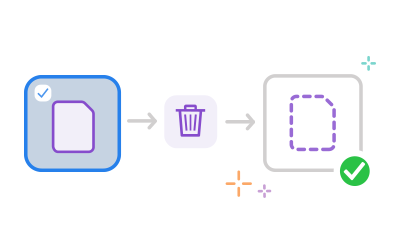
Multiple pages with a dustbin icon pointing to one page representing using Acrobat to select the pages you wish to remove

Selectively remove pages from PDF files

Need to delete only certain pages? Acrobat lets you choose exactly which ones to remove. Simply highlight the page thumbnails you want gone and click the dustbin icon. Keep only the content you need, making your file lighter, cleaner, and topic focused.

Two vertical pages and one horizontal page with an arrow showing how you can reorder and rotate PDF pages

Reorder, rotate, and re-organise PDF pages

Organise your PDFs with Acrobat online. You can also drag and drop pages to reorder them, delete unnecessary pages and even rotate PDF pages to portrait or landscape mode.

A PDF file with an arrow being shared with others

Create the perfect PDF with Adobe

Using the Adobe PDF page remover tool, you can organise your file for sharing and collaboration. Everyone sees the same content, and you can gather feedback in one central PDF. This makes it easier for teams, clients, and classmates to work together effectively.

A desktop and mobile screen with the Adobe Acrobat logo representing working with PDFs on any device

Simplify working across devices

Whether you’re on a desktop in the office, a laptop at home, or a mobile device on the go, you can use Acrobat online tools to delete pages from PDFs seamlessly. These tools work in any browser and on any operating system, letting you remove or reorder pages without hassle.

An Acrobat PDF file with a lock showing that you can trust Acrobat PDF tools

A trusted PDF page remover

Work confidently with Acrobat. The secure, reliable choice for removing PDF pages online. Adobe’s delete pages from PDF tool helps you set up the perfect file every time, with professional results you can share immediately.

Questions? We have answers.

More resources

a text bubble, pencil icon and a stacked PDF icon representing free online Acrobat tools

Use Acrobat tools for free

  • Sign in to try 25+ tools, like convert or compress
  • Add comments, fill in forms and sign PDFs for free
  • Store your files online to access from any device

Rate your experience

Rate your experience
3.9/5-3823votes

Try these Acrobat online tools