Apply motion blur for smoother playback
Learn how to apply the Pixel Motion Blur effect to avoid visual strobing when playing back some footage and 3D renders at normal speed.
Published
[In this movie, we will be covering: the problem] [with fast shutter speeds - applying Pixel Motion Blur] [Shutter Angle Shutter Samples - Vector Detail the old Timewarp method] >> Another nice addition to After Effects is the ability to add Motion Blur to already shot - or already rendered footage.
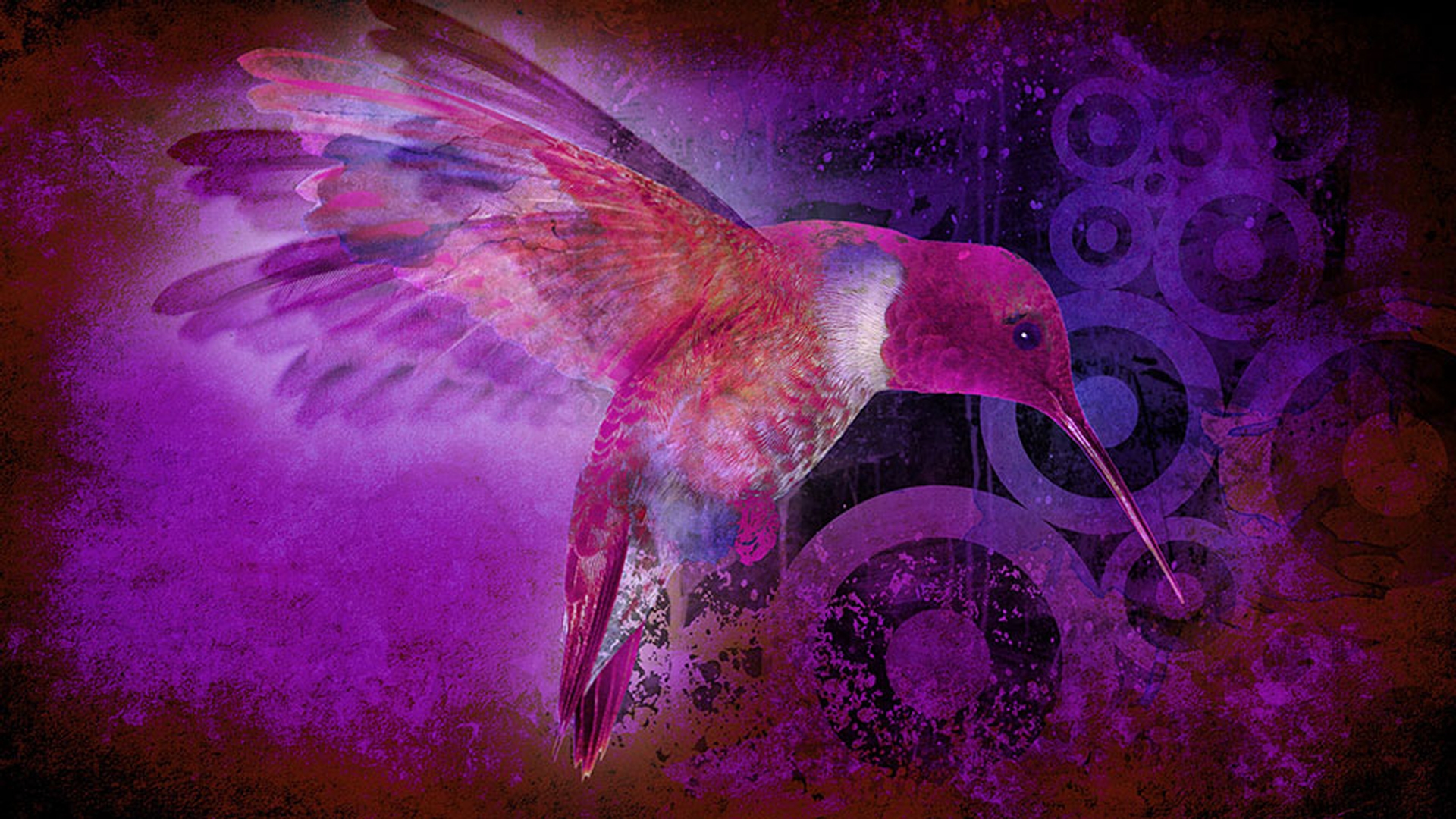
Now here's a little shot of a hummingbird, shot with a Canon 5D, and unfortunately, the shutter speed was too fast, - it was set at 1/300th of a second, when it should probably have been say - 1/50th or 1/60th of a second to get more of a motion blurred filmic look.
As a result, the wings - on the hummingbird look quite strobbed and are a little bit jarring to watch.
And if we were to single frame through this, I'll select the Timeline panel - and use Page Up and Page Down, you can see the wings do indeed move - a fair amount from frame to frame.
Sometimes it looks still, - sometimes they look blurred.
And this is what creates - a very jarring final image when it's at motion.
Let's pick a place where the - humming bird's making a particular move such as right here - where it lunges into the feeder.
To smooth out this movement, you can now use a brand new effect - called Pixel Motion Blur.
I can never remember - what category it's in, so I'll just search inside - the Effects Control panel.
And there it is underneath Time, - not underneath the Blur, Pixel Motion Blur.
I'll add this to my layer - and now you see how the hummingbird has been changed - and distorted a little bit to give some natural blur to the image.
I'll go Page Up for one frame earlier, - Page Down for one frame later.
And now I get a much more - fluid movement blurred as the hummingbird lunges - into the feeder.
Now that his head stopped moving, you can see that portion of him - is sharp again.
Let's go ahead - and cue up a RAM Preview of this.
You'll notice that it's not necessarily - the fastest effect in the world.
So again, don't apply - to every piece of footage, only use it when you need it.
But once we have this playing - back at full speed and I'll jump ahead here in a moment, you'll notice that the final result - is much smoother.
And here we're playing back at full speed - with the new pixel motion blurred footage.
And you'll notice that it is a lot more fluid - and a little bit easier to watch.
I might even go for a little bit more blur - in this to smooth it out even more.
Now just for reference, this 7-second clip - took a few minutes to render.
So again, - it's not an effect you apply lightly but it can really make - some footage more watchable.
Now that we've looked at this, let's go study - Pixel Motion Blur's parameters.
They're pretty simple Shutter Angle, 180 degrees is the typical filmic look - of a half duty shutter on a film camera.
If you want to more blur, you can crank this up - to particularly high numbers.
So just 720, - you create a very blurred looking image.
But I go back to the filmic 180, Shutter Samples - is how many intermediate points in time After Effects is going to create - to attempt to smooth out this image.
For example, if I was to go down - to Shutter Samples of only say 2, now I'm gonna see a lot more ghosting and more artifacts as it attempts - to blur out this hummingbird, not quite as nice looking.
Particularly in here you see a ghost - of its back as it moves forward.
But with more Shutter Samples - that looks a bit smoother.
You can go even higher - to smooth it out even more.
If you're still noticing strobbing, - go for a higher value.
But keep in mind the more shutter samples - takes longer to render.
Finally is Vector Detail.
This is actually derived - from the Time Warp and pixel motion portions of After Effects - that does what some people call optical flow.
It takes pixels from the frame - before and after and tries to calculate where those pixels would've been - at intermediate points in time, the more vector detail, the tighter mesh - of pixels that are calculated.
So if I'm having trouble with some distortion - in the looks of this hummingbird, and let's find a frame - little bit earlier in time where things may be looking - a bit odd or stretched.
So when he first lunges into the feeder.
Here, we've got some problems - with the ghost of the wing there.
You can try increasing the Vector Detail - to get a cleaner render of the image.
Again, it's not a parameter - that you just blindly increase to see if it looks better - because, one, it's gonna take longer to render, and two, - it can introduce artifacts of its own but you can see - where it has cleaned up the render of this single frame - compared to the default value, which is now looking - a bit distorted by comparison.
And again, you really - should look at these things at speed rather than looking - at one frame at a time.
A lot of sins you see - on individual frames are forgiven by the eye when everything - is put together in full motion.
Pixel Motion Blur - is not an entirely new effect.
There's been third party solutions.
There's been - a solution inside After Effects, you go to Effect, Time, Timewarp, change the speed to 100 percent, enable Motion Blur, - and change the Shutter Control from Automatic to Manual, and you'll get a very similar effect - to using the Pixel Motion Blur effect.
The nice thing about Pixel Motion Blur is it's now in one simple effect instead of this big effect - you had set up by hand.
So another way of rescuing - poorly shot footage in After Effects. [next movie: Layer Snapping - previous comp snapping behavior] [the Align panel snapping in 2D snapping in 3D - toggling the snap mode] -

