
Try these tutorials with After Effects
Create visual effects and motion graphics.
Learn how to use Content-Aware Fill for video in Adobe After Effects, powered by Adobe Sensei, to easily remove unwanted elements from scenes.

Feather it for smoother edges. This will help blend your new fill into your existing shot.
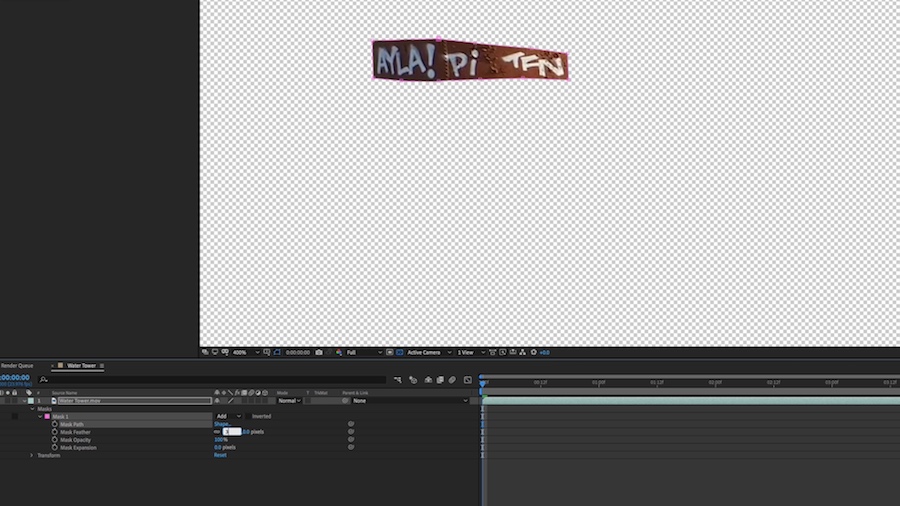


Fill in the mask using nearby textures, then save it. After Effects will automatically manage the reference file.

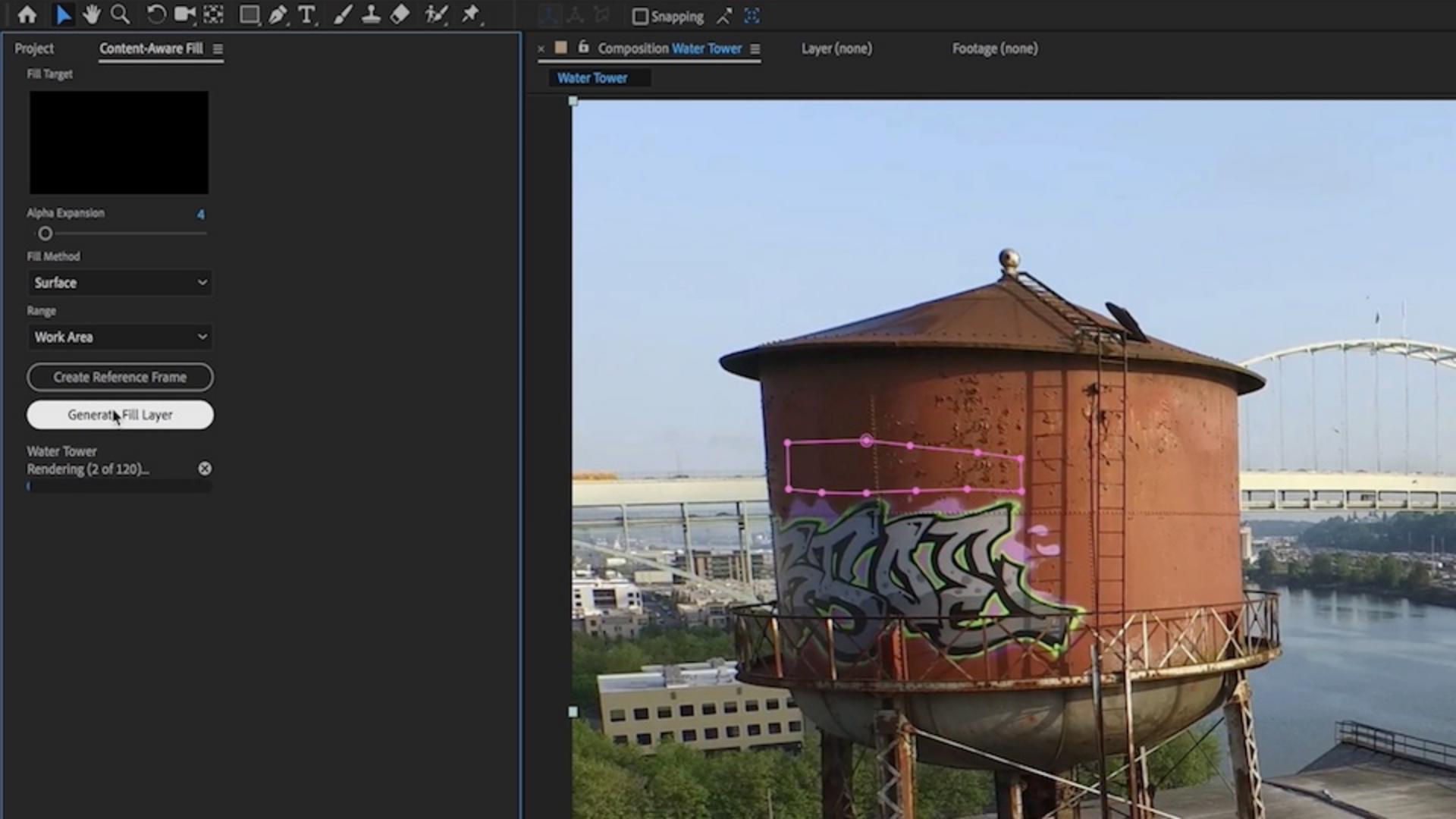
Go to the Content-Aware Fill panel and select Surface for the Fill Method. Adobe Sensei goes to work and creates a suitable fill for your clip.
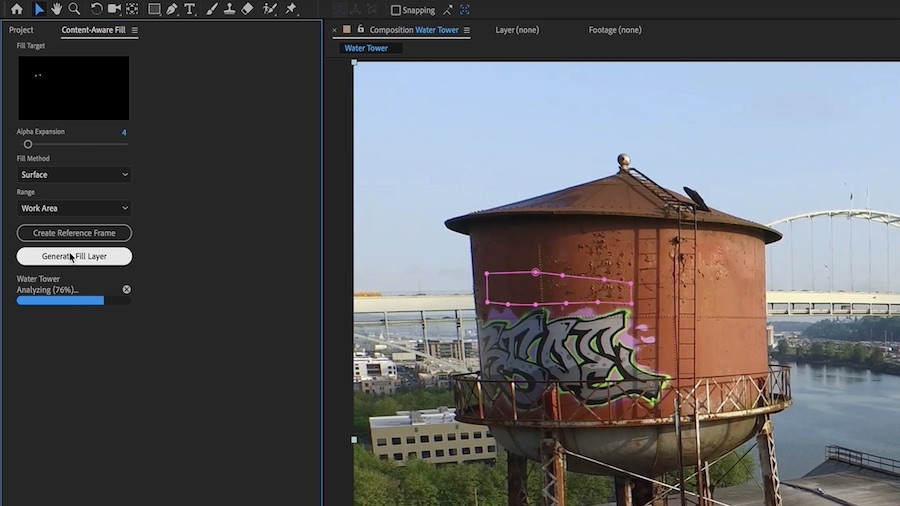
With the power of Adobe Sensei you’re able to save time and use all your best footage.