Whenever you're working with full-screen video and you want to cut an element out of its background or remove it from the background, you'll want to use a layer mask.
And in this video, we're going to do just that.
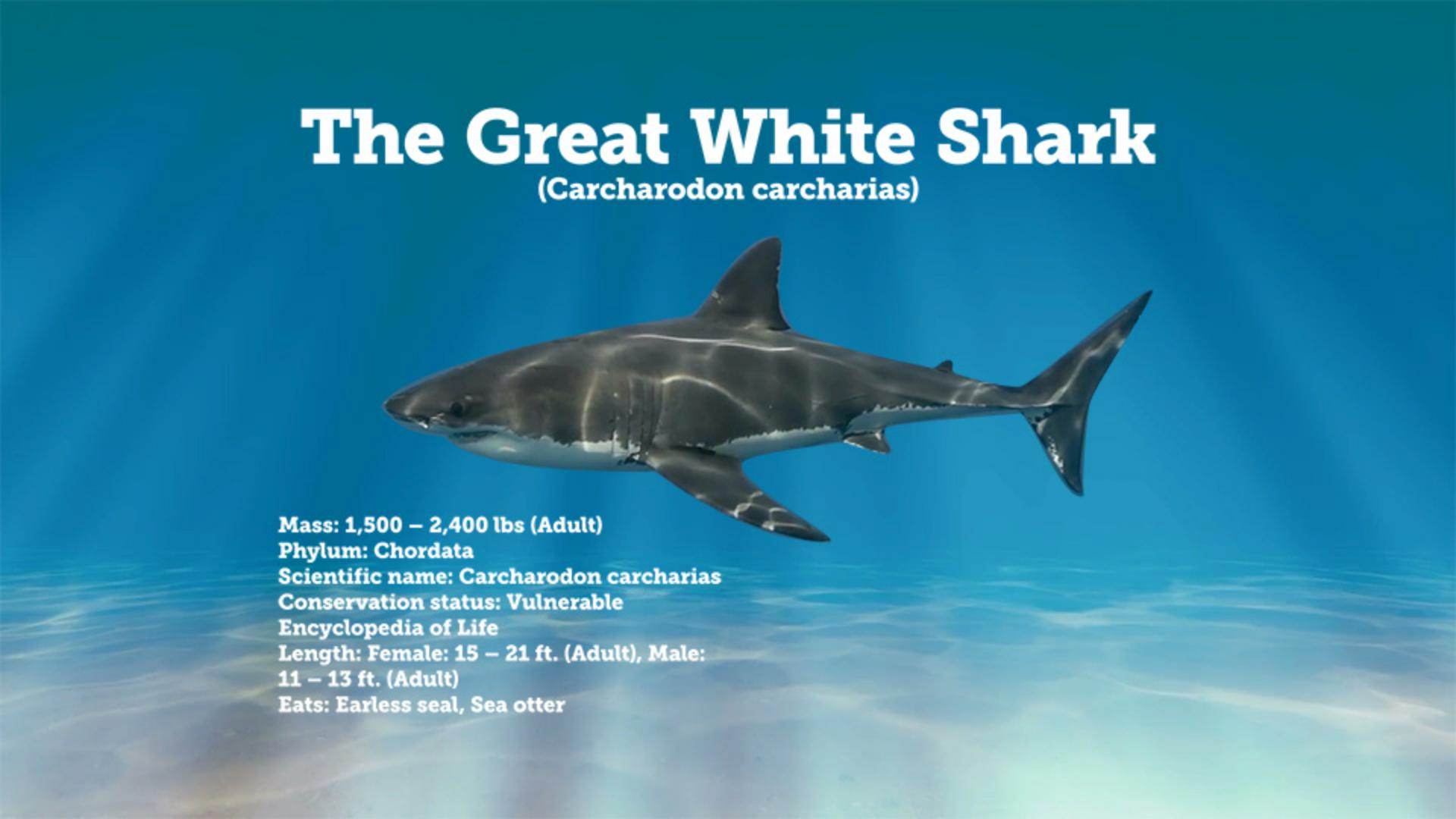
We'll isolate this shark from the ocean background and insert it over top of some graphic elements here.
So, I'll make sure the visibility of Layer 1 is on and I'll select Layer 1, and I'll grab my Current Time Indicator and scrub in the Timeline, and you can see that we're working with video.
Let's create a still frame since we only need a still of the shark over our graphic.
I'll move my Current Time Indicator to where my marker says Freeze at 0;00;02;00 in the Timeline.
Then, with Layer 1 Selected, I'll go up under Layer, go down to Time and choose Freeze Frame.
Now when I scrub, you can see, it's just as though this layer was a still, which is exactly what we want.
To better see what we're going to cut out, let's press the . key to zoom in in the Composition panel.
Then, I'll press and hold down my Spacebar which will grab my Hand Tool and then I can just click and drag in the Composition panel to reframe.
Then, I'll let go of the Spacebar.
Let's grab our Pen Tool out of the Tool panel.
I'm going to click and hold because you may have one of these other tools active.
Just make sure that you've chosen the topmost Pen Tool.
And we'll start down here on the belly of the shark just before its fin and I'll just click once and that's going to add a mask to that layer.
Now, let's go to the mouth area and click and drag.
And notice as I drag, we're creating handles.
So, I can rotate these handles around to change how the mask moves between each one of these anchor points.
And more importantly, it also controls how the path actually moves through each anchor point.
So, let's go to the nose here and click and drag.
And you'll notice now I have a little bit of a kink in the path, and that's fine because right now, we just want to make sure that we have handles and path points at the key areas along the shark.
So here, I'll click and drag to create handles just at the base of the dorsal fin.
I'll click and drag to add more handles up here.
And again, it's fine that the path is off the shape because we're going to go back and refine that a little bit later.
For smaller detailed areas like this, I'm going to create much shorter handles, but I'm still clicking and dragging.
Now, when I get to this area here, I can see it's got a little fin there, but I'm just going to go ahead and crop that off because it's really hard to see, and I'll just continue on creating this shape.
Now, once we've created the basic shape when you get back to the first point, you'll get a little circle that's letting you know that you're going to close the mask.
So, once I click on this, it's closed the mask and you can see the shark is now appearing over top of my graphic.
Now let's refine the shape.
I'm going to show you the key commands that you can use to refine the shape, and then I'll just fast forward through all the fine-tuning adjustments because you don't need to sit through that.
So, the first thing I'll do is move over an anchor point and I still have the Pen Tool active here from the Tool panel.
So, when you click on an anchor point, it brings up both those handles.
Now, I can reposition the anchor point like so and if I adjust the handles, they adjust on both sides.
If I want to adjust the handle only on one side, I'm going to hold down Option on the Mac or Alt on Windows and click on that one handle.
And that's going to break the translation between these two handles.
So, I'm going to hold down Alt or Option and I'll just fine-tune the movement of the path over this one little point.
I can do the same thing here holding Alt or Option.
Now, if you hold down Alt or Option and then click on a path, it'll change it from having handles to not having handles.
So, I want you to feel free to go through and fine-tune the mask and make your adjustments, making sure you notice the difference between just clicking and dragging directly on a point versus clicking and dragging while holding the Alt or Option key down to get a more refined adjustment for the path over that specific area.
And I'll rejoin you here in just a few.
All right, once you have something you like, go back up to the Tool panel and grab the Selection Tool, and then you can click directly on layer 1 and I'll press the , key to zoom out, and I'll just click on the shark and reposition it within the scene.
So, you can see, once you need to isolate an element out of its background, if it's a rather complex shape, you definitely want to use the Pen Tool.