Work with HDR
Accurately view HDR on HDR capable hardware while you work.
Published
Introduction
Use stunning HDR to liven up your After Effects projects.
Accurately view HDR on HDR capable hardware while you work.
Learn the workflow to make your videos bolder and more cinematic.
Hi, I'm Jess, a Motion Designer and Art Director.
First, it's essential to understand what High Dynamic Range or HDR means.
Understanding HDR fundamentals
HDR gives your video higher brightness or luminance, measured in nits, vivid colors, and more contrast.
SDR or Standard Dynamic Range is mastered at 100 nits, while HDR is at least 400.
HDR is not just brighter; displays capable of HDR also make the blacks appear darker by dimming or turning off the light behind the display.
This results in deeper blacks and more contrast.
The dynamic range of a video also considers the color gamut, which indicates the range of colors used by a device such as a monitor or camera.
SDR videos use a Rec. 709 color gamut, while HDR utilizes a color gamut of DCI-P3 or broader.
We'll also need a color depth of 10-bits or more, because 8-bit doesn't have enough information to map colors smoothly across this broader range of colors.
It's common for HDR and 4K resolution to be marketed together for displays, so you might think 4K is required, but you can create HDR content in 1080p.
To summarize, HDR videos use a color gamut of DCI-P3 or broader, a color depth of 10-bits or more and reach a brightness of at least 400 nits.
Now that we've established what HDR is, you can open the supplied project file to follow along.
Setting up an HDR project working space
First, we'll set the project color working space to an HDR setting.
Find the color depth boxes as 8 bpc at the bottom of the Project panel and click on it to bring up Color Management and Project Settings.
Click on the Bit Depth dropdown to update the setting to 32 bits per channel (float).
Right now, the Working Color Space is set to None.
From the dropdown, select an HDR workspace such as Rec2100 PQ, or Rec2100 HLG.
Rec2100 utilizes the 2020 color space with brighter luminance.
PQ and HLG are HDR transfer functions.
A transfer function translates the range of light and color into a format that HDR capable displays can reproduce accurately.
It maps the brightness to the display's capabilities while aligning with how we perceive light and contrast.
HDR transfer functions like Perceptual Quantizer and Hybrid Log Gamma are for different purposes.
PQ delivers precise brightness and color for static or dynamic metadata workflows targeting cinematic or streaming content, while HLG ensures compatibility with both HDR and SDR displays, making it ideal for live broadcasts.
Let's select Rec2100 PQ and click OK.
Now the imagery appears much brighter, and the background looks much darker.
If you're on a PC, you'll have to turn HDR on for Windows, which can be found under the System Display settings menu.
If this isn't available, your monitor may not have HDR support.
We'll also need to check the input footage color space
Assigning and managing footage color spaces
to keep everything looking as it should.
In this case, here are two EXR image sequences.
In the Project panel, right-click one of the image sequences, go to Interpret Footage, and Main...
Click on the Color tab at the top of the panel.
Right now, this media has no Color Space set, and by default, After Effects has given it a color space of sRGB.
I know that these sequences were created in 3D software using an ACES CG working space.
So, that's the color space we should assign this media.
Click on the dropdown and select ACES CG.
You can follow the same process when working with footage, except you would pick the appropriate color space for the media you've imported.
Clips can sometimes import with the correct color profile already embedded.
This panel also provides an informative Description of the conversions taking place.
Let's click OK.
The project has only two image sequences, but updating the color space would be tedious if the project had many.
If we know this media is the same, we can right-click on the footage we just changed, go to Interpret Footage, and Remember Interpretation.
Select and right-click the media you want to change and under the same menu click Apply Interpretation.
This media now has the same settings.
If you're using Lumetri scopes for more information while color correcting, you can switch the Lumetri Scope view to HDR using the dropdown in the bottom right of the panel.
Say we want to apply an effect like CC glass to this composition.
Applying effects in HDR with compander workflows
Open the Effects & Presets panel by going to Window, Effects & Presets and type in CC glass.
This effect has an icon with a 16 next to it.
That means this effect supports a color depth of up to 16 bits.
The numbers to the left of the effects in this panel indicate what color depth they support.
Since the project color depth is above the supported color depth, we can sandwich this effect with another effect called HDR Compander.
Compander is a word that combines compress and expand.
We want to compress the scene to SCR limits, apply the desired effect, and then expand it back out.
Click on the adjustment layer in the Timeline named HDR Compander.
View the Effect Controls panel to the left of the Composition viewer.
I've already applied the effects to this layer to show a quick example.
Enable the first HDR Compander, which compresses the image to around SDR limits by tweaking the Gain and Gamma values.
Next, we can enable the CC Glass effect and the last Compander effect.
You'll notice this effect has the same values as the first.
Change the Mode of the second instance to Expand back to HDR levels.
Now that we've explored the HDR Compander effect, let's hide the adjustment layer.
To export this HDR video,
Exporting HDR video for delivery
go to Composition in the top menu bar and Add to Adobe Media Encoder Queue...
Media Encoder has several presets.
Under Format select HEVC (H.265) and under Preset, select HEVC - Match Source - PQ.
Of course, you can select other HDR formats depending on what you're working in and what your final delivery requires.
Select an output location and hit the Play button to render.
HDR is gaining popularity as more consumer grade displays, cameras, and TVs are compatible with HDR.
While this seems a bit daunting, it's also exciting that HDR has become more accessible, and we can get more vibrancy and contrast in our videos.
Creatively, HDR elevates the scene because there's so much contrast between the lights and darks.
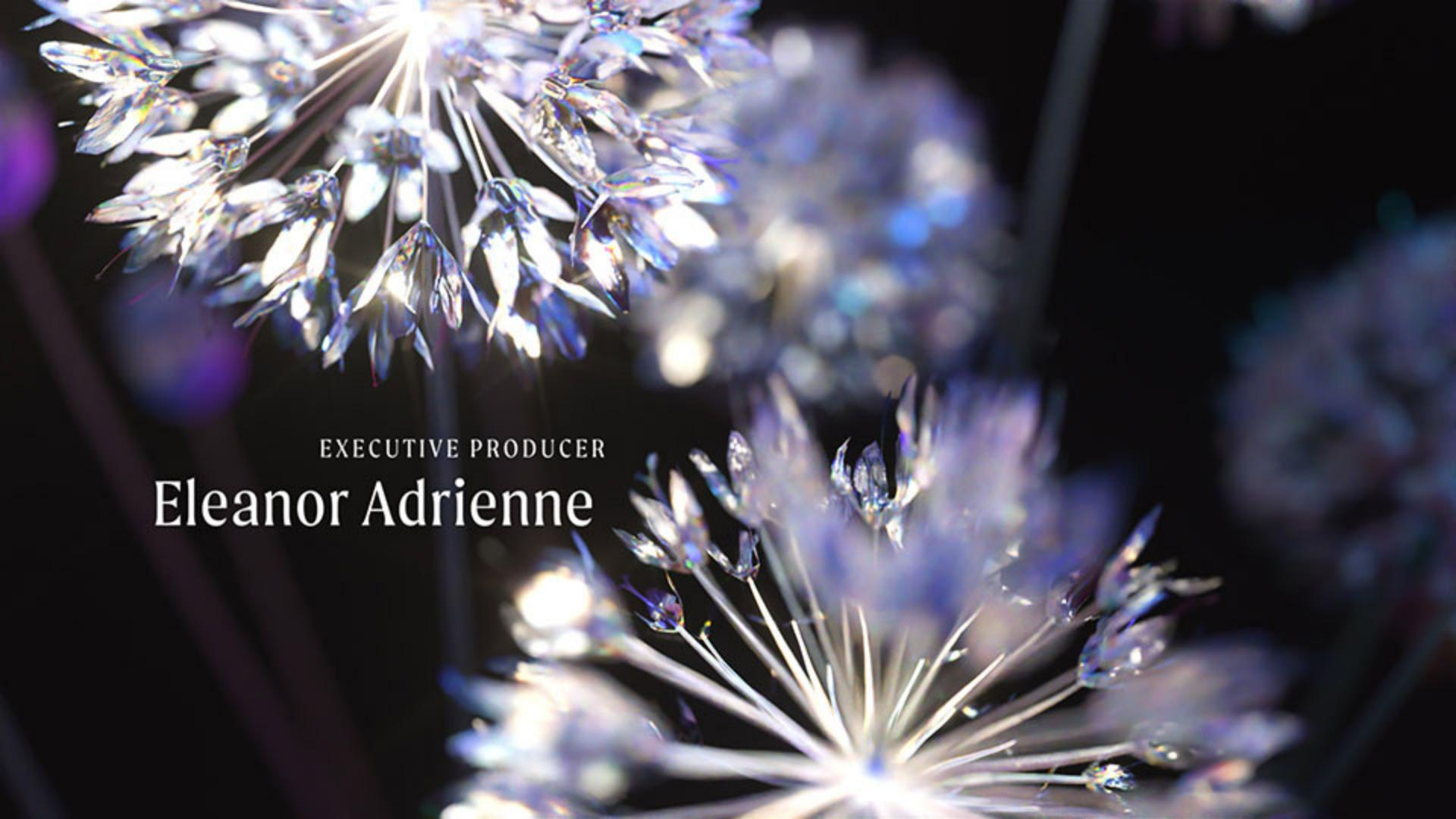
The glassy texture also produces many vibrant colors.
You might also consider HDR to film scenes with dramatic lighting to capture more detail in the highlights and shadows, or to create visuals with cinematic appeal and more color precision.
If you want to understand the technical nuances of HDR technology, there's lots of information out there.
Explore the creative possibilities of HDR and how it can enhance your workflow in After Effects.
What you’ll learn
High Dynamic Range
HDR enhances the brightness, contrast, and colors in your video and motion graphics projects, allowing for deeper blacks, brighter highlights, and more vibrant colors.
Enable HDR Previews
Open the Color Management tab in the Project Settings window. Enable HDR previews by changing the bit depth to 32 bits and selecting an HDR color space, such as Rec.2100 PQ, from the dropdown menu.
Apply effects
Some effects are not supported by HDR, but using the HDR Compander effect before and after the incompatible effect will enable their use.
Instruction and illustrations by

