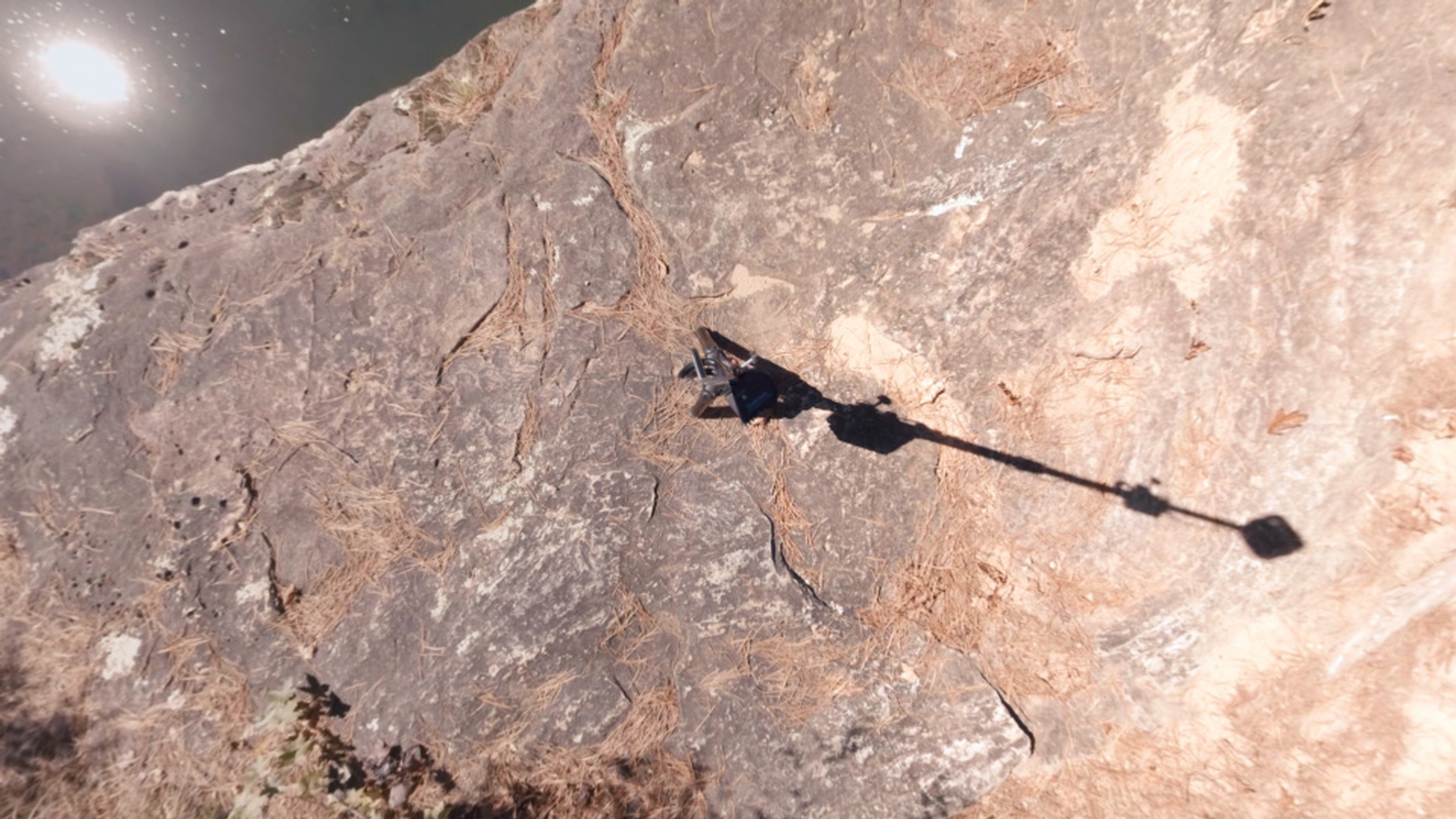
Removing a tripod using the clone stamp tool
So, I'm going to come up here and select the "Clone Stamp Tool".
Then I'm just going to double click on my tripod image and once you double clicked on that, you'll see this has opened up a layer view of our 360 video.
So this is a flat video at this point and we just have this area of the tripod in the scene.
You can also see that that launched the Brushes and the Paint tabs over here and those automatically opened in After Effects CC.
Currently I'm working with a brush that has a 70 Diameter, a Hardness of 0% and a Spacing of 20%.
That's going to work perfectly for me to paint out our Clone Stamp out this tripod and shadow.
Now what I want to do is I want to make sure my Current Time Indicator is at the very beginning of the video.
That's very important, that way it paints it out over the entire video and now if you're on Windows, go ahead and hold Alt or if you're on a Mac, hold Option, and when I do that, you'll see I get this little target that's appeared and that's where the start of my Clone Stamp is going to be.
So, I'm just going to click up here in this dirt and grass area.
And now, if I come down here to the tripod and shadow, in just two short little clicks, you'll see how that gradually paints out the tripod and shadow.
And as you can see, we were able to do that very quickly.
So now, it's actually been removed from our entire scene.
Now, in order for us to see that,