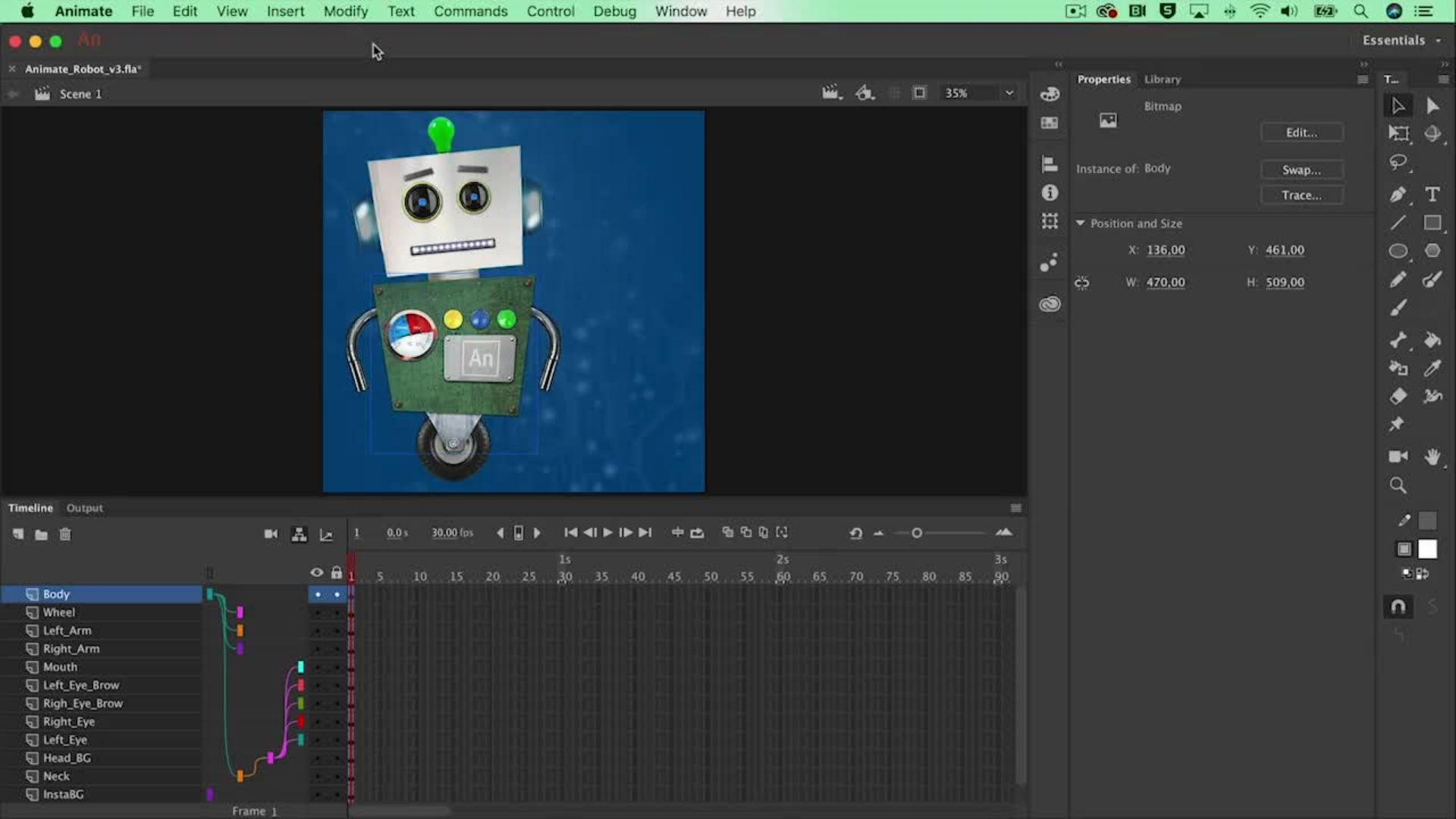
In this tutorial we are going to discuss Motion Tween and Graphic Symbols, in order, to make our little robot move.
So at first, I would like to select my Body, and move it out off Stage.
When we clip everything that's outside of the Stage, our content, this is what finally we'll end up in our export at the end.
So it's always good to have a little clean look at what your product is going to look like.
Of course, I want to see my robot in order to make it move
Creating a motion tween with graphic symbols
and I want to make use of the right click Create Motion Tween option.
And the Motion Tween will need our object to be a symbol.
So we'll need to convert this first into a symbol.
So I'm going to go for Modify, Convert to Symbol... and give it a name, Body, for instance, and I'm going to leave that as a Graphic symbol.
And now what I need to do is right click and Create Motion Tween.
And that will give us 1 second of time to animate, and of course, I can extend this to 2 seconds if I want to.
Immediately you will see that the only layer that has got 2 seconds of time is the Body layer.
So I want to see everything else as well, so I'm going to select the final frames over here underneath frame number 60, I'll right click and just Insert Frame.
And that will keep everything visible until the end of the animation.
Animating the body entrance and adjusting pivots
The next thing that I would like to do is make sure that my robot makes an entrance, so I'm going to select my robot at frame number 20, move it onto the Stage.
There we go.
And this is our first animation.
And probably he will need to lean forward a bit to anticipate on the motion.
So what I could do is rotate our robot a little bit, but that makes it rotate from the center of the whole selection.
I want to make it rotate right over here, where it connects to the wheel. so what I could do is select the Free Transform Tool, select the body and just move to a white dot over here where it's connecting to the wheel and now this is going to be the rotation.
Looks much better.
And when it comes to a stop it needs to move backwards, forward again a bit, something like this.
And while I'm doing this, it will make all these keyframes for my little robot.
Probably, it's a little bit too slow so, what I could do is just select all these keyframes, over here, move them towards frame number 1011.
When you've converted an object to a symbol, they will live in your Library, over here, so everything is already converted in here.
Adding motion tweens to character parts
So I want to make a Motion Tween of the head as well.
Let's right click Create Motion Tween, that will give me the same orange bar as well, and of course, I will need to rotate the head a bit.
But in this case the rotation point is also on the wrong spot, so let's alternate the frame and move on.
Something like this.
Animating and controlling wheel rotation
Of course, I would like to rotate the wheel as well.
Let's select the wheel, which is already a symbol, a graphic symbol.
When you double click on it, it will open up the wheel so I'm not in Scene 1 anymore, but in an underlying Timeline.
Let's convert this to a symbol as well, because I want to make it rotate.
Let's add a Motion Tween in there, let's select the Motion Tween, search for the Properties and let's say it needs to rotate about 2 times clockwise in the amount of 1 second, and we can already see that there's another extra keyframe.
Let's go back to Scene 1 and see if that works.
Only it keeps on spinning in the end of course, when it comes to a stop, it will need to stop, so let's select it over here, make another keyframe by hand with a right click, Insert Keyframe, and because of the fact that this is a graphic symbol, we can say well I don't want it to Loop anymore in the Properties, I want it to play a Single Frame, and it already selects frame number 13, because that's the position where we are at the moment, and that will make sure that it will stop.
So this is how we work with Motion Tween, and combining it with Graphic Symbols, and in the next video we will bend the arms with another technique.
What you learned: Work with motion tweens and symbols
Select the body and go to the Modify menu and convert it to a Symbol. Give the symbol a logical name and select Graphic from the dropdown menu. Do the same for the other objects.
Move the symbol to the left of the stage. This will be the starting point for the robot.
Select frame 60 for all layers and right click. Choose Insert Frame to give the animation two seconds of time to start with.
Right click on the body (on the stage) and select Create Motion Tween. Make the robot move to the spot on the stage where you want him to stand.
Create a secondary animation with the head of the robot so the animation feels more natural.
Double click on the wheel. This opens the symbols underlaying timeline.
Create another Graphic Symbol out of that wheel.
Create a Motion tween and select for this wheel in the timeline. This will show the properties. In there alter the rotation value to 2. This will make the wheel spin twice within one second. But because this happens in a symbol, it will loop.
Go back to the main scene in the left top corner. Create a keyframe for the wheel layer with a right click on the frame where the robot comes to a stop.
Select the wheel again on the stage. In the properties panel, choose Single Frame from the dropdown list to make the spinning stop.
You can control how Adobe websites use cookies and similar technologies by making choices below. But note that if you disable cookies and similar technologies entirely, Adobe websites may not function properly.
Cookies are small text files stored by your web browser when you use websites. There are also other technologies that can be used for similar purposes like HTML5 Local Storage and local shared objects, web beacons, and embedded scripts. These technologies help us do things like remembering you and your preferences when you return to our sites, measure how you use the website, conduct market research, and gather information about the ads you see and interact with.
You can make choices in the menu below about what cookies and other technologies you want us to use on Adobe sites when you visit them from this browser. You can always change those choices later by clicking on the Cookie Preferences link at the bottom of the page.
If enabled:
We can improve your experience by tailoring the site and the content to things we think might be of interest
We can better keep track of your preferences — like what language you prefer to use
We will better understand your likely interests so we can provide you more relevant Adobe ads and content on non-Adobe websites and in non-Adobe apps
It will help us improve the performance of our website and those of our partners who use the Adobe Experience Cloud
If disabled:
We won’t be able to remember you from session to session so the experience may not be tailored to your interests
You’ll still have access to the content of the site but certain features that depend on cookies may not function
You’ll still see ads, they just may not be as relevant to you
General information
You can control how Adobe websites use cookies and similar technologies by making choices below. But note that if you disable cookies and similar technologies entirely, Adobe websites may not function properly.
Cookies are small text files stored by your web browser when you use websites. There are also other technologies that can be used for similar purposes like HTML5 Local Storage, web beacons, and embedded scripts. These technologies help us do things like remembering you and your preferences when you return to our sites, measure how you use the website, conduct market research, and gather information about the ads you see and interact with.
You can make choices in the menu below about what cookies and other technologies you want us to use on Adobe sites when you visit them from this browser. You can always change those choices later by clicking on the Cookie Preferences link at the bottom of the page.
If enabled:
We can improve your experience by tailoring the site and the content to things we think might be of interest
We can better keep track of your preferences — like what language you prefer to use
We will better understand your likely interests so we can provide you more relevant Adobe ads and content on non-Adobe websites and in non-Adobe apps
It will help us improve the performance of our website and those of our partners who use the Adobe Experience Cloud
If disabled:
We won’t be able to remember you from session to session so the experience may not be tailored to your interests
We’ll still count your use of our site and services
You’ll still have access to the content of the site but certain features that depend on cookies may not function
You’ll still see ads, they just may not be as relevant to you
Operate the site and core servicesOperate site and measure engagement
Always active
These cookies are required, and they are used to enable the site and related services core functionality. Without them the site could not operate, so they cannot be disabled.
These cookies enable the site and related services’ core functionality and collect statistics about user engagement, such as counting active use to help us understand trends. These cookies cannot be disabled.
Measure performance
These cookies are used to analyze site usage to measure and improve performance. Without them Adobe cannot know what content is most valued and how often unique visitors return to the site, making it hard to improve information we offer to you.
These cookies are used to analyze site usage to measure and improve performance. Without them Adobe cannot know what content is most valued, making it hard to improve information we offer to you.
Extend functionality
These cookies are used to enhance the functionality of Adobe sites such as remembering your settings and preferences to deliver a personalized experience; for example, your username, your repeated visits, preferred language, your country, or any other saved preference.
Personalize advertising
These cookies are used to enable Adobe and our partners to serve ads more relevant to your interests. Without them you will still see ads, but they might not be as relevant to you.
Personalize advertising
These cookies are used to enable Adobe and our partners to serve ads more relevant to your interests. Without them you will still see ads, but they might not be as relevant to you.