Design simple interactive content
Many of the document types in Animate support interactivity through the use of code. We'll have a look at a few ways of making our content interactive with HTML5 Canvas.
Published
Introduction
Many of the document types in Animate support interactivity through the use of code.
We'll have a look at a few ways of making content interactive with HTML5 Canvas.
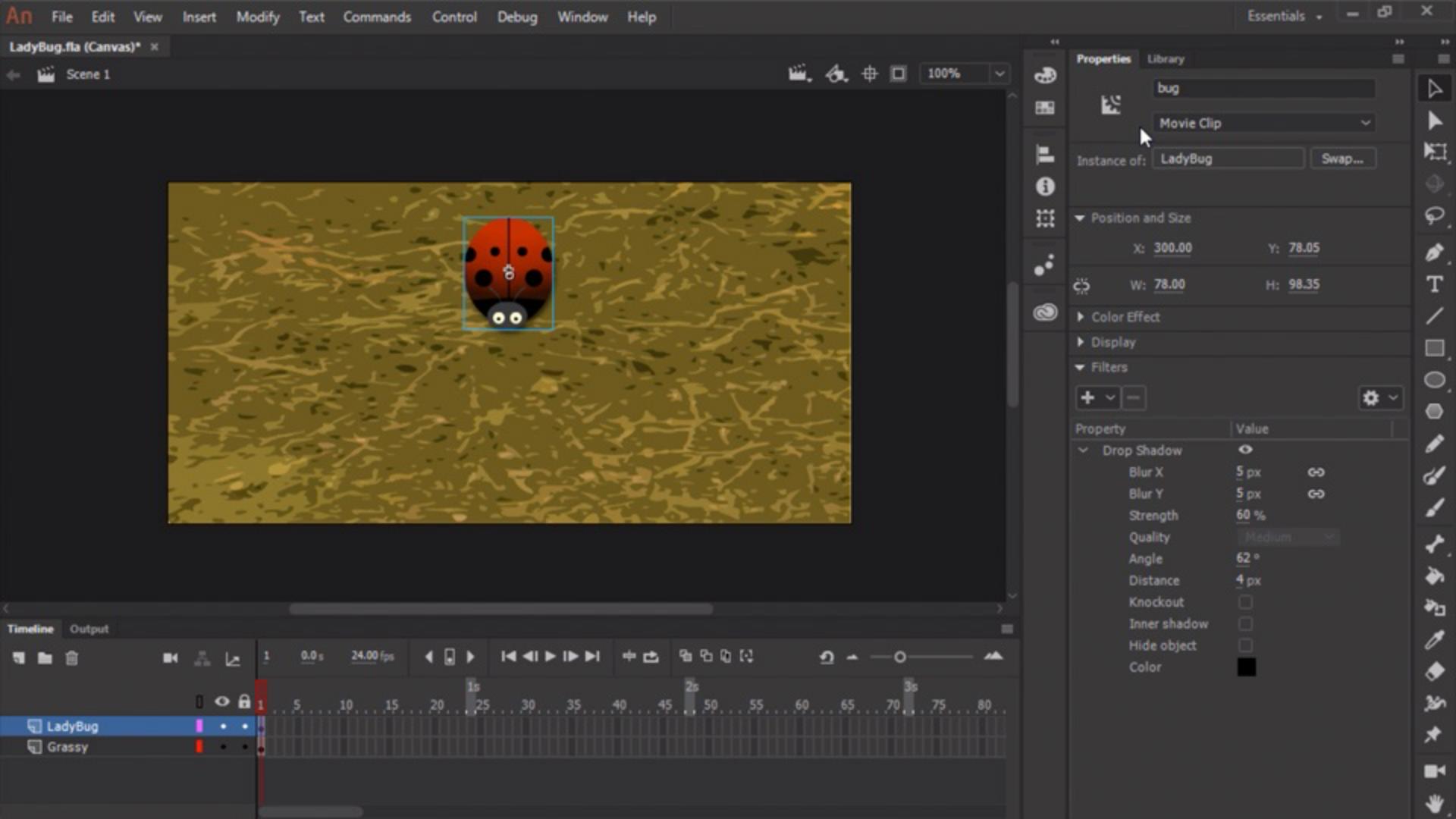
Inside of Animate, we have two layers.
One is simply a background layer which is a Grassy texture and then we have a Ladybug layer.
And on the Ladybug layer, we have a Movie Clip instance of LadyBug.
Naming instances and preparing for interactivity
The first thing we'll need to do to make this interactive is to give the ladybug an Instance Name.
We do this through the Properties panel.
Let's go ahead and just name it bug.
All right.
Now our LadyBug instance has an instance name of bug.
This is going to allow us to refer to this instance through JavaScript.
To add any sort of code to make an interactive, we'll need to use the Actions panel.
Choose Window, Actions to summon the Actions panel.
As of yet, we have no code whatsoever.
A simple way of adding code to a JavaScript document
Adding interactivity with the Actions panel wizard
is to click the Add using wizard option here.
This provides a number of very common actions to add to your document.
So, for instance, if we want it to rotate, we could choose Rotate the Object and then choose which object to actually apply this action to.
Since we gave the movie clip instance of LadyBug an instance name of bug, Animate automatically shows that here for us to select.
I'll select that and click Next.
The last thing we'll need to do is to Select a triggering event.
There are a number of events here, most of them are mouse based.
Let's go ahead and choose On Mouse Click for now and then for the triggering event, we can choose bug, and Finish and add.
So, this adds a bit of code to our content.
You'll notice we also have a number of comments here, but I'm going to go ahead and just select and remove those because we don't really need them.
So, this code is going to go ahead and change the rotation by 30 every time we click on the bug.
But that's not quite what we want.
We can actually go ahead
Making an object follow the mouse cursor with code
and make the ladybug always look toward our cursor as we move it across the stage.
To do that, we're going to have to enable mouse over on stage.
So, on line 1, we're going to paste in some code that's going to say stage.enableMouseOver and give it a value of 30.
This will enable mouse over detection across the stage.
We can then react to it using a function similar to this.
Let's delete the present function and we'll paste in a new function here that binds a stage mouse move event to our stage and then we'll calculate the radians based off of the event, local Y and local X properties.
We'll then derive degrees from those radians and then apply those degrees to our bug.rotation property.
Testing and understanding the interactive behavior
Let's go ahead and test this out.
I'm going to choose Control, Test.
So, here's our little bug and he's just kind of animating a little bit.
As soon as my mouse cursor hits the stage, he's going to automatically follow it, no matter where I move the cursor because of the code we just created.
Using code within Animate like this can be as simple or as complex as you'd like to make it.
What you learned:
Add interactivity using the Actions Wizard
Presenter

