Drawing in Animate
Learn how to draw characters using primitive shapes in Adobe Animate.
Published
Introduction
There are many ways to draw inside of Adobe Animate and I will show you one of my favorite ways using mostly primitive tools in combination with Object Drawing Mode, Snap to Objects and a little bit of editing with the Selection Tool which is the black arrow up here on the top.
Now, the first thing I want to do is to make sure that I can see all of the available tools in my Toolbar as well as their sub selections.
So, I'm going to just click and drag the left edge to create two columns as we see here; now I can see everything that the Toolbar has to offer.
Now I want not just the Rectangle Tool but the Rectangle Primitive Tool.
Using primitive tools to block out character shapes
So, I long press to bring that other option up and I'm going to select Rectangle Primitive.
Now, you'll notice in Properties panel, I have a Rectangle Options section and the slider which is currently at its default setting of 0.00.
What that does is allows me to adjust how the corners look on the primitive I'm going to create.
So, let me actually set this back to 0.00 just to show you.
I have a skin tone here I already like, but I'm going to make a shape for you and just kind of give you an idea of what this option does, here the slider.
So, if I just click and drag that, you'll notice the corners of my shape, it will change and adjust accordingly.
If I slide the slider all the way to the left, the corners invert and if I slide it all the way to the right, I get the most rounded corners.
Having said that, let me actually delete this and start over.
What I like to do is grab this Rectangle Tool and before I do anything, slide that all the way to the right to a value of 100.00 and I'm going to start by drawing the character's head.
And next, I'm going to move on to the eyes and for that, I'm just going to grab the Oval Tool.
I'm going to click on the Fill color here and I'm just going to grab black.
Now, the one thing I want to make sure of
Working with object drawing mode and quick duplication
is down here is, I want to turn on Object Drawing mode.
You'll notice that it has a container around it now because it's now an object drawing.
So, what this allows me to do is work entirely inside of one layer which is actually kind of nice.
We zoom in here so let's scale this down.
I'm going to grab the Free Transform Tool which is hitting Q on my keyboard or selecting it up here from the Tools panel.
And let's scale this down a little bit.
One way I like to work which is nice and quick is to hold down Shift and the Alt key.
Holding down Shift and the Alt key allows me to click and drag to duplicate that and move it along the same axis.
And while we're at it, I'm going to zoom in and I'm just going to add a little bit of highlight.
So, for the mouth, I'm going to grab the Oval Tool again and a nice deep red for the inside of the mouth, something like that.
What I'm going to do is double click the object drawing
Shaping facial features with the selection tool
and you'll notice now I wasn't seeing one, but now I'm inside the drawing object that I just created.
I'm going to use the black arrow which is the Selection Tool and just draw a marquee allowing me to select the top half of the circle.
I hit the Delete key on the keyboard, and there, I have deleted the top half of the symbol and now I have my mouth.
But what I want to do is also create teeth with the Selection Tool, I'm going to click and drag again, but this time I'm only going to select about the top third of this mouth and click on the Fill swatch and select white.
And now you'll see it's updated and fill that selection in with white.
And now I have my teeth.
If you want to add a tongue, it's easy to do.
Let's mix a color first again.
Again, with the Selection Tool, I'm going to click now from the bottom working my way up and select about that much of a region of this mouth symbol.
Let's click here and then find that color.
Now we have a tongue and, again with the black Selection Tool, the black arrow tool, I'm going to actually click anywhere along this line and bend it up a little bit.
Now, let's move on to the hair.
Let's mix a nice color, dark brown let's say.
And let's make a nice big circle, something like that.
Creating hair and details with snap to objects
And like we did with the mouth, I'm going to zoom in a little bit, double click and select the bottom half, Delete.
And we have bangs.
Now if you want to add a little bit of variation to these bangs, I'm going to double click using the Black Arrow Tool, I'm inside the drawing object again.
I'm going to click and drag upward from the bottom to select this region here and hit Delete.
So now, I've created an interesting shape and when I turn on Snap to Objects, - let me zoom in - and I go and I click and drag one of these corners, you'll notice that it snaps to the other corner.
Once I get close enough to another vector point, it'll snap together.
Essentially, it's joining those two points together to create one.
And we can repeat this as many times as we want to create more variations in our hair.
It's up to you.
And then holding down the Shift and Alt key, clicking and dragging which will duplicate it, making the other ear.
And let's make the hair behind her the back of her head.
I'm going to use for this again the Rectangle Primitive Tools, what I want, I'm going to grab the same color as the hair that we already have.
And I'll show you how to arrange things later, both create a nice big shape for the back of her head.
Now what I want to do is go to Modify, Arrange and Send to Back, and we have her hair.
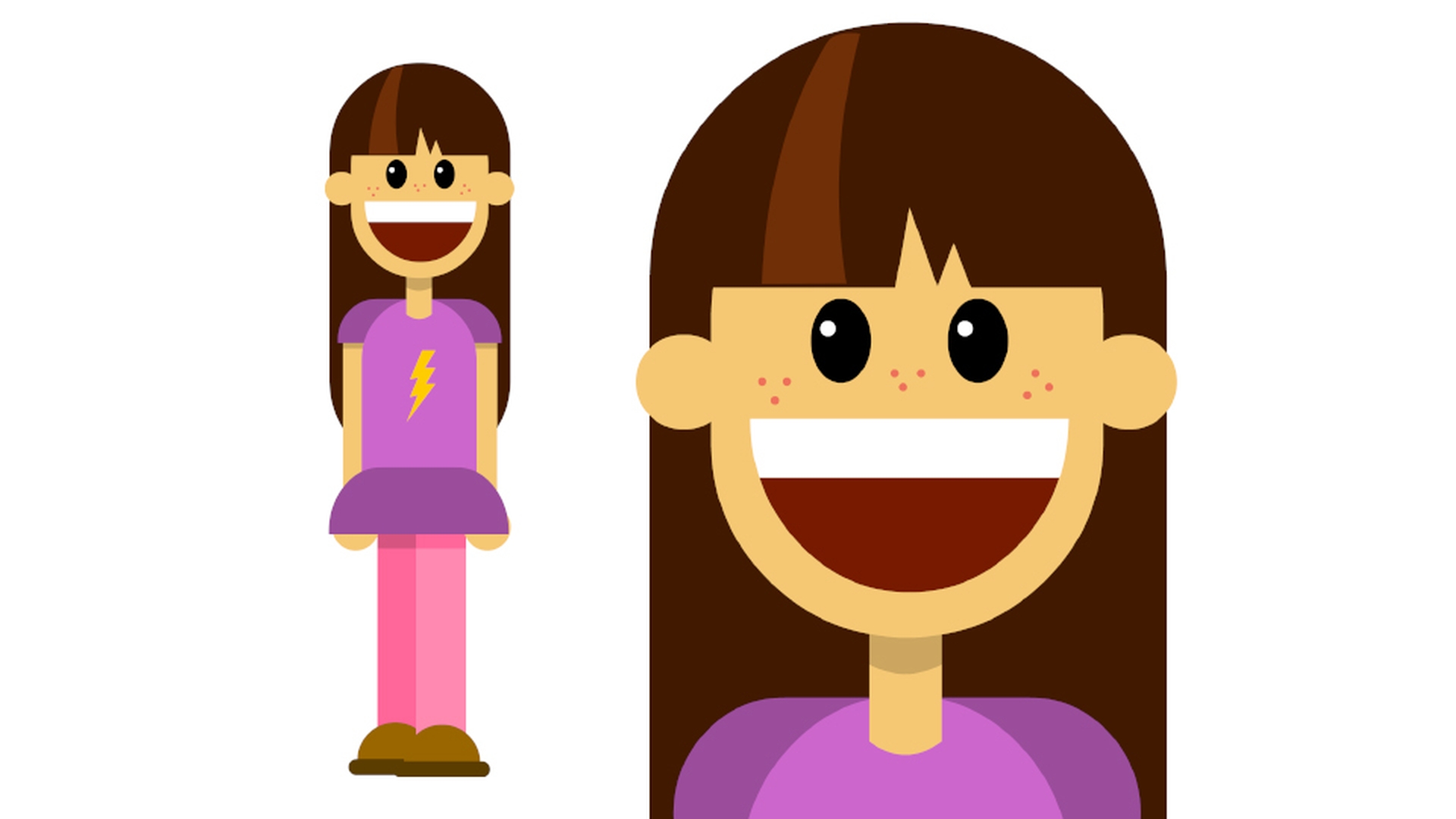
The rest of the features of this character are all comprised using the primitive tools such as rectangles and ovals and then from there using the Selection Tool to select different regions of these simple shapes to either delete them or while they're selected to change their color, whether it would be shadow or highlight, whatever you see fit.
Finishing the character using simple edits and arrangement
For the shoes, I created just simple ovals, cut them in half and then use the Line Tool to create a stroke for the sole of her shoe.
And she's done.
So, you can see how quick and easy it is to work this way using primitive tools.
It's also a nice easy way to draw even if you don't have any kind of pressure sensitive drawing tablet or maybe you're on your laptop and using a trackpad, you can still achieve kind of really cool results this way.
Hope you like it.
What you learned:
Use primitive drawing tools like rectangle and oval tools to draw basic shapes
Work with Object Drawing mode and object snapping
Sculpt your artwork using selection tools
Presenter

