TUTORIAL ARTICLE

Beginner

2 min

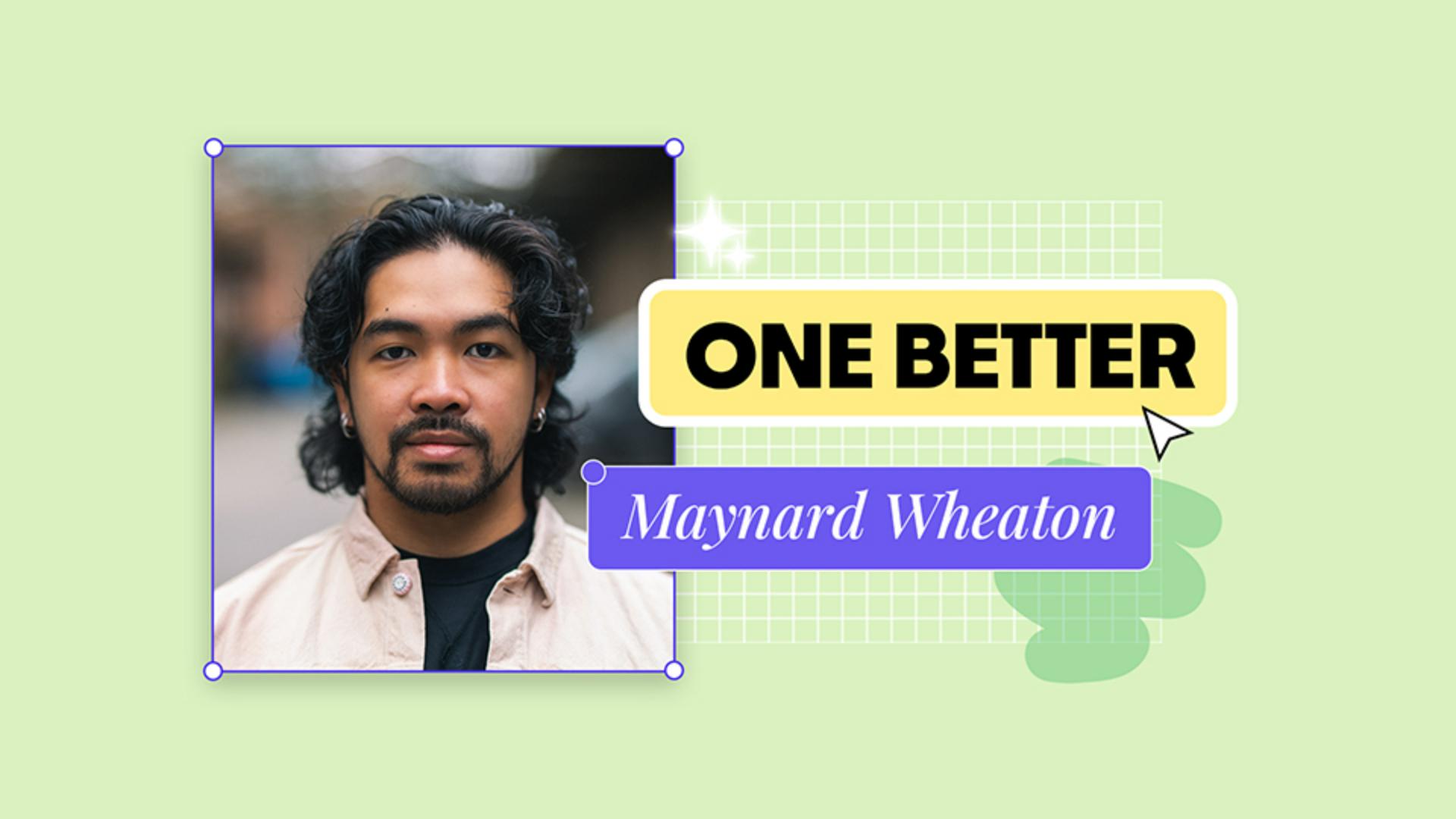
Go One Better with Maynard Wheaton

How to film with confidence, even when you’re creating on your own

What you’ll need

Introduction

When you’re filming your own content, it’s easy to chase perfection and lose momentum.

Maynard, co-founder of Kanin Films, shares how to go one better by keeping things simple: shoot freely, leave space in the frame, and film wide enough to reframe later.

These small habits give you flexibility in the edit and confidence on camera, so your content looks considered – even when you’re creating it solo.

How to perfect your videos after filming

Create clean, professional videos in minutes.

When you’re filming content, especially on your own, things can move fast. Knowing you can make small fixes later can make all the difference.

In this step-by-step tutorial, you’ll see how Maynard uses Adobe Express to turn a quick take into something that looks intentional and professional.

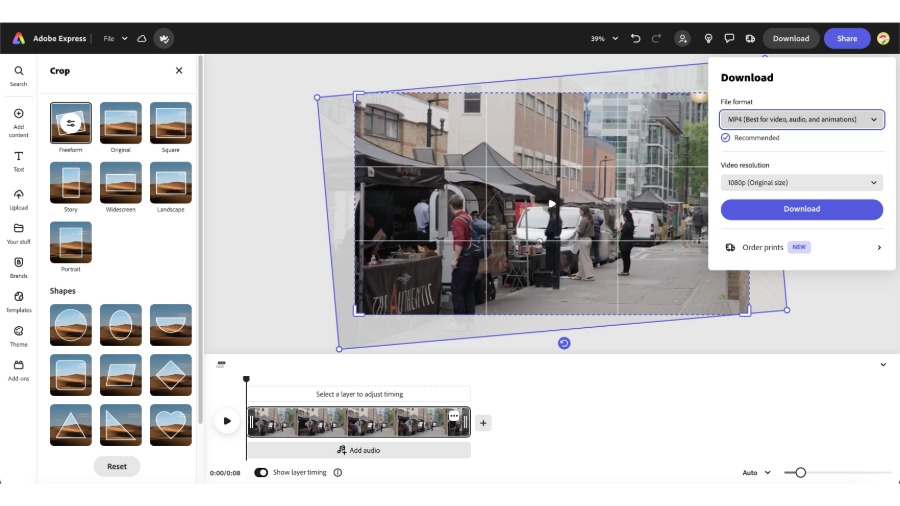
You’ll learn how to crop your video, use freeform for custom dimensions and use straighten controls to align or rotate your shot until it feels right.

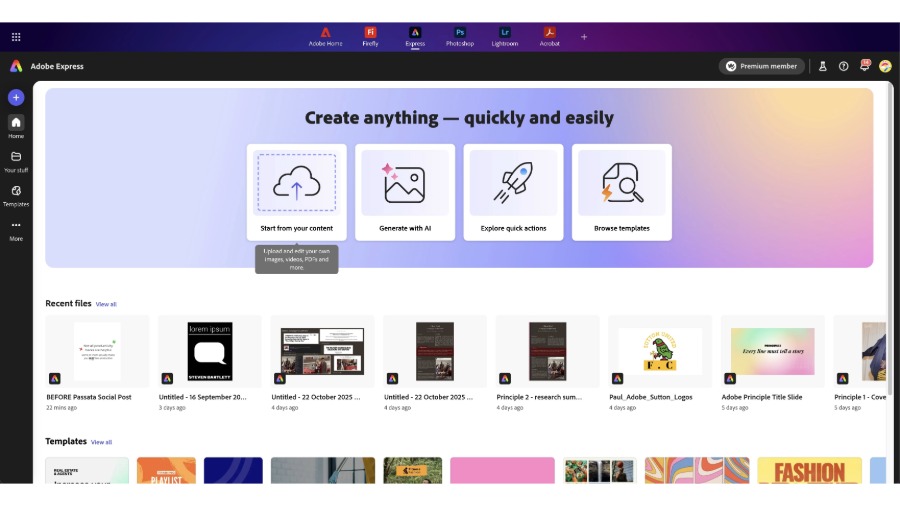
Step 1: Start from your content

From the Adobe Express home, select Start from your content to upload your video.

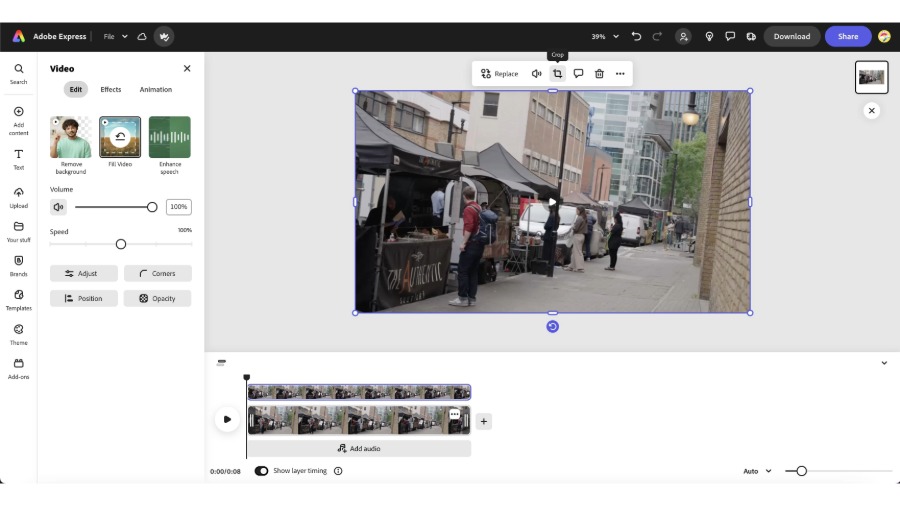
Step 2: Crop your video to improve composition

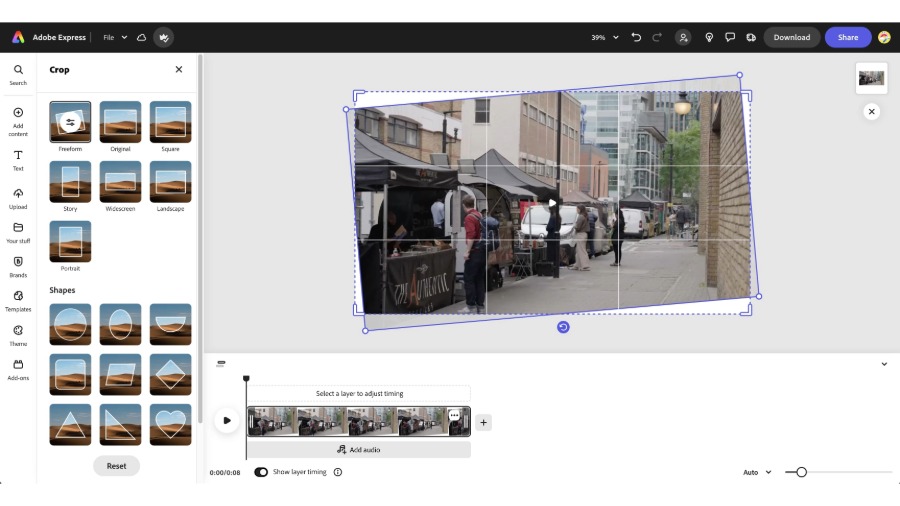
Once you are in the Editor, select the video layer you want to edit , then select Crop to open the crop menu to reveal more format options from landscape and portrait to Stories and even different shapes.

Drag the crop handles to remove distractions, re-centre your subject, or bring more focus where it matters most.

Step 3: Straighten and align your shot

Use the Freeform controls to rotate your video and correct any uneven angles until everything feels level and intentional.

Even small tweaks to crop and alignment can add polish, helping any quick takes look planned, professional and more enjoyable to watch. Now you are ready to click Download and export in your chosen format.

How to remove busy backgrounds in your video content

Create clarity and confidence in every frame

When you’re filming solo, distracting backgrounds can take attention away from your message. Maynard keeps things simple with clean visuals to help the story shine.

In this tutorial, you’ll learn how to quickly remove your video’s background in Adobe Express and replace it with something that feels bold, intentional and on-brand.

Step 1: Remove your video background

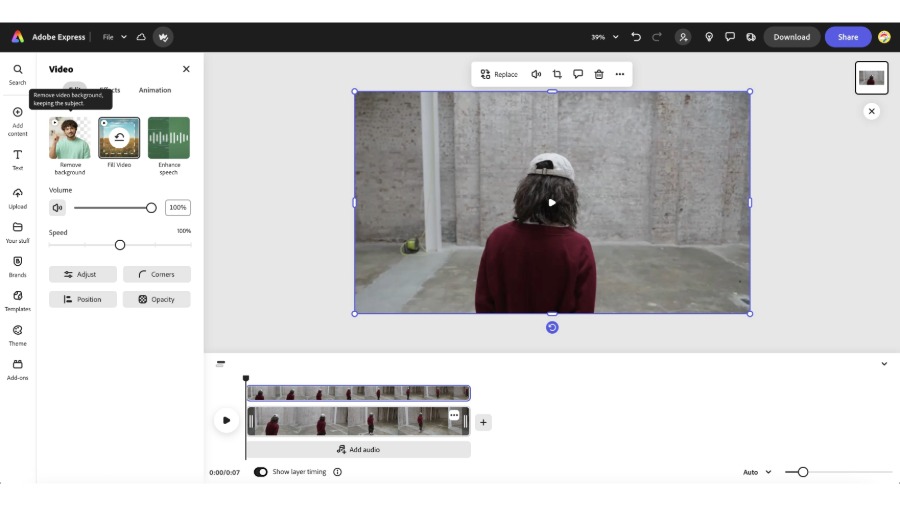
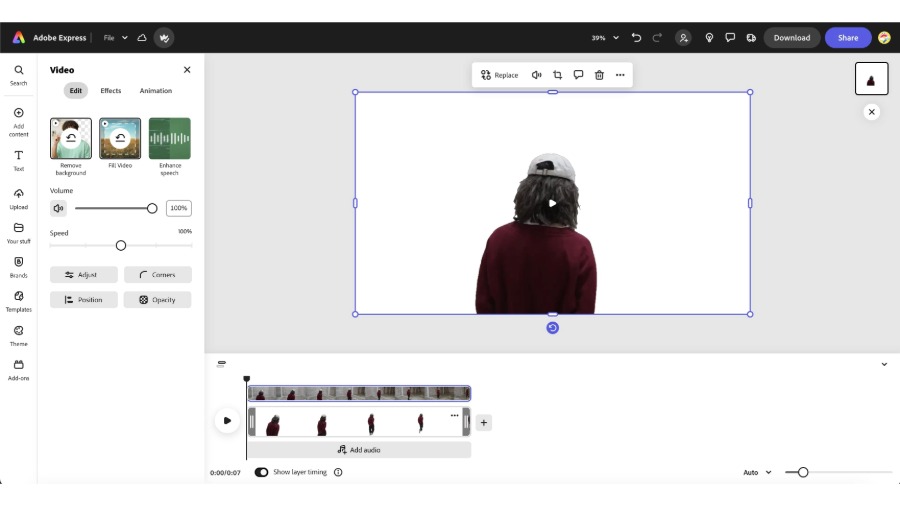
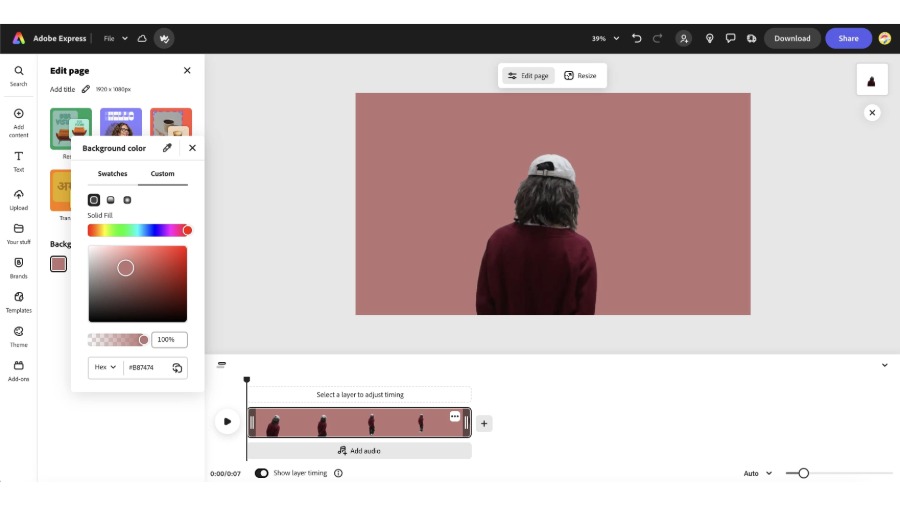
In the Editor, select the video layer you want to edit, choose Remove Background from the left panel.

In one click, Adobe Express automatically isolates your subject—no masking or green screen required.

Before:

After:

Step 2: Add a cleaner backdrop

Once your background is removed, head to Edit page and then Backgrounds to explore your options. Try experimenting with:

• Solid colours for a bold, minimal look

• Gradients for subtle depth and energy

• Textures or assets from your brand kit for a more polished, consistent style

A clean background keeps your story front and centre, helping viewers instantly know where to focus.

Step 3: Review and export

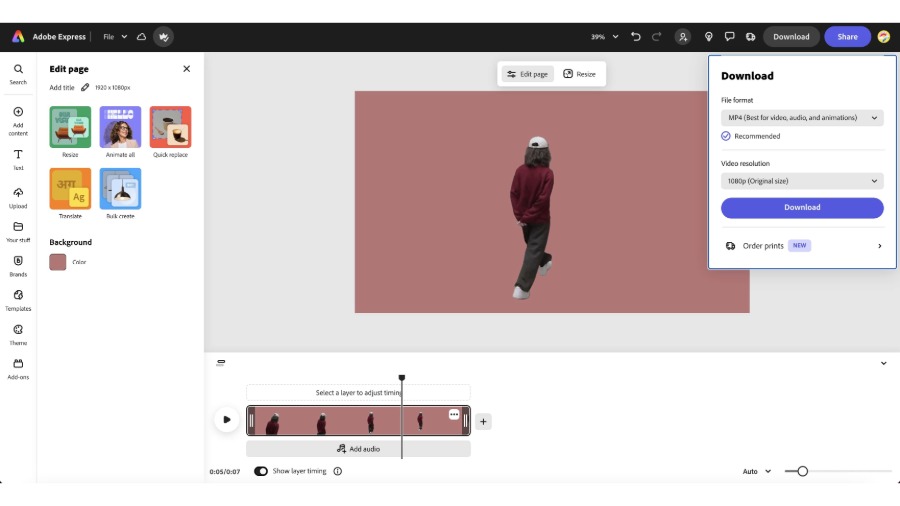
When you’re ready, click Download to export your finished video in your preferred format and resolution, and share it instantly across platforms.

How to resize your videos for different platforms

Make your content fit wherever your audience watches

Maynard films a little wider so he can reframe it later. This small habit could save a huge amount of time for solo creators.

In this tutorial, you’ll learn how to quickly resize one clip into multiple formats without reshooting a thing.

Let’s get started:

Step 1: Start from your content

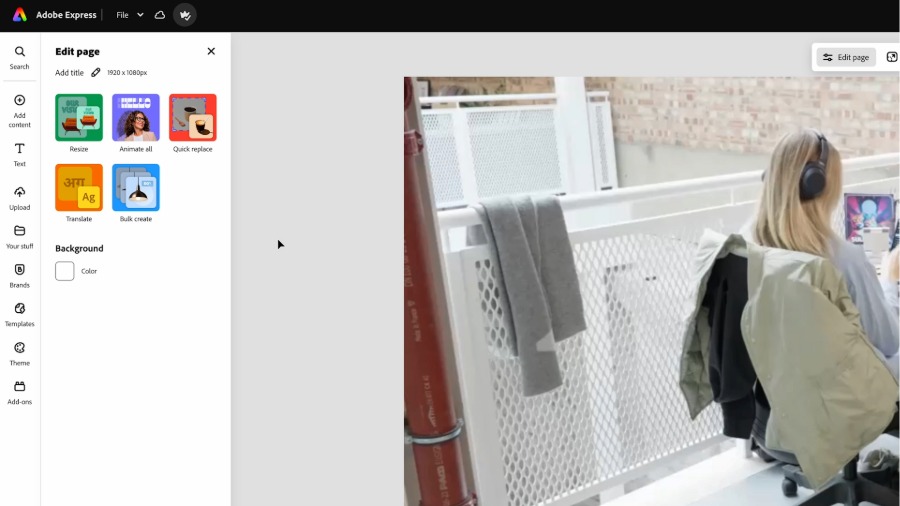
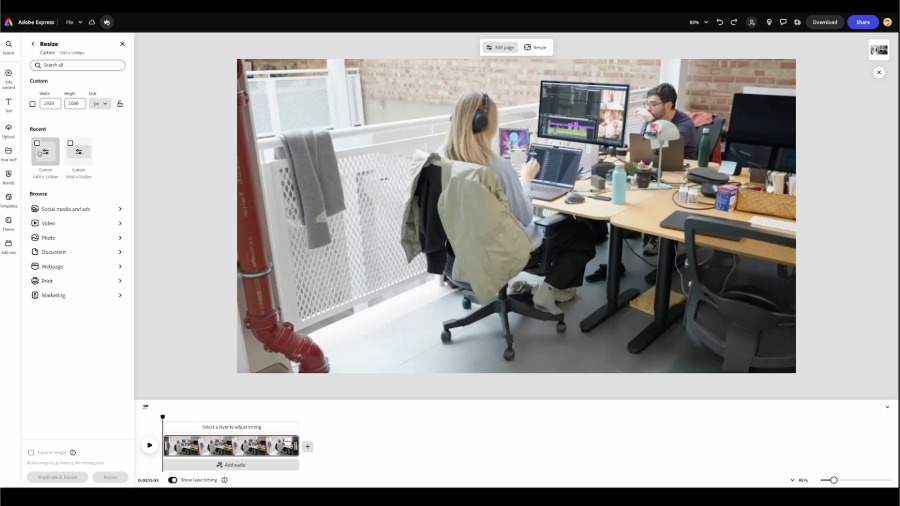
From the Adobe Express home page, select Start from your content and upload your video. You’ll land in the editor, ready to adapt your footage for different platforms.

Step 2: Open the Resize options

With your video selected, choose Resize at the top of your edit page options.

Step 3: Select the right format for each platform

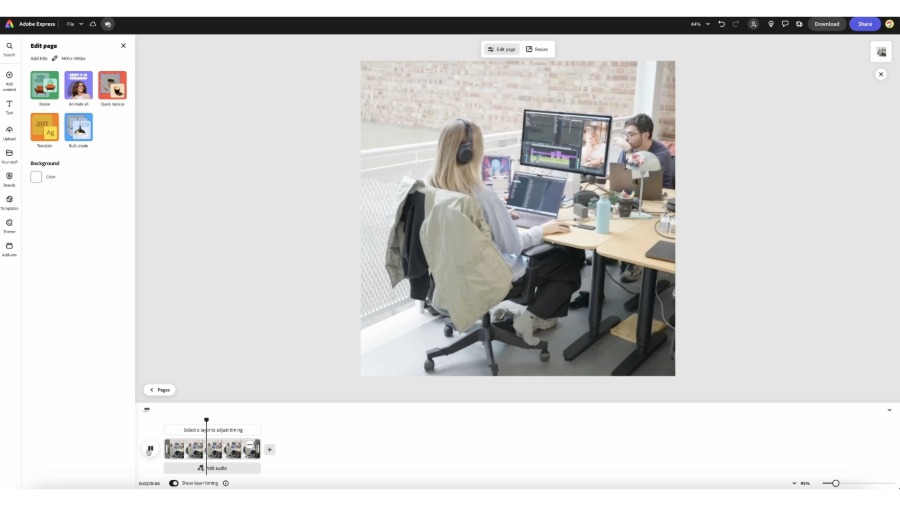
Switch between common ratios like 1:1 or 4:5 for Instagram posts, and 9:16 for Reels or TikToks to match different feeds and screens.

Use Scale and Position controls to keep your subject centred and visible in every version.

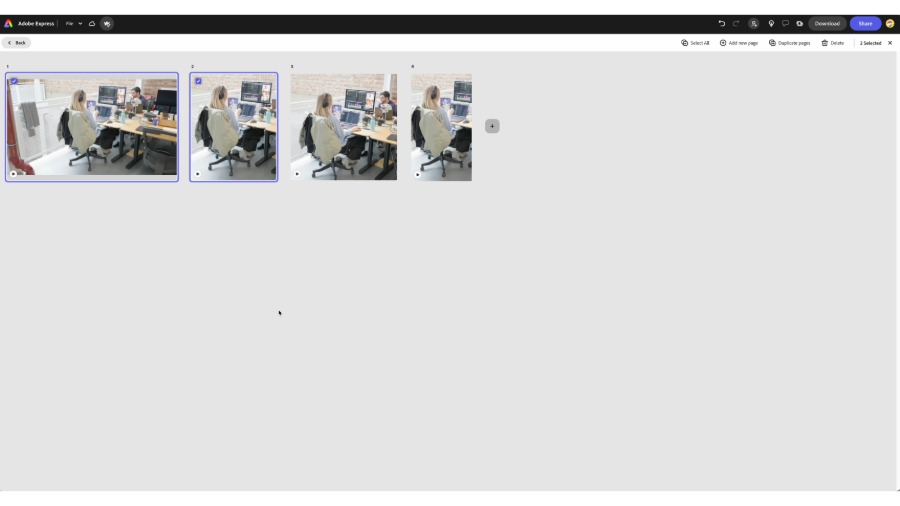
Step 4: Export multiple versions

Once each format is framed correctly, download your resized videos individually.

One wide shot has become customised content for every platform — without filming anything twice.

What you’ll need

Try these tutorials with Adobe Express

Create web pages, social media graphics, and videos.