Introduction
Make text stand out, with shapes, shadows and cutouts.
Convey your unique vibe with text that reflects your brand's look and feel.
One way is to add shapes.
Adding and customizing shapes for text
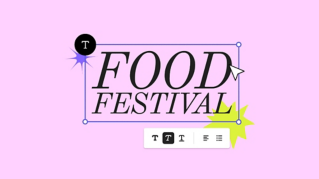
Select the text box in your design to open the Text panel, scroll down to Shape in the Text panel and choose to add either Basic or Decorative shapes to your text.
Refine the shape, including Fill Color, Size and Opacity to get the look you want.
Another option is to add a shadow.
Applying and editing text shadow effects
Click Shadow and select an effect.
Select Custom to edit the Color, Blur, Angle or Distance of the shadow.
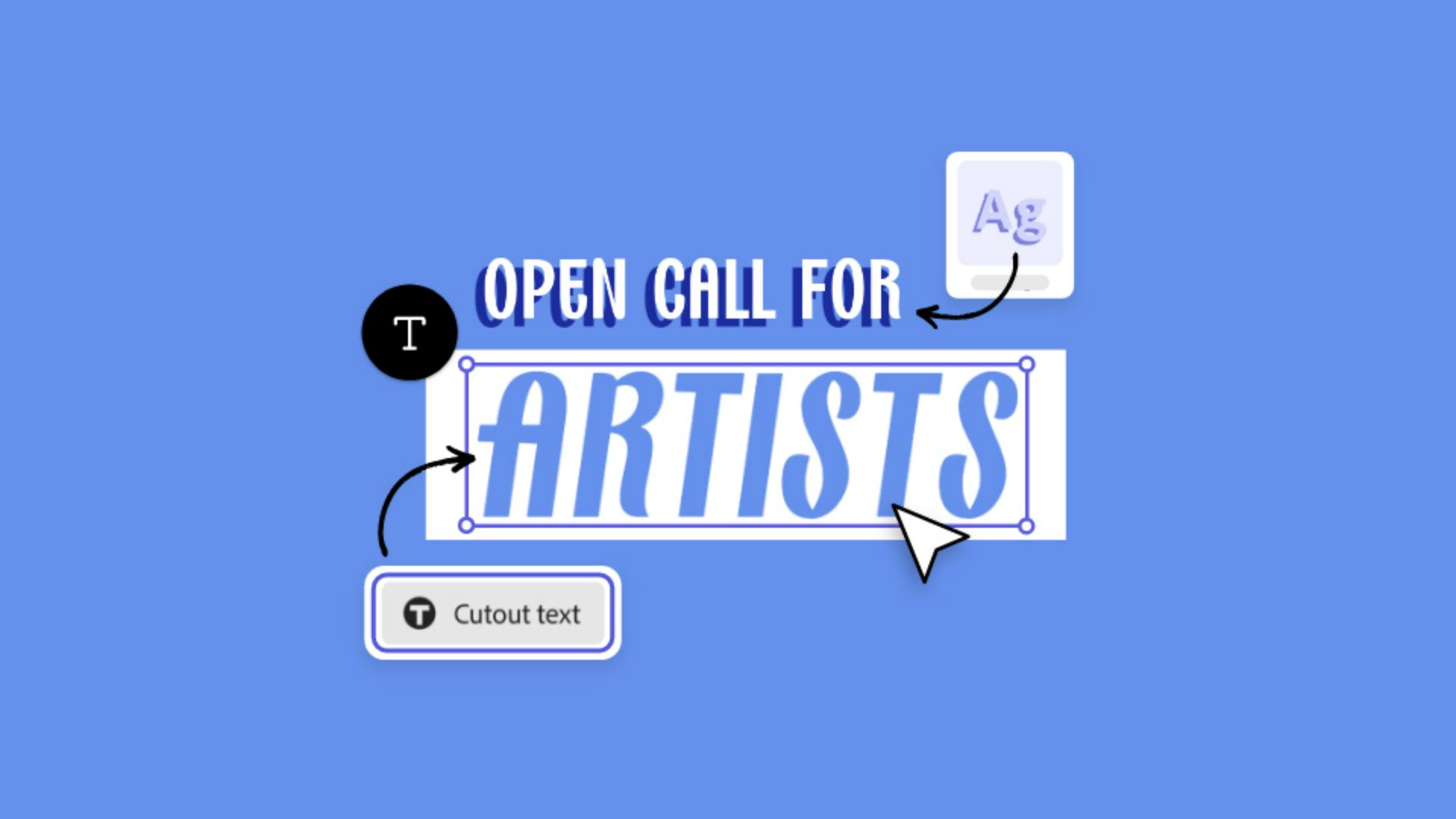
Finally, the Cutout option lets you cut out letters from a shape.
Creating cutout text effects with shapes
Select the text you want to edit, click into the Shape menu and choose a shape that works with your design.
Adjust the Size and Opacity of the shape as necessary and click Cutout text.
This works best when the text shape is bold or thick.
Adobe Express - Keep creating.