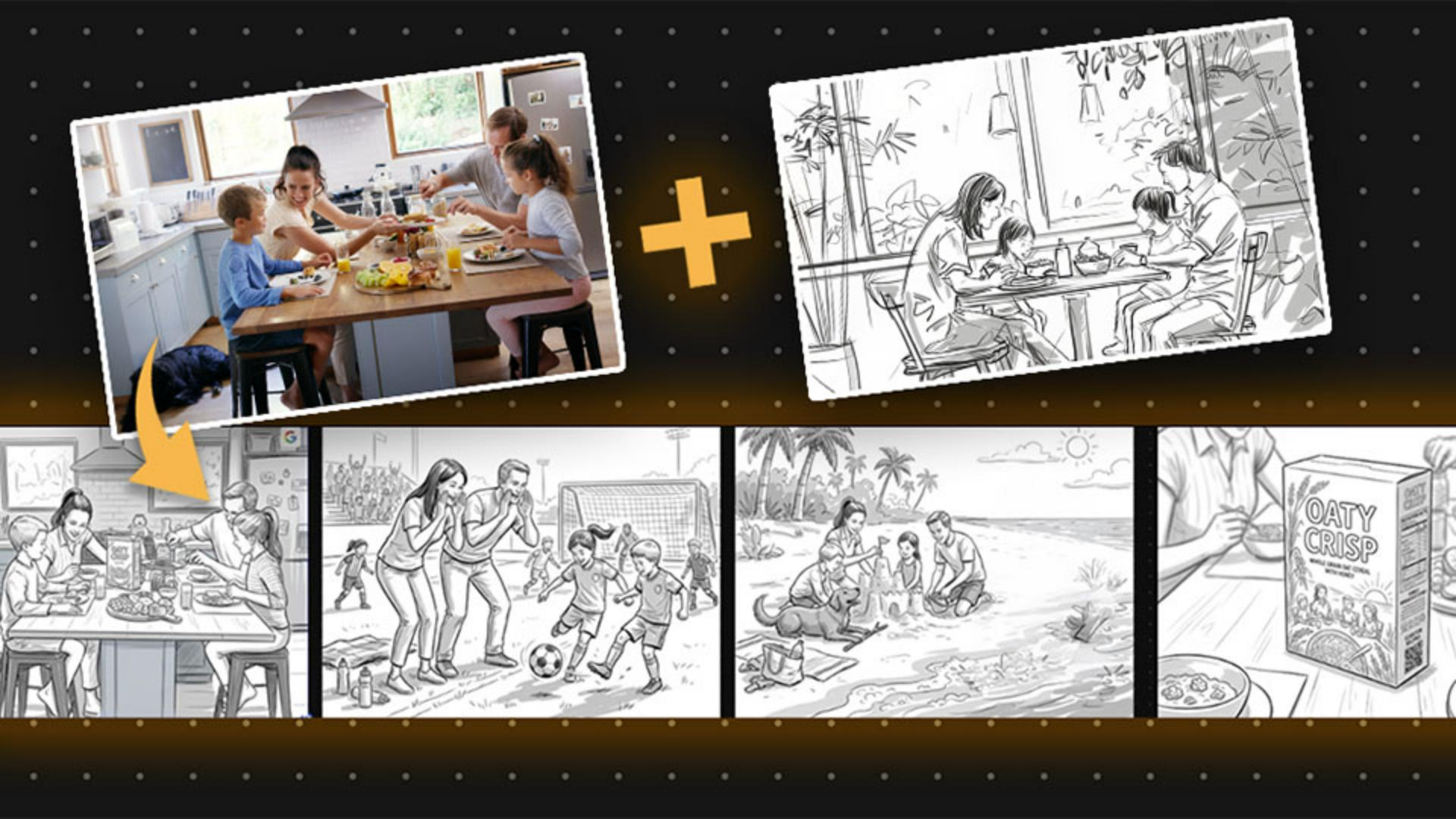
Set up your style source and starting panel
First, we'll need to add our assets from either our Creative Cloud storage [The sketch and photo are back on the screen.
The cursor clicks 'Add content' then 'Adobe cloud storage' to open a folder of connected Creative Cloud assets.] or on our local device using the Add content button and choosing Your device, which will load from your local storage, or choosing Adobe cloud storage, which will load from various options connected to your Adobe Creative Cloud account.
Once you have your two assets in here, we can take a look at them.
[The user interface highlights the black-and-white sketch selected as a style source and the photo as an inspiration panel.]
One image will be our style source - in this case a stylized sketch - and the other is going to be our inspiration for our starting panel.
After you have your two images imported, we can begin to formulate our storyboards.
[The cursor clicks 'Generate image' and chooses 'Gemini 3.1 (w/ Nano Banana 2)' from the model selection dropdown menu.]
Next, we'll go to the Generate image panel and choose our generation model.
In this case, I'm going to use Google Gemini 3.1 (w/ Nano Banana 2).
I like this model because it keeps a consistent style and characters throughout generations.
This is a key feature when generating storyboards.
[The cursor adjusts the aspect ratio to landscape and changes the resolution settings in the generation bar.]
Next, I'm going to change my Orientation to Landscape and my Resolution is set to 1K.
Then I'm going to use either the Eyedropper or the Image button [The cursor uses the sample tool to add both the sketch and the color photo to the generation panel.] to add my two images to the Generate image panel.
The first image is going to be my style source for the sketch, and the second one is going to be used for my inspiration.
[A detailed text prompt is entered into the field describing the breakfast scene with a cereal box.]
Last, I'll add a prompt to generate my first frame.
I want to make sure that I tell the model that I want to be consistent with my style, and describe the scene.
For my first panel, I'll prompt, 'Create a storyboard sketch of the family eating breakfast at the table.
A cereal box product is centered on the table, keeping a consistent black and white sketch style.'
[The cursor clicks Generate, creating a new sketch panel which is then placed onto the board canvas.]
Once I have that entered, I'll click Generate.
Now that I have my generated results, I can add this to my panel just by clicking on the image and Place on canvas.
And there's my first panel.