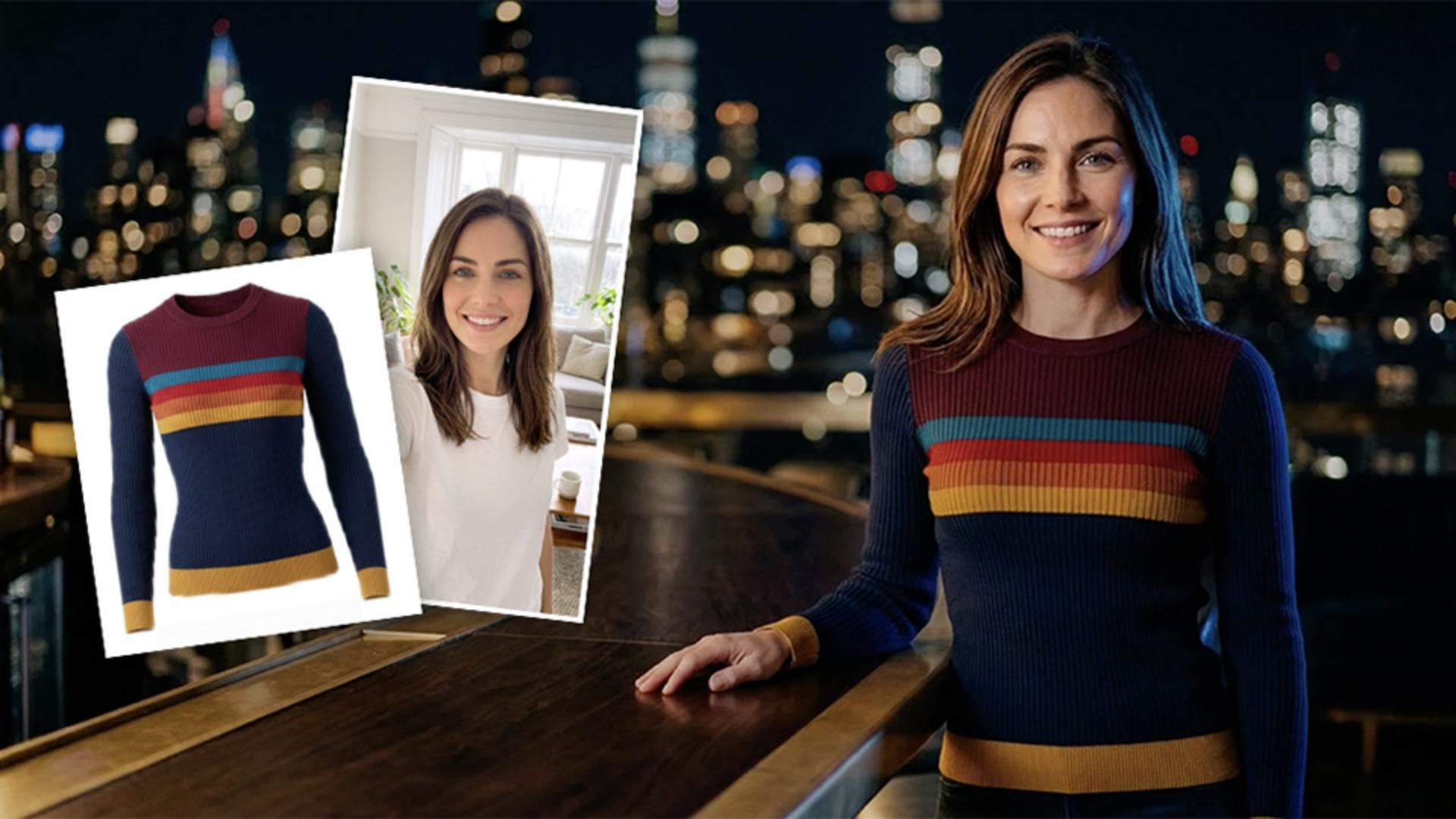
Use generative AI and simple text prompts to create photorealistic images with Adobe Firefly.
My name is Jesús Ramirez.
In the next few minutes, I'm going to show you how to use the built-in photo settings to generate photorealistic images in Adobe Firefly's Text to image module.
From the Firefly website at firefly.adobe.com, scroll down and click on the Text to image module.
From here, enter any prompt you like.
I'll go with 'portrait of a woman with flowers in the foreground.'
Then I'll press Enter on Windows, which is the Return key on the Mac, to generate four images from this prompt.
By default, Firefly will select the Content Type based on your prompt.
In this case, it chose Photo, and the variations are all photorealistic.
If yours is set to Art, click the Photo button and Generate again.
One important setting to experiment with is the Visual intensity.
Scroll down and you'll find it under Styles.
This slider controls the level of stylization.
When you drag the slider to the far right and Generate, the variations are much more stylized.
Compare this to when you drag the slider to the far left and Generate.
The results are not as stylized and look like regular photos.
For this example, I'll set the slider to default at the center.
I'll also scroll up and change the Aspect ratio to Portrait, then I'll add the prompt 'and skyscrapers in the background' and I'll Generate.
You can scroll down to the bottom of the panel and apply further adjustments with the Color and tone, Lighting and Camera angle dropdowns.
I'll choose Black and white, Backlighting and Shot from below.
When I Generate, I will receive four variations containing these settings, all of which look fantastic.
The buttons below the Prompt represent the effects you've added to that generation.
You can remove one or more by clicking on the X icon.
I'll remove Black and white and Shot from below.
Then I'll Generate again.
These generations are exactly what I had in mind - they all look incredible.
When you're happy with your results, download any variation by clicking on the Download button.
Now that you know how to create photorealistic images with the Text to image module in Adobe Firefly, try it with your generations.
Again, my name is Jesús Ramirez.
Thank you for watching.