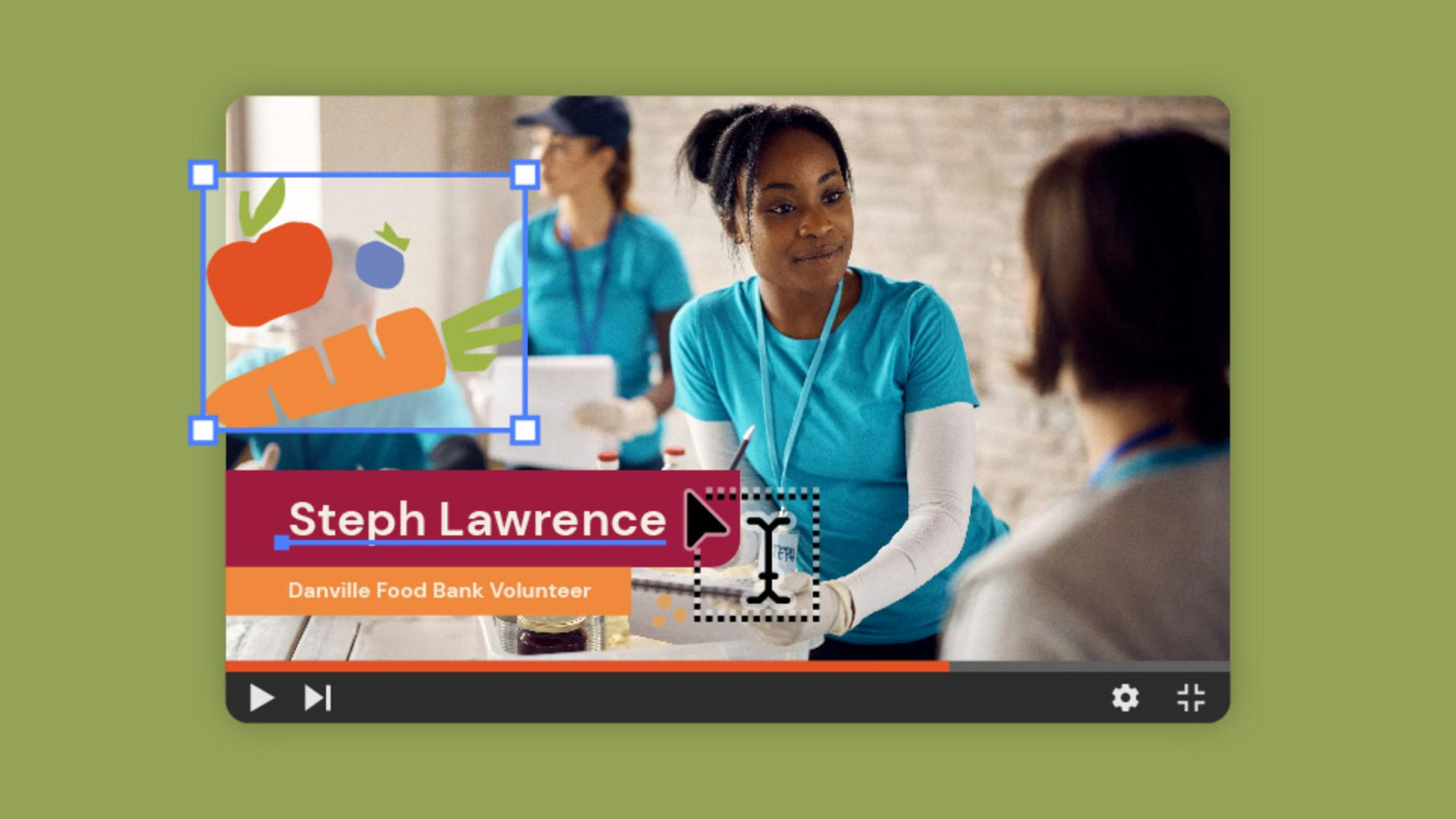
In need of professional lower thirds for your videos?
My name is Sydney Michuda, Creative Director of Super Creative.
In this video, I'll guide you through choosing the perfect placement for each platform.
Let's get started.
Setting up artboards for YouTube and TikTok
Create a new document and set the artboard to a standard video size for YouTube, 1920 px x 1080 px, and set the Color Mode to RGB Color for digital.
Let's add another artboard for TikTok's vertical size.
Click Document Setup, click Edit Artboards, click and hold Alt and drag a new artboard to the side.
In the properties above, click the Portrait orientation.
Preparing brand assets and video references
Bring your brand colors and fonts into the document for reference.
Bring some video screenshots into your document as well so you can test out your graphics over video examples.
Let's create some colored shapes to sit behind your text,
Designing lower third layouts and text hierarchy
so your info is nice and legible.
With the Rectangle Tool, create a shape aligned to the left side of your artboard and change the shape's color to one of your main brand colors.
Bring the type to the front by clicking Object, Arrange, and Bring to Front.
Using the Type Tool and your brand fonts type out a placeholder name for the headline.
Place this text over the new shape.
Repeat this process, so we can add a description line below.
Create a new, smaller rectangle that ends before the first.
Place a script or copy like a job title or details about the headline.
Make sure the font is smaller than the text above, since it's more of a subhead.
You can keep the graphics super simple or jazz it up with brand assets like this example.
Adapting lower thirds for vertical video safe zones
Vertical social media videos have a lot of text and graphics to avoid.
Use a safe zone template to know where to put your graphics so they remain visible.
Duplicate the graphics from YouTube and drag them to your TikTok artboard.
Position them about halfway up the layout, so they stay in the safe zone and avoid the platform graphics.
Adjust the design if needed to fit the space, then delete the safe zone template.
To turn these into a template,
Saving and exporting lower thirds as reusable templates
remove the background image, save your work as an .ai file, and then open them in Adobe Express, where you can easily add them to video and edit away.
Now you have the tools and process to create streamlined lower third graphics for your videos.
Again, my name is Sydney Michuda of Super Creative.
Give it a try yourself and share your results.
Note: Stock assets provided are for practice purposes only. See terms.
What you’ll learn
Create artboards sized for popular video formats
Set up artboards sized correctly for platforms like YouTube and TikTok, using landscape and portrait orientations as needed.
Gather and lay out visual elements
Assemble brand colors, graphics, and fonts on the canvas and a static image representing the video. Experiment with text layouts, and for vertical formats, use a safe-zone template to ensure visibility around platform graphics.
Save your text overlays as a template
Clear out the background graphics, save your work as an Illustrator file, and bring it to Adobe Express to confidently apply your attractive, on-brand, and highly visible text overlays to your social videos.
You can control how Adobe websites use cookies and similar technologies by making choices below. But note that if you disable cookies and similar technologies entirely, Adobe websites may not function properly.
Cookies are small text files stored by your web browser when you use websites. There are also other technologies that can be used for similar purposes like HTML5 Local Storage and local shared objects, web beacons, and embedded scripts. These technologies help us do things like remembering you and your preferences when you return to our sites, measure how you use the website, conduct market research, and gather information about the ads you see and interact with.
You can make choices in the menu below about what cookies and other technologies you want us to use on Adobe sites when you visit them from this browser. You can always change those choices later by clicking on the Cookie Preferences link at the bottom of the page.
If enabled:
We can improve your experience by tailoring the site and the content to things we think might be of interest
We can better keep track of your preferences — like what language you prefer to use
We will better understand your likely interests so we can provide you more relevant Adobe ads and content on non-Adobe websites and in non-Adobe apps
It will help us improve the performance of our website and those of our partners who use the Adobe Experience Cloud
If disabled:
We won’t be able to remember you from session to session so the experience may not be tailored to your interests
You’ll still have access to the content of the site but certain features that depend on cookies may not function
You’ll still see ads, they just may not be as relevant to you
General information
You can control how Adobe websites use cookies and similar technologies by making choices below. But note that if you disable cookies and similar technologies entirely, Adobe websites may not function properly.
Cookies are small text files stored by your web browser when you use websites. There are also other technologies that can be used for similar purposes like HTML5 Local Storage, web beacons, and embedded scripts. These technologies help us do things like remembering you and your preferences when you return to our sites, measure how you use the website, conduct market research, and gather information about the ads you see and interact with.
You can make choices in the menu below about what cookies and other technologies you want us to use on Adobe sites when you visit them from this browser. You can always change those choices later by clicking on the Cookie Preferences link at the bottom of the page.
If enabled:
We can improve your experience by tailoring the site and the content to things we think might be of interest
We can better keep track of your preferences — like what language you prefer to use
We will better understand your likely interests so we can provide you more relevant Adobe ads and content on non-Adobe websites and in non-Adobe apps
It will help us improve the performance of our website and those of our partners who use the Adobe Experience Cloud
If disabled:
We won’t be able to remember you from session to session so the experience may not be tailored to your interests
We’ll still count your use of our site and services
You’ll still have access to the content of the site but certain features that depend on cookies may not function
You’ll still see ads, they just may not be as relevant to you
Operate the site and core servicesOperate site and measure engagement
Always active
These cookies are required, and they are used to enable the site and related services core functionality. Without them the site could not operate, so they cannot be disabled.
These cookies enable the site and related services’ core functionality and collect statistics about user engagement, such as counting active use to help us understand trends. These cookies cannot be disabled.
Measure performance
These cookies are used to analyze site usage to measure and improve performance. Without them Adobe cannot know what content is most valued and how often unique visitors return to the site, making it hard to improve information we offer to you.
These cookies are used to analyze site usage to measure and improve performance. Without them Adobe cannot know what content is most valued, making it hard to improve information we offer to you.
Extend functionality
These cookies are used to enhance the functionality of Adobe sites such as remembering your settings and preferences to deliver a personalized experience; for example, your username, your repeated visits, preferred language, your country, or any other saved preference.
Personalize advertising
These cookies are used to enable Adobe and our partners to serve ads more relevant to your interests. Without them you will still see ads, but they might not be as relevant to you.
Personalize advertising
These cookies are used to enable Adobe and our partners to serve ads more relevant to your interests. Without them you will still see ads, but they might not be as relevant to you.