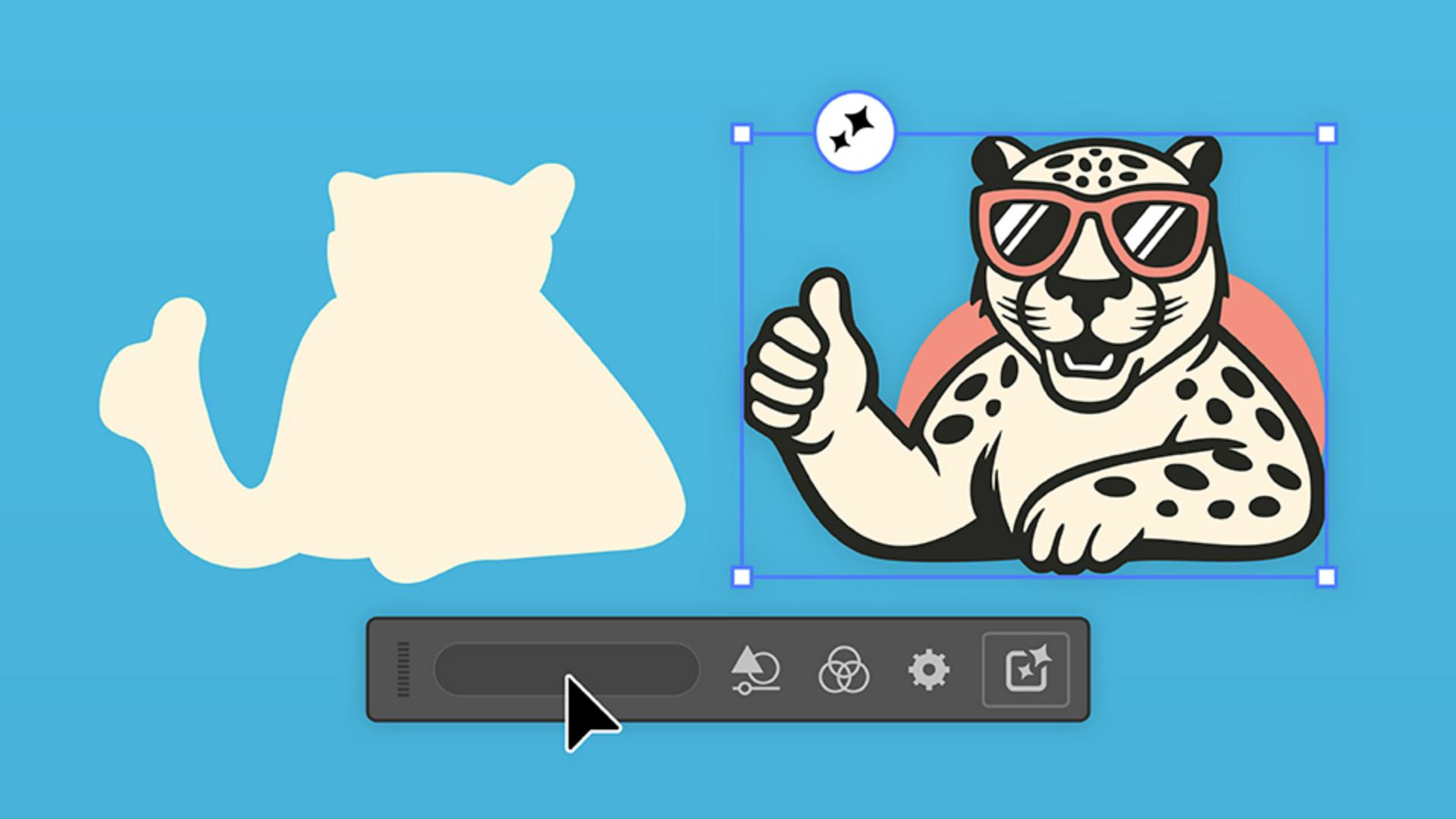
Create an expressive mascot logo starting with a rough outline and a text prompt using generative AI.
Introduction
Want to learn how to turn rough sketches into dozens of mascot logo iterations full of rich detail and color?
My name is Sydney Michuda, Creative Director of Super Creative.
And in this tutorial, I'll show you how I've used Illustrator's Generative Shape Fill feature to create interesting mascot options, which I then finish in my own style.
Sketching and preparing shapes for generative shape fill
First, make sure you can see your Contextual Task Bar.
With your mascot in mind, use the Brush Tool to draw the general shape of your intended outcome.
This can be an outline or a filled shape.
Group all of the items by clicking Object and Group.
And with the group selected, hit the Generative Shape Fill button.
Start by typing a simple prompt and click Generate
Generating initial mascot variations
to see what it comes up with.
And just like that, we have three editable vector illustrations while keeping our original intact.
These are so fun, but I'd prefer to customize the settings to get this closer to what I'm looking for.
First, I'll adjust the level of Shape Strength and Detail
Refining results with prompts, detail, and effects
because my original was pretty basic.
I'll drag both down a bit, hit Generate and take a look at the results.
Now we have three new options with those adjustments applied.
These look decent, but let's continue to iterate.
I'm going to add more info to the prompt to give our mascot more character.
Let's also increase the Detail slider a touch so it's less cartoon-like.
I'd like to specify a different style, so I'm going to click the Style tab, select Effects and apply the Flat Design effect.
Let's hit Generate and see what we get.
Now our leopard looks a little cooler with the Flat Design effect, but let's keep adjusting.
Applying brand colors and style references
I'd like to use specific brand colors, so I'll paste in the palette.
Open the Swatches window on the right and click New Color Group.
With the duplicated sketch selected, go back to the Contextual Task Bar and click Generative Shape Fill.
Then hit View All Settings.
Now we can see so many different options.
I'm going to deselect the effect and under Color and Tone individually add each of the colors from the new color group.
Hit Generate and let's take a look at our new options.
These guys are looking pretty neat, but I have a more specific style in mind for this mascot.
Let's use a specific reference image.
Paste your reference into the document, select your sketch and hit Generative Shape Fill.
In Settings, select the Style Reference tab and click Choose asset.
Then click the reference image and hit Generate.
Let's see what we get.
Now we have three new options that are exactly what I'm looking for.
I really like the second leopard, so I think we have a winner.
After these quick iterations I have a mascot I like.
Finalizing and customizing the mascot logo
Now I'm going to put my own finishing touches on him and add in some supporting elements.
With a bit of editing, I now have a stunning mascot logo in my own style.
With just some simple prompts and experimentation, Generative Shape Fill helps us create new ideas quicken our workflow, and do it all with our own flair.
Give it a try yourself and share your results.
Again, my name is Sydney Michuda of Super Creative.
Thanks for watching.
What you'll learn
Create rough outlines or shapes
Draw the mascot as outlines or filled shapes using the Brush tool.
Explore Generative Shape Fill
Generate logo iterations with simple prompts and make adjustments with the shape strength and detail sliders.
Experiment and refine the mascot
Refine further by adding effects, specific colors, and style references so you can apply your own style to the mascot logo.
You can control how Adobe websites use cookies and similar technologies by making choices below. But note that if you disable cookies and similar technologies entirely, Adobe websites may not function properly.
Cookies are small text files stored by your web browser when you use websites. There are also other technologies that can be used for similar purposes like HTML5 Local Storage and local shared objects, web beacons, and embedded scripts. These technologies help us do things like remembering you and your preferences when you return to our sites, measure how you use the website, conduct market research, and gather information about the ads you see and interact with.
You can make choices in the menu below about what cookies and other technologies you want us to use on Adobe sites when you visit them from this browser. You can always change those choices later by clicking on the Cookie Preferences link at the bottom of the page.
If enabled:
We can improve your experience by tailoring the site and the content to things we think might be of interest
We can better keep track of your preferences — like what language you prefer to use
We will better understand your likely interests so we can provide you more relevant Adobe ads and content on non-Adobe websites and in non-Adobe apps
It will help us improve the performance of our website and those of our partners who use the Adobe Experience Cloud
If disabled:
We won’t be able to remember you from session to session so the experience may not be tailored to your interests
You’ll still have access to the content of the site but certain features that depend on cookies may not function
You’ll still see ads, they just may not be as relevant to you
General information
You can control how Adobe websites use cookies and similar technologies by making choices below. But note that if you disable cookies and similar technologies entirely, Adobe websites may not function properly.
Cookies are small text files stored by your web browser when you use websites. There are also other technologies that can be used for similar purposes like HTML5 Local Storage, web beacons, and embedded scripts. These technologies help us do things like remembering you and your preferences when you return to our sites, measure how you use the website, conduct market research, and gather information about the ads you see and interact with.
You can make choices in the menu below about what cookies and other technologies you want us to use on Adobe sites when you visit them from this browser. You can always change those choices later by clicking on the Cookie Preferences link at the bottom of the page.
If enabled:
We can improve your experience by tailoring the site and the content to things we think might be of interest
We can better keep track of your preferences — like what language you prefer to use
We will better understand your likely interests so we can provide you more relevant Adobe ads and content on non-Adobe websites and in non-Adobe apps
It will help us improve the performance of our website and those of our partners who use the Adobe Experience Cloud
If disabled:
We won’t be able to remember you from session to session so the experience may not be tailored to your interests
We’ll still count your use of our site and services
You’ll still have access to the content of the site but certain features that depend on cookies may not function
You’ll still see ads, they just may not be as relevant to you
Operate the site and core servicesOperate site and measure engagement
Always active
These cookies are required, and they are used to enable the site and related services core functionality. Without them the site could not operate, so they cannot be disabled.
These cookies enable the site and related services’ core functionality and collect statistics about user engagement, such as counting active use to help us understand trends. These cookies cannot be disabled.
Measure performance
These cookies are used to analyze site usage to measure and improve performance. Without them Adobe cannot know what content is most valued and how often unique visitors return to the site, making it hard to improve information we offer to you.
These cookies are used to analyze site usage to measure and improve performance. Without them Adobe cannot know what content is most valued, making it hard to improve information we offer to you.
Extend functionality
These cookies are used to enhance the functionality of Adobe sites such as remembering your settings and preferences to deliver a personalized experience; for example, your username, your repeated visits, preferred language, your country, or any other saved preference.
Personalize advertising
These cookies are used to enable Adobe and our partners to serve ads more relevant to your interests. Without them you will still see ads, but they might not be as relevant to you.
Personalize advertising
These cookies are used to enable Adobe and our partners to serve ads more relevant to your interests. Without them you will still see ads, but they might not be as relevant to you.