Create CSS-based web graphics
Create websites faster. Let Illustrator generate CSS and SVG code for your artwork.
Published
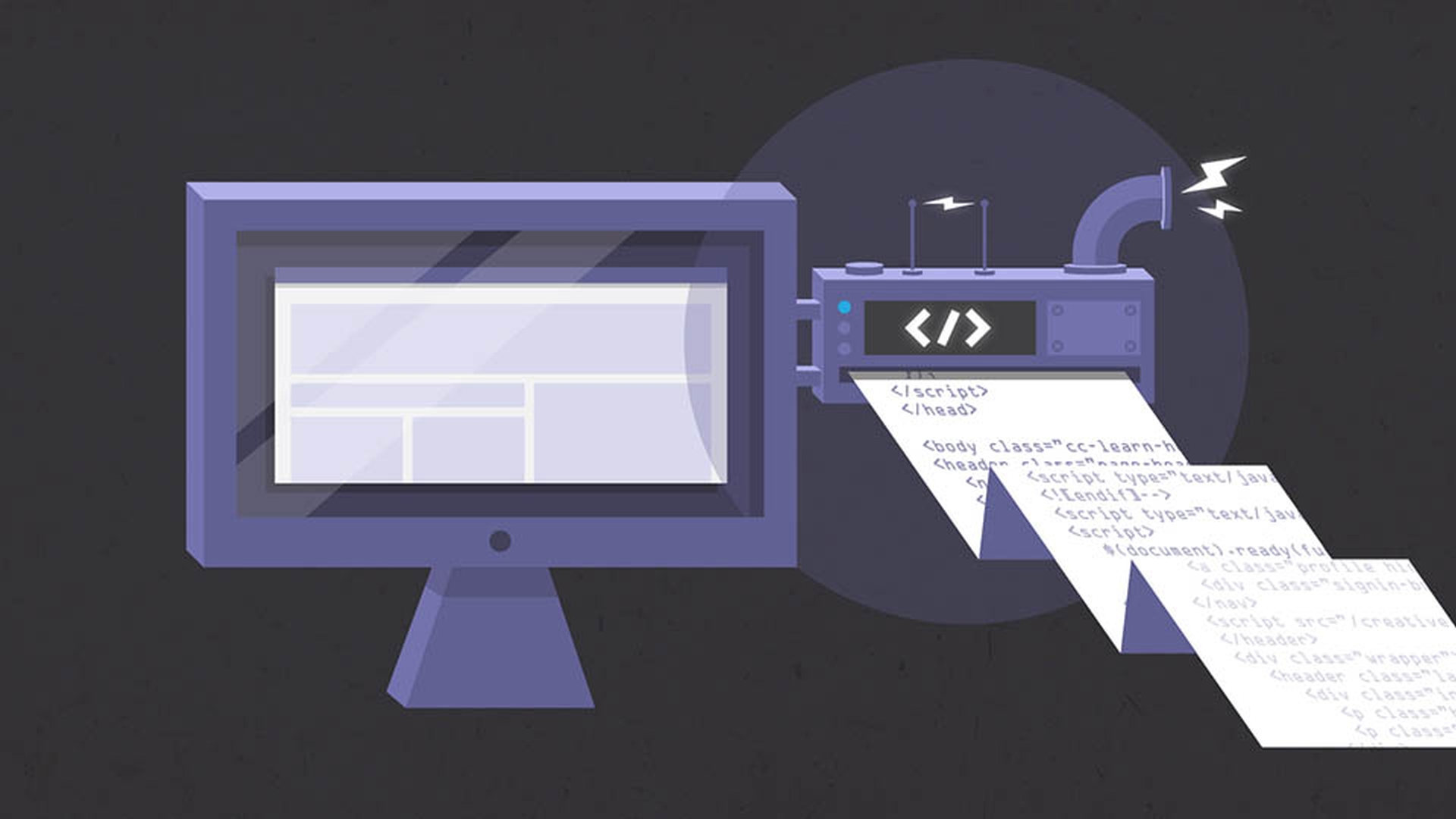
The 2014 release of Illustrator CC is much more friendly for web designers, with new ways to save time and ensure the integrity of your mock-ups when taking your designs to the web.
Illustrator CC can automatically analyze your designs and extract CSS properties.
This is a great way to move the styling from your designs in Illustrator straight to your HTML editor or to hand off to a developer.
You can choose to export just the code for selected objects or for an entire-page mock-up using the controls in the CSS Properties panel.
For example, you can define character styles and let Illustrator convert your styles to CSS.
When creating character styles in Illustrator, name them based on traditional web elements, such as Header 1, Header 2, Header 3, and Body.
Then, to extract CSS based on a character style, with the CSS Properties panel open, select a text frame, and the CSS code appears in the panel, which can then be copied and placed in an HTML file to style the text for the web.
My HTML file has basic content and structure in place but no information about styling text or other content, so it's pretty basic at this point, but if I select the CSS styles in the CSS properties panel, I can copy them into my HTML file, and now the text changes and has the styling I gave it in my Illustrator file.
CSS export can include the background color as well as other attributes of your design such as patterns, gradients, strokes, and even drop shadows.
Just as I did with the character styles, I could select just the elements that I want to style individually, but often, CSS code is stored as a separate external CSS file.
This makes it easy to change the appearance of multiple pages at one time.
Now, I am going to export the CSS code for all of the objects on the page and save it as a stand-alone CSS file and reference it in the HTML file itself, but complex artwork cannot be represented as CSS code.
For those graphics, Illustrator lets you output Scalable Vector Graphics, or SVG.
Most modern web browsers have support for viewing SVG, so the graphics won't lose quality if they are zoomed or resized.
Illustrator lets you select the artwork and then simply paste the SVG code that it generates into an HTML file.
Now you can see the original web mock-up in Illustrator on the web with all my design details intact.
In Illustrator, we also have the ability to save SVG to act responsively so it scales according to different-sized viewing environments such as mobile devices or scaled browser windows.
To make your SVG responsive, save the selected art as SVG and make sure that the Responsive option is checked.
Now we can see the result of saving our logo artwork as responsive SVG.
Our first version does not scale as the web browser is scaled, but our second version, with the artwork saved as responsive SVG, does scale.
Responsive SVG in Illustrator ensures that your artwork views and scales properly across a range of browsers and device environments.
These are just a few of the new features in the 2014 release of Illustrator CC that give you new options and more flexibility and control as you move your vector designs to the web, and they are only available in Creative Cloud.
Export code options (0:30); Copy CSS styles (1:22); Save styles to a CSS file (1:59); Copy/paste SVG (2:00); Save as Responsive SVG (2:32)
Contributor
Rufus Deuchler

