Design a logo
Typekit is now Adobe Fonts.

1 Set up your logo project
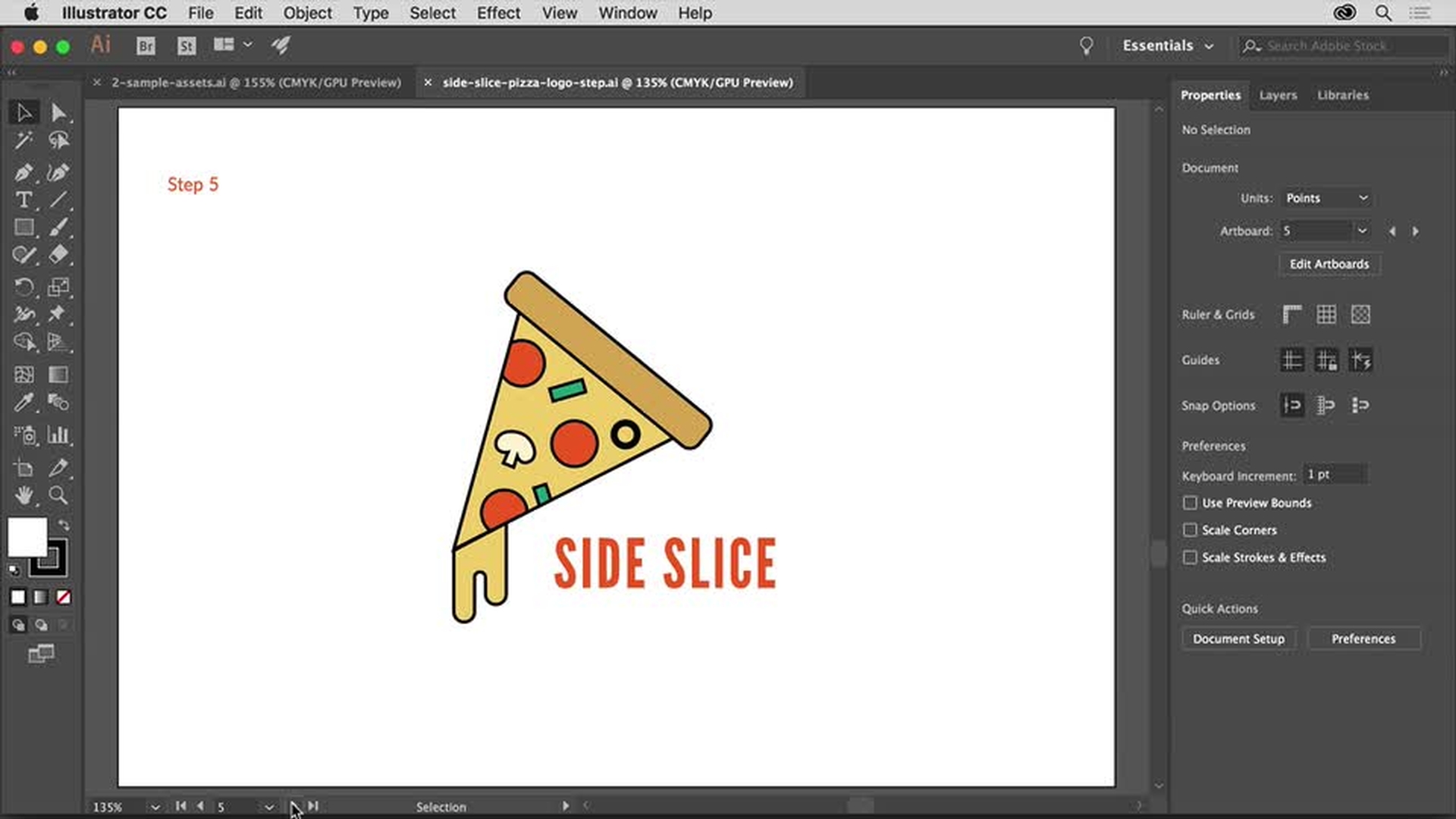
Create a new document and set up your workspace. Bring in a reference image to use as inspiration, and use the Layers panel to easily manage your artwork.
Reset your workspace
Place a reference image
Open the Layers panel
Learn how to create a new document, reset your workspace, place a reference image, and open the Layers panel.
2 Use basic shapes to create complex art
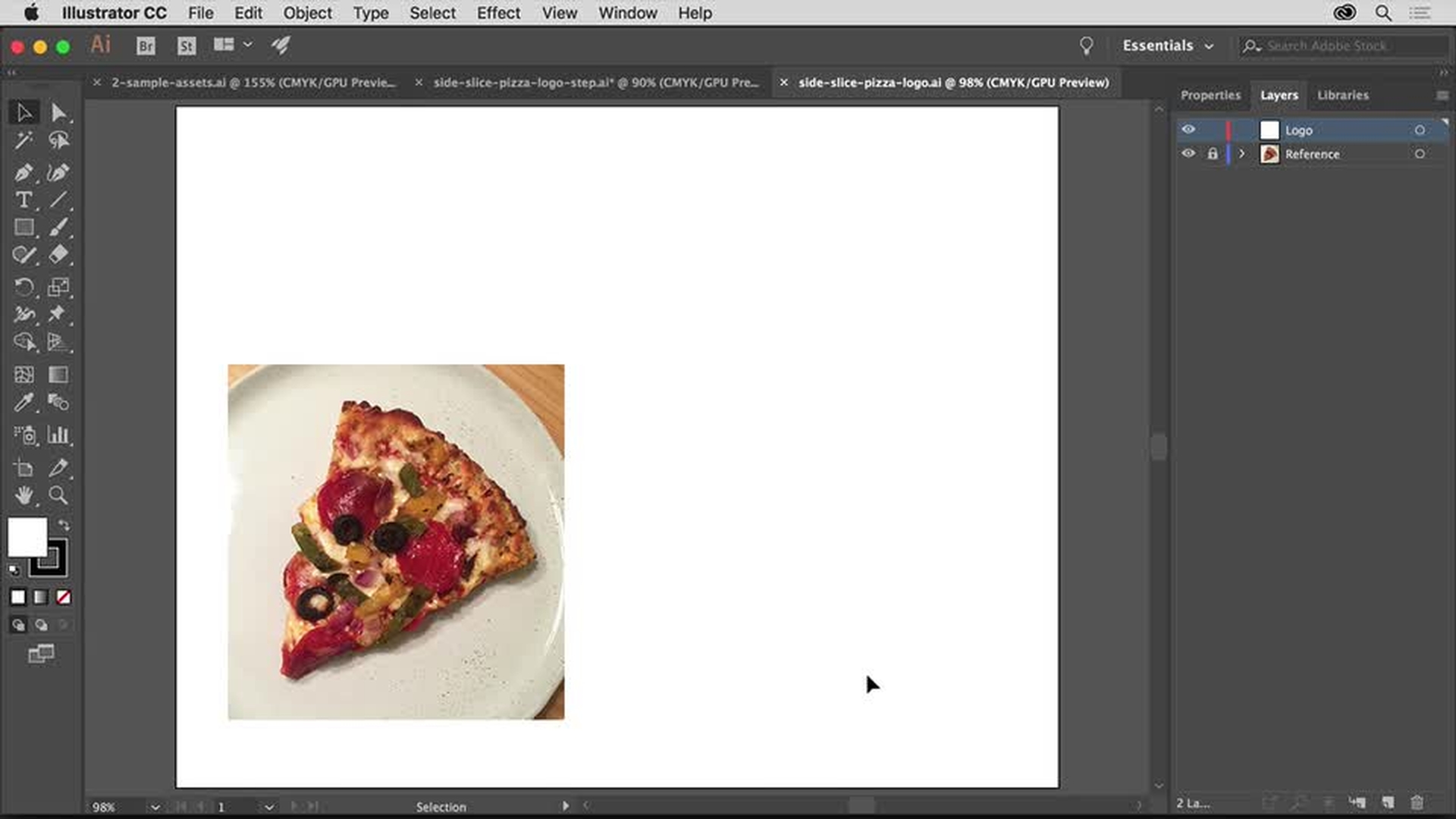
Combine rectangles, triangles, circles, and freeform shapes to build your artwork. Use Smart Guides to align the various elements.
Enable Smart Guides to align artwork
Manipulate a Live Shape
Draw a shape freeform
Learn how to enable Smart Guides to align artwork easily, manipulate a Live Shape, and draw a shape freeform.
3 Add color
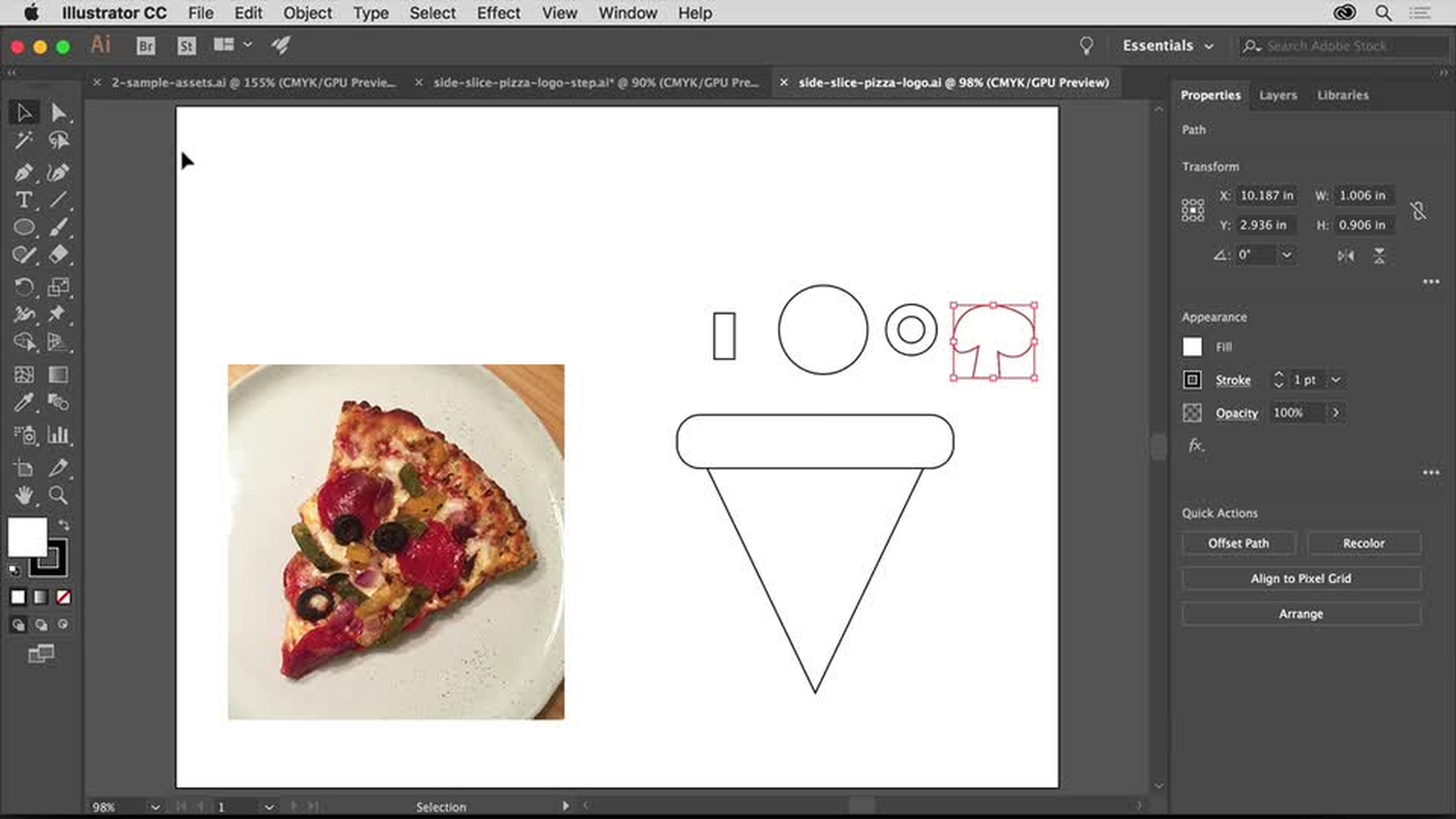
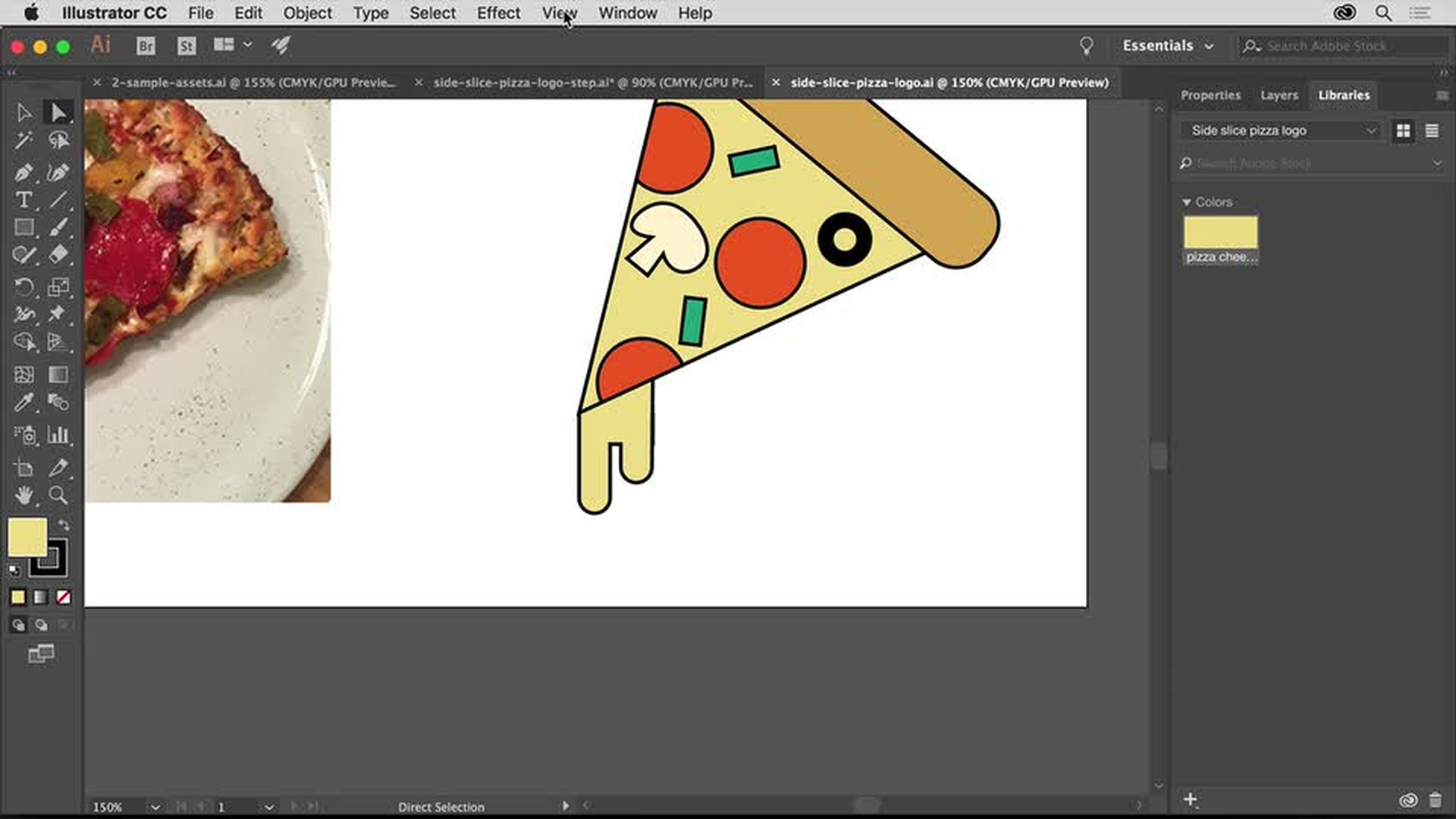
Apply colors to all your logo components using intuitive controls that let you easily make edits. To keep the colors and shapes of your logo handy, simply add them to your Adobe Creative Cloud Libraries.
Edit a color
Save a color to a library
Access pre-made color swatch libraries
Learn how to edit a color, save a color to a library, and access premade color swatch libraries.
4 Fine-tune your logo
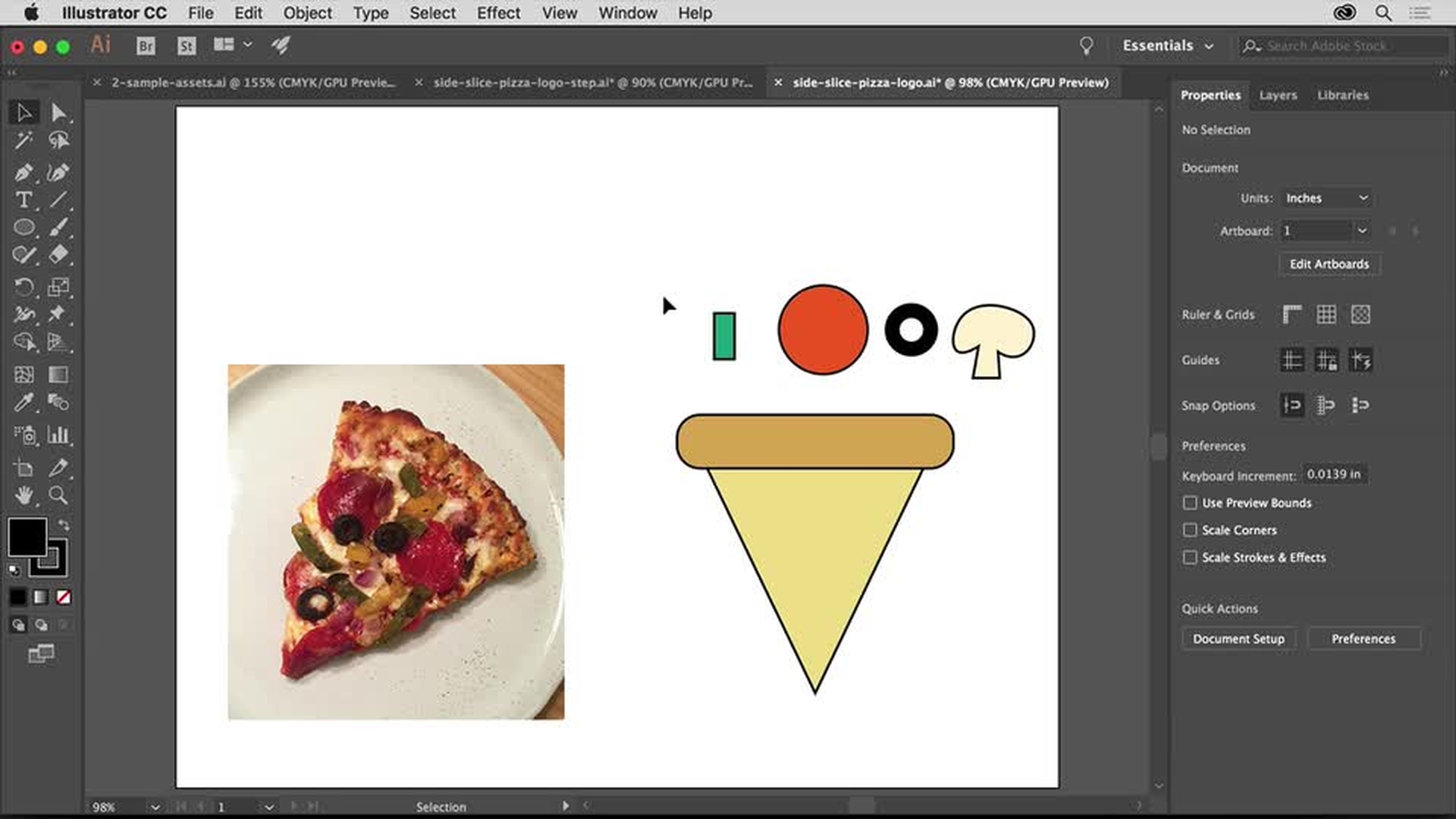
Now adjust the scale of your shapes and rotate them to assemble the toppings on your pizza slice.
Rotate a shape
Reuse a color from a library
Learn how to rotate a shape and reuse a color from a library.
5 Add text
Round out your logo by adding the business name using the powerful typesetting features in Illustrator. Creative Cloud members can choose from the vast library of high-quality typefaces from Adobe Typekit.
Add text
Change the font
Add fonts from Typekit
Add spacing between letters
Learn how to add text, change the font, add fonts from Typekit, and add spacing between letters.
6 Preview and save your logo
See how your logo looks on mockups of everyday items, like t-shirts and business cards. And learn how easy it is to save your logo artwork for printing, sharing as a PDF, posting on the web, and more.
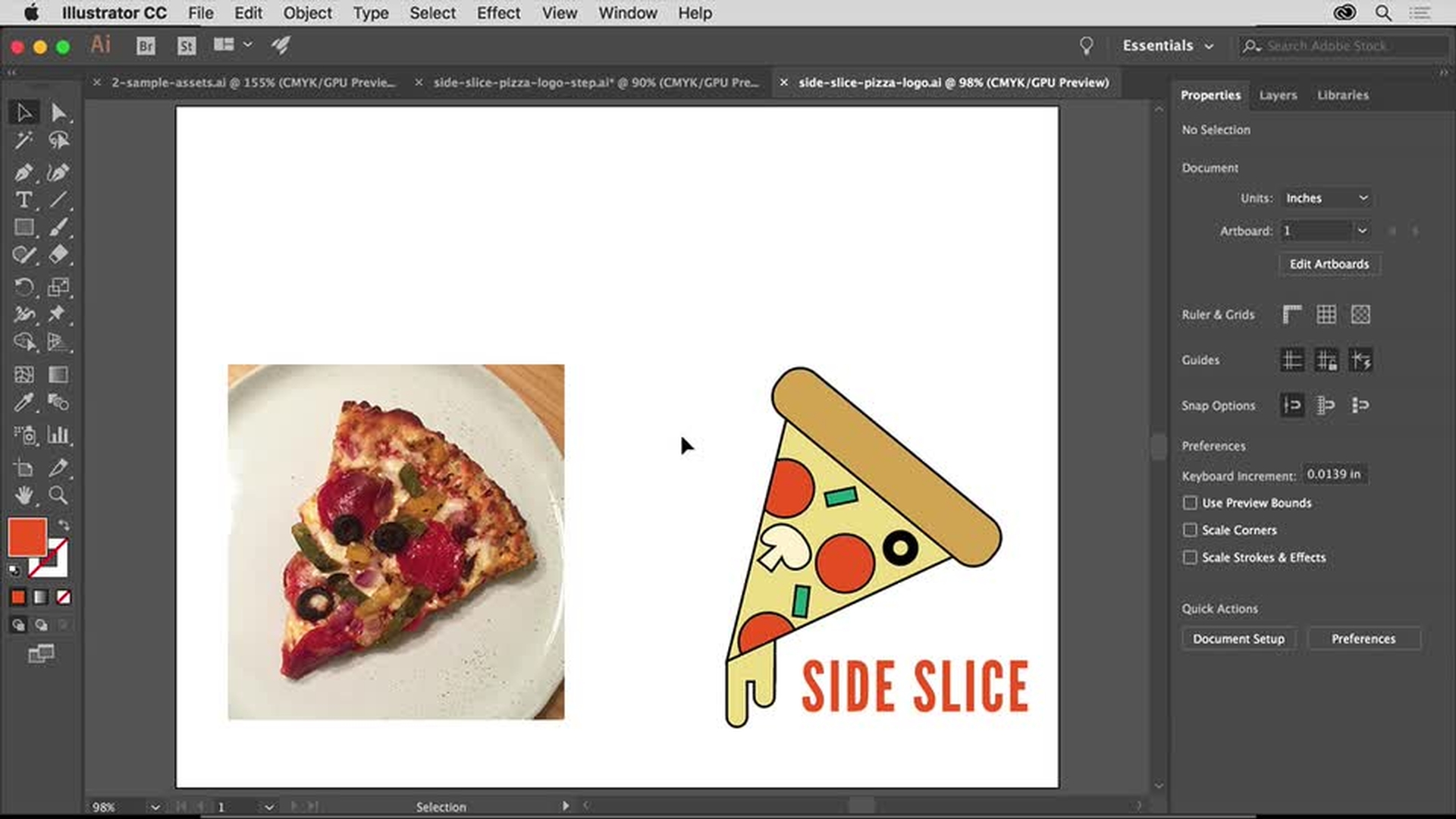
Save your finished logo to a library
Save the logo design as a PDF
Save the logo design to use it on a web page
Learn how to save your finished logo to a library, save it as a PDF, and choose other options for general web use.
Learn more about Creative Cloud for teams and business logo design.
Adobe Stock Contributor

