How Carly Berry uses prompts to experiment with color.
The Florida-based illustrator and printmaker explains how she uses Generative Recolor in Illustrator to quickly and easily explore a variety of colors, palettes, and themes.
I’m an illustrator and designer, and I’m also known as, ‘It’s Not That Weird’ on the internet.
Peek over it like you're sneaking.
I usually describe my work as playful.
It’s cartoons for adults.
I was all about all of the Nickelodeon 90s cartoons.
You got to go way back to the Ren and Stimpy.
That’s where it all begins.
What Is Generative Recolor?
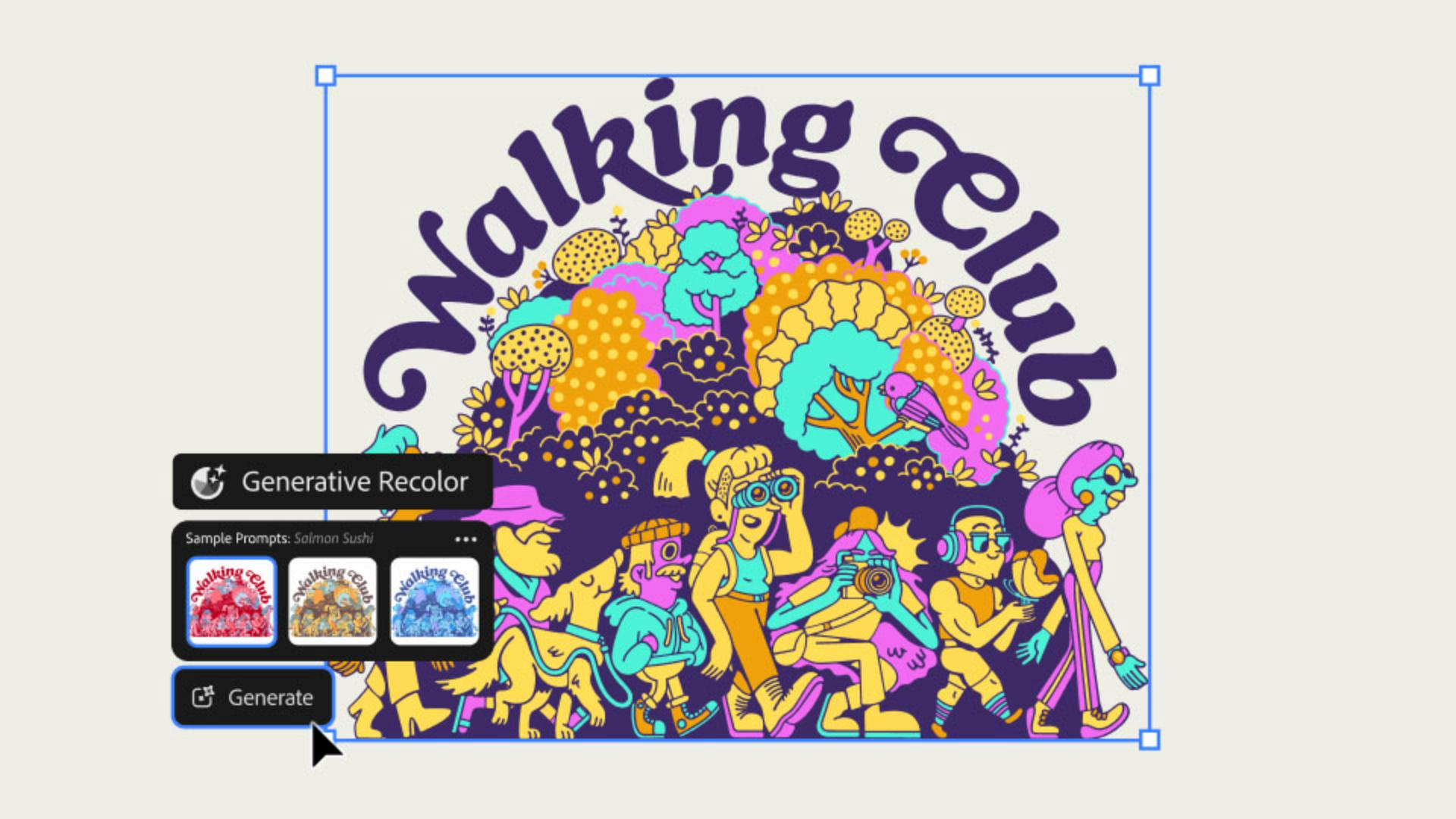
Generative Recolor is a tool within Adobe Illustrator that lets you spin up different color variations based on written prompts.
I love putting in the silliest prompts and seeing what it comes up with.
It helps me continuously refine and give me some new ideas.
Bringing Characters to Life with Color
I like doing character design because you can put little bits and pieces of you or the people you love.
It’s fun to kind of Frankenstein those together into something new.
I wanted to create a walking club, running clubs, overrated.
Instant Color Exploration and Creative Flow
I’m constantly looking for new ways to introduce a different color to a color palette.
Now, with Generative Recolor, I’m able to play with those different ideas because you can see it applied to your art instantly.
You’re able to really just stay in the flow and ideate very quickly.
You’re putting your colors into words through the prompts.
So there’s this extra element of creativity that you’re introducing into your work that maybe you wouldn't before.
Experiment and Find Your Creative Voice
I think if you're having fun with the process that really comes through the final piece.
Experiment, find your own voice and you can do that through color.
“Generative Recolor gives me a new perspective and allows me to see my work in a new light. Color can really change the entire vibe of a piece.”
Introduction
Weird is something that I aspire to.
I'm Carly Berry or It's Not That Weird on the internet and I'm a freelance illustrator.
I really like to create illustrations that have a lot of visual movement to it, even if it's not moving itself.
Something that's weird and off putting, but then also very relatable and very aesthetically pleasing.
Using generative recolor to create color palettes from prompts
Generative Recolor is a tool within Adobe Illustrator that lets you generate color palettes based on a written prompt.
Salmon sushi is one of my favorite sample prompts.
I find myself playing with that one first.
Then I typed in the prompt: 90s cartoon with contrasting colors and soft, upbeat vibe.
Color can really put you in a certain state of mind.
It was the perfect amount of weird.
Refining generated palettes with advanced color controls
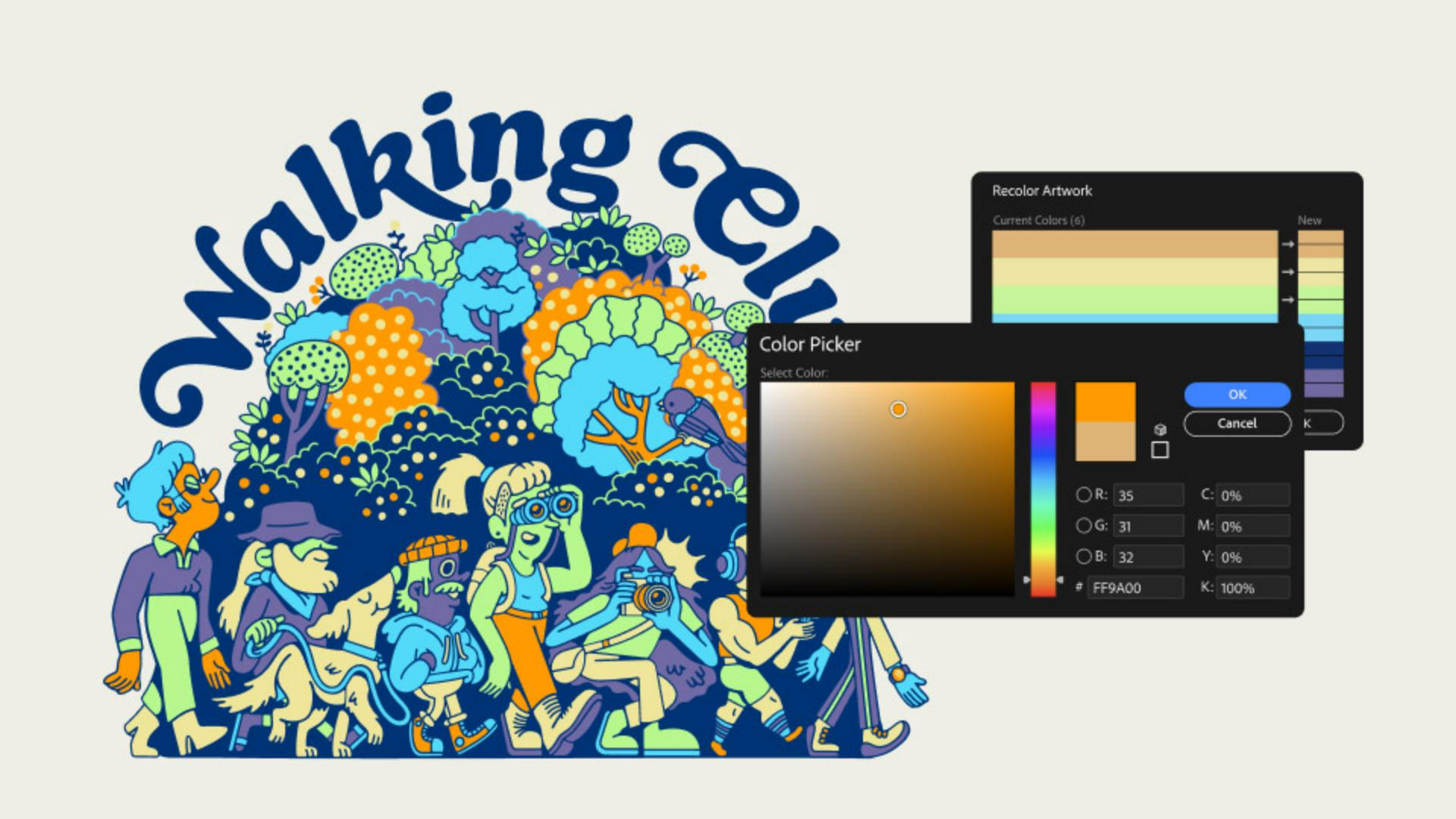
I go into the advanced settings and just move the sliders a little bit for each color to perfectly make a palette of my own.
Finding new creative perspectives through color exploration
What I love Generative Recolor for is getting a new perspective to take a piece that I've been looking at for hours and seeing it in a new light, because color can really change the entire vibe of a piece.
Embracing weirdness as a creative mindset
Weird isn't just a funky color palette or a character.
Weird is a state of mind.
Step 1: Create your illustration.
Carly starts by using Illustrator drawing tools to lay out some rough shapes, and then adds more details in new layers. For best results, use three or more colors, as she did in this example.
Transcript not available
Step 2: Try a sample prompt.
Generative Recolor offers a range of sample prompts. Carly selects her entire composition, then chooses Contextual Taskbar > Generative > Generative Recolor. “Salmon sushi is one of my favorite sample prompts,” she says, and selects Generate to see her art in an exciting new color palette.
Transcript not available
Step 3: Write a custom prompt.
For more precise editing, Carly uses a custom prompt to specify colors, moods, and other details. She types in “’90s cartoon with contrasting colors and soft upbeat vibe” to generate a bold palette that feels like the “perfect amount of weird” for her illustration.
Transcript not available
Step 4: Illustrate with flying colors.
To further refine the colors of her artwork, Carly chooses Generative Recolor > Advanced Options, with the whole design still selected. From there, she can double-click and select new colors from the pop-up menu.
Unable to load video
Instruction by
Carly Berry
Try these tutorials with Illustrator
Create illustrations and other graphics with vectors.
You can control how Adobe websites use cookies and similar technologies by making choices below. But note that if you disable cookies and similar technologies entirely, Adobe websites may not function properly.
Cookies are small text files stored by your web browser when you use websites. There are also other technologies that can be used for similar purposes like HTML5 Local Storage and local shared objects, web beacons, and embedded scripts. These technologies help us do things like remembering you and your preferences when you return to our sites, measure how you use the website, conduct market research, and gather information about the ads you see and interact with.
You can make choices in the menu below about what cookies and other technologies you want us to use on Adobe sites when you visit them from this browser. You can always change those choices later by clicking on the Cookie Preferences link at the bottom of the page.
If enabled:
We can improve your experience by tailoring the site and the content to things we think might be of interest
We can better keep track of your preferences — like what language you prefer to use
We will better understand your likely interests so we can provide you more relevant Adobe ads and content on non-Adobe websites and in non-Adobe apps
It will help us improve the performance of our website and those of our partners who use the Adobe Experience Cloud
If disabled:
We won’t be able to remember you from session to session so the experience may not be tailored to your interests
You’ll still have access to the content of the site but certain features that depend on cookies may not function
You’ll still see ads, they just may not be as relevant to you
General information
You can control how Adobe websites use cookies and similar technologies by making choices below. But note that if you disable cookies and similar technologies entirely, Adobe websites may not function properly.
Cookies are small text files stored by your web browser when you use websites. There are also other technologies that can be used for similar purposes like HTML5 Local Storage, web beacons, and embedded scripts. These technologies help us do things like remembering you and your preferences when you return to our sites, measure how you use the website, conduct market research, and gather information about the ads you see and interact with.
You can make choices in the menu below about what cookies and other technologies you want us to use on Adobe sites when you visit them from this browser. You can always change those choices later by clicking on the Cookie Preferences link at the bottom of the page.
If enabled:
We can improve your experience by tailoring the site and the content to things we think might be of interest
We can better keep track of your preferences — like what language you prefer to use
We will better understand your likely interests so we can provide you more relevant Adobe ads and content on non-Adobe websites and in non-Adobe apps
It will help us improve the performance of our website and those of our partners who use the Adobe Experience Cloud
If disabled:
We won’t be able to remember you from session to session so the experience may not be tailored to your interests
We’ll still count your use of our site and services
You’ll still have access to the content of the site but certain features that depend on cookies may not function
You’ll still see ads, they just may not be as relevant to you
Operate the site and core servicesOperate site and measure engagement
Always active
These cookies are required, and they are used to enable the site and related services core functionality. Without them the site could not operate, so they cannot be disabled.
These cookies enable the site and related services’ core functionality and collect statistics about user engagement, such as counting active use to help us understand trends. These cookies cannot be disabled.
Measure performance
These cookies are used to analyze site usage to measure and improve performance. Without them Adobe cannot know what content is most valued and how often unique visitors return to the site, making it hard to improve information we offer to you.
These cookies are used to analyze site usage to measure and improve performance. Without them Adobe cannot know what content is most valued, making it hard to improve information we offer to you.
Extend functionality
These cookies are used to enhance the functionality of Adobe sites such as remembering your settings and preferences to deliver a personalized experience; for example, your username, your repeated visits, preferred language, your country, or any other saved preference.
Personalize advertising
These cookies are used to enable Adobe and our partners to serve ads more relevant to your interests. Without them you will still see ads, but they might not be as relevant to you.
Personalize advertising
These cookies are used to enable Adobe and our partners to serve ads more relevant to your interests. Without them you will still see ads, but they might not be as relevant to you.