Want to learn how to use Adobe Illustrator to bring your fashion illustrations to life?
My name is Natasha Polozenko, also known as @nataszko all over the web.
And in this three-part tutorial, we're going to walk through the process of digitizing our sketches, bringing life to our materials through different Illustrator effects, and lastly, we're going to package up all of our work into a portfolio ready fashion lookbook.
So, let's dive in.
For this project we are going to be creating designs for the fashion brand Atelier Fluera.
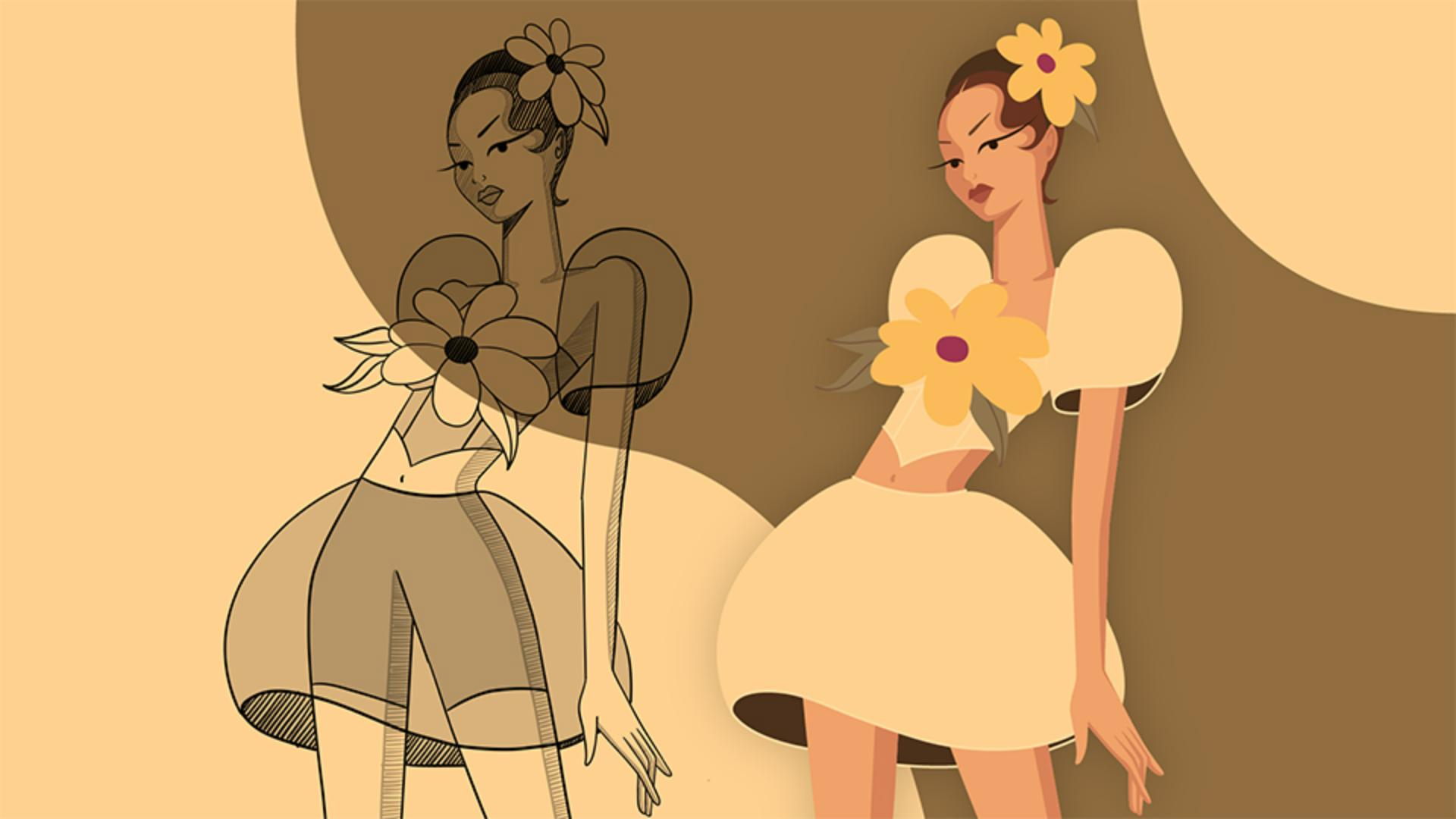
In response to the brief, I went ahead and created a series of sketches.
You can create these however you like.
I created mine using Adobe Fresco on my iPad.
Now in Illustrator, I'm going to start off by resizing my artboard to 1080 pixels wide by 1920 pixels high, and I'm going to place my base sketch in like so.
And just to make this easy to trace, I'm going to turn the Blending mode of this sketch to Multiply, decrease the Opacity, rename the layer to Sketch and lock it in our Layers panel.
The next step is to create a new layer underneath, and I'm going to call this Base Model.
Now let's start off by drawing the body suit.
Select the fill in the color you want to use, and with your Pen Tool selected, start tracing out the main shape of that body suit.
If you need to edit your shapes, you can use the Direct Selection Tool to tweak the anchors or adjust the anchor handles like so.
So hopefully you get the gist.
Now just use that same method to create the rest of your shapes.
To keep things very simple, I'm just going to make the torso and the legs all one continuous shape, while the arms and the head are going to be their own separate shapes.
As you're going through this process, just make sure that you're ordering your layers correctly.
For example, if we quickly change the color of the arm, we can see that it is positioned behind the torso when it should be in front.
To fix this, we can navigate to Object, Arrange and select Bring to Front.
We're almost done with creating our base model.
I just want to briefly touch on adding a little bit of shadow.
So, select the shape you want to add shadow to, navigate over to the Drawing modes in your Toolbar and select Draw Inside.
Now, with a color that is slightly darker than your base, you can now go ahead and add shapes like this.
And you'll see that anything that you draw while in the Draw Inside mode will be bound to that base shape.
Now, once you're done, you can select Draw Normal to exit back out.
And now that you know how to do that, you can go ahead and finish up drawing your base model.
Here is what my final version looks like.
And you can also go ahead and use that very same process for drawing out the base shapes of your outfit.
And we'll stop here for now.
I'll see you over in part 2 where we are going to use some Illustrator effects and techniques to breathe some life into our outfits.
I'll see you there.