As the owner of the review document, you can view and manage feedback you received from others from within InDesign.
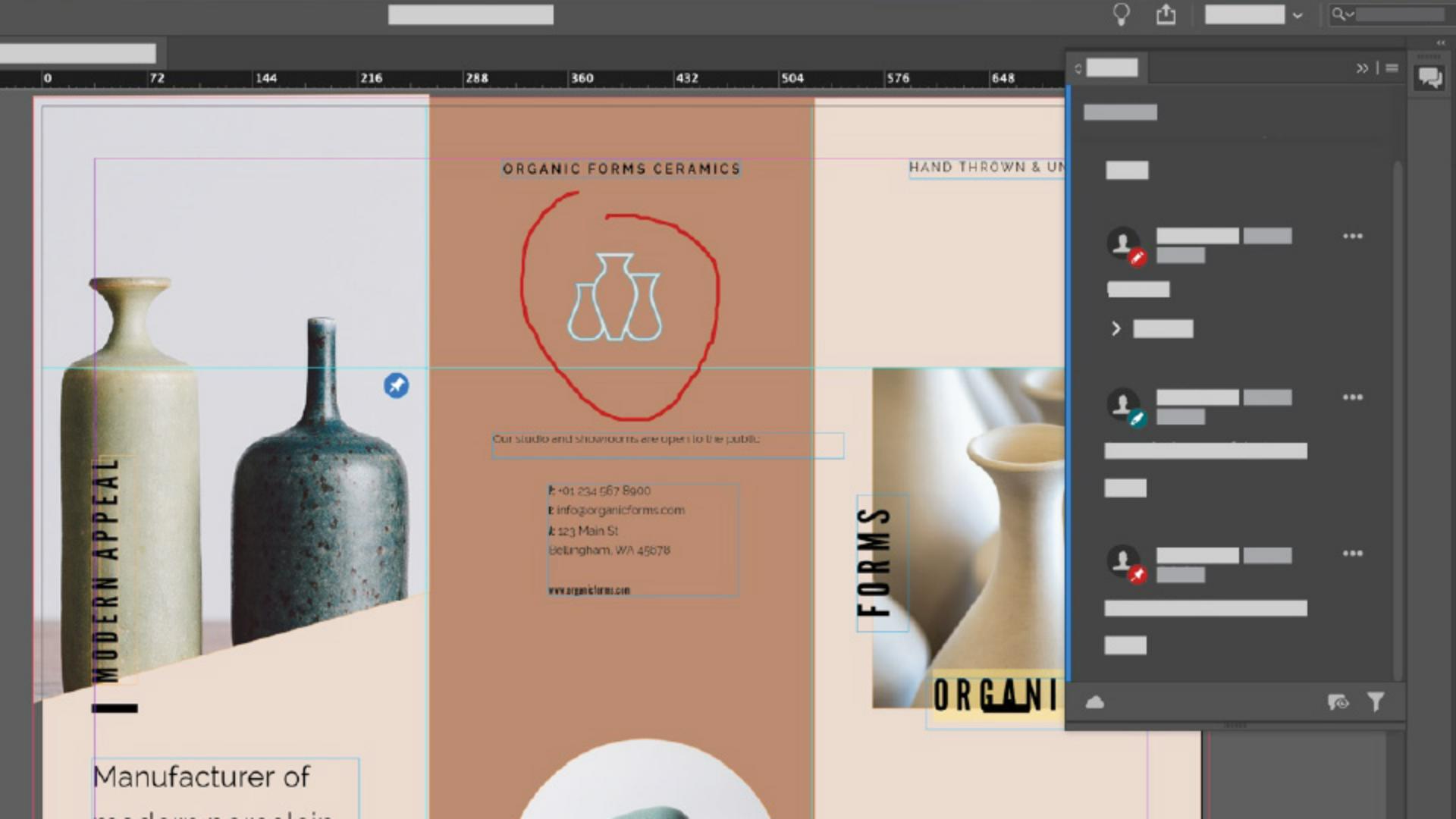
Now, see any comments, you can open the Review panel by choosing Window, Comments, Review.
Now, this Review panel shows a list of comments organized by spread.
If you close and open this review document you started, the review and comments will still be there.
If you were to save the document as a copy and rename it, or even send it to somebody else to open in their version of InDesign, the review will no longer be associated with the document.
Now, the Share Review panel launches automatically whenever you copy a link or add a reviewer in the Share for Review window.
You may have seen it opened behind the Share for Review window if you followed along in the first video.
Now, if you close the Review panel, it won't open again automatically, just so you know.
Looking in the panel, click one of the comments, and you can see that it's highlighted on the page.
If you click one of the annotations out here in the document, that comment is then highlighted in the Review panel.
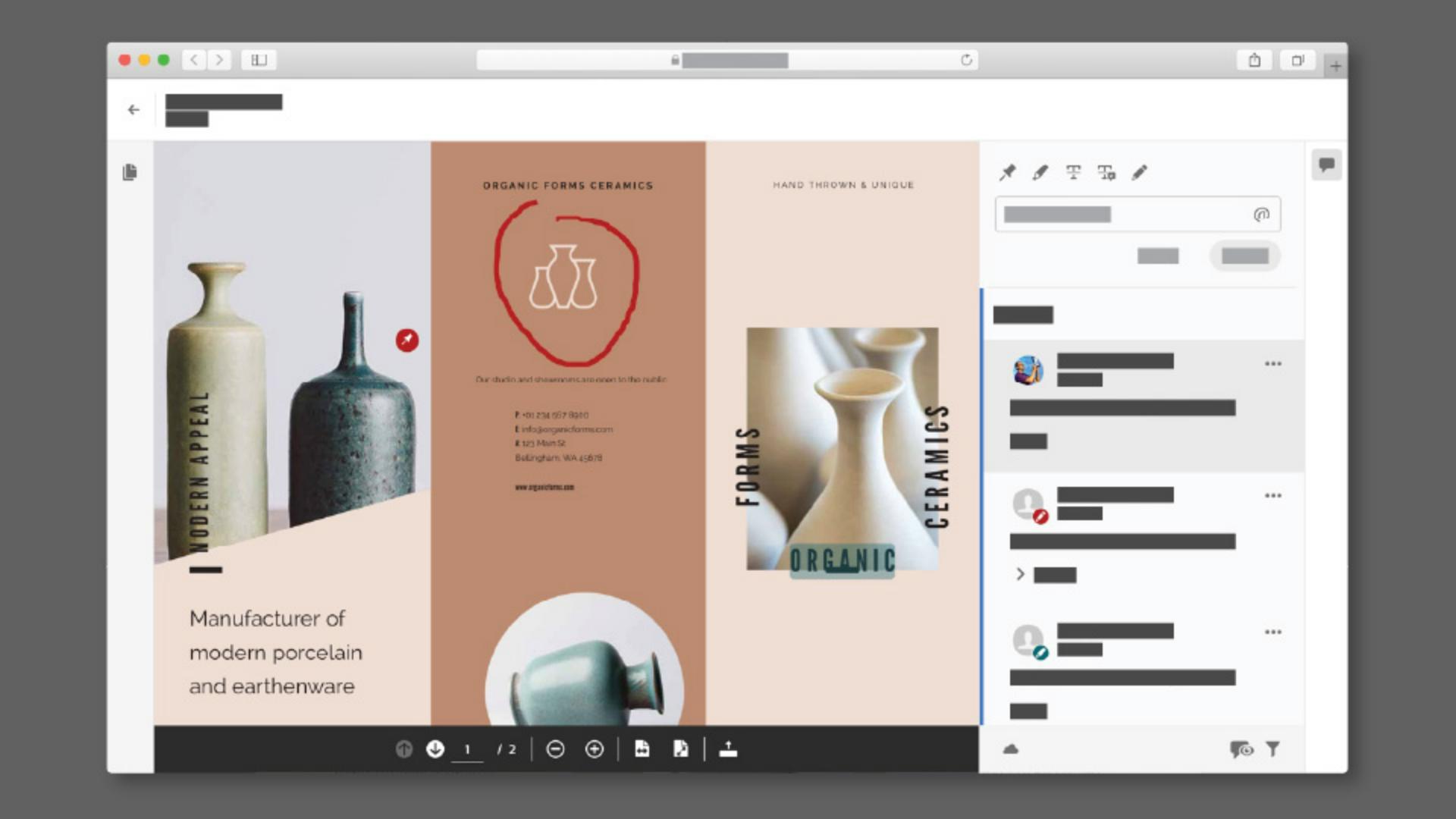
Now, you can see a lot of the same options you saw when reviewing documents in the browser.
Options like Reply.
Or the ability to hide and show the comments in the document down here.
As you review comments, maybe making those changes to your document and you want to mark a comment as done, or maybe you simply want to ignore a comment, you can resolve those comments, resolving hides them from the list.
For one of the comments, click the More Options ellipsis here.
Like in the browser, you can resolve or delete individual comments, or edit comments you made.
Now, I can't edit this one because someone else made it.
Now, suppose you want to make the change suggested in the comment.
Like this one.
With the Selection Tool, I'll drag this text frame down to the bottom.
Now, if you want to make a change suggested in one of your comments, go ahead.
After making the change, you may want to resolve the comment.
Maybe indicating that it's been done.
For a comment, click on the ellipsis, and choose Resolve.
The comment is now hidden.
Now, you can resolve comments or not depending on your workflow.
There are also times when you resolve comments, and you want to show them again.
Maybe you accidentally resolved a comment, and you want to see it.
That's where filtering comes in.
Click the Filter icon down here.
And you can filter the comment list based on reviewer time and if it was resolved.
Click the status Resolved.
You might need to scroll down.
And then close the Filter menu by clicking somewhere else to see all of the resolved comments in the panel.
I only see one because that's all I resolved.
Now, if you resolved the comment in error, or you want to see it in the main list again, you can click the More Options ellipsis here and choose Move to Unresolved.
To see all the comments again, click Clear Filter, or you could click the Filter icon down here and just deselect Resolved.
It's the reverse of what you did.
And you can see it again.
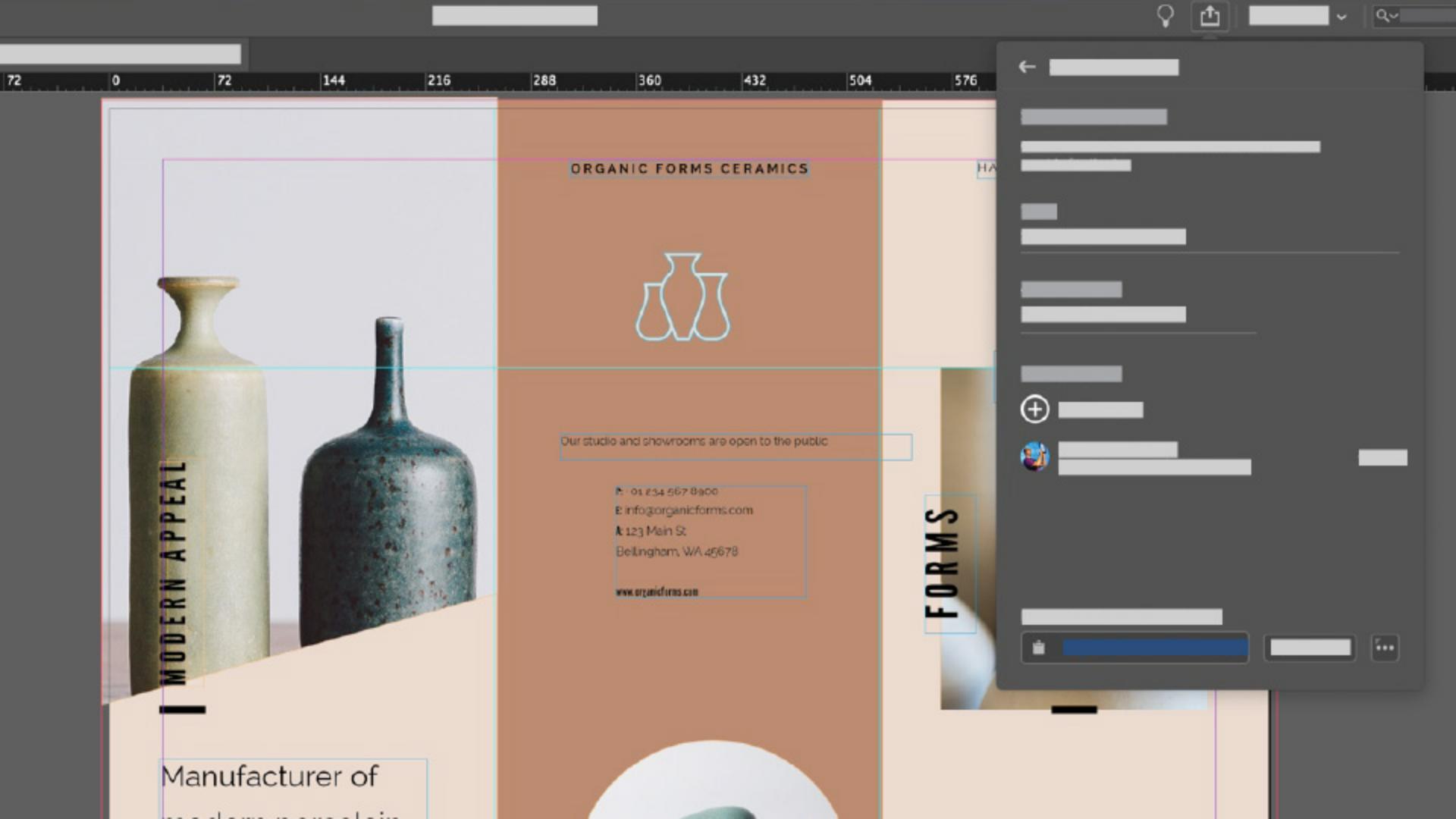
Now, as far as managing the review process as a whole, to see the Share for Review options again, you can come up here to the Menu icon and choose Share for Review.
Go to review in this menu would actually take you out to the browser again.
At this point, you can make any changes, like adding other people or requiring a password for instance.
Any changes you make will affect everyone that has access to the review.
Now, if you make changes to the document, maybe like design changes, you can update the review document by clicking Update Link here.
Reviewers will then see the updated document.
I'd suggest you check the timestamp next to Update Link just so you know when you last updated it.
Now, if you want to start a new review, maybe you want to keep this review and comments as they are, but you want to send out a second round and you want to start from scratch.
Clicking the More Options ellipsis down here, you can create a brand-new review or even delete this current review.
Every review you start is stored for you to see it later on.
Go ahead and click on Create new review.
We won't go through this since we did this in the first part of the tutorial.
But you could create a brand-new review with a new name.
Click Cancel to return to the original review.
If you want to keep track of all your reviews, maybe you want to go back and see what somebody said in a comment, you can do that on a Creative Cloud Assets site.
Click More Options here again.
And choose Manage review on the web.
Your browser opens up, assuming you're logged in with your Adobe ID, you'll see the reviews you created.
Using Share for Review in InDesign is a great and pretty easy way to create a collaborative review with others and receive feedback without leaving InDesign.