Edit both local and cloud files in Lightroom
What you’ll learn
Set up a Folder Structure for Local Files
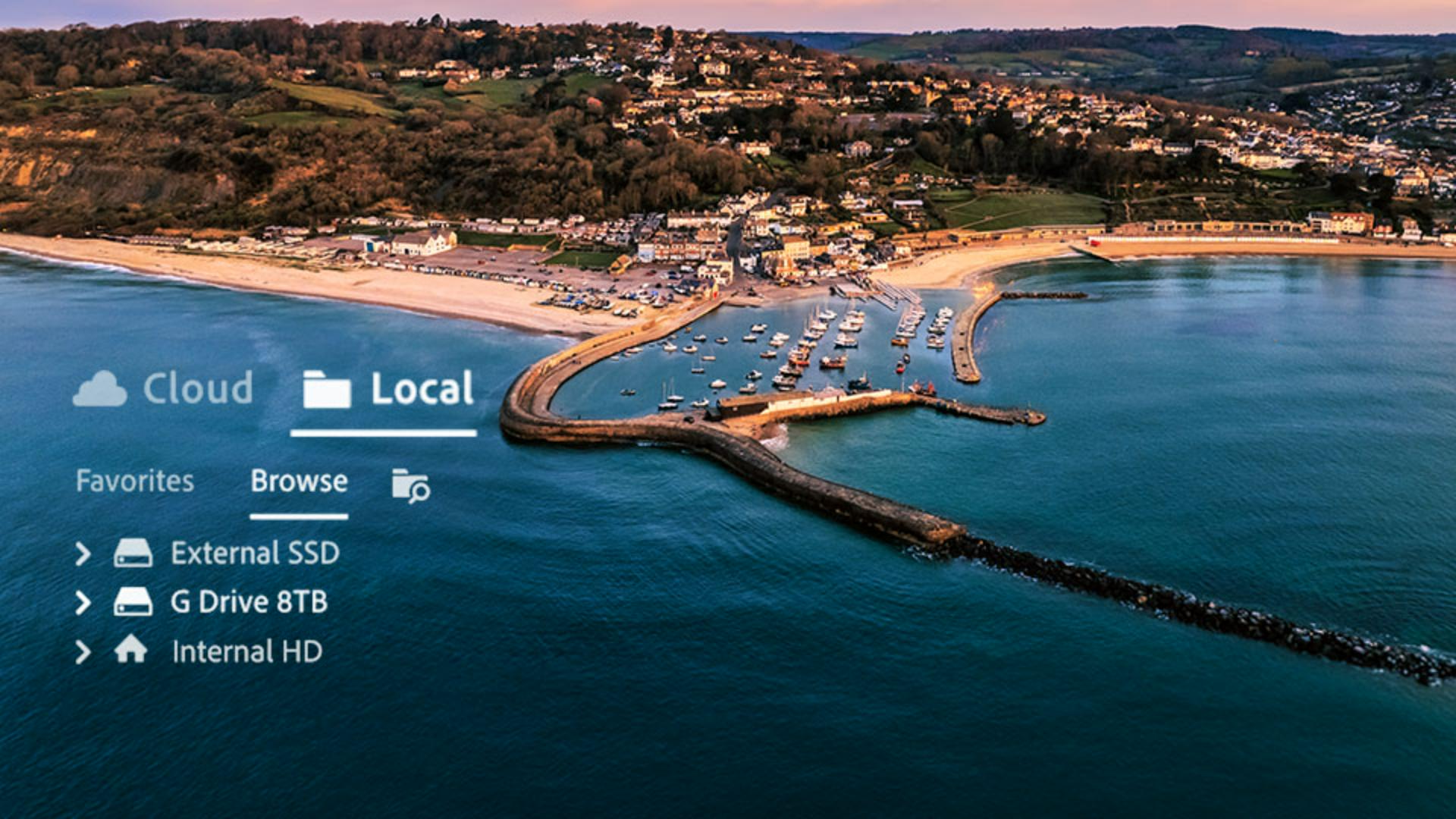
When you work with Local files, Lightroom is accessing the photos in folders stored on your local hard drives. This allows you to use your existing folder structure that is set up for how you prefer to organize your photos, making it easy to manage images in a way that fits your personal workflow and storage preferences.
Designate Local Folders as Favorites
You can speed up your workflow by marking frequently used local folders as Favorites inside Lightroom. Hover the cursor over a folder name and click the three dots menu or the star icon to add or remove folders from the Favorites panel, giving you faster access to the images and projects you use most often.
Copy Local Photos to the Cloud to Access Sharing Features
Most Lightroom edits can be applied to locally stored photos, but some features require that an image be stored in the cloud. Copying locally stored photos to the Lightroom cloud unlocks additional features such as syncing to Lightroom on mobile and Lightroom on the web, and a variety of image sharing options.
Use Recommended Presets with Local Photos
Lightroom’s cloud-based Recommended Presets are based on edits shared by members of the Lightroom Community and are unavailable for photos stored only on your hard drive. To take advantage of the creative possibilities offered by the Recommended Presets, copy a photo to the cloud to access the community-powered preset suggestions.
Archive Edited Cloud Photos Back to Local Storage
After editing a cloud-based copy of your image, you can choose to keep the photo in the cloud or archive the edited version back onto your local hard drive. You can find the option to archive a photo, or photos, locally in the Edit menu, or by right-clicking on the selected images.
Choose Between Cloud, Local, or Hybrid Workflows
Lightroom gives photographers the flexibility to store their images in the cloud, on their local hard drives, or using a hybrid combination of both. Depending on how you choose to work with your own photos, you can build a workflow that best supports your editing, storage, and backup needs.
Instruction and photography by

