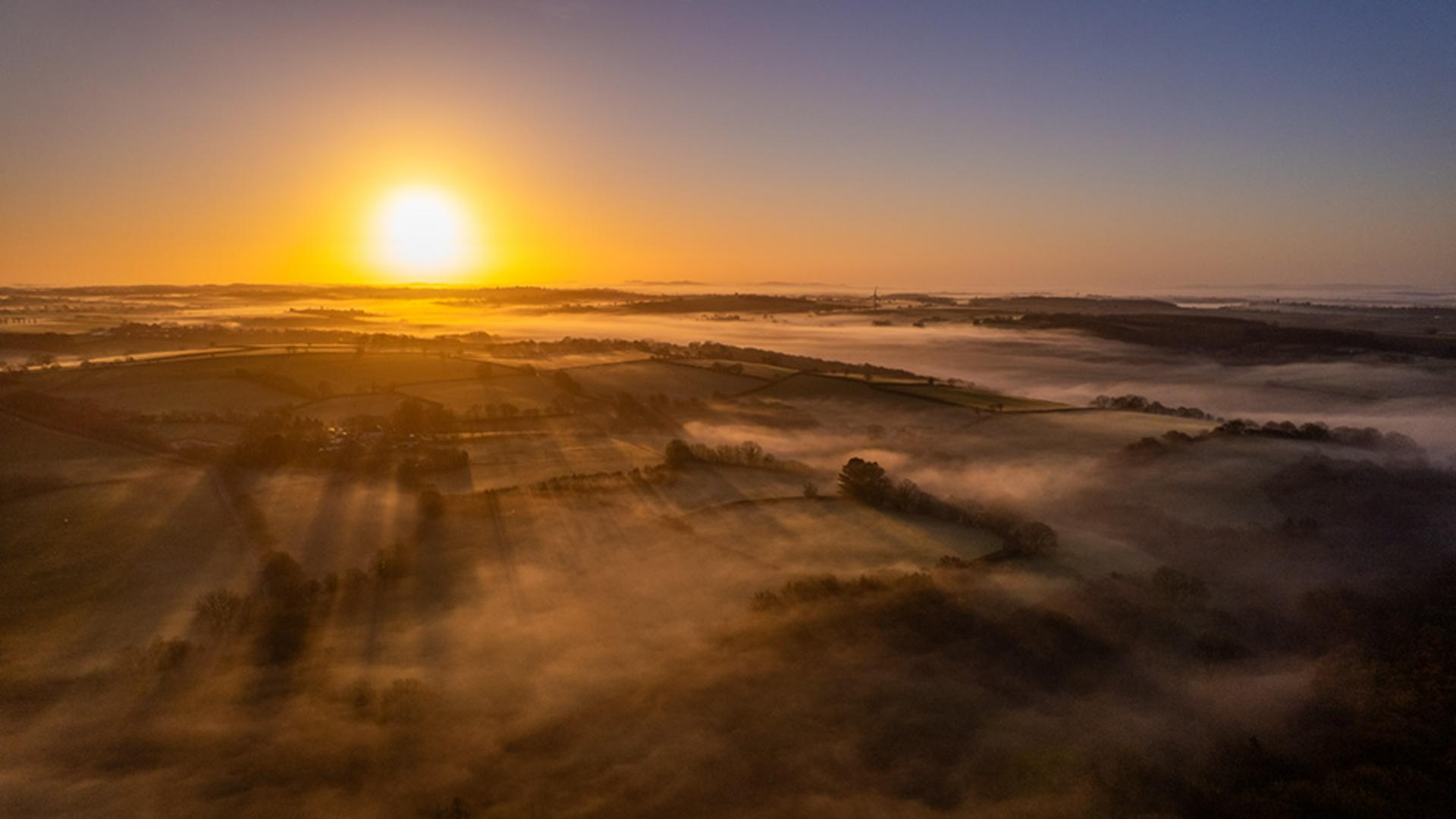
Fine-tuning exposure and contrast in the light panel
But now let's come down to the Light section where we can see the adjustments that pressing Auto has done.
In the Light section, we have a number of adjustment sliders.
Exposure adjusts the overall brightness of the image and is great for correcting underexposed or overexposed shots.
Contrast increases or decreases the difference between dark and light areas.
Boosting Contrast makes your image pop.
Reducing it gives a softer, more flatter look.
Highlights affect the brightest part of the image, like sky or reflections.
Lowering the Highlights, brings back lost detail in bright areas.
Shadows adjust the darker parts of the image.
Shadows reveal detail in shadowy areas without affecting the rest of the image that much.
The Whites control the brightest points of the image, and Blacks controls the darkest points of the image.
Now I can adjust these settings to fine-tune how I want the image to look.
I'll start by adding a little more Contrast - about here will be good.
I'll also reduce the overall Brightness of the image ever so slightly.
I think the shadow and highlight details are pretty fine.
I don't need to change anything there, but I will take the Whites all the way over to the left to reduce the brightest points in the image.
And that has a great effect on the sun and the sky.
Next, I'll move down to the Color section.