Creating albums and adding photos efficiently
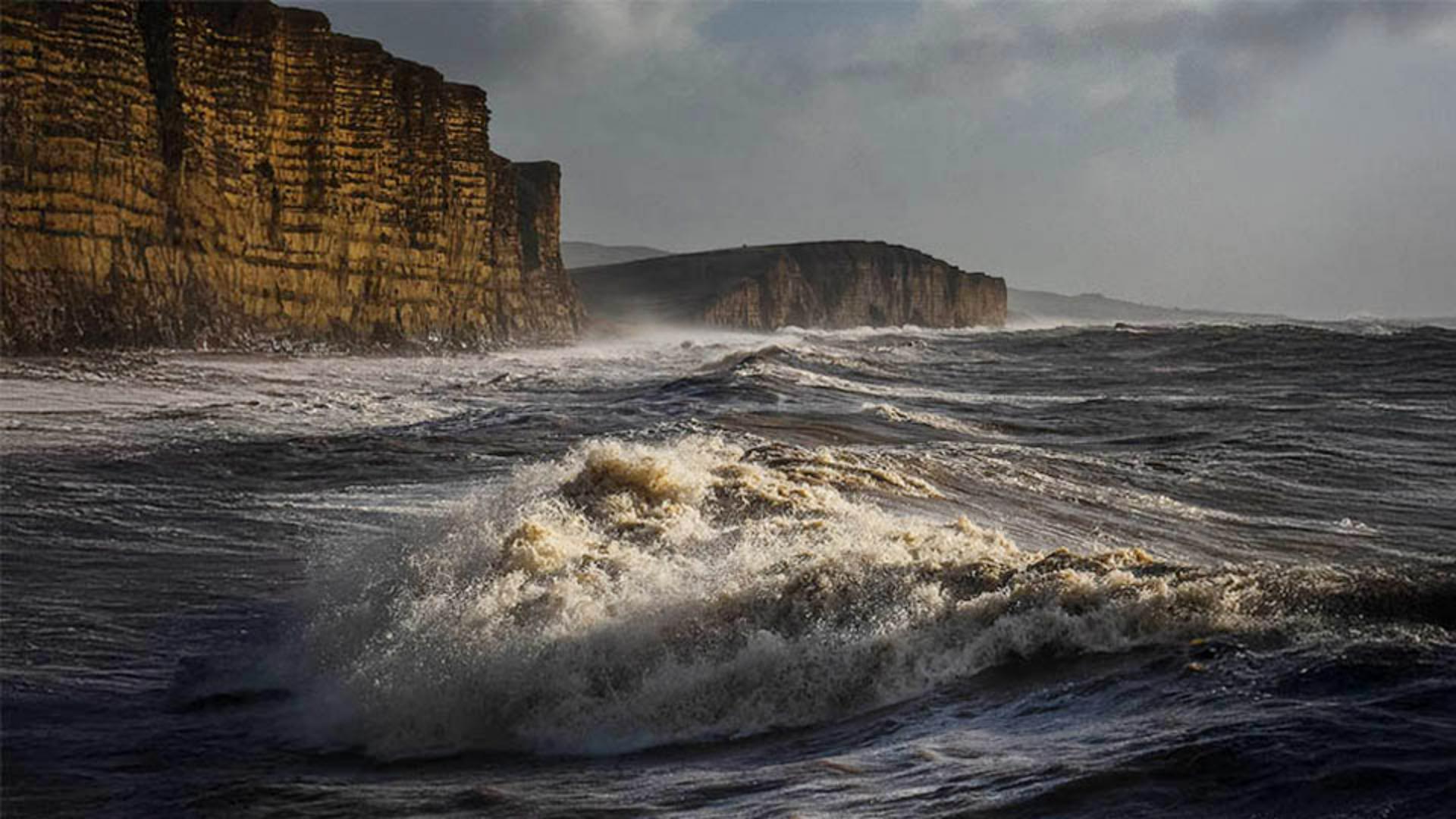
For example, here I have a series of seascape photographs that I've taken with my iPhone.
So, I'll click on the + icon and choose Create Album and I'll name this one seascapes.
We can see the new album here.
Now I'll click on one of the seascape images and manually drag and drop it on top of that album.
That image is now added to the album, as you can see here - if I click on it to open it.
I could also select multiple images and drag them into the album.
But let me show you another way to add multiple images into an album even easier.
I'll go to the three dots - the ellipsis in the upper right - click on it and choose Delete Album.
That deletes the album, but not the photos.
The originals are still here in the All Photos view, nice and safe.
This time I'll select the first image on this row, and then I'll hold down the Shift key on my keyboard, and then select the last image on the far right.
Doing this selects all of the images.
Then, I'll click on the + icon and Create Album.
And here I again name the album.
But this time Lightroom tells me that the 11 selected photos will be included.
I click Create, and here's the album with all of the images inside.