Add elements into a scene with Generative Fill
Populate a scene with whatever you can imagine using Generative Fill.
Published
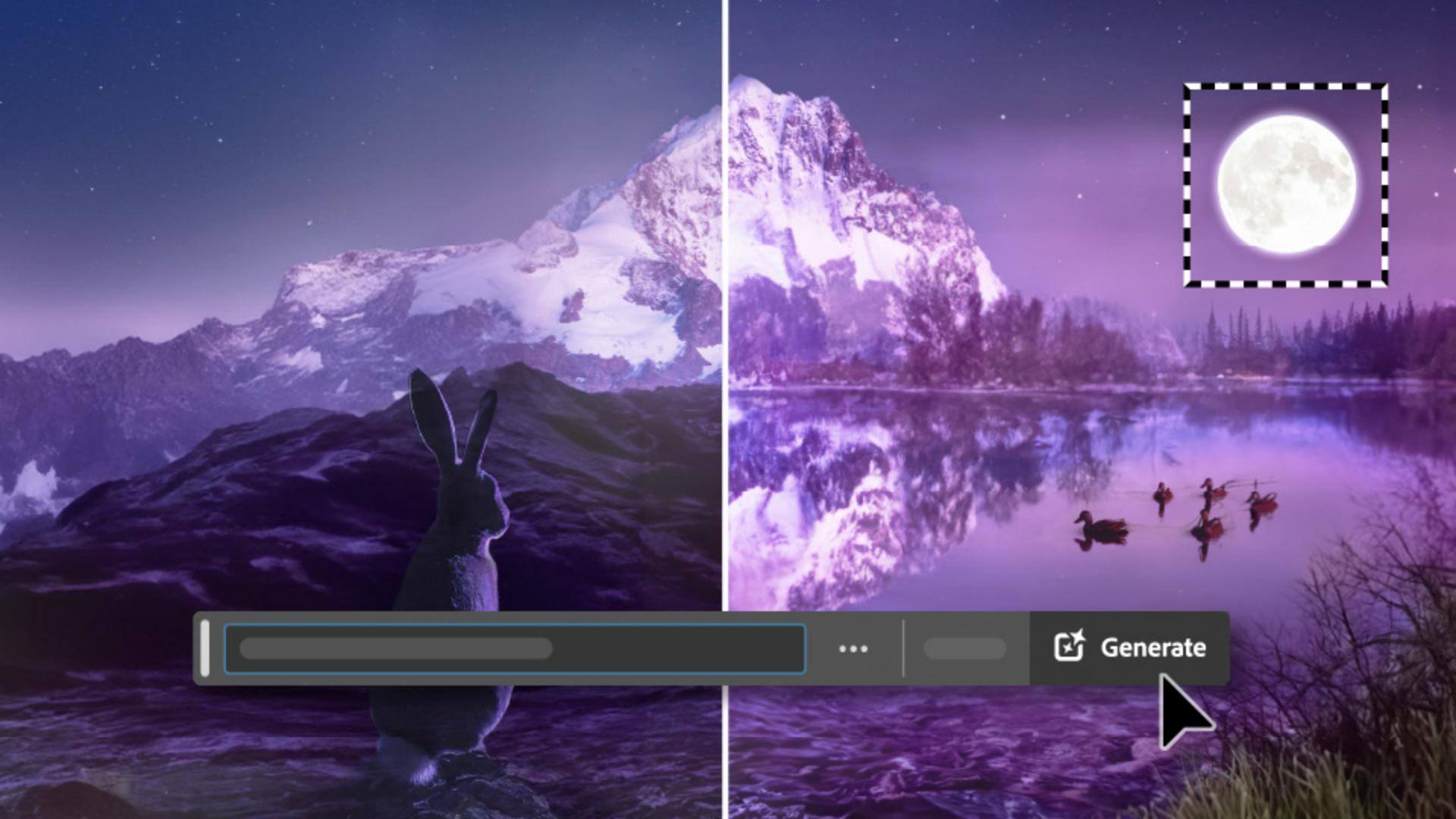
Notes: Assets can only be used in this tutorial and are Sample Files per Adobe's Terms of Use. You will need to buy a license to use the assets for other purposes. Some of the assets may be available for license on Adobe Stock.
Steps to populate a scene with whatever you can imagine using Generative Fill:
Select the Rectangular Marquee Tool from the toolbar.
Make a selection spanning the width of the image, just below the mountain and over the rocky area. This shows where to make the addition to the image. The shape and size of your selection will influence the results of Generative Fill.
In the Contextual Task Bar, select Generative Fill.
Write the prompt: "lake with ripples." Select Generate.
Choose your favorite variation in the Properties panel.
Instruction by
Anna McNaught

