When starting with Photoshop, one of the basic skills you need to know is how to create a new document.
This is useful when you want to create a document with specific dimensions, like a social media post.
My name is Rob de Winter, an Adobe Certified Instructor, author, and designer based in the Netherlands.
And in this video, I'll show you how to create a new document in Photoshop, customize its settings and add some elements to get started.
When you open Photoshop, you'll see the Home screen.
Here you can create a new file or open an existing one.
For this social media project, we want to start with a new blank document, so let's go to File, New... to create it.
This workflow is great for social media because it's a simple way to make your project exactly the right size for your social media platform right from the beginning.
In the New Document dialog, you can choose dimensions and other settings for a new blank document.
Or to make things easier, Photoshop also provides some new document presets.
Let's go to the Art & Illustration tab.
Here you'll find some preset document sizes and there are even more hidden under this View All Presets button.
Select the 1920 x 1080 px preset.
This size is perfect for creating content for social media, such as a Facebook post or a YouTube thumbnail.
We don't need to adjust any other values, so let's click Create.
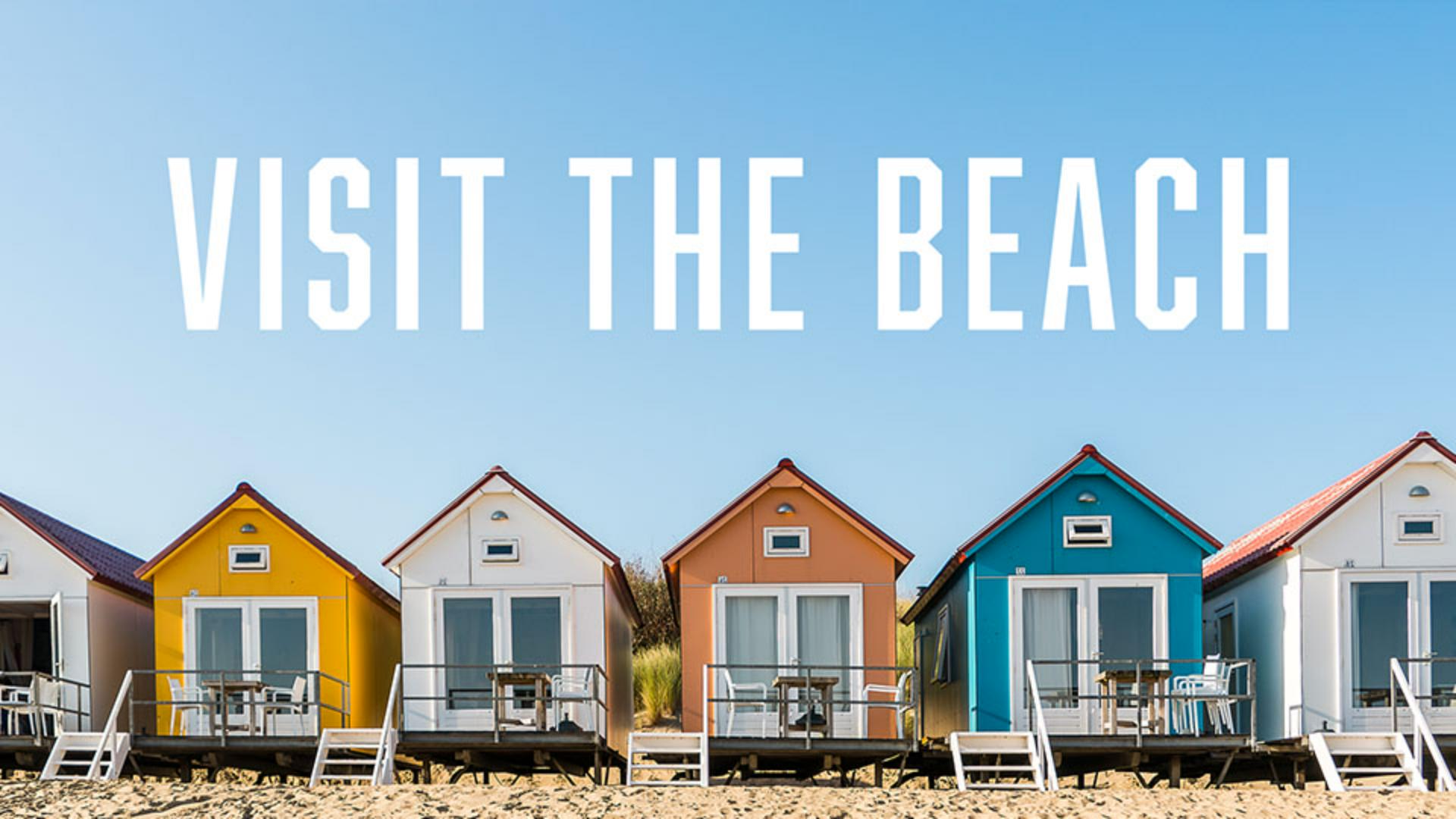
You have now created a 1920 x 1080 px blank canvas on which you can start building your project.
Let's now add an image.
Open the Finder on macOS or the File Explorer on Windows, and drag a photo into your new document.
Adjust its size using the corner handles and click on the image and drag to reposition it if necessary.
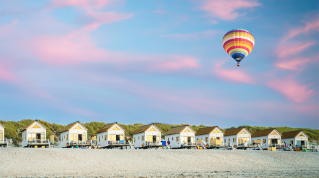
The image I'm adding has a different aspect ratio than the blank canvas, and this means that part of the image will end up outside the canvas and won't be visible.
But I'm okay with that because it helps to focus on a smaller section of the beach houses.
Click Done in the Contextual Task Bar to apply the changes.
Let's quickly add some text to complete our design.
Select the Type Tool from the Toolbar, click anywhere on the canvas and type, Visit the beach.
Then select the text and choose a font you like in the Font browser in the Contextual Task Bar.
Now click the Move Tool in the Toolbar and reposition your text on the canvas until you're happy with its placement.
Notice how each element you add appears as a separate layer in the Layers panel.
Layers help you keep different parts of your design separate, making it easier to edit each part individually.
Now you've learned how to create a new document in Photoshop, you can start bringing some of your own ideas to life.
Again, my name is Rob de Winter, and thanks for watching.