Create standout typography in fewer steps
What you'll learn
Start with dynamic text shapes to set the mood of your poster
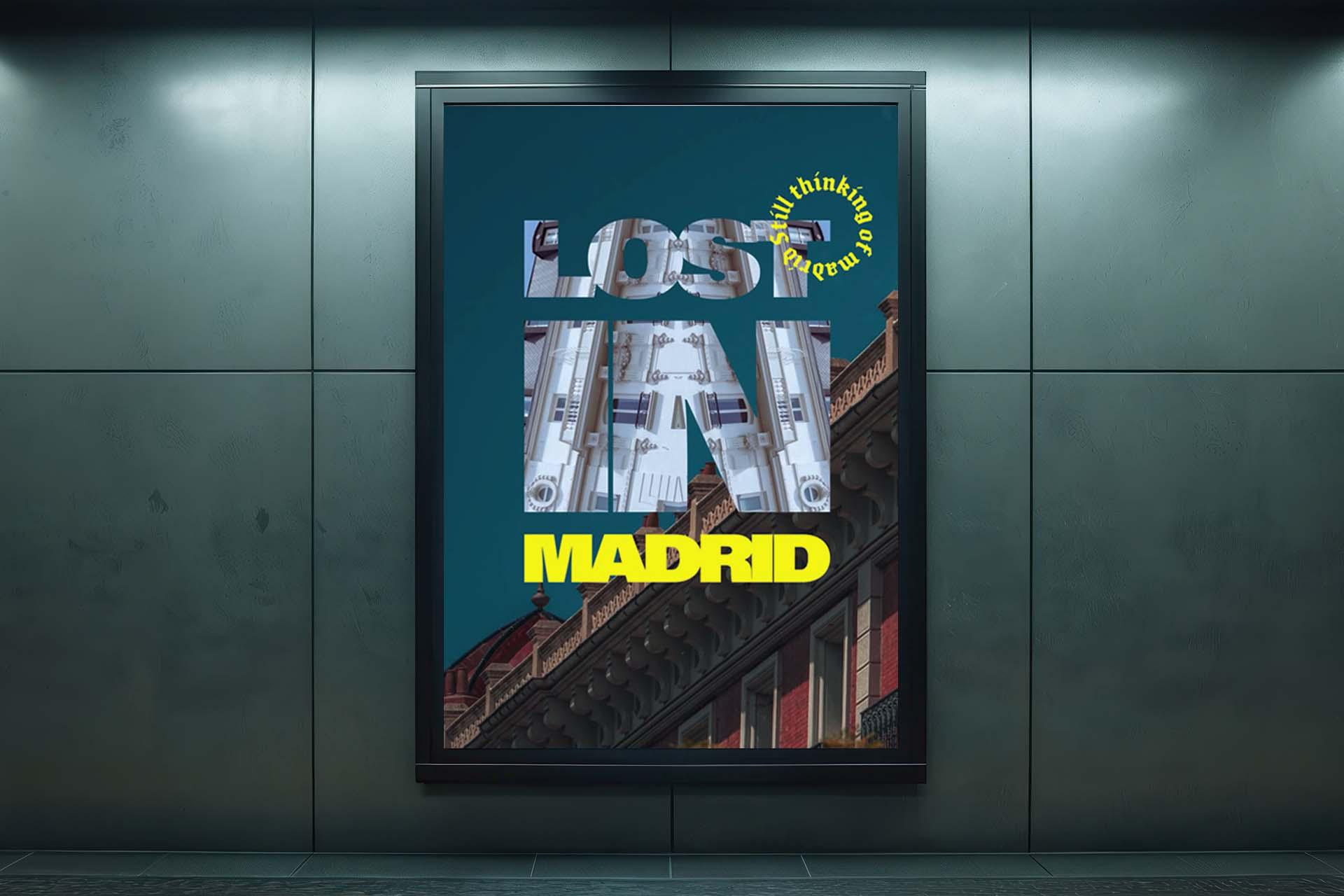
A plain title sits on top of a photo without adding to its mood. The dynamic text icon in the contextual taskbar offers preset shapes, like a bold block form, that give your title its own visual presence. Pick a shape that matches the feeling you want the image to carry before you add anything else.
Add a smaller line of text for emotional depth
A single bold title can say a lot, but it doesn't always capture the smaller, personal moment behind a photo. Adding a second line of dynamic text in a different shape, like a soft circle, lets you drop in a short, diary-style sentence alongside your main title. That contrast between the bold statement and the quieter line is what makes the image feel more specific and personal.
Skew your text to fit around your subject and it stays fully editable
Text that sits flat on top of a photo can feel disconnected from the subject inside it. Free Transform's skew option lets you drag the corners of your text, so it wraps around the shape of your subject instead of floating above it. Even after skewing, the text stays fully editable, so you can rewrite the line or reuse the layer in a different poster design.
Fill your title with an image using a clipping mask
A shaped, skewed title is strong on its own but filling it with imagery ties it directly to the story. Placing an image or texture above your text layer and applying it as a clipping mask fills the letters with that visual instead of a flat color. The effect stays adjustable, so you can test different images inside the same text until the composition feels right.
Tip: Dynamic Text automatically fits and resizes to the path. It also remains fully editable after being transformed.

