How to refine a layer mask
Fine-tune a layer mask in the Select and Mask workspace.
Published
This sample file contains assets provided by Adobe Stock for your tutorial practice purposes only. Check out the ReadMe file in the folder for the terms of use for this file. Adobe Stock has millions of royalty-free images and videos for your commercial use. You can get 10 images with a free month trial.
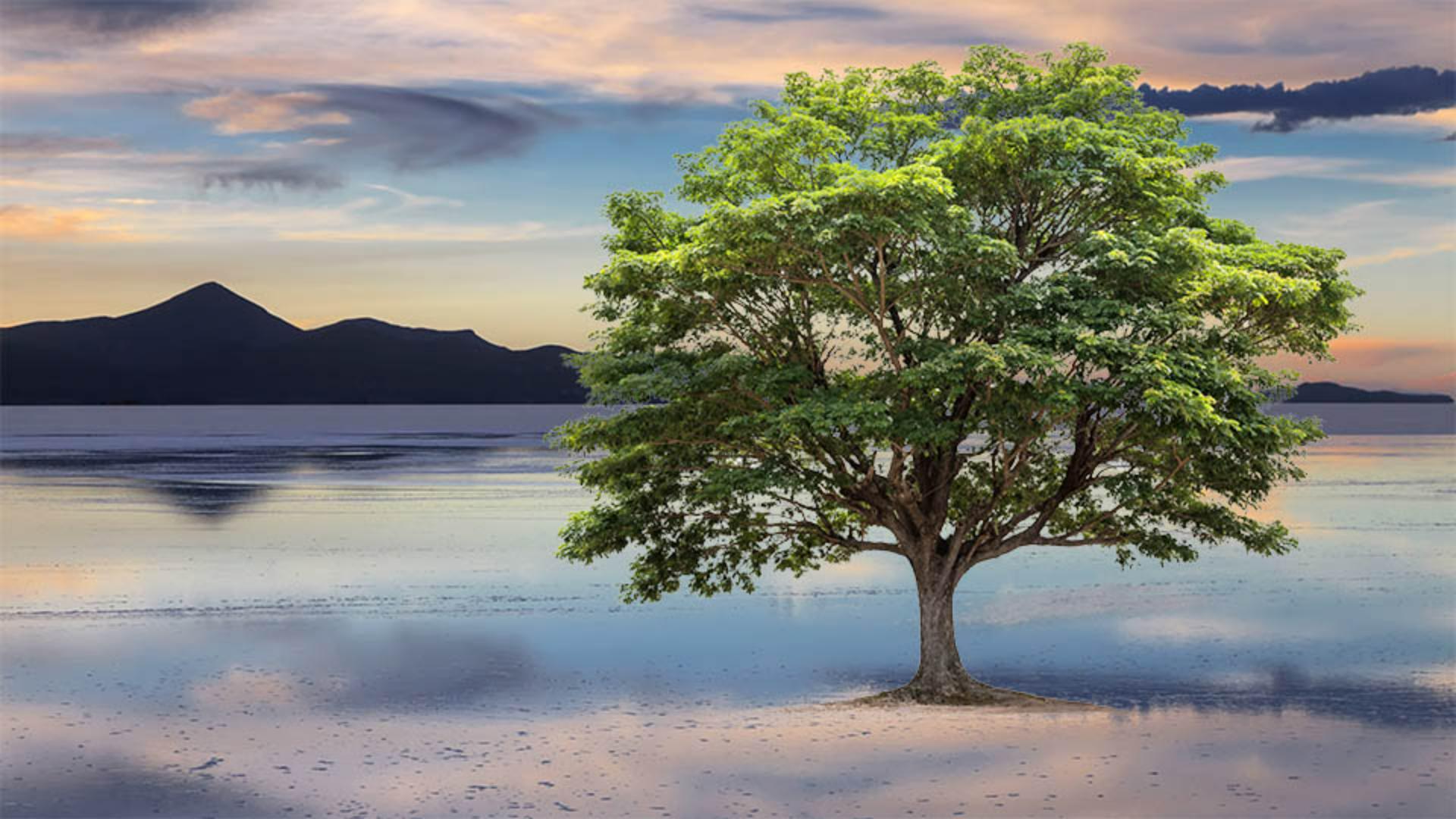
One of the best things about a layer mask - is that you can edit it.
So if a layer mask - isn't just right at first, you can fine tune it.
I'm Jan Kabili from Adobe.
And in this tutorial, I'll introduce you - to how to refine a layer mask.
One thing layer masks are used for is combining images - to create imaginary scenes.
In this tutorial, we'll combine this photo and this photo to create this scene.
We'll do that by adding - and then refining a layer mask, so it hides all the bits of white - around the tree, which will make the resulting - photo composite look more convincing.
Knowing how to fine tune a layer mask - will help you in other situations too.
You can apply what you learn here - whenever you need to make a mask or a selection more precise.
For example, - when you're adjusting details in a photo, or cutting out a person - to use in another image.
So let's get started - learning how to fine tune a layer mask.
Here's the image - we're going to use in this tutorial.
On the top layer is this tree - with a white background.
And what we want to do is use a layer mask - to hide that white background, so that we can see through there - to the lake on the layer below.
We're going to start - with the same technique that we covered in an earlier tutorial - in this series.
So if you've been following along, - this should be simple.
We're going to select the Tree layer.
And then we'll go up to the Select menu - at the top of the screen, and we'll choose Subject, and that will cause Photoshop - to make a selection around the tree.
It's a pretty rough selection, - as you'll see in a minute.
Next, we're going to turn that selection - into a layer mask by going to the bottom of the Layers panel - and clicking the Add Layer Mask button.
Now we have a layer mask - on the Tree layer, you can see its thumbnail - here in the Layers panel.
In the image, you can see - that there's still quite a bit of white around the edges of the tree - and among the leaves, but that's okay, because we're going to be able - to eliminate that by refining this layer mask - in the Select and Mask workspace.
The Select and Mask workspace - is a separate interface from this regular Photoshop workspace.
To open it, we'll first check that we have the layer mask thumbnail - selected on the Tree layer, not the image thumbnail, and then we'll go up to the Select menu - and we'll choose Select and Mask...
This is the Select and Mask workspace.
Over on the left - there's an abbreviated toolbar with tools you can use - to refine your mask.
In the center, there's a live preview.
And over on the right - there are more refinement controls.
A good place to start here - is by choosing a way to view the mask.
You can choose any of these views.
But when I'm combining images - using a layer mask, I like to choose On Layers, because it lets me see - more than one layer at a time, so I get a really good sense of what my final image - is going to look like.
There are lots of features - in this workspace.
And we're not going to look at all of them - in this tutorial.
But I do want to show you a couple - that I use often when I'm combining images - with a layer mask.
One of those is this Radius slider.
Take a look now - around the edges of the tree, and you can see that there's a lot - of white there all around.
But watch what happens when I drag the Radius slider - over to the right, I'll take it pretty far over.
Now a lot of the white at the edges - has disappeared from view.
What's happened is that Photoshop has widened the area - it's using to detect the edges of leaves.
And when it finds those areas, it's filling in with black - and shades of gray that hide those areas from view, so we can see more - of the lake image behind.
Now there still are quite a few white bits - inside of the tree.
A useful tool for handling areas like this is over in the Toolbar on the left, the second tool from the top, - that's called the Refine Edge Brush Tool.
I'm going to select that - and then I'll come into the image, I have a fairly big brush, and I'm just going - to start dragging over the tree.
And notice that as I do, a lot of those white bits - are disappearing from view, so we can see through - to more of the lake image behind.
And it only takes a few minutes - to hide almost all the white.
And notice, when I release my finger - from the mouse, that even the trunk of the tree - and the ground have been modified.
So I think this is a great result and although there are lots of other tools - I could use, I'm happy with this as is.
So the last thing to do here - in Select and Mask workspace is to output a refined layer mask.
To do that, - we'll go over to the column on the right and at the very bottom - are the Output Settings.
We'll go to the Output To: menu - and from here, you might choose Layer Mask, - in which case, Photoshop would replace - the original layer mask that we made at the beginning - of the tutorial with this new refined mask, or you could choose - New Layer with Layer Mask.
And that way you'll have both layer masks - back in Photoshop.
So let's do that.
And then click OK.
And the Select and Mask workspace closes, - and here we are back in Photoshop.
So as I said, - we have two layers with layer masks.
We don't have to keep them both.
But I wanted to show you - the difference between where we started, which was this initial layer mask and the layer mask we have now which is a lot more complex and precise and allows us to see a lot more - of that lake image behind the tree.
So I think you can see how powerful the Select and Mask workspace - could be for refining your images.
Don't forget to give it a try - the next time you are using a layer mask to combine photos. -
What you learned
How to make a quick layer mask Make a selection of the parts of a layer you want to show. Then turn the selection into a layer mask to hide everything else on that layer.
How to refine a layer mask If your layer mask isn't a perfect fit, open it in Photoshop's Select and Mask workspace to fine-tune the mask with powerful edge-refining tools.
Instructor

