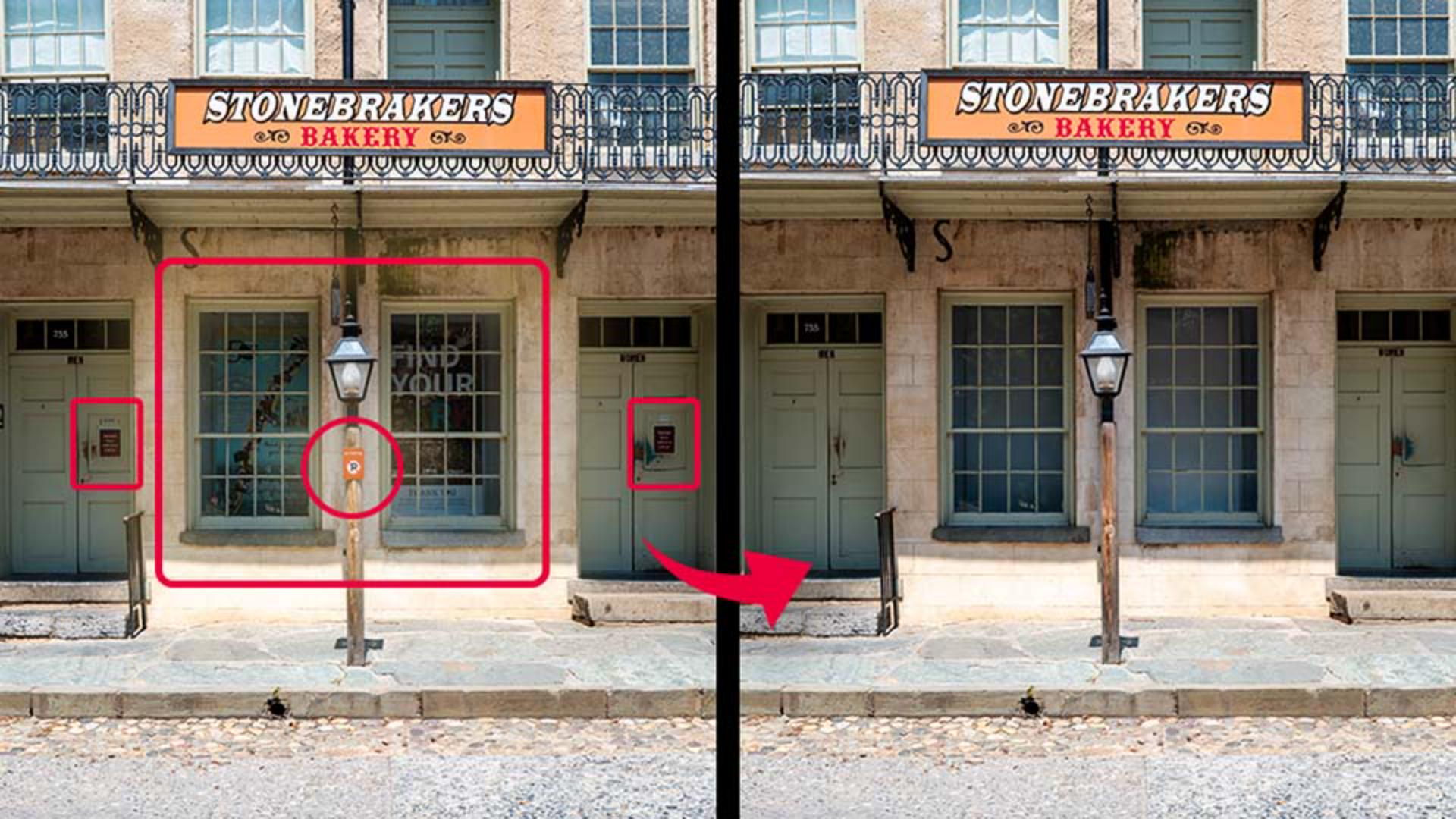
Clear multiple distractions at once
This photo has quite a few distractions - a car parked in front of the houses, a lamp post, and some other clutter.
You could paint over everything manually with the Remove Tool, but there is a faster way.
Create a new empty layer, select the Remove Tool, and click Find distractions and then the Find button next to the General distractions in the Options Bar.
Photoshop scans the whole image and categorizes everything it considers a distraction.
You don't always want to remove everything it finds, so be selective.
Here, I leave on Identified objects, Light-diffusion elements, and Vehicles, and turn off everything else.
Press enter or click the V icon in the Options Bar, and Photoshop removes all the selected elements at once.
There's still a lamppost I want to remove, but I want to be more precise with the selection.
Use the Selection brush to carefully paint over it.
After making a selection, a Remove button appears in the Contextual Task Bar.
It's the same as the Remove Tool, but it works from any selection, which sometimes gives you more control over exactly what gets removed.
After you click Remove, Photoshop automatically creates a new layer.
[Photoshop opens a vertical photo of a stone building with a white van parked in front.]
The last photo has power cables running across the sky, which is a classic distraction in photography.
Create a new empty layer again, select Remove Tool, and click Find distractions in the Options Bar.
This time click Remove next to Wires and cables.
Photoshop finds all the cables in the image and removes them in one go.
And by the way, if there had been tourists in this photo, you could have selected People in the same panel.
Photoshop would select them all and you can remove them all at once.
[Cut back to Rob in his studio.]
Now you've seen three ways to clean up your photos: the Remove Tool, Find distractions, and Generative Fill with Firefly Image 5 for the more complex situations.
Now give it a try yourself.
Again, I'm Rob de Winter, and I'll see you in one of the next videos.