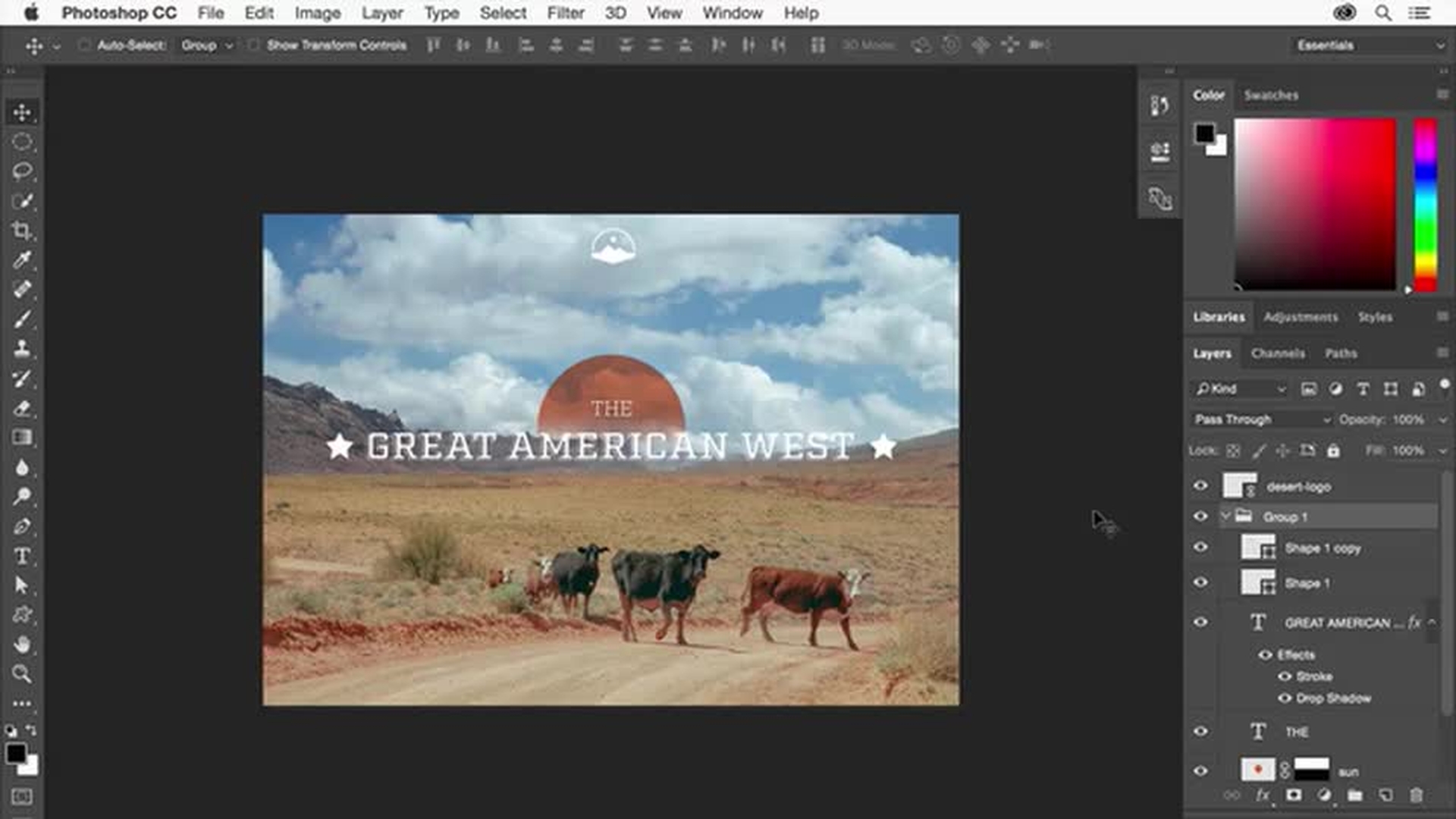
Create your first design
Typekit is now Adobe Fonts.

Get to know layers
Layers are the building blocks of any Photoshop design. Start building this layered design by creating a new layer for original artwork and by adding one image to another. Along the way, you'll become familiar with the Layers panel, and you'll learn the essentials of working with layers.
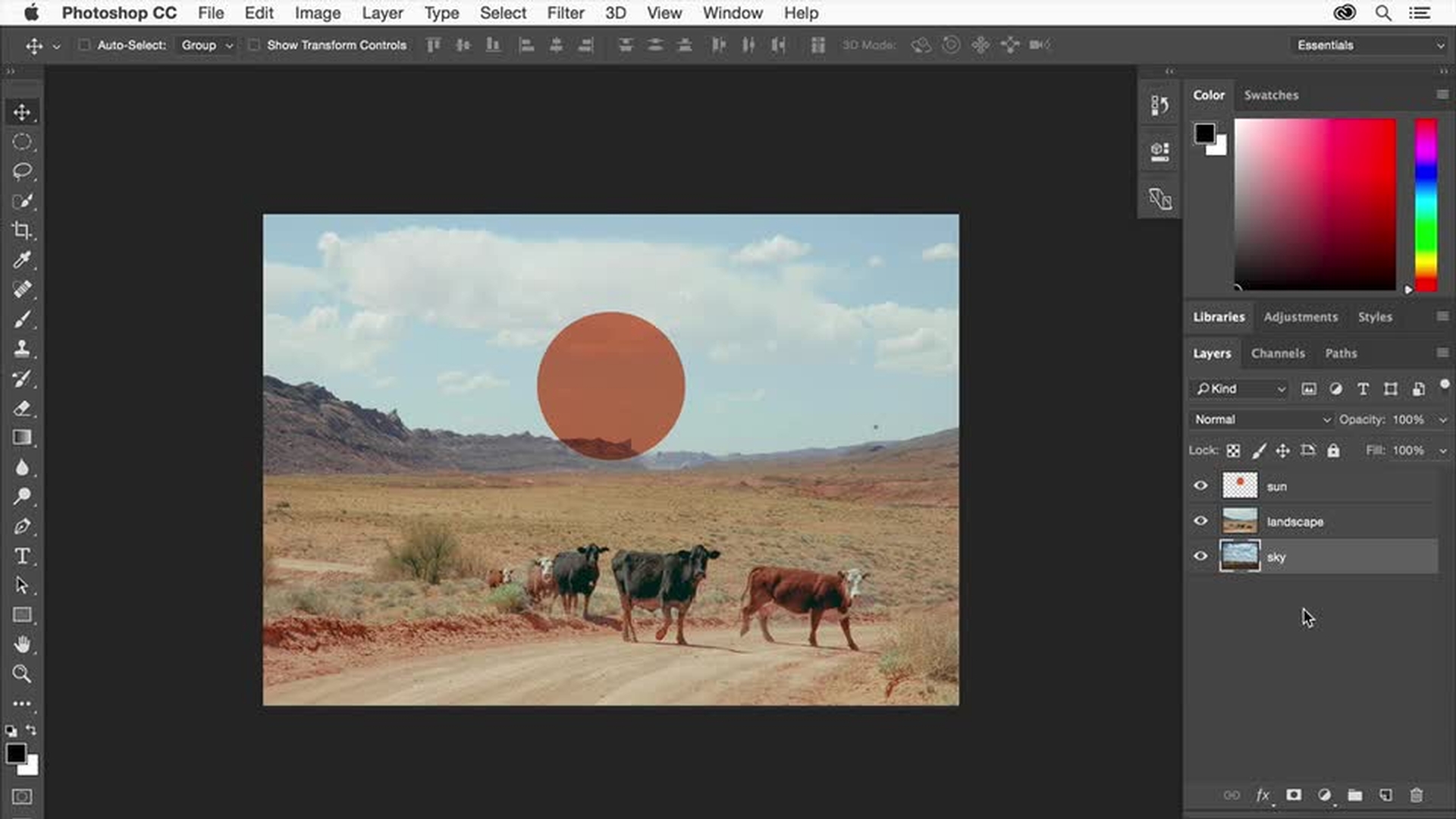
Introduction
Opening an image and understanding layers
Creating and naming a new layer
Drawing and coloring shapes on a separate layer
Using layer blend modes and opacity
Adding and arranging multiple images with layers
Combine images using layer masks
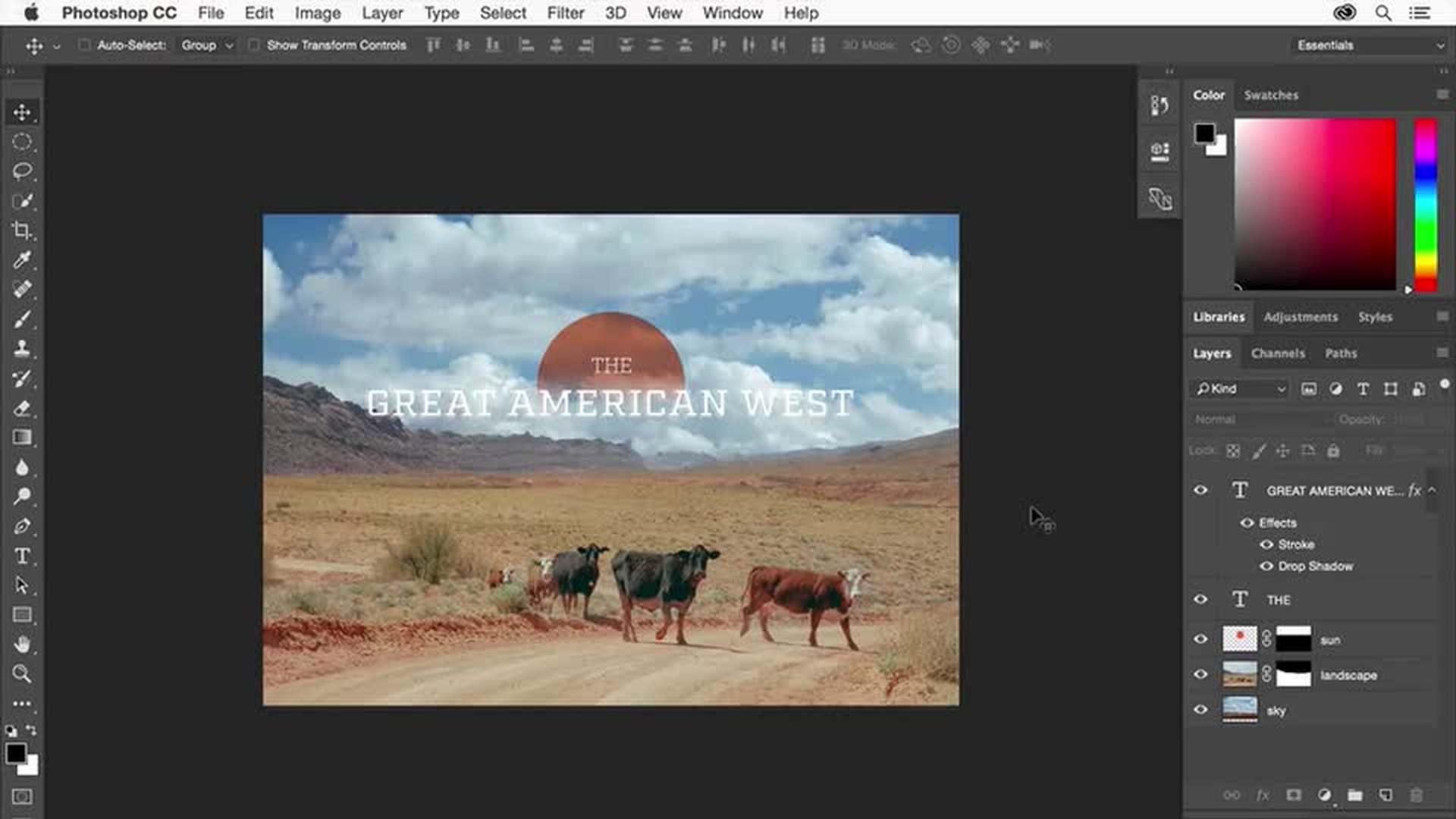
Layer masks are the most flexible way to combine images. A layer mask hides part of a layer to display what's on the layers below. Use layer masks in this design to replace a dull sky in one image with dramatic clouds from another and to gradually blend artwork into the rest of the design.
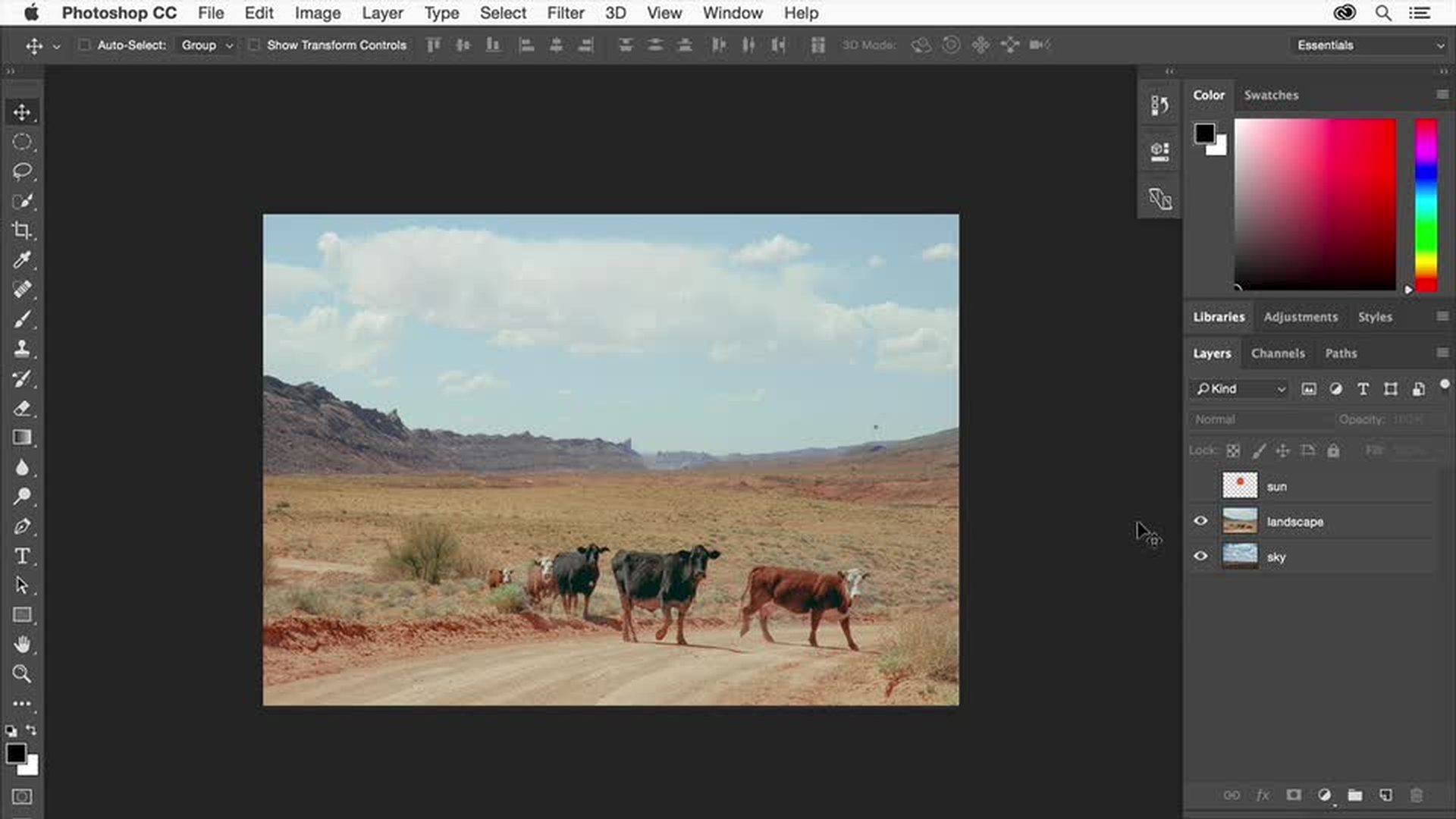
Introduction
Using selections to create a layer mask
Repositioning layers and understanding masks
Painting directly on a layer mask
Blending images with gradient masks
Non‑destructive compositing with layer masks
Add text and effects
Add text to your design. Then embellish the text with creative layer effects for a unique look. Learn how to work with Type layers, and use Typekit to access a treasure trove of exciting fonts.
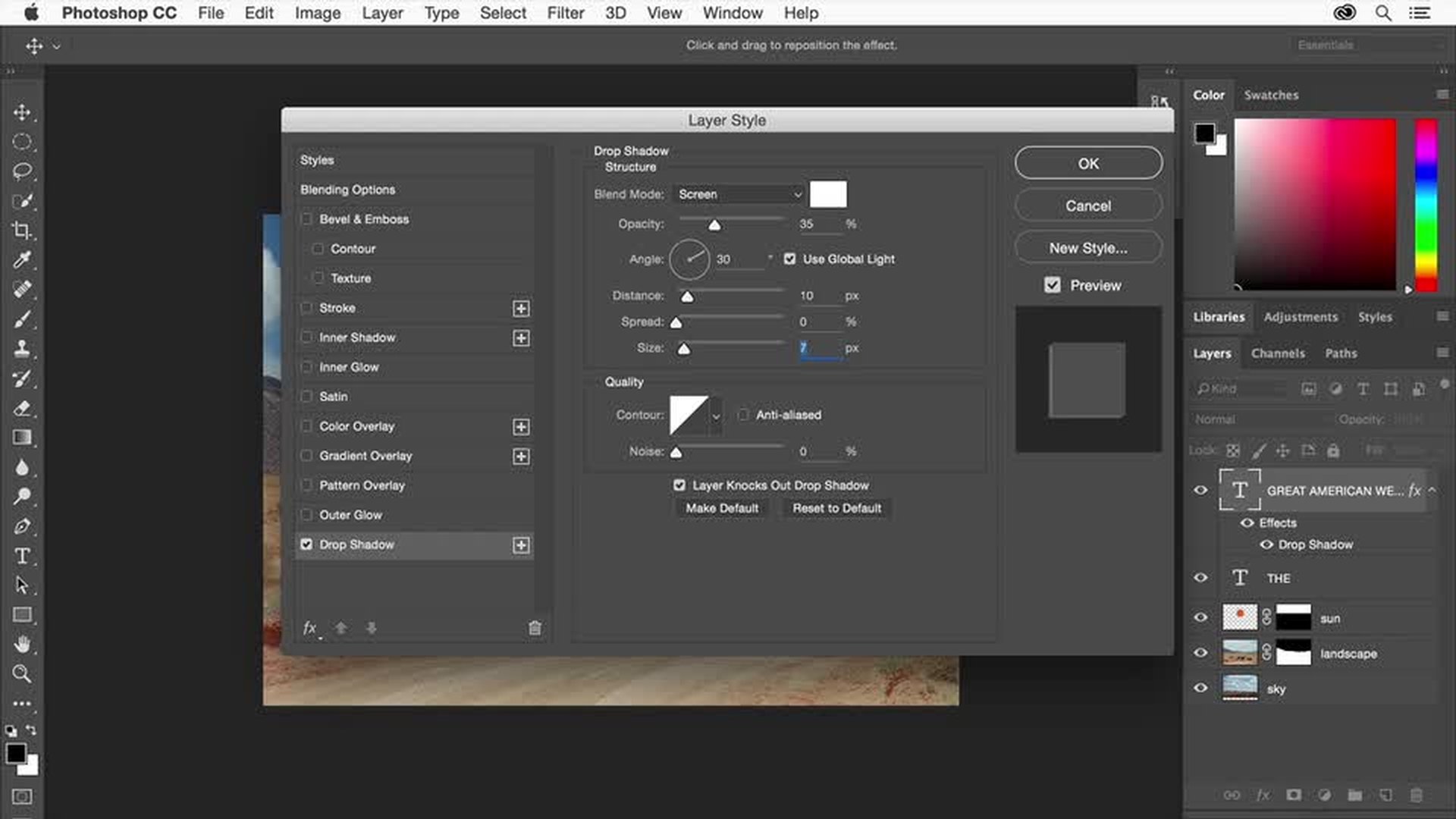
Introduction
Adding text with the type tool
Formatting text color and basic font settings
Choosing and syncing Typekit fonts
Adding and positioning additional text
Enhancing text with layer style effects
Include vector graphics
Photoshop isn't just for photographs. Take your design further by making custom shapes in Photoshop and placing a logo made in Adobe Illustrator. Vector graphics like these can be scaled and edited as much as you like.
Introduction
Creating a vector shape in Photoshop
Editing, transforming, and duplicating vector shapes
Placing Illustrator vector logos as smart objects
Organizing vector elements with layer groups
Export and save the design
Save your design in PSD format to retain its layers and effects for future editing. Then save or export copies for different uses. Save a copy as a PDF for sharing, and use Photoshop's Export features to export all or part of the design in web-friendly formats.