Use Curves to dodge and burn a photo in Photoshop for iPad
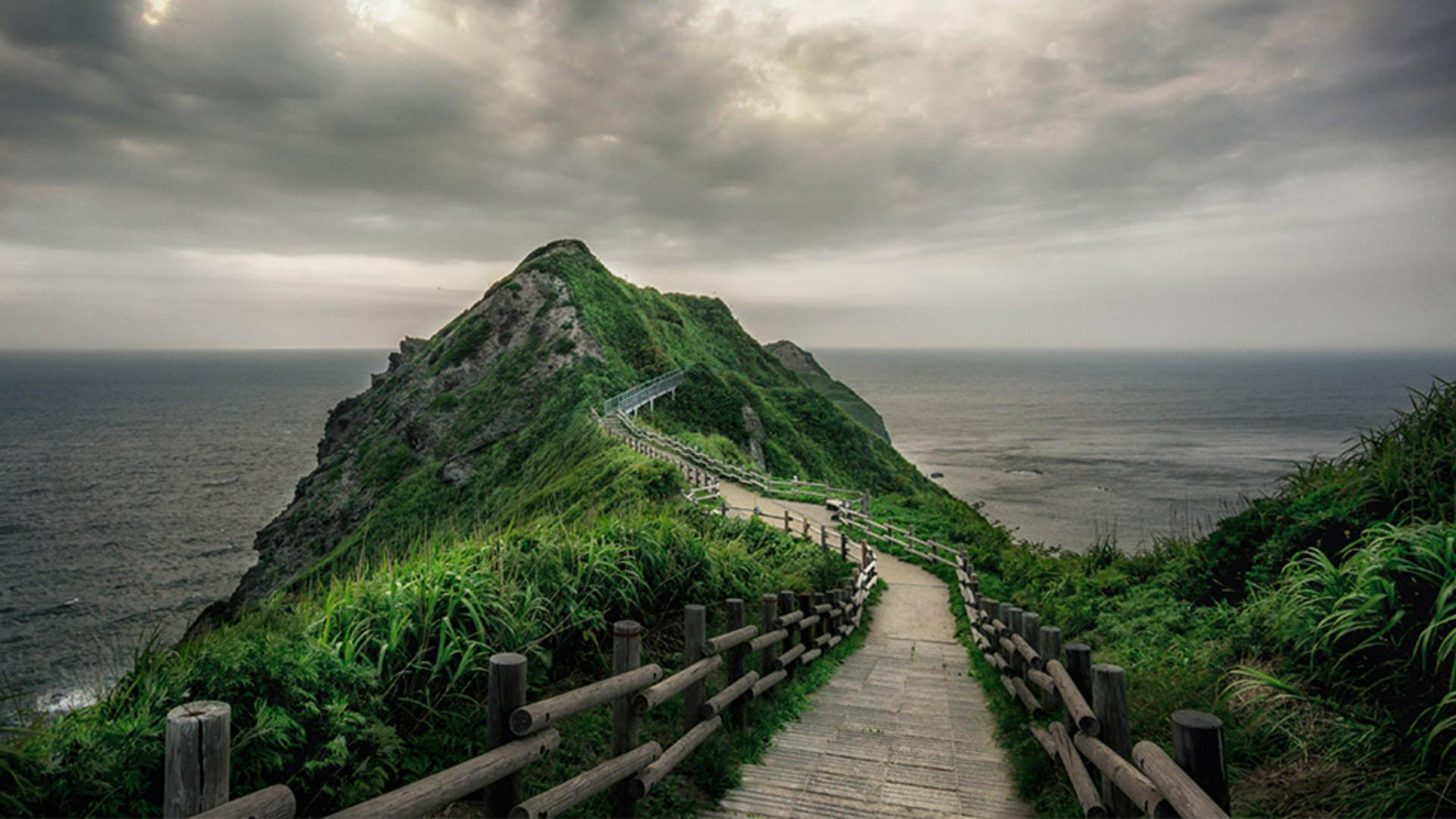
What you learned: Bring out the best in your photos with multiple Curves adjustment layers and masks
You can selectively and non-destructively lighten and darken parts of a photo using multiple Curves adjustment layers and editing their layer masks. The result is similar to dodging and burning, a darkroom technique for lightening and darkening different parts of a photo.
Add a Curves adjustment layer to darken parts of the image
Darken parts of a photo to tone down distracting areas that are too bright.
Long press on the Add Layer button (the plus symbol) in the taskbar on the right and choose Adjustment Layer > Curves.
In the Layer Properties panel that appears, pull down on the center of the curve line to darken the image.
When you add an adjustment layer, its layer mask is automatically active. Use a soft-edged brush set to 100% opacity, and paint with black on the layer mask over areas where you do not want the darkening to affect the image.
White areas on the layer mask show the Curves adjustment at full strength; black areas on the layer mask hide the adjustment.
Use another Curves adjustment layer to brighten parts of the image
Selectively lightening parts of an image with a Curves adjustment can guide the viewer’s eye through the scene, highlight certain parts of the photo, and reveal important details. If you want the lightening adjustment to be visible in only a small part of the image, invert the layer mask to black and paint on it with white.
Tap the Filters and Adjustments icon (the lightning symbol) in the taskbar and choose Invert to make the layer mask black.
Use a soft-edged brush set to 100% opacity and paint with white on the layer mask over areas where you want to see the lightening at full strength.
Reduce the brush opacity in the Tool Options bar to apply the lightening at less than full strength. Painting with a brush set to 50% opacity will create gray in the layer mask, which reveals 50% of the adjustment.
Double tap the layer mask thumbnail to see the mask; double tap again to return to the image view.
Modify the dodging and burning adjustments
Since adjustment layers and layer masks are non-destructive, they can be re-edited if you need to modify your lightening and darkening adjustments.
With an adjustment layer active in the Layers panel, tap the Layer Properties icon in the upper right of the task bar, and then change the adjustment.
You also can edit the layer mask by painting on it with black or white (or gray if you use a brush with opacity set to less than 100%).
In the Blending options section of the Layer Properties panel, reduce the layer opacity to tone down an adjustment.
Adobe Stock Contributor
Presenter

