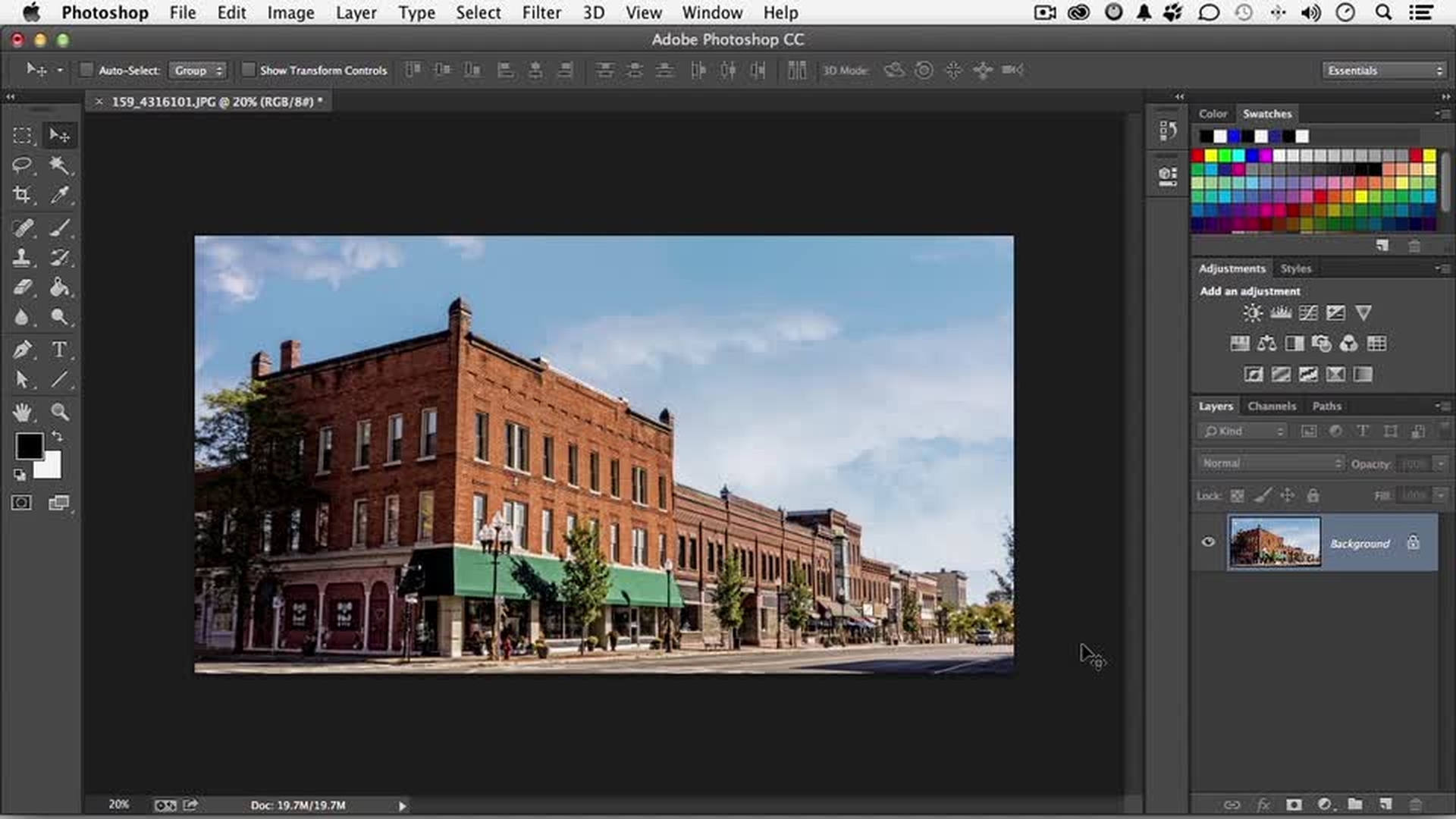
>> What I want to show you in this video is something that is absolutely amazing.
It's a brand new feature in Adobe Photoshop Creative Cloud called Perspective Warp.
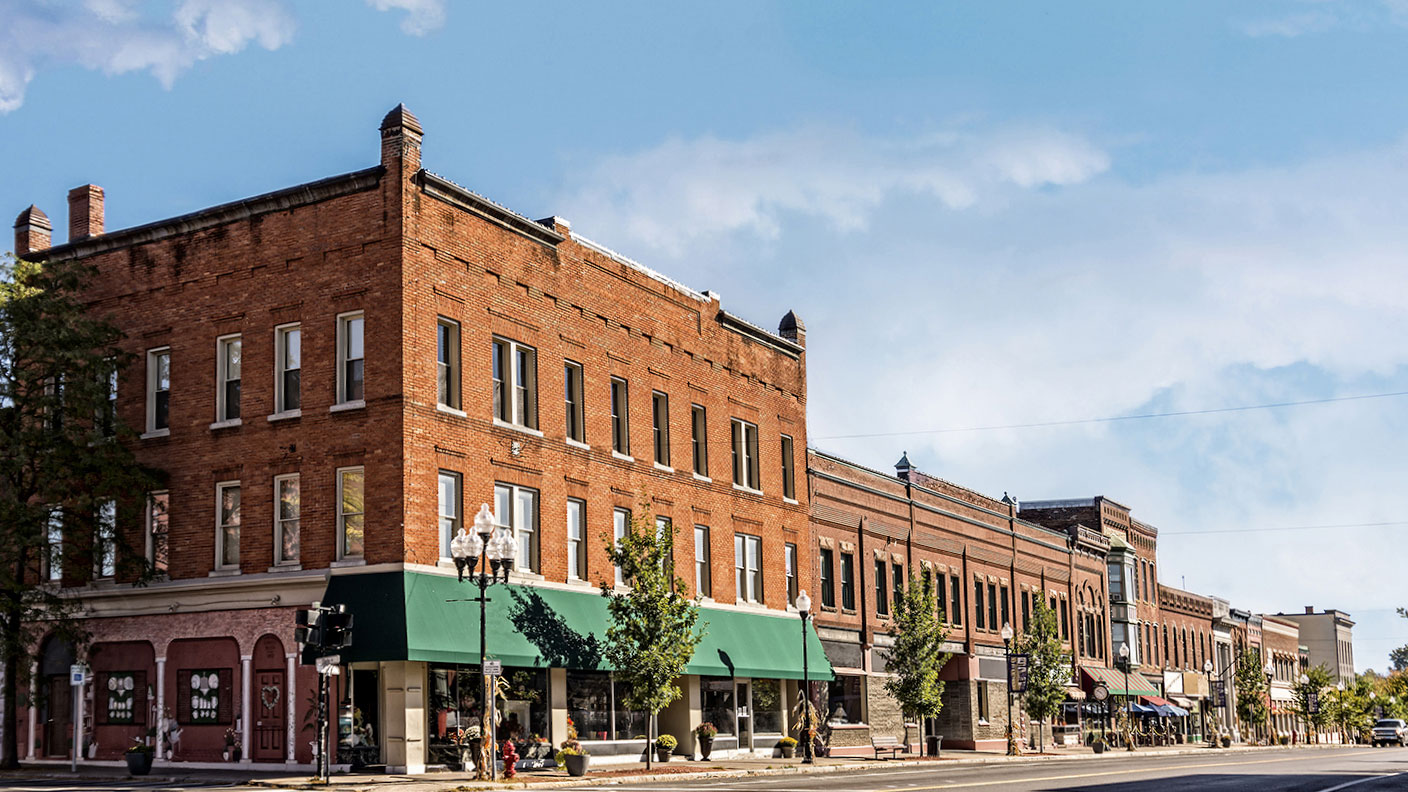
Now I have a photograph open.
I didn't take this photo.
It was taken by a company called PhotoSpin.
And don't forget if you want to follow along, you can download the assets for this video.
What I want to do first though is make a copy of it.
I'm going to drag it down— this is one way to do it—make a copy.
That is not necessary, but this way we get to see kind of a before and an after.
Now it will work with just about any image, but your first test is to go up to the word Edit on the pull-down menu and go down, and you better see Perspective Warp.
If you don't, no big deal.
Just go out to the cloud, and download the latest version of Photoshop.
Now what does it do?
What does Perspective Warp do?
It literally allows me to re-enter a three-dimensional world to change the perspective of the image as if, as the photographer, I change my position.
Now we're going to do two things.
One is very easy.
I'm going to straighten the buildings out.
The other part's more fun.
Change the perspective.
Now, we've got the tool selected.
You do this by building grids, perspective grids.
So if I click somewhere, you can see your first grid.
We can get in the middle.
Let's talk about how this works.
Get in the middle.
Move it around as a whole.
Go to a pin, move the pins just like that.
If I go to the side, top, or bottom and drag, I can move it.
But the trick is if you hold down the shift key at the same time and move it, it changes the perspective too.
It can help you out.
The other thing I do like is if you select a pin, you can use your arrow keys to gently nudge it into place or get on it, click it, delete it.
Now we need two.
We're working with a three-dimensional item that's been compressed two dimensionally.
We need two planes on this, and we're going to use this right here as our dividing line.
Click and drag this time.
Save you some time in moving it around.
I'm going to leave it right there.
I'm going to come up here and click this one and move it over.
What I want to do is grab and select that line.
Now down here, I think I'll use my arrow keys.
Do you have to do this?
Not really.
But if you do, if you spend the time to get these lines down right based on perspective of the image, it's going to save you time later on.
So I'm going to come over here and grab this one.
I'm going to drag it down.
Now I can use these lines to match up with these, and that's what I'm doing.
Let's do this one down here too.
So what I'm trying to do here is just match those up.
Let's come down just a little bit more, just about like that.
That doesn't look too bad.
Now we need the other side of our box, if you will.
So if I click and drag, I can make another one of these.
Now here's the fun part.
Grab it right here, and drag it over.
Don't hold the shift key.
Just drag it over until you see a blue line up here.
Let go.
Pin to pin, it will match it.
We can now do the other side.
So what I'm going to do here is bring that over and again, I can use these lines here against those lines there.
And I'm going to try to line that up as best I can, come down to this one obviously and bring that one up just about like that.
Again, don't forget you can use your arrow keys if you want it precise.
That's not too bad.
What I want to do is extend it out.
So hold the shift key before you drag it just like that.
All right.
Now we've got the box built around the buildings or whatever the object is.
Come over here and click Warp.
Now when we move the pins, it will change it.
Now since I took the time to get the angles and the first thing I want to do maybe is straighten it out.
That's going to be much easier.
Click this button right here and watch what happens.
Well it begins to straighten it out, but the pins are still independent.
In other words, I can come over to this one and still move it if I wanted to. if I don't like what it did.
I find most of the time that if I spend the time to get the perspective, it does help things out.
Now you have another one that does your horizontals if you want to do that.
We don't.
This one does both.
This one says, "you know what?
I so messed this up.
I wish I could start all over again."
And if you click it, it will take you right back to where you were.
You say, "I want to redesign the whole thing," you can click here.
Go right back to Layout.
Let's go back here, and let's click that button again because that did work.
Now that's easy.
In fact you might not even need Perspective Warp to straighten a building.
What I love about it is changing the perspective.
Now if I come down to this point right here and move it, these are still independent, and here's the trick.
Come over to this line, hold the shift key down until it turns yellow, and then click on it.
Now that does two things.
If it wasn't perfectly vertical, it is now, but the other part is in Perspective, watch this.
If I come down here and move this point left or right, it locks the top one in and allows me to literally change the perspective where the photograph was taken.
And if you look closely, it's not just stretching the stuff out. it's working with complex algorithms to decide what it would have looked like if the photographer had changed positions.
That's why I like this thing so much.
It gives you total control over what you're doing.
Now you can even change it by foreshortening it, whatever you want to do to change what you think this image will be and understand we're not talking about a formula where it's got to be 27 degrees because of this, that, or the other.
We're talking about you.
You are the photographer.
You are the designer.
What looks good to you?
Now let's say you like that.
You can set it by clicking right here or you can say, "I wish I'd never done anything," and click here to get out of it.
Well, there you go.
If I turn it on and off, you can see the before and the after.
Perspective Warp is an amazing tool, brand new to Photoshop CC, literally allowing you to get back into the third dimension and change the position of where the photograph was taken.
Well, that's about it.
This is Andy Anderson saying, "Keep learning, and don't forget, guys, to make sure you check out the other videos on our Creative Cloud learning site."