When working in Photoshop, you'll probably frequently need to undo or redo one or several steps during your editing workflow.
Because this is a task you'll use so often during the creative process, it's helpful to know how to do it in the fastest way possible.
My name is Rob de Winter, an Adobe Certified Instructor, author, and designer from the Netherlands.
And in this video, I'll show you how to undo and redo actions in Photoshop and how to do it efficiently using keyboard shortcuts.
To demonstrate undoing actions, let's start by removing some objects from this image.
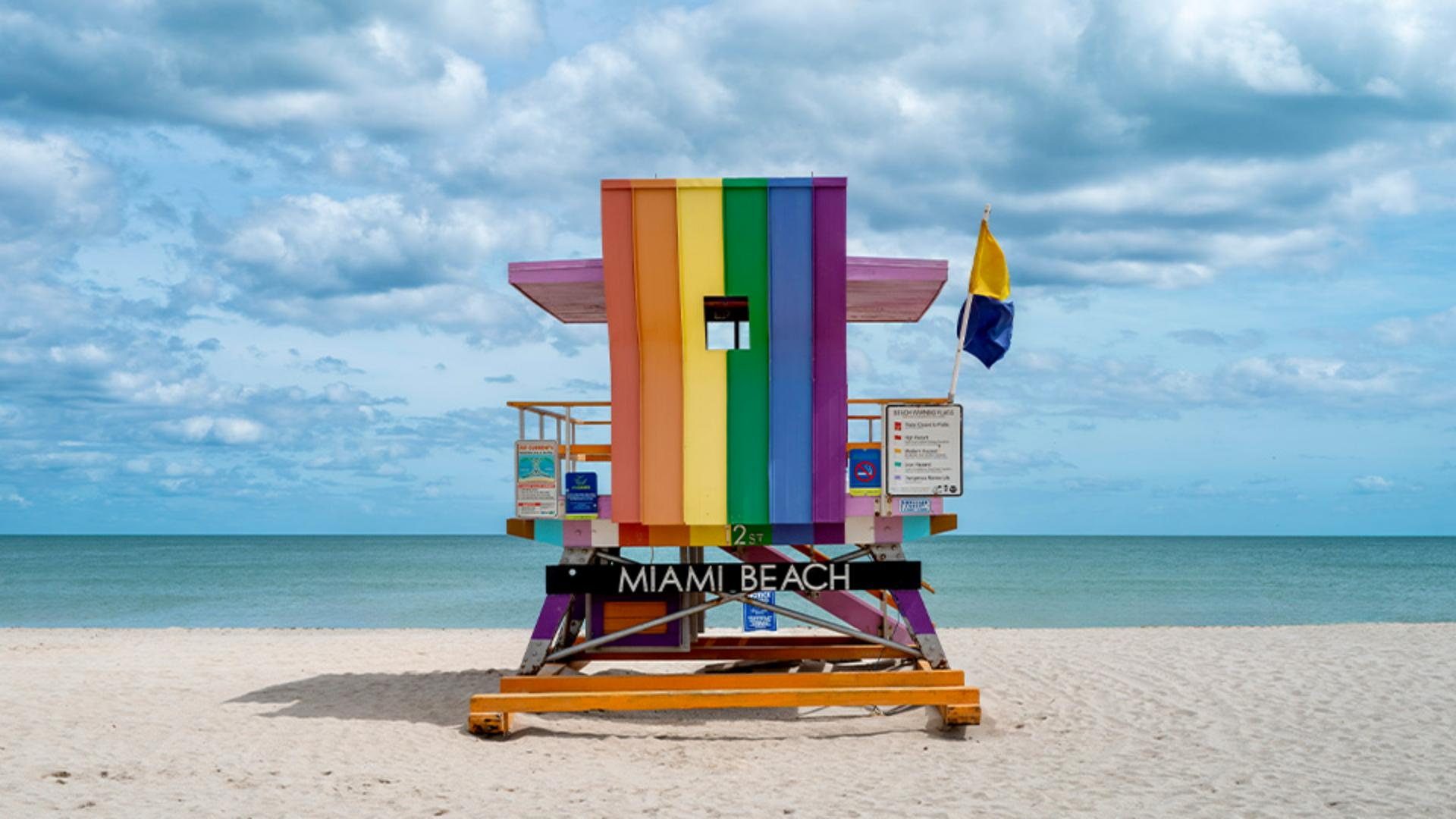
Here I have a photo of a lifeguard station, and I'm going to remove some people and objects in the background using the Remove Tool.
First, select the Remove Tool in the Toolbar and paint over the areas you want to remove.
Now imagine that you made a mistake and want to undo your last step.
You can then go to Edit, Undo to undo your last action, but a faster way is to use the shortcut Command Z on macOS or Control Z on Windows.
This way, you can quickly undo your last action.
Photoshop also allows you to undo multiple steps.
For example, if you remove multiple objects in the image in multiple strokes, pressing Command Z or Control Z several times can undo your recent actions one by one.
If you've undone one or more steps too many, you can redo those actions again by going to Edit, Redo, or by using the shortcut Command Shift Z on Mac OS or Control Shift Z on Windows.
And if you have lots of steps you want to undo, you can get all the way back to the last saved state of the image by choosing File, Revert.
Now that you know how to use the undo and redo commands, you can experiment more easily and focus on the creative process.
Again, my name is Rob de Winter, and thanks for watching.