Generate art with a Photoshop Action
Use this Action to automatically create watercolors and other art styles with Generative Fill.
Published
Download and install this Action to automatically create watercolors and other art styles with Generative Fill.
Introduction
Hello, my name is Russell Preston Brown from Adobe, and this tutorial is all about working with the new Generative fill feature.
In this project I'm going to demonstrate how to load and use a special Generative fill action that I've created.
This action will create artwork from your original photographs.
Check this out.
Here is the Cartoon Vector art that you can create.
Here is an Oil Paint.
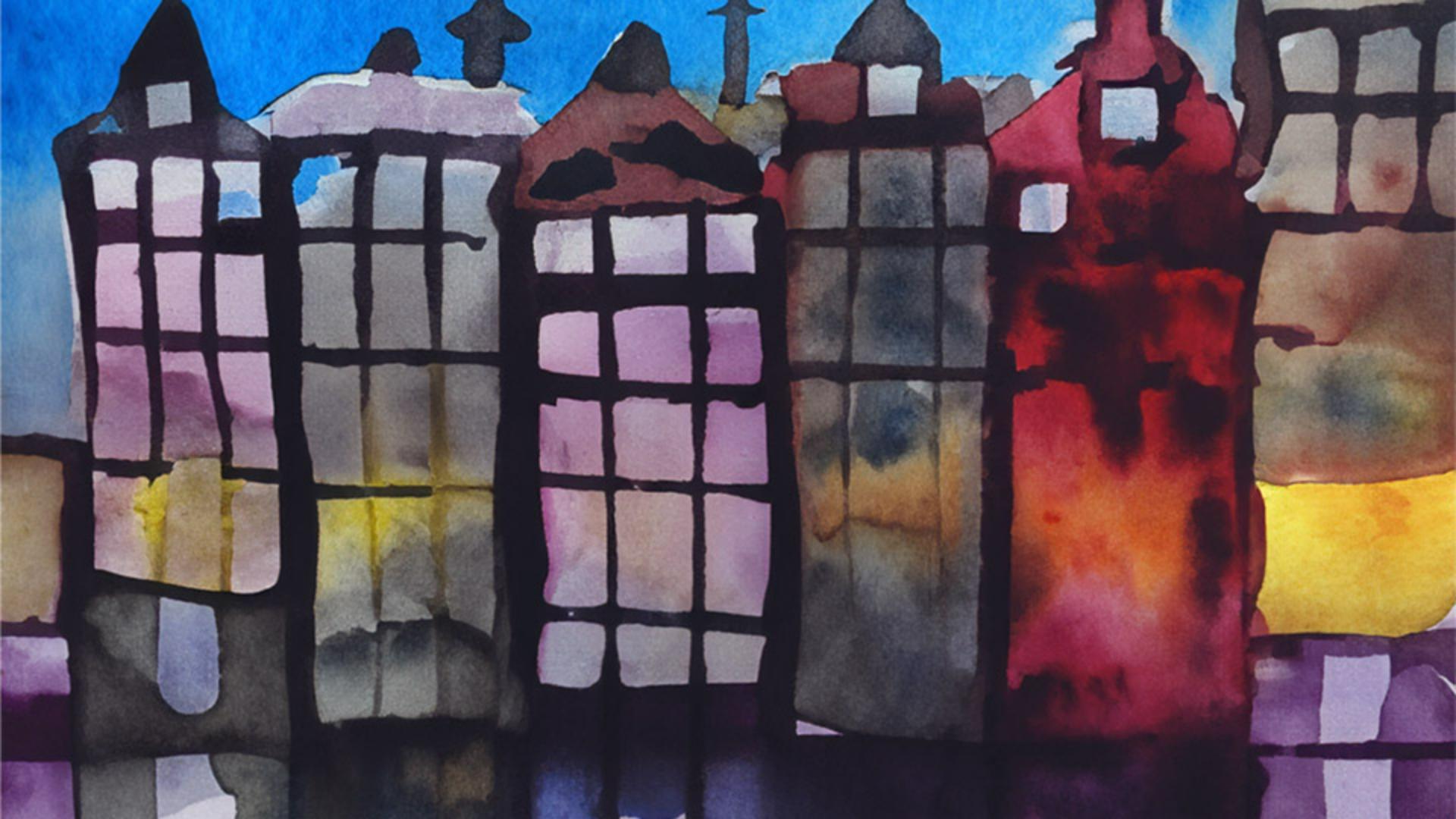
Here's a Pencil Sketch, and here's a Watercolor.
I'm going to create different variations of these different art styles with this action.
Let's get started.
Here's my original image right here.
Downloading and loading the generative fill action
I need to first download the action.
You can find the action associated with this video, locate the download link, load it onto your computer, and then you'll be ready for this next step.
Right up here from this flyout menu right here, we're going to Load Actions...
I've downloaded my action here into my downloads folder on my Macintosh.
I select the action and then open it.
The process of opening loads it here into your Actions tabbed menu.
You'll notice that you have Watercolor Action, Oil Paint, Pencil Sketch and a Cartoon Vector.
All of these actions will use the Generative fill feature, but it will use it in the different percentages to give you a variety of really amazing results.
Let's try Watercolor to start this off.
Running the watercolor generative fill action
I have my original layer targeted here.
I want to start with my original.
With the Watercolor Action selected, I go down here to the Play button right here.
I select Play, this will then start the action, which will then use different percentages of quick mask on this image to create different intensities of a watercolor image based upon the original.
It needs to process for just a moment until you see all layers are complete.
There you can see the processing is complete and you now understand why it took so long.
Because I've created these different percentages of the original.
Let's continue by turning on the visibility of these different percentages.
Reviewing intensity variations created by the action
40%, 50%, which looks really interesting, then 60%, 70% and 80% of the original to finish this all off.
I've created this action with these different percentages so you can select just the percentage that works perfectly for your project.
Exploring other art styles and troubleshooting tips
There you have it.
Try experimenting with the Oil Paint Action, the Pencil Sketch Action and the Cartoon Vector Action and see what results you get.
Remember to start with the original image and if you have any error messages which should appear, simply stop the action and start again.
Give this a try, experiment.
I hope you enjoy this action for Generative fill here inside of Photoshop.
Instruction by
Photography by

